|
||||||
Access Expert 9Customer Discounts, Multiple Taxes, Printable InvoicesWelcome to Access Expert 9. In this course you will learn how to set up customer discount rates and multiple sales tax rates that carry through your order entry process, including marking products as taxable or non-taxable and adjusting calculations accordingly. We'll discuss how to create a printable invoice using report tools such as subreports and Can Shrink, and cover the best approach for following along and accessing help with course materials. Lessons
Resources
Lesson SummaryWelcome! Customer Discounts & Taxes - Welcome to Microsoft Access Expert Level 9. In this course we will focus on working with multiple forms in Microsoft Access, specifically setting up customer discount rates and sales tax rates that flow from customers to orders and order line items. We will discuss building a system where each customer can have a different discount and tax rate, mark specific products as taxable or non-taxable, and adjust related calculations. We will also walk through creating a printable invoice, discuss using report features like subreports and the Can Shrink property, and cover the recommended approach for following along and getting course help.
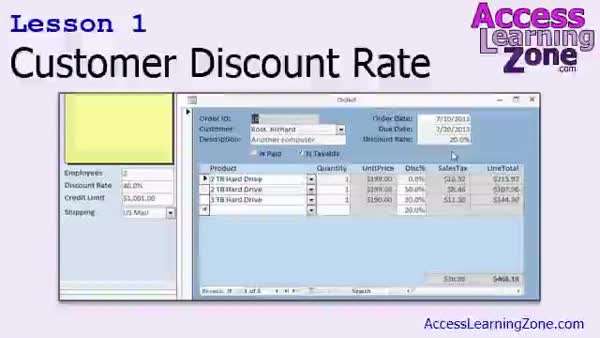
Lesson 1: Add Discounts & Update Totals - In Lesson 1, we will walk through how to add a customer discount rate feature to the order entry form, ensuring each customer can have their own discount rate that carries down to their orders and line items. We will update the necessary tables, forms, and queries to support discount calculations, adjust sales tax based on discounted amounts, and recalculate the grand total. We will also discuss adding an "is taxable" field to customer records, setting appropriate validation rules for discounts, handling default values, and organizing calculations efficiently within queries. We will talk about best practices for maintaining data integrity throughout these updates.
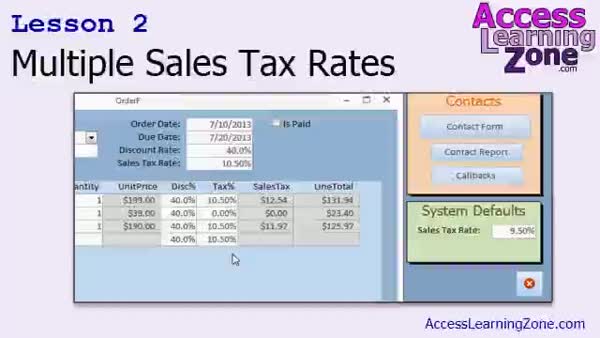
Lesson 2: Multiple Sales Tax Rates Setup - In Lesson 2, we will walk through how to set up multiple sales tax rates so that each customer, order, and product can have its own tax rate, including tax exempt options. I will show you how to remove hard-coded tax rates from queries and replace "is taxable" fields with a sales tax rate in your tables and forms. We will also cover how to use system defaults for new customers, update queries for accurate tax calculations, and create a defaults table for managing system-wide default values for sales tax rates. We will discuss advanced techniques like DLookup in future lessons.
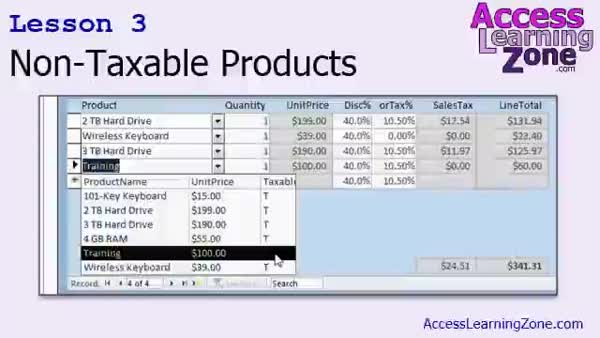
Lesson 3: Non-Taxable Items & Sales Tax - In Lesson 3, we will learn how to make certain products non-taxable in your order entry system. We will walk through adding an "is taxable" field to the product table, updating combo box displays to show taxable status, and then updating the query logic so that only taxable products are charged sales tax. We will also discuss using aliases in SQL statements and how these steps let you control sales tax calculations by product, building on previous lessons about tax rates for customers, orders, and line items.
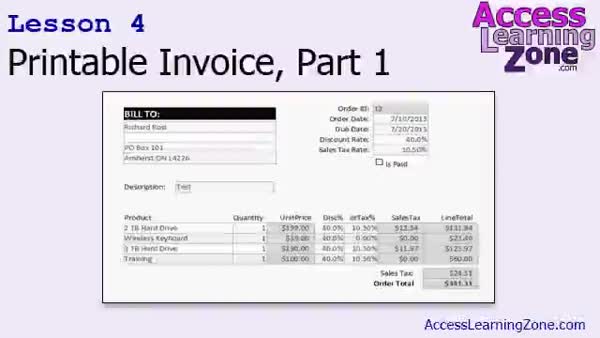
Lesson 4: Invoice Report: Subreports & Totals - In Lesson 4, we will walk through how to create a printable invoice from your order entry system in Access. This lesson covers building a sub-report for line item details, setting up report headers and footers for totals, and assembling everything into a main report with customer and order information. We will discuss how to pull related customer data using a query, format address blocks, and insert the sub-report, as well as some basic formatting to make the printable invoice look professional. We will also talk about exporting or printing the report as needed.
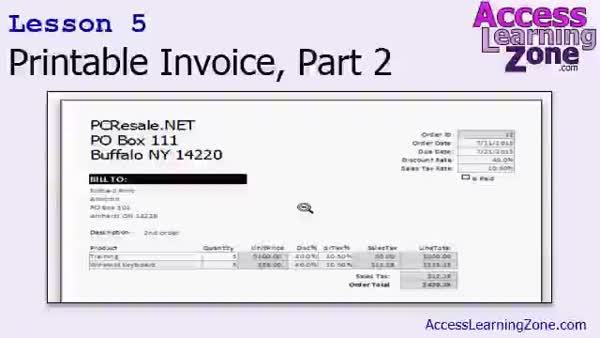
Lesson 5: Printable Invoice: Format & Calculate - In Lesson 5, we are finishing our printable invoice by addressing issues with the Can Shrink property to eliminate blank spaces caused by missing data. I will show you how to adjust overlapping controls to ensure Can Shrink works properly, use the Trim function to handle empty fields, format the report layout for printing, and add company information and footer notes. We will also walk through setting up a button to print just one specific invoice using a report filtered to the current record. At the end, I outline homework to further improve your printable invoice.
Lesson 6: Forms, Defaults, Tax & Invoices - In this course we learned how multiple forms in Access work together, including how default values like customer discount and sales tax rates flow from one form to related records. We addressed setting up and applying multiple sales tax rates, distinguishing between taxable and non-taxable products, and how these affect calculations. We also built a printable invoice, discussed new formatting methods, sub-reports, and the Can Shrink property. Additional information included guidance on progressing to more advanced lessons, how to access support and forums, and where to provide feedback about the course.
NavigationKeywordscustomer discount rates, sales tax rates, printable invoice, order entry form, discount calculation, grand total, is taxable field, sales tax exempt, product taxable status, combo box display, subreport, report totals, can shrink property, defaults table
More InformationTranscriptWelcome to Microsoft Access Expert Level 9 brought to you by AccessLearningZone.com. I am your instructor, Richard Rost. In today's class, we are going to continue our focus on multiple forms and how they work together. We are going to start out by setting a customer discount rate on the customer form, which will then propagate down to the order form when you create a new order for that customer. The customer has a 25 percent discount, and any new orders that you put in the system for that customer will also get a 25 percent discount. That will also then propagate down to the line items on the order. So we will see how all that works. Then we will see how to do something similar with multiple tax rates. We will set it up so each customer can have their own different tax rate. Some customers may be tax exempt, so their rate would be zero. Others may be in a particular county that has an 8.5 percent sales tax. Others might be a 7.5 percent sales tax. The sales tax rate will then also propagate down to the order, which will determine whether each item on the order is taxable, and what the rate is. Then we will take into consideration that certain products may or may not be taxable. For example, a loaf of bread you would not pay sales tax on, whereas a new computer you would. We will add taxable or not taxable to the product combo box, so you can see it right there, and then we will adjust our calculations accordingly. Even if you are not building an order entry system for your own use, all the techniques that I am going to show you, having values work between forms and propagating across different records, is very important stuff, regardless of what kind of database you are building. Having your tables and your forms being able to work together is extremely important. Then once we are done with all that stuff, we will start building a printable invoice, so we can actually print something out to give to our customer, or send it to him as a PDF file. We will learn some new report techniques, including inserting subreports into our main reports. This class is a continuation of the Access Expert Level 8. We learned a lot of the stuff that we are going to continue working with in this class: the products and vendors form, calculated query fields are very important, the initial sales tax calculations that we are going to edit in this class, the IF function (immediate IF), which we are going to again continue working with today, rounding values, and we built the initial order form and subform in Access Expert Level 8. If you have not watched that class, I strongly recommend you do so before continuing with today's lessons. This class was designed to be used with Access 2013. If you are using 2007 or 2010, you should not have any problems following along as the three versions are almost identical. If you do happen to come across something that is significantly different, please email me and let me know. If you are using Access 2003 or earlier, you should be able to follow along with the lessons covered today. Most of the material is pretty much the same. There is no exact match for this class in my older lessons. The material that I am covering today has come from several different lessons and there is some new stuff added in. I used to not cover order entry at all until my Advanced Lessons Access 301. However, now I have decided to move some of the material into the Expert Series. So this is kind of a patchwork of material covered from various other classes. But you should be able to follow along. The menus are a little different, but the rest of the stuff is all the same. You are strongly encouraged to build the database that I build in class. It is the best way to learn. However, if you are lazy like me, go ahead and download it from my website at accesslearningzone.com/databases. My courses are broken up into four groups: Beginner, Expert, Advanced, and Developer. The beginner lessons are designed to give you a basic overview of the simple features of Access. The Expert Series, the one you are in now, is designed for more experienced users who are already comfortable with Access. The Advanced Lessons cover working with macros, automation, and many more advanced features. The Developer Lessons get into programming with Visual Basic for Microsoft Access. Each of the series is broken down into different numbered levels, starting with Level 1. The Beginner series, for example, had Levels 1 through 9. In addition to my normal Access classes, I also have seminars designed to teach specific topics. Some of my seminars include building web-based databases, creating forms and reports that look like calendars, securing your database, working with images and attachments, writing work orders, tracking accounts payable, learning the SQL programming language, and lots more. You can find complete details on all these seminars and more on my website at accesslearningzone.com. If you have questions about the topics covered in today's lessons, please feel free to post them in my student forums. If you are watching this course using my custom video player software or the online theater on my website, you should see the student forum for each lesson appear in a small window next to the class videos, as long as you have an active Internet connection. Here you will see all of the questions that other students have asked, as well as my responses to them, and comments that other students may have made. I encourage you to read through these questions and answers as you start each lesson and feel free to post your own questions and comments as well. If you are not watching the lessons online, you can still visit the student forums later by visiting accesslearningzone.com/forums. To get the most out of this course, I recommend that you sit back, relax, and watch each lesson completely through once without trying to do anything on your computer. Then, replay the lesson from the beginning and follow along with my examples. Actually, create the same database that I make in the video, step by step. Do not try to apply what you are learning right now to other projects until you master the sample database from this class. If you get stuck or do not understand something, watch the video again from the beginning or tell me what is wrong in the student forum. Most importantly, keep an open mind. Access might seem intimidating at first, but once you get the hang of it, you will see that it is really easy to use. Now let's take a closer look at exactly what is covered in today's class. In lesson 1, we are going to take the order entry form that we started building in Access Expert 8, and we are going to add on a customer discount rate. So each customer can have their own discount rate, which propagates down to their orders, and that propagates down to all the line items on the orders. Then we will recalculate the sales tax and figure out a new grand total. In lesson 2, we are going to set up multiple sales tax rates, so each customer can have their own sales tax rate, whether they are taxable or not, or if they are in a different location. Each order can have its own sales tax rate, you may have a tax exempt order, and each item can have its own sales tax rate, you may have a tax exempt product like a gallon of milk. We will see how to set up system defaults, so new customers get whatever default tax rate you have set up without embedding that value inside of your tables and queries. In lesson 3, we will learn how to make certain products non-taxable. In addition to the customers having their own tax rate, each order having its own tax rate, each item having its own tax rate on the order, we can also say that if the product itself is not taxable, like a loaf of bread, then do not charge sales tax. In lesson 4, we are going to take our order entry system that we are building and create a printable invoice. In lesson 5, we are finishing up our printable invoice. We will take a look at some problems with the CAN shrink property to get rid of blank spaces for missing data, and we will learn how to open a report to a specific record so we can print just one specific invoice. IntroIn this lesson, Microsoft Access Expert Level 9, we will work on connecting multiple forms by setting customer-specific discount and tax rates that flow automatically to orders and their line items. We will configure different tax rates for each customer, handle product tax exemptions, and update our calculations to reflect these changes. You'll also learn how to display taxable status in the product combo box. Finally, we'll create a printable invoice with new reporting techniques and cover issues like blank spaces with the CAN shrink property and printing invoices for specific records. QuizQ1. What is the main focus of Access Expert Level 9? A. Working with multiple forms and ensuring data propagates between them B. Building web-based databases from scratch C. Managing database security and permissions D. Learning SQL programming exclusively Q2. When a discount rate is set for a customer in this course, what happens when a new order is created for that customer? A. The discount rate is applied to the order automatically B. The order must have the discount rate entered manually C. Only line items receive the discount, not the order D. The discount rate is ignored on new orders Q3. How does the course handle sales tax rates for different customers? A. Each customer can have a unique sales tax rate that carries down to their orders and items B. There is one fixed tax rate for all customers and products C. Tax rates are randomly applied to each order D. Sales tax is not discussed in this course Q4. What happens if a customer is tax exempt using the methods described in the course? A. Their tax rate is set to zero B. They are charged a standard rate anyway C. Only their first order is tax exempt D. They must manually remove tax from every order Q5. How does the course teach handling products that may or may not be taxable? A. A field is added to indicate whether a product is taxable, and tax calculations are adjusted accordingly B. All products are assumed taxable C. Products are only made non-taxable if the user overrides them on each order D. Tax status cannot be configured for individual products Q6. Why are values like discounts and tax rates "propagated" down to orders and line items? A. To ensure consistency and automation across related data B. Because Access cannot manage separate records C. So users can manually override every setting D. Only for advanced users Q7. What new reporting technique is introduced in this class? A. Inserting subreports into main reports to build printable invoices B. Using mail merge to create invoices C. Exporting reports directly to Excel D. Building reports with only textboxes and labels Q8. What does the course recommend you do if you get stuck or do not understand something? A. Watch the video lesson again or ask in the student forum B. Skip the lesson and move on C. Search for answers on other websites only D. Uninstall Access and restart Q9. What is a key prerequisite for taking Expert Level 9, according to the video? A. Completing Access Expert Level 8 B. Completing all Developer Series lessons C. Attending a live seminar D. Owning Access 2021 Q10. What is the suggested way to learn during this course? A. Watch the lesson fully once, then recreate the database step by step B. Only watch the videos, do not build the database C. Work on unrelated projects simultaneously D. Read only the course transcript Q11. What does Access Expert Level 9 use as its reference version? A. Access 2013 B. Access 2021 C. Access 2000 D. Access XP Q12. In the context of the course, what is the function of the "Can Shrink" property? A. To remove blank spaces for missing data on printable invoices B. To make text smaller on reports C. To minimize the database window D. To shrink tables in Design View Q13. What does the course say about Access 2007 and 2010 compatibility? A. The course should work almost identically for these versions B. They are not supported at all C. Lessons will not work and should be avoided D. They require special add-ins Q14. The course mentions "system defaults" for new customers. What is this referring to? A. Mechanism to set default tax rates for new customers without embedding values in tables and queries B. Default Access security settings C. The default font on forms D. Default backup settings Answers: 1-A; 2-A; 3-A; 4-A; 5-A; 6-A; 7-A; 8-A; 9-A; 10-A; 11-A; 12-A; 13-A; 14-A DISCLAIMER: Quiz questions are AI generated. If you find any that are wrong, don't make sense, or aren't related to the video topic at hand, then please post a comment and let me know. Thanks. SummaryToday's video from Access Learning Zone covers Microsoft Access Expert Level 9. I am your instructor, Richard Rost. In this class, we are continuing our exploration of working with multiple forms in Access and seeing how they interact with each other. To start, I will show you how to set a customer-specific discount rate on your customer form. When you create a new order for that customer, the discount rate is automatically carried over to the order form. For instance, if a customer is set to receive a 25 percent discount, new orders for that customer will reflect this rate. Furthermore, this discount will extend down to all of the individual line items in the order, ensuring consistency throughout the order entry process. Next, we will implement a system that supports different sales tax rates for different customers. Some customers may be tax exempt and get a rate of zero, while others may be assigned rates such as 8.5 percent or 7.5 percent depending on their location. These sales tax rates will carry over to the orders, where they determine which items are taxable and how much tax to apply. We will also account for products that may not always be taxable. For example, bread might not be subject to sales tax, but a computer would be. I will show you how to indicate whether a product is taxable in the product selection combo box, and we will modify our calculations based on that selection. Even if your database project has nothing to do with order entry, the methods you will learn for having values flow smoothly between forms and across related records are foundational. It is important to understand how your tables and forms work together to create a dynamic and accurate database. After we complete these topics, we will build a printable invoice. This way, you can generate a physical printout or a PDF version to provide to your customer. Along the way, I will introduce new report techniques such as placing subreports within a main report. This course builds directly on the work done in Access Expert Level 8. In the previous class, we developed the products and vendors form, worked with calculated query fields, started on the basic sales tax calculation (which we will refine today), practiced using the IF function—specifically Immediate IF—handled rounding, and put together an initial order form and subform. If you have not already completed Access Expert Level 8, I highly encourage you to review that material before tackling this class, as many concepts covered there will be expanded upon today. This series was designed using Access 2013, but if you have Access 2007 or 2010, you should have no trouble following along since the differences between the versions are minimal. If you do notice anything that seems significantly different, let me know by email. For those using Access 2003 or older, the main features are still comparable, though you may notice small differences—mainly in the menus. In earlier versions of my courses, I did not cover order entry until Access 301 in the Advanced Lessons, but I have now included some of that material in the Expert Series, so you will find this class has a mix of content from those earlier lessons along with new material. I strongly recommend that you build the sample database yourself as we go through each lesson. Creating the database along with me is the best way to learn. If you prefer, you can also download the finished databases from my website. Let me clarify how my courses are organized. There are four groups: Beginner, Expert, Advanced, and Developer. The Beginner lessons cover the basics of Access, while the Expert series (which you are in now) is suited for those who are already comfortable with basic concepts. Advanced lessons get into macros and other automation features, and the Developer series focuses on Visual Basic programming for Access. Each group is broken down into different numbered levels, starting at Level 1. Besides my regular courses, I offer seminars on specific topics. These include things like building web-based databases, designing forms and reports with calendar layouts, securing your database, handling images and attachments, work order tracking, accounts payable, learning SQL, and much more. You can find a full list of seminar topics on my website. If you have any questions during the lessons, you can post them in the student forums. If you are watching using my video player or the online theater on my website, the forum for each lesson appears next to the video whenever you are online. Here, you can see questions and answers from other students as well as my responses. Even if you watch the lessons offline, you can later visit the forums on my website. To get the most benefit from this course, my suggestion is to first watch each lesson without trying to follow along. Once you have seen the full lesson, go back and watch again while recreating the steps in your database. Build everything as shown in the video before trying to apply the techniques to your own projects. If you run into difficulties, rewatch the lesson or post your question in the forums. Above all, be patient and keep an open mind. Access may seem complicated at first, but it becomes much easier with practice. Here is a quick breakdown of the lessons in this class: In Lesson 1, we will add a customer discount rate to our order entry system. This discount will move down from the customer record to each order and then to the individual line items, updating the sales tax and grand total as needed. In Lesson 2, I will show you how to support multiple sales tax rates for different customers, locations, and products. This includes setting default rates for new customers without having to embed those rates directly into your tables or queries. Lesson 3 focuses on making certain products non-taxable. We will refine the order entry system to properly handle items that should not have sales tax applied, taking into account the properties of each product as well as customer and order-level rates. Lesson 4 covers creating a printable invoice from our order entry data. Finally, in Lesson 5, we will finish up our printable invoice by learning how to eliminate blank spaces caused by missing data using the CAN shrink property and how to print reports for specific invoices. You can find a complete video tutorial with step-by-step instructions on everything discussed here on my website at the link below. Live long and prosper, my friends. Topic ListSetting a customer discount rate on the customer form Propagating the discount to order and line item forms Calculating grand totals with customer discounts applied Setting up multiple sales tax rates by customer Assigning default sales tax rates to new customers Propagating customer tax rates to orders and line items Handling tax exempt customers and tax rates by location Making specific products non-taxable Adjusting order calculations for non-taxable products Adding taxable or non-taxable options to the product combo box Creating a printable invoice report Using subreports in invoice reports Fixing blank space issues with the Can Shrink property Opening a report to display and print a specific invoice Primary TopicsAccess forms integration, discount propagation, sales tax rates, product taxability, report creation, printable invoices, subreports, order entry system Secondary Topicssystem defaults, CAN shrink property, opening reports to specific records, IIF function, calculated fields |
||||||||||||||||||||||||||||||||||||||||||||||||||||||||||||||||||||||||||||||||||||||||||
|
| |||
| Keywords: customer discount rates, sales tax rates, printable invoice, order entry form, discount calculation, grand total, is taxable field, sales tax exempt, product taxable status, combo box display, subreport, report totals, can shrink property, defaults table PermaLink Microsoft Access Expert 9 |