Free Lessons
Courses
Seminars
TechHelp
Fast Tips
Templates
Topic Index
Forum
ABCD
 
Home   Courses   TechHelp   Help   Contact   Merch   Join   Order   Logon   Forums   
 
Back to Access Forum    Comments List
Upload Images   @Reply   Bookmark    Link   Email   Next Unseen 
Draw an Arrow
Bruce McCormick 
   
2 years ago
OK, I give up. I want to make an arrow pointing from one label to another. So far all i can make from any menu is a line without any option to stick an arrowhead on either end or both.

I have run searches and they all tell me to use ribbon controls that don't exist, like:

go to the "Insert" tab on the ribbon, then select "Shapes" and choose the arrow shape you want to insert

or

Click Home, then click Shapes Shapes submenu in Objects box on ribbon, and choose the line or arrow shape that you want

So far the only ways i have found is to construct an arrow out of three hack drawn lines, or make one in Excel, then copy it from Excel and paste it into Access, which comes with several OLE notifications.

Running the latest version of 365.

There must be a means, i guess i am too stupid to find it for MS wouldn't be so stupid to not have the capability. Embarrassingly asked, would someone kindly humor me and let me know where to look?
Richard Rost  @Reply  
          
2 years ago
This is actually rather tricky. Someone else asked me a very similar question recently. I've got a TechHelp video coming out on it soon. Hang in there.
Kevin Robertson  @Reply  
          
2 years ago
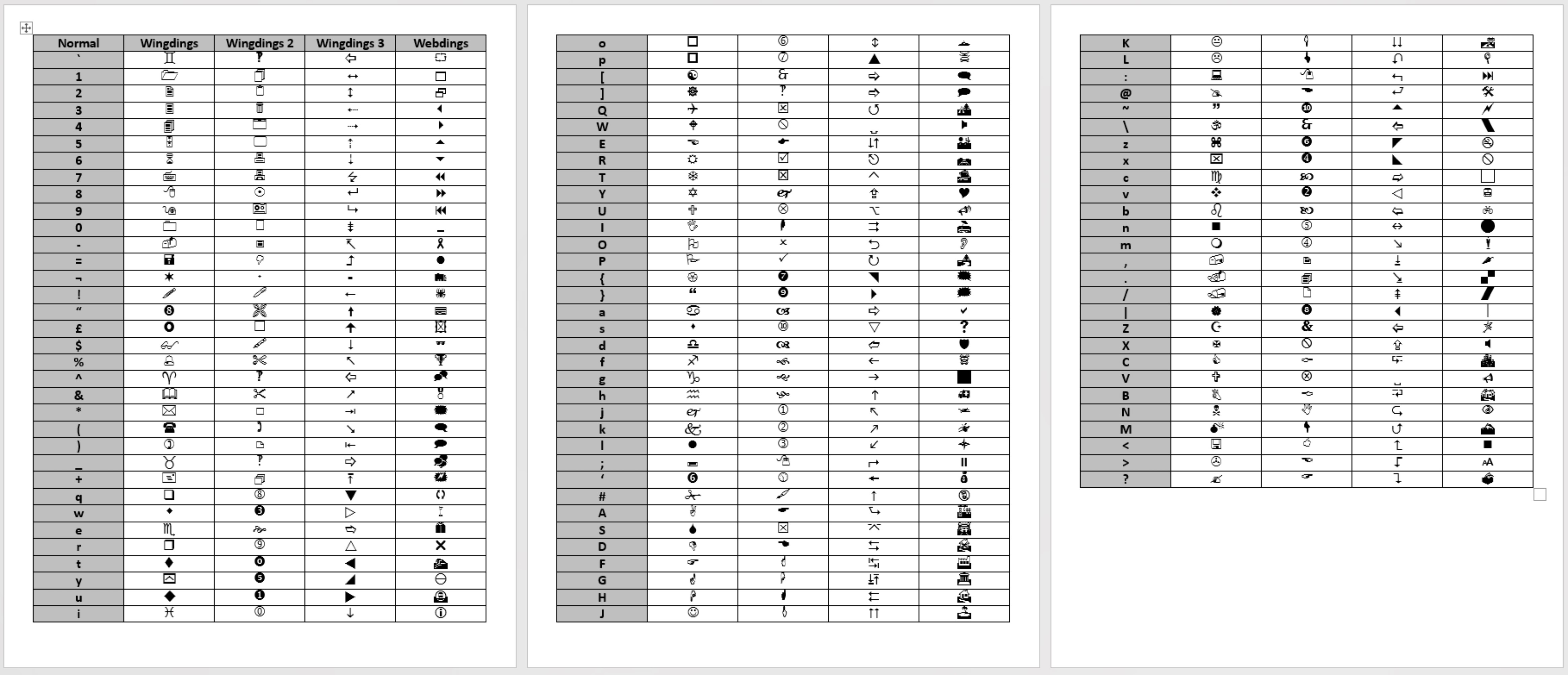
You could use a Label control and change the Font to Wingdings 3 which has various arrows you could use.
For example:
    g is a right facing arrow.

You could create an arrow in your favourite graphics program (make the background transparent and save as a PNG) and add it to your Form or Report as an image.
Alex Hedley  @Reply  
           
2 years ago
Have you tried just adding an image?
Alex Hedley  @Reply  
           
2 years ago
Alex Hedley  @Reply  
           
2 years ago
Is this in a Form or a Report?
Richard Rost  @Reply  
          
2 years ago
Here you go: Insert Shapes
Garry Smith  @Reply  
    
2 years ago
Kevin suggested the way I have used to use the wingdings fonts to show a hand with a finger pointing in the direction needed. Easiest and less resources used.
Kevin Robertson  @Reply  
          
2 years ago
I made a chart in Word showing what each Upper Case Letter, Lower Case Letter, Number and Special Character represents in Wingdings, Wingdings 2, Wingdings 3 and Webdings.
Kevin Robertson  @Reply  
          
2 years ago

Bruce McCormick OP  @Reply  
   
2 years ago
Many thanks to you all!

I like the wingdings usage and believe it will come in very handy in a number of instances.

Imagine my surprise when later the same day of posting the question I settled down after dinner, turned on the television, went to YouTube and there was Mr. Rost's new video on the subject - If I may quote a well-known individual, "fascinating"...

This thread is now CLOSED. If you wish to comment, start a NEW discussion in Access Forum.
 

Next Unseen

 
New Feature: Comment Live View


The following is a paid advertisement
Computer Learning Zone is not responsible for any content shown or offers made by these ads.
 

Learn
 
Access - index
Excel - index
Word - index
Windows - index
PowerPoint - index
Photoshop - index
Visual Basic - index
ASP - index
Seminars
More...
Customers
 
Login
My Account
My Courses
Lost Password
Memberships
Student Databases
Change Email
Info
 
Latest News
New Releases
User Forums
Topic Glossary
Tips & Tricks
Search The Site
Code Vault
Collapse Menus
Help
 
Customer Support
Web Site Tour
FAQs
TechHelp
Consulting Services
About
 
Background
Testimonials
Jobs
Affiliate Program
Richard Rost
Free Lessons
Mailing List
PCResale.NET
Order
 
Video Tutorials
Handbooks
Memberships
Learning Connection
Idiot's Guide to Excel
Volume Discounts
Payment Info
Shipping
Terms of Sale
Contact
 
Contact Info
Support Policy
Mailing Address
Phone Number
Fax Number
Course Survey
Email Richard
[email protected]
Blog RSS Feed    YouTube Channel

LinkedIn
Copyright 2026 by Computer Learning Zone, Amicron, and Richard Rost. All Rights Reserved. Current Time: 8/12/2026 8:28:42 AM. PLT: 0s