Access DateTime Seminar
Work with Advanced Date & Time Calculations
Welcome
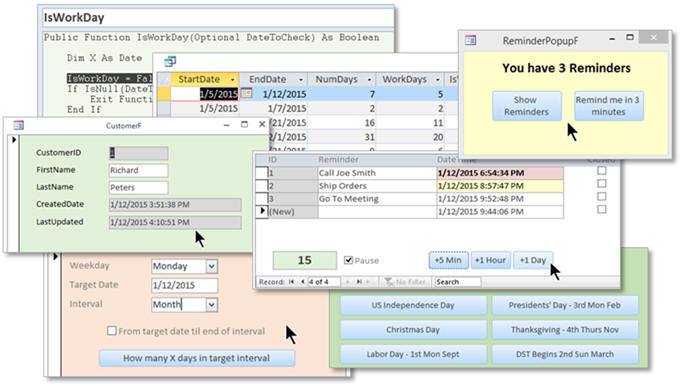
In this Microsoft Access video seminar you will learn how to count the number of work days between two dates, determine if a date is a week day or a weekend day, calculate holidays, time stamp edited records, create popup notifications for reminders, generate recurring appointments, and calculate the number of a particular weekday (Friday) in any period (January).
 Resources Resources
Main Seminar Goals
- Calculate Work Days Between Two Dates
- Duplicate the Excel NETWORKDAYS Function
- Create a Holiday Exclusion Table
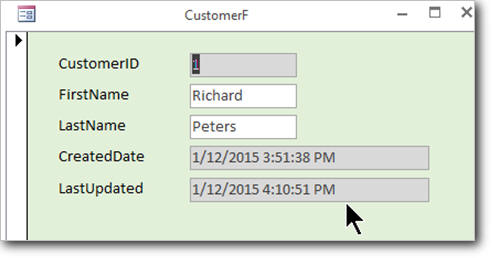
- Time Stamp Records when Edited
- Create a Reminder Popup Notification Form
- Learn Form Timer Event Programming
- Prevent Popup Form from Stealing Focus
- Count the Number of a Specific Weekday in a Period
- Calculate Dates for All Major US Holidays
- Generate Recurring Appointments
- Display Ordinal Dates: 1st, 2nd, 3rd, etc.
Topics Covered
When I was putting together my Access Expert 27 and Expert 28 classes to cover DateTime functions, I received a lot of emails from students asking how to do certain things. Many of these things require at least a little VBA programming to accomplish, so I couldn't include them in the Expert classes. That's when this seminar was born.
We'll start off with the most requested question: how can I count the number of work days (M-F) between two dates. This is vital for calculating paid days for businesses, payroll, school attendence, and more. We'll start out by learning how to connect to the Excel function library and use Excel's NETWORKDAYS function. This is a quick solution, however it's not portable, and if you want to share your database with others, you'll need something built into Access.
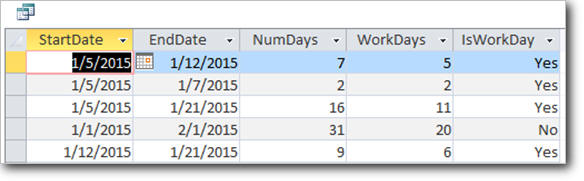
So next we'll build our own replacement VBA function to count work days directly in Access. We'll also build a holiday exclusion table so your function will not count whatever days you specify, such as Christmas Day or the company picnic on a Tuesday. All of the code used in today's class will be included in the sample database you can download from my web site so you can copy and paste it right into your projects. Also, don't worry if you've never used VBA code before. I'll show you exactly how to put it in the database.
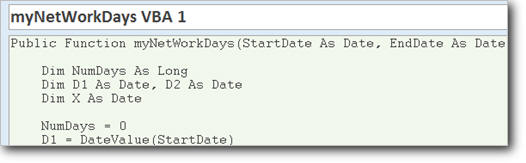
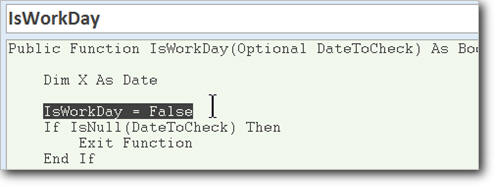
Next we'll create our own IsWorkDay function so you can quickly and easily check just one date to see if it falls on a work day or not.
The next topic is quite popular as well. People want to know how to tell when the last date/time a particular record was edited. It's easy to put a default value and a timestamp in to know when a record was created, but tracking when it was edited is not so easy. So, we'll learn how to use a form's OnDirty event as well as a table-based Data Macro to track edits to a record at both the form and table level.
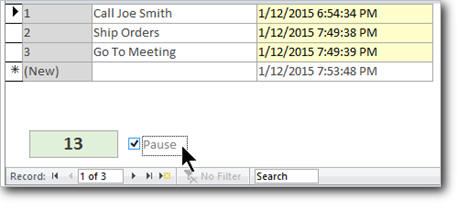
Next we will learn how to create a reminder popup notification. You have a list of appointments, reminders, or "to-do" items, and you want to be notified when it's time to do something. Access is great for this. We'll create a reminder list, set a date/time for the reminder to appear, and then we'll learn how to use the OnTimer event and some VBA code to have this form check for when a reminder is coming up. Then, we just minimize this form and let it sit in the background, quietly counting down, checking for reminders once a minute (or however often you specify).
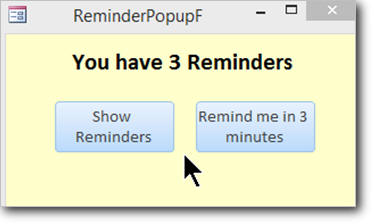
Then, when it comes time to notify you of an event, the reminder popup form appears. You can then click the Show Reminders button, or Remind me in 3 minutes and the form will go away for a few minutes, only to nag you again at whatever intervals you specify. We will take special care to program this form so that it opens up in the corner of your screen and does not interrupt what you're doing. So if you're typing away in your customer form, the reminder popup form will display, but it won't steal the focus and make you lose your place.
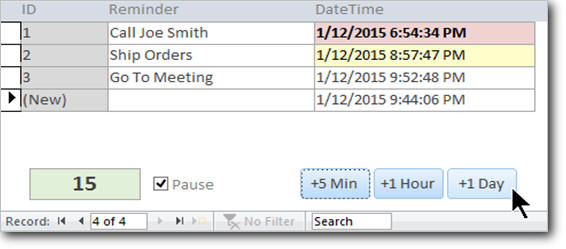
I know that I personally like to sit down with my reminder list and prioritize the day's work. I want the ability to go "I'll do that one in 5 minutes, this one in an hour, that tomorrow," and so on. To do this, we'll add some buttons to the bottom of our reminder form so we can move appointments ahead 5 minutes, 1 hour, or 1 day. Of course, you can customize these for whatever intervals you like. We'll program the reminder form to pause itself when you click anywhere on it using the OnActivate event, and then turn itself back on again when you click away from it with OnDeactivate.
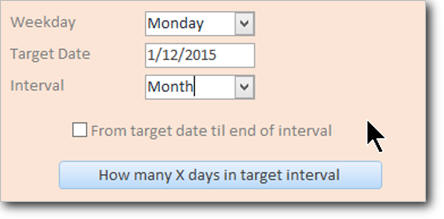
People are always asking me to help them figure out "how many Mondays are in January 2015" or "how many Fridays are there in the 1st Quarter?" In the next lesson, we'll see how to perform these calculations. You can check the number of X days (Mon, Tues, etc.) in any interval you want (month, quarter, year, etc.) and check either the whole interval or just from a specific date to the end of that interval.
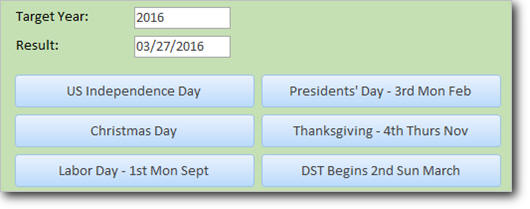
Going back to our holiday table in the first example, sometimes people need to be able to automatically calculate when those holidays occur without typing them into a table manually. Don't worry, we've got you covered. We'll learn how to calculate:
- Independence Day - July 4th
- Christmas Day - Dec 25th
- Labor Day - 1st Mon Sept
- Memorial Day - Last Mon May
- MLK Day - 3rd Mon Jan
- Presidents Day - 3rd Mon Feb
- Thanksgiving - 4th Thur Nov
- Daylight Saving Time Begin - 2nd Sun Mar
- Daylight Saving Time End - 1st Sun Nov
- Veterans Day - Nov 11, +/- 1 day
- Easter Sunday - Complex Calculation
Some of these are real easy, like Christmas Day (it's always December 25th). Some of them are not so easy, like Memorial Day (the last Monday in May). Some of them are really crazy, like Easter Sunday (the Sunday following the first Full Moon following the Vernal Equinox). We'll cover them all in this class.
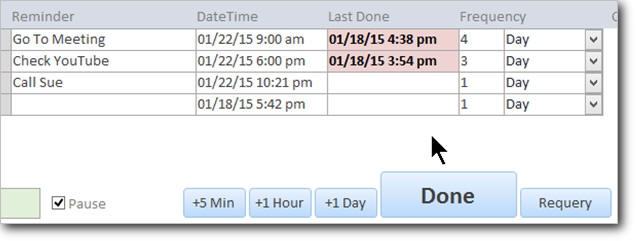
Next we'll revisit our reminder form. People want to know how to take these reminders and automatically move them to a future date when they're finished. Some things like checking your email you may want to do every day. Other things like paying bills you might want to do once a month. So, we'll make the option to create recurring appointments. We'll make a "Done" button on our form. When that's clicked, the appointment will be moved ahead whatever time interval you specify, like "4 days" or "3 weeks."
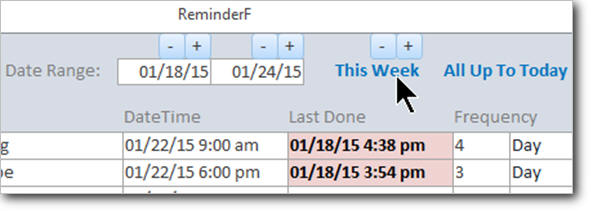
When you get lots of appointments showing up, your list can be daunting, so we'll make text boxes you can use to filter the results. You can see all appointments up to today, just this week, or a custom date range. You can then click buttons to move up or down individual days or whole weeks. This makes it real easy to see this week's appointments, and then quickly scroll to next week or the week after that. And remember - these can now be recurring appointments, and you'll get reminders for them as long as your database is running. HINT: If you want to have the database automatically email or text you a reminder, just use the techniques I cover in my Access Email Seminar.
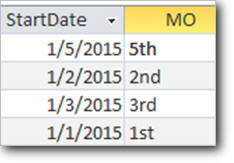
Finally, people want to be able to display dates as "Monday, January 5th, 2015." These are called ordinal numbers: 1st, 2nd, 3rd, etc. We'll have a lesson where I'll show you how to make a custom function to display these kinds of numbers.
If you want to be able to work with DateTime values Access, this is the perfect seminar for you. You will learn everything mentioned above. You will have access to the full database that we build in class with all of these features. If you have any question whether this seminar is right for you, please feel free to contact me.
Pre-Requisites
It is strongly recommended that you have completed my entire Access Beginner and Expert series before taking this seminar.
Version
I am using Access 2013 in this seminar, however the lessons are perfectly valid for all versions of Access. It's currently 2022 and I just made sure everything works fine with Access 2019 and Office 365.
Enroll Today
Enroll now so that you can watch these lessons, learn with us, post questions, and more.

Questions?
Please feel free to post your questions or comments below. If you are not sure as to whether or not this product will meet your needs, I'd rather help you before you buy it. Remember, all sales are final. Thank you.
Keywords
microsoft access work days, week days, holidays, time stamp, reminder popup notification, days per month, recurring appointments, reminder popup
More InformationTranscript Welcome to the Advanced Date Time Seminar, brought to you by AccessLearningZone.com. I am your instructor, Richard Rost.
Today's seminar is going to cover a bunch of advanced techniques that have to do with dealing with dates and times. These are a lot of questions that I got asked during my normal Access Expert classes, Levels 27 and 28, where I covered the date time functions. All of these techniques require at least a little bit of programming, and in my Access Expert series, I am trying to avoid using VBA programming, so I decided to put all this together in a seminar for you.
We are going to cover popular topics such as calculating the number of workdays between two dates. For example, give me January 5th and February 5th. I want to know how many Monday through Friday days there are in there, and I will show you how to exclude holidays by making a holiday table.
We will learn how to date/time stamp edited records. It is very easy to figure out when a record is created, but what if you want to know when that record was edited? I will show you how to time stamp it as soon as it is edited.
Lots of people want to know how to generate pop-up reminder notifications in Access, so you can be working on something, and then all of a sudden your database will go, oh, you have a reminder, you have to make a phone call in five minutes. Those are pop-up reminders.
I will show you how to figure out how many Mondays are in January, or how many Tuesdays are in February, or how many Thursdays are in the third quarter. We will do all kinds of different calculations like that, that involve counting the number of a particular type of day between two date ranges.
We will learn how to calculate holiday dates. Give me a year, and I will tell you what day the easy ones fall on, like Christmas or New Year's Day, those are simple. The more complicated ones, such as Martin Luther King Day or Thanksgiving Day, and we will even see how to calculate the really crazy ones. Like Easter Sunday has a very complicated formula. We will take a look at that later.
Finally, a popular request - we will see how to create recurring appointments. We will make a list of appointments or reminders in our database. We will set a frequency, such as "I want to do this every three days or every two weeks." When we mark it done, the database will automatically advance it that far into the future.
So, lots of different cool techniques today, and again, all of these involve a little bit of programming, but that's okay. Don't worry if you've never done any programming before; I'll show you everything you need to know step by step.
Again, I mentioned the prerequisites earlier: Access Expert 27 and 28. I strongly recommend before taking this class, that you have taken my complete beginner series in Access and all of my expert classes, levels 1 through 28.
In 27, I cover the basic date/time functions, Date, Time, Now. I teach you about date mathematics, and we will build a simple accounts receivable with date aging in it, so I can say, "Show me all the orders that are 30 days past due, 60 days past due," and so on.
Then, in Expert 28, we go through all of the date/time functions in detail, the more advanced ones: Day, Month, Year, Hour, Minute, Second, Weekday, WeekdayName, MonthName, DateAdd (for adding dates), DateDiff (for calculating the difference between two dates), DateSerial, DatePart, DateValue, TimeValue, and ConvertDate.
A helpful, but not required, prerequisite is my Access SQL Seminar Part 1. When we build our reminder popup form, I'm going to use a little bit of SQL in there to dynamically recreate the form and show some data on there in different ways. It will be helpful if you've taken the SQL Seminar first, but not required. Again, I'll show you everything you need to know today. If you want to learn more about SQL, I recommend taking that first before this one.
This seminar was recorded with Access 2013. I am pretty sure everything that I cover will work in 2010 and 2007 as well. Most of the VBA, if not all of the VBA, will work with 2003 and earlier, but the lessons that talk about embedded macros, for example, the timestamp, will not work. You'll have to use the VBA code lesson for that.
My courses are broken up into beginner, expert, advanced, and developer-level classes. Beginner-level classes are for novices. You should understand all the topics covered in them by the time you get to the expert-level classes, which you are in now. When you finish all of the expert-level classes, the advanced classes will cover event programming and macros, and the developer classes will cover Visual Basic for Applications.
Each group of classes is broken down into multiple levels: level 1, 2, 3, and so on. In addition to my normal Access classes, I also have seminars designed to teach specific topics. Some of my seminars include building web-based databases, creating forms and reports that look like calendars, securing your database, working with images and attachments, writing work orders and running a service business, tracking accounts payable, learning the SQL programming language, creating loan amortization schedules, and lots more. You can find details on all of these seminars and more on my website at accesslearningzone.com.
If you have questions about the topics covered in today's lessons, please feel free to post them in my student forums. If you're watching this course in the online theater on my website, you should see the student forum for each lesson appear in a small window next to the class video. Here you will see all of the questions that other students have asked, as well as my responses to them and comments that other students have made. I encourage you to read through these questions and answers as you start each lesson, and feel free to join in the discussion.
If you are not watching these lessons on my website, you can still visit the student forums later by visiting accesslearningzone.com/forums.
To get the most out of this course, I recommend you sit back, relax, and watch each lesson completely through once without trying to do anything on your computer. Then, replay the lesson from the beginning and follow along with my examples. Actually, create the same database that I make in the video, step by step. Do not try to apply what you are learning right now to other projects until you've mastered the sample database from class.
If you get stuck or do not understand something, watch the video again from the beginning or tell me what's wrong in the student forum, and I will do my best to help you. Most importantly, keep an open mind. Access may seem intimidating at first, but once you get the hang of it, you'll see that it's really easy to use.
Now, I strongly encourage you to build the database that I build in today's class by following along with the videos. However, if you would like to download a sample copy of my finished database file, you can find it on my website at accesslearningzone.com/databases. Sometimes, if you get stuck, the easiest way to learn is to tear apart someone else's database. One of the ways that I taught myself Access years ago was by tearing apart the Northwind Traders database that comes with Microsoft Access. You will find there is a sample database for each of my courses on my website.
Now let's take a few minutes and go over exactly what we're going to cover in today's class.
One of the most popular questions I get with Microsoft Access when it comes to date/time functions is, "How do I replicate the NETWORKDAYS function from Microsoft Excel?" NETWORKDAYS in Excel allows you to enter two dates, and it will return the number of workdays (Monday through Friday) plus an optional list of holiday dates. It will tell you how many workdays are in that range. Access does not have that functionality.
So in lessons one, two, and three, I am going to show you how to build something like that in Microsoft Access. In lesson two, we continue on with the workdays function. Lesson three concludes the three lessons on the NETWORKDAYS function. When this lesson is finished, we will not only have a function that mimics the NETWORKDAYS function of Excel, where you can count the number of workdays between two dates, but we will also build our own ISWORKDAY function, where we can check any single specific date to see if that date is a workday, whether it's a Monday through Friday or it's on our holiday list of excluded dates, and so on.
In lesson four, we are going to learn how to time stamp records when they're edited. So when someone makes a change to a record, either in the table or the form, we'll set a "Last Updated" field equal to the current date and time.
In the next couple of lessons, we are going to learn how to make event pop-up notifications. We will make a list of reminders, what the notification date and time is, and then we will make a form that will pop up automatically and say, "Hey, you've got a reminder four or five minutes from now."
In lesson five, we will begin by learning how to program the OnTimer event. In lesson six, we continue with the reminder pop-up notifications (this is part two) and build an actual reminder pop-up form. In lesson seven, we continue with our reminder pop-up notifications (this is part three). We work on the Remind Me button, so you can say, "Remind me in five minutes and ten minutes," and then move the reminder buttons to move it to tomorrow, next week, and so on.
In lesson eight, I am going to show you how to calculate how many X days are in a particular interval. Now, by X day, I mean a specific day of the week (for example, how many Wednesdays are in this month, how many Thursdays are in next quarter). This is an example that I did not cover in Access Expert 28 because it involves some programming, so I saved it for the seminar.
In lesson nine, we are going to learn how to calculate holiday dates. We will start off with some easy ones, like U.S. Independence Day and Christmas Day. Then we will get into some more complex ones, like President's Day (the third Monday of February) or Labor Day (the first Monday of September). Then we will get into some really crazy stuff, like how to calculate Easter Sunday.
In lesson ten, we are going to take our reminders form that we created in an earlier lesson. We are going to set it so that each of our reminders can be recurring, so I can say, when I click the Done button, "Move this ahead three days, or two weeks, or four months," or whatever. This is good for reminders to pay bills, or to check your YouTube channel, or any kind of regular recurring reminders you have. We will also make buttons so we can advance through, show me this week, last week, the week after that, and so on.
In lesson eleven, we are continuing with our recurring appointments form.
In lesson twelve, I will show you just a real short function that I wrote a while back to display ordinal dates (that's first, fifth, seventh, thirty-first, and so on).
Thank you. Intro In this video, we will cover advanced date and time techniques using Microsoft Access, focusing on topics such as calculating workdays between dates (including holidays), timestamping edited records, creating popup reminder notifications, counting specific weekdays within a date range, calculating holiday dates (from simple ones like Christmas to complex ones like Easter), and setting up recurring appointments. We will work through these techniques step by step, using some VBA programming, and build useful solutions to common Access questions not addressed in standard lessons. This seminar builds on concepts taught in Access Expert 27 and 28. Quiz Q1. What is one of the main topics covered in the Advanced Date Time Seminar?
A. Creating database relationships
B. Calculating the number of workdays between two dates
C. Designing forms for customer data input
D. Importing spreadsheets into Access
Q2. Why did Richard Rost decide to make this seminar separate from his Expert classes?
A. The seminar covers only beginner material
B. The topics require at least a little bit of programming
C. The topics are not related to Access at all
D. The seminar focuses only on creating reports
Q3. What function from Excel is replicated in the seminar using Access?
A. SUMPRODUCT
B. NETWORKDAYS
C. VLOOKUP
D. COUNTIF
Q4. What feature does the seminar show for tracking when a record is changed?
A. Password protecting records
B. Time stamping edited records
C. Printing records
D. Sorting records alphabetically
Q5. What are pop-up reminder notifications in Access as described in the seminar?
A. Automatic email alerts
B. Reminders that appear in response to online surveys
C. Automatic messages that appear when an event is due
D. Sounds that play when data is entered incorrectly
Q6. What is important when learning to calculate holiday dates in Access as mentioned in the seminar?
A. Only easy holidays like Christmas are covered
B. Some holidays, like Easter, require complex calculations
C. All holidays are calculated the same way
D. Calculating holidays is only possible with macros
Q7. What prerequisite knowledge is strongly recommended before taking this seminar?
A. Microsoft Word mail merge techniques
B. Access Expert classes up to level 28
C. Excel charting functions
D. PowerPoint animation skills
Q8. Which statement best describes the approach to learning recommended by Richard Rost?
A. Immediately apply the concepts to your own projects
B. Only watch the videos without practice
C. First watch each lesson all the way through, then follow along by building the sample database
D. Memorize all code snippets first before watching the lessons
Q9. What is the ISWORKDAY function described in the seminar?
A. A function to check if a date falls on the weekend
B. A function to check if a date is a holiday
C. A function to check if a date is a workday, considering both weekends and an excluded holiday list
D. A function to check only the month of a date
Q10. What programming language or tool does the seminar indicate will NOT be avoided but taught step by step?
A. HTML
B. JavaScript
C. VBA (Visual Basic for Applications)
D. SQL Server Management Studio
Q11. What level of Access does the seminar use for demonstration?
A. Access 97
B. Access 2013
C. Access 365 only
D. Only Access for Mac
Q12. What is one of the recommended (but not required) additional seminars to take before this one?
A. Access VBA Advanced Seminar
B. Access SQL Seminar Part 1
C. Access Integration with Outlook Seminar
D. Access for Web Beginners Seminar
Q13. What kind of database sample is advised for students to use for learning during the course?
A. Any unrelated database
B. The Northwind Traders database only
C. The same sample database built step by step in the course
D. A blank new database each lesson
Q14. When are questions and discussions about the lessons encouraged?
A. During the live lecture only
B. After finishing all lessons
C. In the student forums next to each lesson or on the website forums
D. Only in private emails to the instructor
Q15. What is a key goal of the lessons on recurring appointments in the seminar?
A. Making sure data entry is secure
B. Allowing reminders to automatically advance by a set frequency, like every three days or two weeks
C. Building a web-based shopping cart
D. Designing audit trails in Access
Q16. What should a student do if they get stuck or do not understand something in the lessons?
A. Skip the topic and move on
B. Contact Microsoft support directly
C. Re-watch the video or ask for help in the student forum
D. Purchase another seminar immediately
Answers: 1-B; 2-B; 3-B; 4-B; 5-C; 6-B; 7-B; 8-C; 9-C; 10-C; 11-B; 12-B; 13-C; 14-C; 15-B; 16-C
DISCLAIMER: Quiz questions are AI generated. If you find any that are wrong, don't make sense, or aren't related to the video topic at hand, then please post a comment and let me know. Thanks. Summary Today's video from Access Learning Zone is my Advanced Date Time Seminar, where I cover a wide range of advanced techniques for working with dates and times in Microsoft Access. Many of these topics come from questions I received during my Access Expert classes, specifically in Levels 27 and 28, where I discussed the built-in date and time functions. Since these techniques require at least some programming, and my Expert series tries to minimize programming, I decided to gather all these topics into this separate seminar.
Throughout this seminar, I'll show you several popular methods, such as calculating the number of workdays between two dates while excluding weekends and holidays. We will make use of a holiday table to manage excluded dates. I'll also explain how to add date and time stamps not only when records are created but also when they're edited, which is a bit trickier but definitely possible with the right approach.
Another frequent request is learning how to display pop-up reminders in Access. For example, your database will alert you several minutes before a scheduled call or task to ensure you never miss an appointment. We will set up reminders like this and see how you can implement them in your own database.
I'll walk you through counting how many specific weekdays, like Mondays or Thursdays, fall within given months or quarters. Using these strategies, you'll be able to perform custom calculations, such as determining how many Fridays are in a particular date range.
Calculating annual holiday dates is another key topic we'll look at. Some holidays are simple, like Christmas or New Year's Day, while others, such as Martin Luther King Day, Thanksgiving, or Easter, follow more complex rules. I will show you how to calculate these dates programmatically.
One of the most popular features I'll demonstrate is how to create recurring appointments. We'll make a system in Access that allows you to set up events or reminders with specific frequencies, such as recurring every two weeks or every three days. Once you mark an event as complete, the database will automatically advance it to its next scheduled date.
If you're concerned about the programming required, don't worry. I'll explain everything clearly, step by step, even if you're new to VBA programming.
As for prerequisites, I recommend that you've completed my Access Beginner series and the Expert classes through Levels 27 and 28. In those levels, I review basics such as Date, Time, and Now, date arithmetic, and introduce constructing an accounts receivable system with due date calculations. By Level 28, we cover all the standard date and time functions, including Day, Month, Year, Hour, Minute, Second, Weekday, WeekdayName, MonthName, DateAdd, DateDiff, DateSerial, DatePart, DateValue, TimeValue, and some techniques for converting dates.
While not required, it may also help if you have taken my Access SQL Seminar Part 1, since some of the techniques, especially when building the reminder pop-up form, use a bit of SQL to present dynamic data. However, I will present all the necessary steps in this seminar, so you can follow along even if you haven't taken that course yet.
This seminar was recorded using Access 2013, but most of the techniques and code shown will also work in Access 2010 and 2007. The VBA will usually work in 2003 or earlier, although some topics like embedded macros require the newer versions. For those situations, I recommend sticking with the VBA approach.
My courses are organized by skill level: beginner, expert, advanced, and developer. Once you feel comfortable with beginner and expert levels, you will be ready for more advanced concepts like event programming and macros, and eventually for developer topics like full VBA programming. Each category is further broken down into multiple levels, and I also offer focused seminars on specific topics including web databases, securing your database, working with images, handling accounts payable, SQL, loan schedules, and more. You can find all of these seminars on my website.
If you ever have questions about these lessons, I encourage you to post them in my student forums. If you are watching in my online theater, the student forum appears next to each lesson and is a great place to read and join in on existing discussions, or ask your own questions.
To make the most of this seminar, I recommend watching each lesson all the way through before trying the exercises yourself. Then, replay the lesson and follow along on your own computer, building the sample database as I do. It's best to practice on the example shown in the video before trying to use these techniques in your own projects.
If you have trouble, don't hesitate to watch a section again or reach out through the forums. Keep an open mind. Access can feel overwhelming at first, but with practice, it becomes much easier to use.
While I always encourage you to build the database with me in the lessons, if you prefer, you can download a sample copy of the finished database from my website. Sometimes dissecting an existing database is a helpful way to learn new techniques, and that's actually how I taught myself Access in the beginning.
Now, let's review the main topics we will be covering in this class:
One of the top questions I get is how to replicate Excel's NETWORKDAYS function in Access. In Excel, NETWORKDAYS returns the number of working days (usually Monday through Friday), excluding any specified holidays, between two dates. Access does not have a built-in function for this, so in the first three lessons, I'll show you step-by-step how to build a similar function. We will also create an ISWORKDAY function to check whether any specific date is a workday based on your rules and holiday table.
In lesson four, you will learn how to record the exact moment a record is edited. This means that each time a change is made, you'll store the most recent update date and time.
The next several lessons focus on creating and customizing pop-up reminders. You'll see how to use the OnTimer event to trigger notifications, set up a system to schedule reminders, and build a button to snooze the reminder or reschedule it for tomorrow, next week, or another time.
Lesson eight covers how to calculate the number of specific weekdays between two dates. For example, you will learn how to figure out precisely how many Wednesdays appear in a particular month, something you cannot do with Access's built-in functions alone.
Lesson nine is about computing holiday dates in any given year, from easy fixed ones to complex, moving holidays like Easter.
After that, lessons ten and eleven focus on improving your reminders form to handle recurring events, so tasks automatically move forward at a chosen frequency.
Finally, I'll wrap up with a short function to generate ordinal dates, such as first, fifth, twenty-first, and so on.
If you get lost at any point or need extra help, remember that a complete video tutorial with step-by-step instructions for everything covered here is available on my website at the link below.
Live long and prosper, my friends. Topic List Calculating number of workdays between two dates
Excluding holidays with a holiday table
Creating an ISWORKDAY function
Date time stamping edited records
Programming the OnTimer event for reminders
Building pop-up reminder notifications
Customizing reminder options and snooze buttons
Counting specific weekdays in a date range
Calculating fixed-date holidays
Calculating variable-date holidays
Calculating Easter Sunday date
Creating recurring appointments and reminders
Advancing recurring reminders on completion
Displaying ordinal dates (first, fifth, etc.) Primary Topics calculating workdays, NETWORKDAYS equivalent, holiday exclusion, record timestamping, pop-up reminders, date calculations, holiday calculation, recurring appointments, VBA programming, OnTimer event Secondary Topics SQL use in forms, ISWORKDAY function, Access date/time functions, seminar prerequisites |




