|
||||||
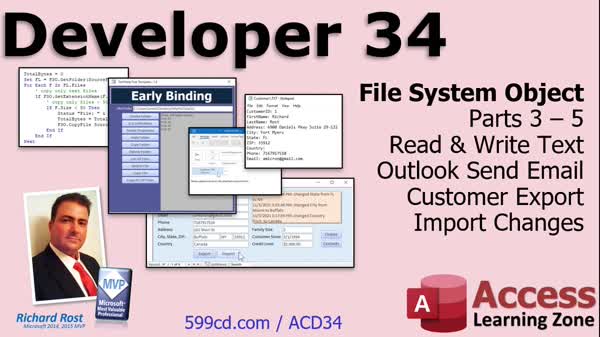
Access Developer 34Read and Write Text Files, Copy Folders, EmailWelcome to Access Developer 34. In this course you will learn how to use the File System Object to manage files and folders in Microsoft Access, including reading and writing text files and sending email with attachments through Outlook. We'll discuss exporting and importing customer data files, keeping a change log, and handling common file tasks such as copying, moving, deleting, and listing folders. This course builds on previous lessons and will help you handle file operations and integrate email functionality directly within your Access applications. Lessons
Database FilesLinks
Resources
Lesson SummaryWelcome! Read/Write Files, Copy Folders, Email Attach - Welcome to Microsoft Access Developer Level 34. In this course we will continue working with the File System object, learn to read and write text files, and discuss using Outlook to send bulk email with attachments. We will walk through exporting a customer's data file, emailing it to them, and then importing any changes they return, updating customer records and creating a change log. Prerequisites from previous levels, especially Developer 33, are recommended. This course uses Microsoft Access 365 but the material applies to earlier versions as well. We will cover copying, moving, deleting, and listing folders and files, as well as reading and writing text files.
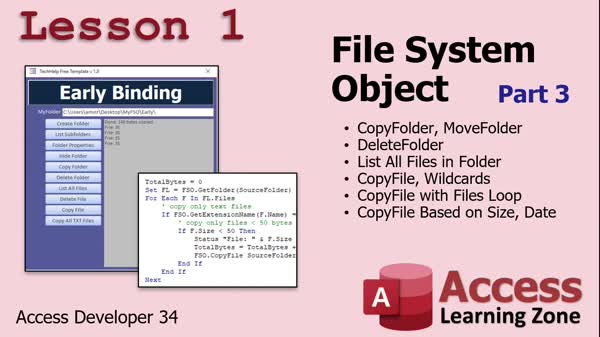
Lesson 1: Copy, Move, Delete Files & Folders - In Lesson 1, we continue working with the File System Object, focusing on practical file and folder management tasks. We will walk through how to copy folders - including all subfolders and files - move and delete folders (with attention to overwrite and force options), and list all files in a folder. We will discuss copying files using wildcards, use files and folders collections, and show how to copy files based on size or date properties. Throughout this lesson, you will see clear demonstrations of these File System Object functions in action.
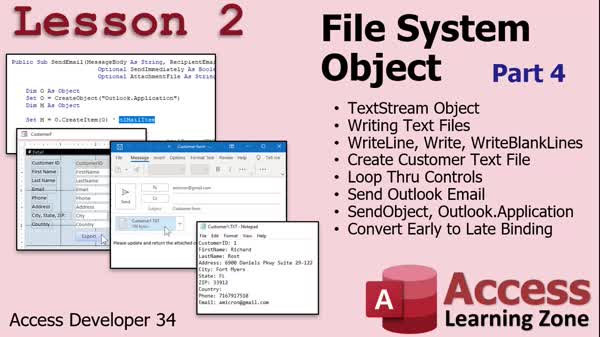
Lesson 2: Text Files, Export Data, Email Attach. - In Lesson 2, we explore the File System Object by focusing on the Text Stream object and how to write text files using WriteLine, Write, and WriteBlankLines. We will walk through creating customer text files by looping through form controls and exporting selected data. I will show you how to send these files as email attachments using both SendObject and the Outlook application, including converting email code from early to late binding for broader compatibility. We will also discuss the differences between classic VB file I/O and the File System Object methods for text file operations.
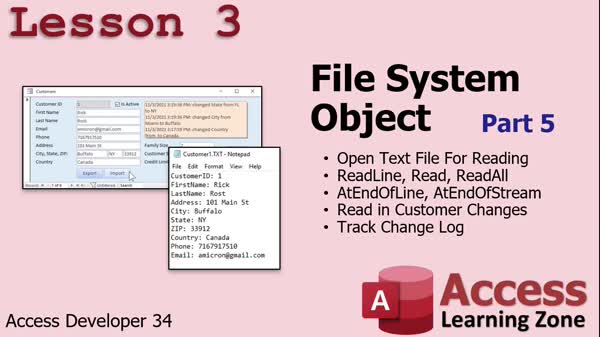
Lesson 3: Read Text Files: Line, Char, All - In Lesson 3, we will focus on how to read text files using the File System Object. We will cover reading text line by line with ReadLine, reading by character, and reading an entire file at once with ReadAll. We will discuss checking for the end of a line or stream, how to handle Unicode and ASCII settings, and how to process imported text to update customer records and maintain a change log. We will also look at skipping lines or characters and demonstrate how parsing works when importing customer data back into your database.
Lesson 4: Next Steps & Getting Help - In this lesson, What's Next, I will discuss upcoming topics for Developer 35, including finishing File System Object features such as the Drive object, copying files and folders, getting extension names, temporary names, and special folders. I will also mention answering some frequently asked questions and remind you to post class-related questions below or in the Access Forum, and to avoid emailing technical questions. Finally, I encourage you to fill out the course survey and check out the TechHelp series, while sharing plans for future content and ways to get your questions answered.
NavigationKeywordsFile System Object, read text files, write text files, copy folders, move files, delete files, export form data, send email with attachments, TextStream object, ReadLine, WriteLine, bulk email, import customer data, change log
More InformationTranscriptWelcome to Microsoft Access Developer Level 34, brought to you by AccessLearningZone.com. I am your instructor Richard Rost. In today's class, we continue working with the File System object that we started in Developer 33. We are going to learn how to read and write text files. This time, we'll be using the File System object, which is a little bit different than the classic VB file input/output we've done before. We're going to learn how to use Outlook to send email. We've covered it briefly before, but I'm going to show you a new way of doing it today. This new method will allow us to send bulk mail and send attachments of any file type. Then, knowing how to read and write text files, we're going to make it so we can export a customer's data file - first name, last name, and so on. We'll email it to them. Then, when they email it back to us, we'll be able to import those changes, update their customer record, and make a change log. All of that is covered in today's class. Of course, this is the 34th Developer class. I strongly recommend you've taken all my Beginner, Expert, Advanced, and Developer classes before this, especially Developer 30 and 31, which cover basic file I/O, and Developer 33, which is part 1 and 2 of the File System object, which is what we're doing in this class. So, definitely take Developer 33 before this one. Otherwise, you won't get a lot of the stuff I'm talking about as far as the File System object, declaring it, and the early and late binding and all that stuff. So, I'm going to say Developer 33 is definitely a hard prerequisite for this one. And of course, don't skip levels or read that page for more information as to why. I am using Microsoft Access 365 as part of a 365 subscription, roughly equivalent to Access 2019, but everything covered in this class should go back to at least 2007. Got questions? Post them down below at the bottom of this page or post them in my Access Forum. And don't forget to check out my TechHelp series, my kind of almost daily sort of podcast about Access. I make two or three new ones every week. Let's take a quick look at what is covered in today's class. In lesson one, we are continuing with the File System object that we started in Access Developer 34. We're going to learn how to copy a folder, which copies all the subfolders and files in that folder. We'll learn how to move a folder and delete a folder. We'll learn how to list all of the files in a folder, copy a file, copy a file with wildcards, copy a file with a files collection loop, and then copy a file based on either its size, date, or any other property. That's all coming up in lesson one. In lesson two, we're going to have some fun. We're going to learn about the TextStream object where we can write text files. We'll talk about WriteLine, Write, writing blank lines, and more. We'll create a customer text file with all the customer's details: customer ID, first name, last name, address, and so on. I'll show you how to loop through the controls on your form and export just the ones we want. Then I'll show you how to send that through Outlook email. We'll cover both SendObject, which we've done before, and the Outlook application, so we can send it as a text file attachment to the customer. Then I'll show you how to convert some code from early to late binding, because I've got the email code set to early binding, where you need a reference to Microsoft Outlook, but we don't want that. So we're going to convert it in class to late binding. All that's in lesson two. In lesson three, we're going to learn how to read text files back in. We'll learn about ReadLine, reading by character, ReadAll (which reads the whole file in one shot), and more. We'll know if we're at the end of a line or at the end of the entire stream, which is the file. Then we'll read back in any changes the customer made from the file that we sent them in lesson two. We'll make those changes in our form, and we'll track the changes in a change log, which we'll just store in the notes field. All that's in lesson three. IntroIn this lesson, you will learn how to use the File System object in Microsoft Access to copy, move, and delete folders and files, as well as how to list all files in a folder and perform advanced file copying based on properties like size and date. We will cover working with the TextStream object to write and read text files, export customer data, and send it as an email attachment using Outlook. You will also see how to import customer updates from returned files and track those changes with a change log. This is lesson 34. QuizQ1. What object is primarily used in this class for file input and output in Access? A. File System object B. Data Access object C. File Control object D. System.IO object Q2. What capability does the new Outlook email method provide, as discussed in this class? A. Send encrypted messages only B. Send bulk mail and attachments of any file type C. Only send plain text emails D. Only send emails without attachments Q3. What is a key prerequisite recommended before taking this class? A. Developer 20 B. Developer 30 and 31, and especially Developer 33 C. Access Basic Level 1 D. Microsoft Word Advanced 10 Q4. In lesson one, which of the following file operations will you NOT learn? A. Copying a folder B. Deleting a folder C. Formatting a hard drive D. Listing all files in a folder Q5. What functionality is covered in lesson two involving customer data? A. Creating a customer text file and exporting selected controls' data B. Importing PDF files into Access C. Creating an image gallery D. Running SQL reports Q6. What is one difference between early binding and late binding covered in this class? A. Early binding requires a reference; late binding does not B. Late binding is slower than early binding C. Late binding only works with text files D. Early binding is used only for Access forms Q7. What does the TextStream object allow you to do? A. Edit database records directly B. Read and write text files C. Stream audio files D. Compress files Q8. Which file reading methods are discussed in lesson three? A. ReadLine, by character, ReadAll B. OpenFile, AppendMode, Overwrite C. ReadSQL, Execute, Commit D. FileCopy, Move, Share Q9. After emailing the customer data file, what is the process when you get it back? A. Import the file, update the customer record, and log the changes B. Delete the file and send a confirmation email C. Archive the old record with no changes D. Ignore any returned files Q10. How are change logs handled in this class? A. Stored in the customer notes field B. Saved as a separate Access table C. Written to an Excel spreadsheet D. Not tracked at all Answers: 1-A; 2-B; 3-B; 4-C; 5-A; 6-A; 7-B; 8-A; 9-A; 10-A DISCLAIMER: Quiz questions are AI generated. If you find any that are wrong, don't make sense, or aren't related to the video topic at hand, then please post a comment and let me know. Thanks. SummaryToday's video from Access Learning Zone is Microsoft Access Developer Level 34. In this class, we continue building on the File System object work we started in Developer 33. Our focus is on how to read and write text files, this time using the File System object, which operates a bit differently from the older VB file input/output methods we've used in the past. Along with working with text files, I will also show you how to use Microsoft Outlook to send emails. While I've touched on this previously, today I'll demonstrate a new approach that gives you the ability to send bulk mail and attach files of any type. Once you've mastered reading and writing text files, we will put this knowledge to use. You'll be able to export a customer's information—things like first name, last name, and address—to a text file. We'll go through the process of emailing this file to the customer, and then, when they send it back with changes, we'll look at how to import these updates into your database. I'll show you how to update the customer's record and maintain a log of any changes. Everything I've just mentioned is covered in today's lesson. Since this is Developer Level 34 in my series, it's important that you have completed all prior levels—Beginner, Expert, Advanced, and the previous Developer classes. In particular, make sure you've already taken Developer 30 and 31, which covered basic file input/output, and Developer 33, which is all about the File System object and serves as a direct foundation for this session. Without that background, the concepts of working with the File System object, early and late binding, and the code examples will be tough to follow. So, consider Developer 33 a firm prerequisite for today's material. As always, don't skip levels, and if you're curious why, I've explained it in detail on my website. I'm using Microsoft Access 365 for this course. That's the version included in the Office 365 subscription, which is very close to Access 2019. Nonetheless, the techniques shown should work in versions going back at least to Access 2007. If you have any questions about today's lesson, feel free to post them in the comments at the bottom of this page or in my Access Forum. Don't forget to check out my TechHelp series as well, which is a regularly-updated collection of quick lessons and discussions about Access topics. I usually post new content a couple of times each week. Now, let's take a look at what you'll learn in today's class. Lesson one builds directly on the File System object topics from Access Developer 33. We start by learning how to copy an entire folder, including all subfolders and files. You will also learn to move and delete folders, as well as how to list all the files contained in a folder. We explore different methods to copy files: copying single files, using wildcards to copy multiple files, looping through a file collection to automate the process, and even copying files based on properties like size, date, or other attributes. In lesson two, the focus turns to the TextStream object, which is used for writing text files. We cover methods like WriteLine and Write, how to write blank lines for formatting purposes, and more. You will see how to create a customer text file that includes detailed information such as customer ID, name, and address. I'll demonstrate how to selectively export data from your form controls to the text file. From there, you'll learn how to send this file via email using both the SendObject command (which we've talked about before) and the Outlook application approach, letting you attach the customer file and send it directly. For anyone working with different setups, I also walk you through converting the email code from early binding to late binding, which removes the requirement for an explicit reference to the Outlook object library. All of this is covered in lesson two. Lesson three is all about reading the text files you receive back. Here, you will learn to process files line by line, character by character, or all at once using methods like ReadLine and ReadAll. I explain how to detect the end of a line and the end of the file (the stream). Once we've read the data, you'll see how to re-import any updates from the customer, apply the changes to their record, and then record what changed in a simple changelog that is stored in a notes field. You can find a complete video tutorial with step-by-step instructions on everything discussed here on my website at the link below. Live long and prosper, my friends. Topic ListCopying folders with the File System object Moving folders using the File System object Deleting folders with the File System object Listing all files in a folder Copying files with the File System object Copying files using wildcards Copying files with a Files collection loop Copying files based on file properties (size, date) Writing text files using the TextStream object Using WriteLine and Write methods in TextStream Writing blank lines to text files Exporting customer data to a text file Looping through form controls to export data Sending emails with SendObject in Access Sending emails with Outlook Application Attaching text files to emails Converting email code from early to late binding Reading text files with the TextStream object Using ReadLine, Read, and ReadAll methods Detecting end of line and end of file in streams Importing updated customer data from a text file Updating records from imported text file data Creating a change log for imported records Primary TopicsFile System object, TextStream object, file operations (copy/move/delete/list), text file read/write, Outlook automation, email attachments, early vs late binding, importing/exporting data Secondary Topicscustomer data management, change logging, looping through form controls, SendObject method |
||||||||||||||||||||||||||||||||||
|
| |||
| Keywords: File System Object, read text files, write text files, copy folders, move files, delete files, export form data, send email with attachments, TextStream object, ReadLine, WriteLine, bulk email, import customer data, change log PermaLink How To Use File System Object For Reading Writing Exporting Importing Text Files in Microsoft Access |