|
||||||

|
|
||||||
|
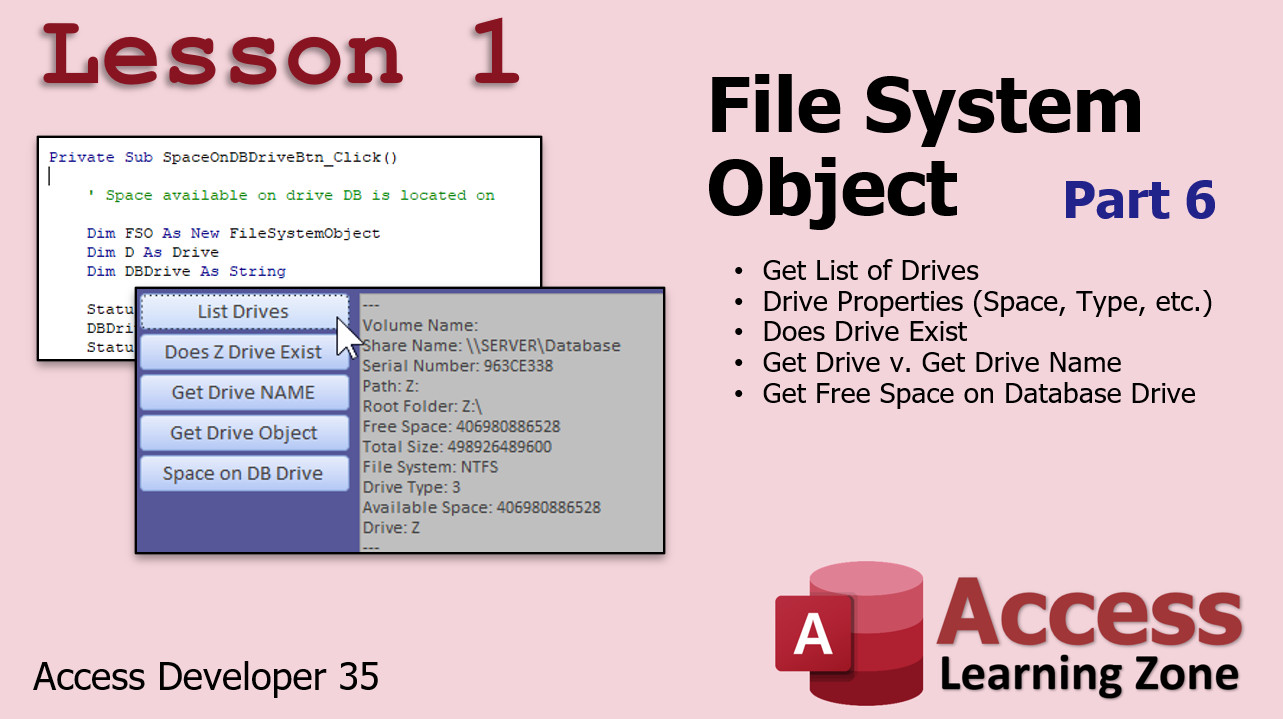
Access Developer 35File System Object Lessons 6-7, Not In List WelcomeThis class will finish up our study of the File System Object (for now). We will also learn how to use the Not In List event. What happens when someone wants to add a value to a combo box or list box? We'll see how to tackle that in this class. ResourcesTopics CoveredIn Lesson 1, we will continue our work with the File System Object. We will learn how to get a list of available drives on the system and their properties (total space, space available, volume name, file system type, etc.) We will see how to read the drive's unique serial number which can be useful for anti-piracy measures. We'll learn to check if a drive exists, which is handy for making sure your users are connected to the database network server drive. We will learn about the GetDrive and GetDriveName functions and how they're different. We'll learn to check the available file space on the drive the database is located on, which can be useful in making sure you have enough storage space for your database.
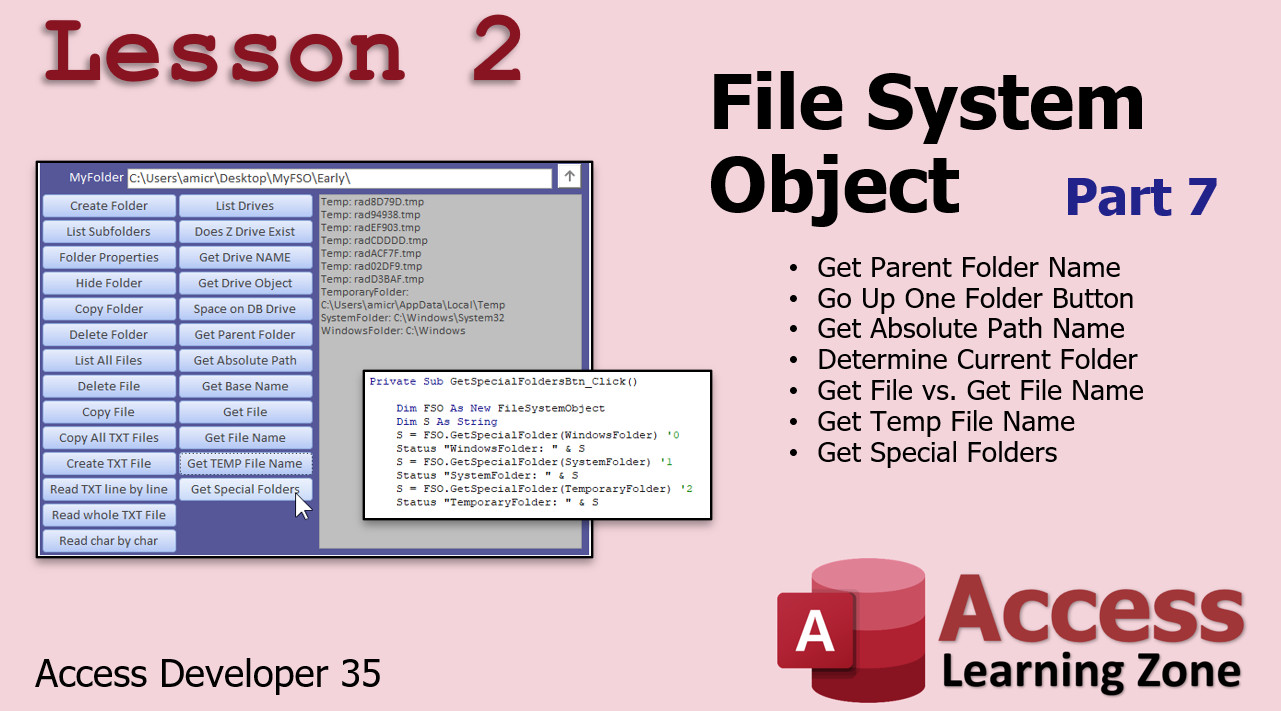
In Lesson 2, we will learn how to get the parent folder of a specific file or folder. We'll make a button to go up to the parent path (all the way to the root folder). We'll see how to determine the current folder for read/write operations. We'll see the different between GetFile and GetFileName. We'll learn how to quickly generate temporary filenames. And, we'll see how to get the "special" folders (Windows, System, Temp).
In Lesson 3, we will learn how to use the Not In List event. What happens when someone wants to add a value to a combo box or list box? You have to close the form you're on. Go to that table. Add the value. Go back to the form. Select the item. It's a pain. In this lesson I'll show you two different ways to handle this. You can use a List Items Edit Form or you can handle it with a little VBA code and the On Not In List event with a touch of SQL.
Enroll TodayEnroll now so that you can watch these lessons, learn with us, post questions, and more.
Questions?Please feel free to post your questions or comments below. If you are not sure as to whether or not this product will meet your needs, I'd rather help you before you buy it. Remember, all sales are final. Thank you.
More InformationTranscriptToday's lesson is going to continue our look at the File System Object, Parts 6 and 7. Well, it's not completely over. There are going to be little bits and pieces that I'll be adding in future lessons. But yeah, most of it, yes. We will be talking about the on-not-in-list event - how to add items to a list box or a combo box when it's not in the list. What do you do about that? This class follows Access Developer 34. I strongly recommend that you have taken 30 through 34. Those are all the File I/O classes if you want to continue with File I/O. Of course, I recommend you do not skip levels at all. You should have taken all the previous Developer, Advanced, Expert, and Beginner lessons. For more information on why, read that page. I'll be using Microsoft Access 365. It's currently 2022, so this is roughly equivalent to Access 2019. If you have questions, just scroll to the bottom of the page that you are watching this video on and post them right there. If you have questions that do not pertain to this specific class, you can post them in the Access Forum. Now let's take a look at what exactly is covered in today's class. In Lesson 1, we are continuing with the File System Object. This is Part 6. We will begin by getting a list of drives and then going through all the drive properties, the total space, the space free, the serial number of the drive, and lots more. Then we will check to see if a drive exists. That is handy to check to see if perhaps the network drive that the database is on is actually connected or not. Then we will learn the difference between GetDrive and GetDriveName and why it's important. We will then see how to check the free space on the database drive. You can say, for example, my database drive is drive Z, how much space is free on it. If it's getting low, maybe give a warning message, that kind of stuff. That's all covered in Lesson 1. In Lesson 2, we are continuing and concluding with the File System Object, Part 7. We will see how to get the parent folder name of the folder that you're in, how to go up one folder, we'll make an "up one folder" button, and we'll stop at the root. We'll get the absolute path name and determine the current folder that we're in. We'll learn about GetFile versus GetFileName, just like GetDrive versus GetDriveName. We'll see how to generate temporary file names. Then we'll learn how to get the special folders - the Windows system, temp folders, those kinds of things. All that's coming up in Lesson 2. In Lesson 3, we're going to learn about the NotInList event - what to do when your user wants to add something to a combo box or a list box that is not in the list. There are a couple of different things you can do. You can either use the NotInList event and add it programmatically, or you can set up something called a List Items Edit Form, which we did look at in Access Beginner 8. We're going to talk a lot more about it today. IntroIn lesson 35, we continue working with the File System Object in Microsoft Access, focusing on advanced file and folder handling techniques. You will learn how to list and work with drive properties, check if a drive exists, and compare GetDrive with GetDriveName. We will also cover how to monitor free space on your database drive, work with parent folders, create an "up one folder" button, and use functions like GetFile and GetFileName. Finally, we'll explore ways to handle the NotInList event for combo and list boxes, including programmatically adding new items and using a List Items Edit Form. QuizQ1. What is the main focus of Lessons 1 and 2 in today's class? A. Learning about Access security settings B. Exploring the File System Object and its features C. Understanding SQL queries in Access D. Working with macros in Access Q2. Which of the following is discussed as a way to check for available storage on a drive? A. Using the FileLength function B. Checking the drive's free space with the File System Object C. Reviewing the Access status bar D. Scanning folders manually Q3. Why is the ability to check if a drive exists considered useful in the lesson? A. It helps create backup copies automatically B. It determines if the network drive for the database is connected C. It organizes files in alphabetical order D. It displays hidden files Q4. What is the difference emphasized between GetDrive and GetDriveName? A. GetDrive returns the free space, GetDriveName returns the owner B. GetDrive gets a Drive object, GetDriveName gets the name as text C. GetDrive shows temporary files, GetDriveName shows all files D. GetDrive lists folders, GetDriveName lists drives Q5. In Lesson 2, what feature allows the user to go up one level in the folder structure? A. The Down Folder button B. The Root Directory Finder C. The Up One Folder button D. The Path Renamer Q6. What does the GetFileName function provide that is different from GetFile? A. The size of the file B. The file's creation date C. The name of the file as text D. The number of files in the folder Q7. What topic is addressed in Lesson 3? A. Connecting to SQL Server B. The NotInList event for adding to a combo or list box C. Securing Access forms with passwords D. Creating custom data types Q8. According to the video, what is one method to handle items not in a combo box or list box? A. Ignore the entry B. Use macros to delete all entries C. Use the NotInList event or a List Items Edit Form D. Export the list to Excel Q9. Where are students advised to post specific course questions? A. In the YouTube comments section B. In the Access Forum C. At the bottom of the course page D. By emailing the instructor directly Q10. Which lesson are students recommended to complete before starting this one? A. Access Developer 1 B. Access Developer 34 C. Access Beginner 2 D. Access Advanced 20 Answers: 1-B; 2-B; 3-B; 4-B; 5-C; 6-C; 7-B; 8-C; 9-C; 10-B DISCLAIMER: Quiz questions are AI generated. If you find any that are wrong, don't make sense, or aren't related to the video topic at hand, then please post a comment and let me know. Thanks. SummaryToday's video from Access Learning Zone continues our study of the File System Object, covering Parts 6 and 7. While the primary topics are wrapping up in this lesson, I want you to know that I'll be adding the occasional update in future lessons, so we are not entirely finished with the subject. However, we are reaching the end of the main material. A core topic in this class is handling the NotInList event. This involves what to do if a user tries to enter a value in a combo box or list box that is not currently available. We'll explore options for accommodating new items dynamically. This class follows Access Developer 34, so I highly recommend you have completed lessons 30 through 34, as those all deal with File I/O operations. Ideally, you should have taken all previous Developer, Advanced, Expert, and Beginner courses to get the full benefit and context. If you are curious why it's important to proceed sequentially, I have more details on that available on my website. I am using Microsoft Access 365 for this demonstration, and while the year is 2022, the content will also apply closely to Access 2019. If you have questions about anything in this particular class, you can scroll to the bottom of the lesson's webpage and leave them there. For questions unrelated to this class, feel free to use the Access Forum. Let me outline what the class covers today: In the first lesson, we continue our exploration of the File System Object, focusing on Part 6. We start by retrieving a list of available drives and then examining properties for these drives, including total space, free space available, serial numbers, and much more. You will also learn how to verify whether a drive actually exists, which is especially useful for cases where a database might reference a network drive that could be disconnected. We will discuss the differences between the GetDrive and GetDriveName functions, which is an important distinction for managing file paths. I will show you ways to check free space on the database's drive. For example, if your database resides on drive Z, you may want to monitor available space and alert users if it gets low. All these areas are discussed in the first lesson. Lesson 2 wraps up the discussion about the File System Object with Part 7. You will learn how to determine the parent folder of your current directory and how to navigate upward, complete with adding a user interface button for "up one folder" navigation, stopping appropriately at the root directory. Additional topics include retrieving absolute path names and recognizing your current working directory. We will also talk about the difference between GetFile and GetFileName, building on the earlier comparison of GetDrive and GetDriveName. Generating temporary file names programmatically is another area covered, along with methods for accessing special Windows folders such as the system folder or temporary folder. You will gain practical skills for managing these in your projects. In Lesson 3, the focus shifts to working with the NotInList event—a frequent scenario where users want to add new entries to a combo box or list box that do not already exist. You will see how to handle this programmatically with the NotInList event or by using the List Items Edit Form feature, which you may remember from Access Beginner 8. Today, I will go into more detail on this approach to ensure you have a full understanding of your options. You can find a complete video tutorial with step-by-step instructions on everything discussed here on my website at the link below. Live long and prosper, my friends. Topic ListGetting a list of drives with File System Object Working with drive properties (total space, free space, serial number) Checking if a drive exists Difference between GetDrive and GetDriveName Checking free space on the database drive Getting the parent folder name of a folder Navigating up one folder and creating an "up one folder" button Stopping navigation at the root folder Obtaining the absolute path name of the current folder Difference between GetFile and GetFileName Generating temporary file names Retrieving special Windows folders (system, temp, etc.) Using the NotInList event for combo boxes and list boxes Adding new items to a combo box or list box programmatically Setting up and using a List Items Edit Form Primary TopicsFile System Object, drive properties, checking drive existence, GetDrive vs GetDriveName, folder navigation, GetFile vs GetFileName, temporary files, special folders, NotInList event, List Items Edit Form Secondary Topicswarning user about free space, network drive connectivity, absolute paths, none |
||
|
| |||
| Keywords: access developer 35 Get List of Drives DriveLetter AvailableSpace FreeSpace TotalSize VolumeName DriveType SerialNumber DriveExists GetDrive GetDriveName Get Free Space on Database Drive GetParentFolderName Go Up One Folder Stop At Root Folder GetAbsolute Page Tag: whatsnew PermaLink Microsoft Access Developer 35 |