Access Split Database Seminar
Set up a Secure Database w File & Folder Security
Welcome
In this seminar, you will learn how to set up a database using Microsoft Access with multiple back-end (table) files: one that every database user can access, and another for sensitive information, such as financial data, that only a small, select group of users can access. You will then learn how to use Windows file and folder sharing to secure the sensitive back-end database file so that only the users you select can read that data.
This seminar stands on its own, however you will benefit the most if you take this seminar after watching my Access Security Seminar. That seminar focuses mainly on locking down and securing your FRONT-end file (forms, reports, queries, VBA code, etc.) whereas this one focuses on hiding and securing your back-end data files.
 Resources Resources
Relationships Covered
- Set up multiple customer tables, one for normal data, one for sensitive data
- Build two customer forms; the sensitive form requiring a password to open
- Split your database into 3 files: front end and two back-end files for tables
- Create shared folders on your server or Windows PC
- Use Windows-level file & folder security to prevent access to the sensitive data
- Move the back-end files to the server and relink with the Linked Table Manager
- Encrypt your front-end database and create an ACCDE file
Topics Covered
In Lesson 1, we'll talk about WHY you should split your database and what security benefits it provides. In our example, we'll build a customer database. Most of the customer information has to be accessible by all of the users of our database (name, address, phone number, etc.) however some of the information needs to be kept secure and ONLY visible to a select few (credit card numbers, balances, credit limits, etc.)
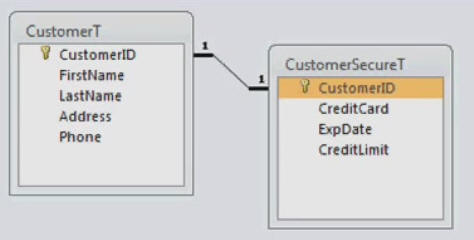
In Lesson 2, we'll set up a customer table, a secure customer table, and then we'll set up a one-to-one relationship between them.
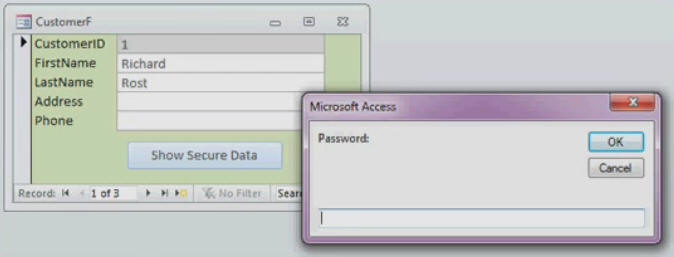
In Lesson 3, we'll build a customer form and a secure customer form. We'll set up a command button to open the secure form but require a password via an inputbox. Users will need the password to open the secure form. Then we'll hide the navigation pane on database startup so that users can't just browse to your secure form and open it themselves.
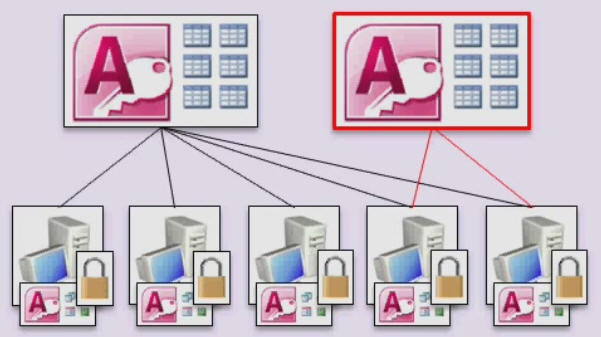
In Lesson 4, we'll split the database into three files: one for our front-end objects (queries, forms, reports, modules, etc.) and then two back-end files: one for the normal customer data, and another for the sensitive, secure data.
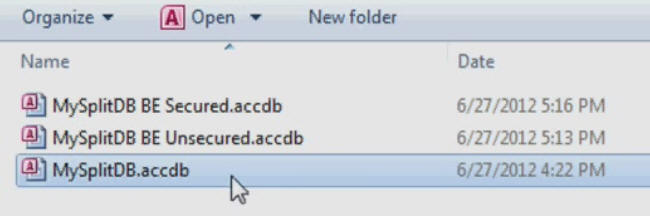
In Lesson 5, you'll see how to set up shared folders on your network file server. I'll show Windows 2000 Server, but most versions of Windows Server work the same. I'll also show an example using just peer-to-peer file sharing on Windows 7 machines. We'll then move the back-end database files to these shared folders and use the Linked Table Manager to tell the front-end database where they went.
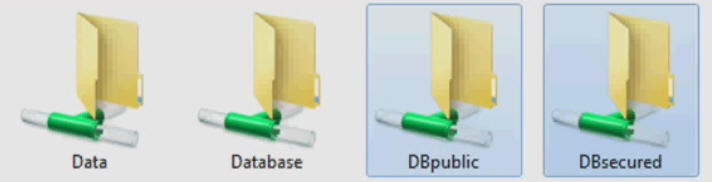
By using the techniques in JUST this seminar, you can reasonably secure your data against unauthorized access from users on your network. Coupled with the techniques shown in my Security Seminar and Data Encryption Seminar, you can really create a locked-down database without the need for a Database Server program. Of course, if you have any questions about whether or not this seminar is for you, please contact me.
Pre-Requisites
It is strongly recommended that you have completed my entire Access Beginner and Expert series. My Security Seminar is recommended, but not required.
Version
I am using Access 2010 in this seminar, however the lessons are perfectly valid for all versions of Access from 2003 and later. It's currently 2022 and I just recently verified that everything in this seminar still works with Access 2019 and Office 365.
Enroll Today
Enroll now so that you can watch these lessons, learn with us, post questions, and more.

Questions?
Please feel free to post your questions or comments below. If you are not sure as to whether or not this product will meet your needs, I'd rather help you before you buy it. Remember, all sales are final. Thank you.
Keywords
microsoft access split database, security, database splitter, windows, file share, permissions, accde, encrypt database
More InformationTranscript Welcome to another Microsoft Access Seminar brought to you by AccessLearningZone.com.
In this seminar, we'll focus on Split Database Security. In this seminar, you'll learn how to create a real simple customer database. We'll put the secure data, like financial information and credit card numbers, in a separate table. I'll show you how to set up a one-to-one relationship between two tables, so the customer's information is linked to his secure information.
We'll set up a customer form for the unsecured data that everybody who has access to the database can use, like your normal secretaries and data entry people. Then we'll set up a separate secure form for the customer data, like credit card numbers and such, that you only want your financial people to see.
Then we'll split the database into three pieces. You'll have your front end database that has the forms, reports, queries, and such. You'll have one back end table database that has the unsecured information in it, and then a third file that has your secure data in it, which you'll put on the server in a secure folder.
Finally, we'll encrypt the front end database, which is the copy that you put on everyone's computers, so they can't mess with your form design or see your VBA code.
Now, before taking this seminar, you should have at least an intermediate level of Access knowledge. I'm not going to take the time to explain how to set up tables and forms and such. There will be a tiny bit of VBA programming, but don't worry, I'll show you exactly what I'm doing. You don't have to be a VBA master in order to take the seminar. A couple of techniques I'm going to show you only require a couple of lines of code, and you can just type them in as I do.
If you need to study up on your Access before taking the seminar, you can visit my website at AccessLearningZone.com or go to that short link right there, 599cv.com/access. You'll find lots more information on my beginner and intermediate level Access classes.
Now, this seminar only scratches the surface of securing your databases. I do have a much more in-depth Security Seminar that covers lots more information. You can create user and group security inside your database. You can manage the workflow of who can do what inside your database. You can control who has access to which database objects, send email notices, create a detailed system log, and encrypt and secure your database files.
I'm going to show you a little bit of some of this stuff today, but if you want to learn a lot more about securing your databases, check out my Access and Security Seminar.
I will be using Access 2010 in this video. Most of the techniques I'm going to show you work fine for any version of Access. The screens will be a little bit different if you have older versions like 2003, but all the techniques I'm going to show you are the same.
Of course, if you have questions about the material covered in this class, please feel free to post them in my student forums, found on my website. If you're watching this in my online theater, you'll see the student forums pop up right next to the video.
Now let's take a closer look at exactly what we're going to cover in today's class.
In lesson one, we'll talk about why you should split your database and what security benefits it provides.
In lesson two, we'll set up our customer table and our secure customer table, and then we'll set up a one-to-one relationship between them.
In lesson three, we'll build our customer form and a secure customer form, but we'll password-protect the secure customer form with an input box so users can't get to the secured form if they don't know what the password is. Then I'll show you how to hide the navigation pane so users can't browse through your objects or just open up the secured form.
In lesson four, we'll break apart the database into three different files: a front end database file for our forms, which can also have the reports, macros, and VBA code (but in this database we only have forms), and then we'll make two back end tables, one for our secure data and one for our unsecured data.
In lesson five, I'll show you how to set up shared folders on your server or on your workstation. Copy the back end database files where they need to go, and then, using the linked table manager, we'll refresh the links to your main database so it can point to the correct back end database files.
In lesson six, I'm going to teach you how to encrypt your front end database, which compiles it into executable code, essentially hiding the design of your forms, reports, VBA code, and all those types of things. So your end users physically cannot get into the design of your database. Intro In this Microsoft Access seminar, we will focus on split database security by walking through how to build a simple customer database that separates sensitive information, such as financial data and credit card numbers, into a secure table linked with a one-to-one relationship. You will learn how to set up forms for both general and secure data, implement password protection for sensitive forms, and hide the navigation pane to restrict access. We will split the database into multiple files for added security, configure shared folders, update linked tables, and encrypt the front end to protect your database design and code. Quiz Q1. What is the main purpose of splitting a Microsoft Access database, as discussed in the seminar?
A. To make the database run faster
B. To increase the number of simultaneous users
C. To improve organization and enhance security
D. To reduce the size of the database
Q2. Where should sensitive data such as financial information be stored according to the seminar's instructions?
A. In the front end database with all forms
B. In a separate secure back end database
C. In the same table as other customer data
D. In an external Excel file
Q3. What type of relationship is set up between the customer table and the secure customer table?
A. Many-to-many
B. One-to-many
C. One-to-one
D. Many-to-one
Q4. Who can typically access the unsecured customer data form?
A. Only the database administrator
B. All users who have access to the database, like secretaries and data entry staff
C. Only financial staff
D. Only external auditors
Q5. How does the seminar recommend restricting access to the secure customer data form?
A. By hiding the form
B. By using a password-protected input box
C. By encrypting the back end database only
D. By deleting the form when not in use
Q6. What function does encrypting the front end database serve?
A. It changes the database file extension
B. It hides the design of forms, VBA code, and reports from end users
C. It allows multiple users to edit simultaneously
D. It backs up the database automatically
Q7. What tool in Access will you use to update the connections to the split back end database files?
A. Query Design View
B. Linked Table Manager
C. Macro Recorder
D. Report Manager
Q8. How many separate files will the final split database structure contain, according to the seminar?
A. One
B. Two
C. Three
D. Four
Q9. What does hiding the navigation pane accomplish in terms of database security?
A. Prevents users from seeing all objects and directly opening secured objects
B. Deletes unused forms from the database
C. Compresses the database file size
D. Speeds up database access times
Q10. What should students already be familiar with before taking this seminar?
A. Only beginner Access usage
B. Advanced-level VBA programming
C. Intermediate-level Access knowledge
D. Programming in C#
Answers: 1-C; 2-B; 3-C; 4-B; 5-B; 6-B; 7-B; 8-C; 9-A; 10-C
DISCLAIMER: Quiz questions are AI generated. If you find any that are wrong, don't make sense, or aren't related to the video topic at hand, then please post a comment and let me know. Thanks. Summary Today's video from Access Learning Zone covers split database security in Microsoft Access. In this seminar, I will show you how to set up a simple customer database where sensitive data, such as financial and credit card information, is stored separately from general customer information. We will use a one-to-one relationship between two tables so that the general customer information in one table is tied specifically to its related secure data in another.
We'll start by building two forms. The first form handles unsecured customer data, which means anyone with access to the database, like your secretaries and regular data entry staff, can use it. The second form deals with secure customer data, such as credit card numbers, and is intended only for trusted financial personnel.
Once the forms and tables are set up, we will split the database into three distinct parts. The front end contains all your forms, reports, and queries. This is the copy that each user will have on their own computer. The back end databases are split even further into two separate files - one holding only the unsecured data, and the other containing all the sensitive, secure information. The file with the secure data should be placed in a protected folder on your server.
To add another layer of protection, I will show you how to encrypt the front end database. This prevents users from making changes to your form designs or digging through your VBA code.
This workshop assumes you already have an intermediate understanding of Access. I won't be covering the basics of setting up tables or forms. Though a small amount of VBA programming will be involved, it will be minimal and I will walk you through what to type so you do not need advanced programming skills.
If you need a refresher on the basics of Access before you start, you can find many introductory and intermediate lessons on my website at AccessLearningZone.com.
It is important to note that while this seminar covers some fundamental aspects of securing a database, it is only an introduction to database security. I offer a much more comprehensive Access Security Seminar that covers topics like setting up user and group permissions, controlling access to specific database objects, sending out system-generated email notifications, maintaining detailed system logs, and additional methods for encrypting and protecting your files.
For this seminar, I am using Access 2010. The concepts and steps I discuss will also apply to earlier or later versions, though the interfaces might look slightly different.
Remember, if you have any questions about the material presented here, you are welcome to ask them in the student forums on my website.
Now, let me break down what is covered in each lesson of the class:
Lesson one covers the reasons for splitting your database and the added security that provides.
Lesson two involves building the customer and secure customer tables, then linking them together with a one-to-one relationship.
Lesson three goes through creating both forms - a regular customer form and a password-protected secure customer form. Here, I will demonstrate how to use an input box for password entry and how to hide the navigation pane so users cannot access database objects or open forms they should not see.
Lesson four teaches how to divide the database into three files - the front end for user interaction, and two back ends, one for each type of data.
In lesson five, you will learn how to create shared folders either on your server or workstation, move the back end database files into the correct locations, and use the Linked Table Manager to make sure the links in your front end file point to the right back end files.
Finally, lesson six demonstrates encrypting the front end database so users are completely locked out of your designs, VBA code, and other sensitive elements.
You can find a complete video tutorial with step-by-step instructions on everything discussed here on my website at the link below. Live long and prosper, my friends. Topic List Splitting a database for security benefits
Setting up a customer table and secure customer table
Creating a one-to-one table relationship
Building a standard customer form
Building a secure customer form
Password protecting a secure form with an input box
Hiding the navigation pane to restrict object access
Splitting the database into front end and two back end files
Setting up shared folders for database storage
Copying back end database files to server locations
Refreshing linked tables using Linked Table Manager
Encrypting the front end database to protect design and code Primary Topics split database design, security in Access, one-to-one relationships, separate secure and unsecured tables, password-protected forms, backend and frontend partitioning, encrypting Access front end, linked table management
Secondary Topics hiding navigation pane, creating shared folders, deploying backend files, VBA password input, Access version compatibility
|




