|
||||||
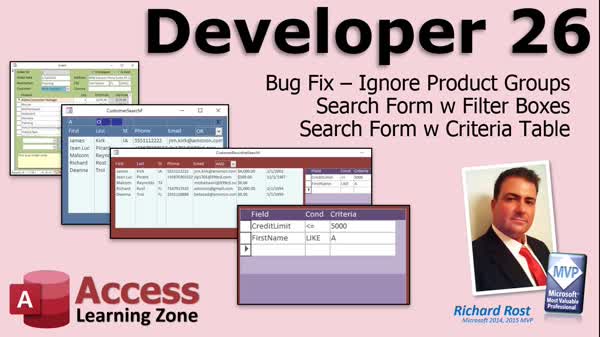
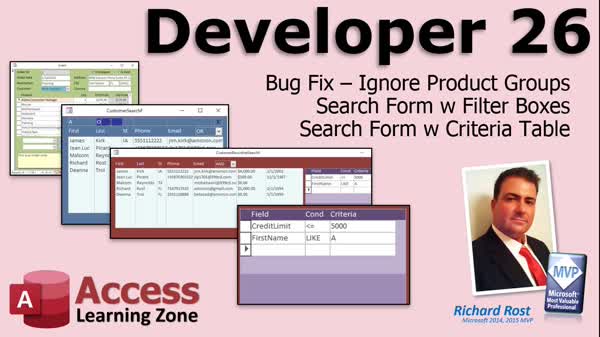
Access Developer 26Advanced Search Forms, Custom Sorting, FiltersWelcome to Access Developer 26. In this course you will learn how to build advanced customer search forms with custom sorting and dynamic filters in Microsoft Access, starting with a bug fix for inventory calculations related to product groups. You will see how to create search forms with clickable column headers for sorting, filter boxes, AND/OR search logic, and use a criteria table with recordsets for more flexible search options. We'll also cover handling different field data types, storing search criteria in a table, and recent updates to the course index and search features. Lessons
Database FilesLinksResources
Lesson SummaryWelcome! Advanced Search: Sort & Filter - Welcome to Microsoft Access Developer Level 26. In this course we will start with a bug fix from Developer 25 related to inventory calculations and product groups. Then, we will build two types of advanced search forms for customers: the first with custom sorting and filter boxes, and the second using a criteria table and recordsets for more flexible searches. We will also add features like clickable column headers for sorting, dynamic filter boxes, AND/OR search conditions, and storing search criteria in a table with options based on field data types. Access Developer Level 25 is a recommended prerequisite.
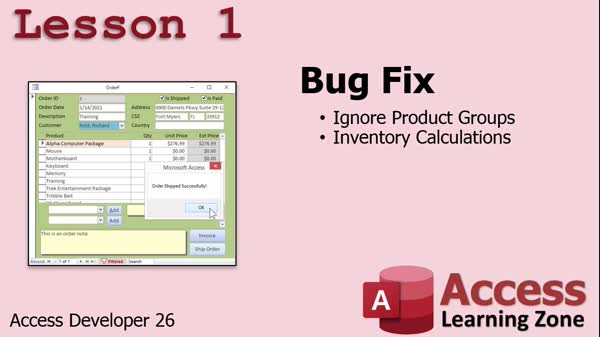
Lesson 1: Fix Product Group Inventory Bugs - In Lesson 1, we address a bug fix for product groups that was found in Developer 25. We will walk through how to modify the inventory system so it ignores product groups when shipping an order by instructing it to not count items with a ProductID of zero. I will show you how to adjust the relevant queries and explain the reasoning behind handling product groups this way to ensure inventory calculations work as intended.
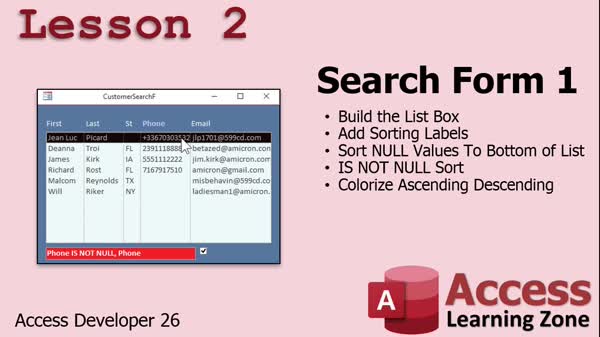
Lesson 2: Dynamic Customer Search & Sort - In Lesson 2, we will begin building a dynamic customer search form by creating an unbound form with a customer list box. We will focus on implementing sorting functionality, allowing users to click on column labels to sort by each field, and configure the sorting so that null values appear at the bottom instead of the top. I will show you how to visually indicate the current sort field and direction by changing label colors and boldness. We will also discuss handling ascending and descending sorts, some design tips, and best practices for managing form controls. Filtering and search logic will be covered in the next lesson.
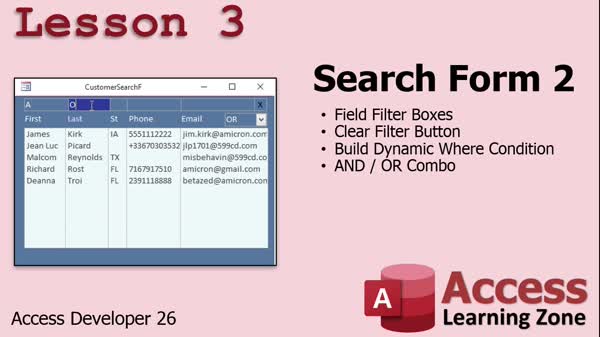
Lesson 3: Dynamic Customer Search & Filter - In Lesson 3, we continue building the Dynamic Customer Search Form by adding filter text boxes above each column to allow partial searches on fields like first name, last name, state, phone, and email. I will show you how to create dynamic SQL WHERE conditions to filter results based on user input, add an AND/OR dropdown to control how filters are combined, and create a clear button to reset all filters. We will also discuss formatting the filter boxes, maintaining consistent code, and implementing an event to open the customer form from the filtered list.
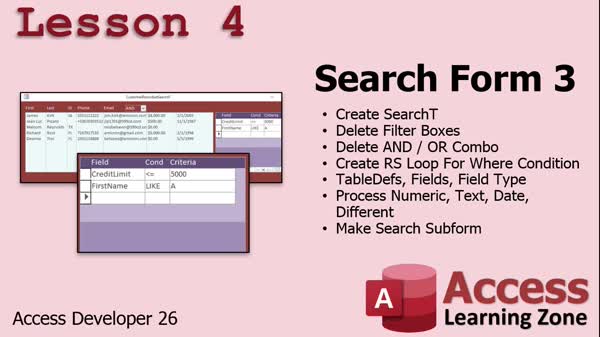
Lesson 4: Flexible Multi-Criteria Search Form - In Lesson 4, we continue working on our recordset based search form by creating a new table to store search criteria and using a recordset to loop through this table and dynamically build the WHERE condition for our form. We walk through setting up the temporary criteria table, handling different data types such as text, numbers, and dates, and updating the form to use these new flexible search options. We will also discuss how to determine field data types using the TableDefs collection and begin designing a subform interface for users to add criteria more easily.
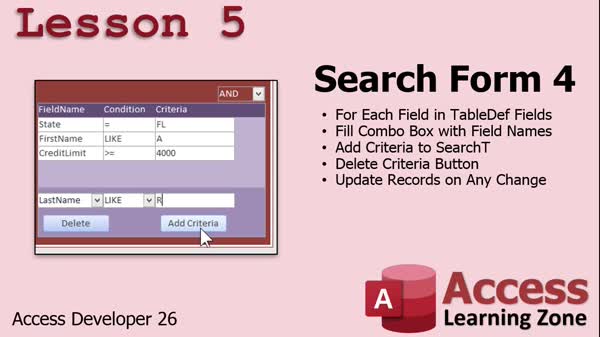
Lesson 5: Dynamic Recordset Search Form - In Lesson 5, we continue working on the Recordset Based Search Form by dynamically loading all the fields from the Customer table into a combo box and adjusting available search conditions based on each field's data type. I show how to loop through table fields, fill the combo box, set up condition options like "Like" for text fields, and add search criteria to a table using recordsets. We also discuss handling refreshes, locking fields, and adding a delete button for criteria, along with some troubleshooting tips and optional improvements for a robust search form.
Lesson 6: Course Index: Updates & New Features - In this course we learned a variety of topics in Access Developer 26, and in this review and what's next lesson, we discuss upcoming plans for Access Developer 27, encourage participation in the course survey, and talk about recent updates to the topic index and search functionality on the website. Suggestions and questions from students are mentioned, along with new material that will be covered soon.
NavigationKeywordsadvanced search form, custom sorting, filter boxes, dynamic search, customer search, clickable column headers, AND OR search, recordset search, criteria table, flexible search, inventory calculation bug, product groups, sort nulls last, condition combos
More InformationTranscriptWelcome to Microsoft Access Developer Level 26, brought to you by AccessLearningZone.com. I am your instructor, Richard Rost. In today's class, we are going to start off with a bug fix that one of my students discovered from Developer 25. Then we are going to build two different types of search forms. The first one is a simpler form that has some custom sorting on it and some custom filter boxes. The second search form is going to be that one on steroids. We are actually going to make a criteria table where you can put all kinds of criteria in a separate table and then use that table with a recordset to filter the original list of customers. There is some really cool stuff in this lesson. This class, of course, follows Access Developer Level 25. I strongly recommend you take that class first before this one. It is also recommended that you have taken all my Beginner, Expert, Advanced, and other Developer classes too. I am using Microsoft Access 365, part of a 365 subscription. It is roughly equivalent to Access 2019. Access 2016 will work just fine too. In fact, the lessons covered in this class should go all the way back to about 2007 without any problems, but do not quote me. I only support 2016 and 2019 at this level. If you have questions about the material covered in this lesson, just scroll down to the bottom of the page and post them right there in the questions box. As always, if you have any questions about stuff in Access that is not related to the material in this class, go ahead and post it in the Access Forum. Let's take a closer look at what is covered in today's class. In lesson one, we are going to start off with a bug fix, something that was discovered in Developer 25. We are going to make inventory calculations ignore product groups when we go to ship an order. In lesson two, we are going to begin building an advanced search form to search through our customers. We will start off by building a basic, unbound form with a customer list box on it. The first thing we will do is work on sorting. You will be able to click on any of these labels in the column headers to sort based on a field. We will sort the null values at the bottom, which is different from how Access normally treats them. It normally sorts null values at the top, which I do not like. We will also make it so it colorizes whichever one of these columns is the sort field, and then reverse that from blue to red when we sort descending. Lots of cool stuff in this lesson. In lesson three, we are continuing on with our search form. We are going to put field filter boxes across the top of each column so you can type in a letter or a string and it will filter based on whatever you type in. We will put a clear button at the end so you can clear those filters. We will build dynamic WHERE conditions into our SQL so we can say use this field and/or this field and/or this field. We will use an and/or dropdown box so you can pick an AND or OR condition for your search. Lots of cool stuff in this lesson too. In lesson four, we are continuing on with our search form. We are doing something completely and totally brand new. We are going to make a table, and the table will store the search criteria. We are going to loop through the records in that table to create the WHERE condition for the search form using, guess what, a recordset. You did not think you were getting out of Developer 26 without at least one recordset, did you? There is lots of stuff in lesson four here. Brand new stuff. In lesson five, we are continuing on with the search form. We are going to loop through all the fields in the customer table and fill them into a combo box so we can pick from any field in the list. Then, based on the data type of that field, if it is text we will allow the LIKE condition to be possible. If not, it will just be the equality stuff. Then we will put the criteria in, add the criteria, save it in the table, refresh the main list, and then, of course, we will make a delete button. Lots of cool stuff in this one too. IntroIn lesson 26 of my Microsoft Access Developer course, we start with a bug fix from Developer 25, then build two advanced customer search forms. First, you'll see how to set up a basic search form with custom sorting and filter boxes. Next, we move on to a more advanced search form using a criteria table and recordsets for dynamic filtering. We'll cover sorting improvements, field-specific filters, AND/OR dropdowns, storing search criteria in tables, looping through fields, dynamic control building, and more advanced form design techniques. QuizQ1. What is the first topic covered in Access Developer Level 26? A. Creating a new customer table B. Bug fix related to Developer 25 C. Building report templates D. Exporting data to Excel Q2. What main feature distinguishes the second, advanced search form discussed in the lesson? A. It is a bound form to customer data B. It uses a separate criteria table and recordset for filtering C. It allows direct editing of customer records D. It integrates with external APIs Q3. What is specifically different about the custom sorting implemented in the new search form compared to standard Access sorting? A. It sorts dates in descending order only B. It ignores sorting for numeric fields C. It sorts null values to the bottom instead of the top D. It does not allow any custom sorting Q4. In lesson three, what new functionality is added to the search form? A. Export to PDF option B. Field filter boxes above each column for typing search strings C. Automated email sending D. Attachment support for customer records Q5. What does the 'and/or' dropdown in the search form allow users to do? A. Select between exporting and importing data B. Pick between AND or OR conditions for filtering C. Adjust font size of the form D. Switch between light and dark mode Q6. How are the search criteria stored in the advanced search form taught in lesson four? A. In the main customer table B. User properties C. In a separate criteria table D. In a text file Q7. What is used to loop through the criteria and generate the WHERE condition for filtering in lesson four? A. Macro groups B. Recordset C. Query wizard D. Action queries Q8. When adding searchable fields to the combo box in lesson five, what determines if LIKE conditions can be used? A. Field length B. Field name C. Field data type (text) D. Field sort order Q9. What is the purpose of the delete button added in lesson five? A. Remove the customer from the database B. Delete the entire criteria table C. Delete a specific search criterion from the table D. Remove all customers from the list Answers: 1-B; 2-B; 3-C; 4-B; 5-B; 6-C; 7-B; 8-C; 9-C DISCLAIMER: Quiz questions are AI generated. If you find any that are wrong, don't make sense, or aren't related to the video topic at hand, then please post a comment and let me know. Thanks. SummaryToday's video from Access Learning Zone is Microsoft Access Developer Level 26. My name is Richard Rost, and I will be guiding you through today's lesson. We will begin by addressing a bug one of my students found in the previous course, Developer Level 25. After fixing this issue, I will walk you through how to design two different customer search forms that illustrate some advanced techniques. The first search form you'll learn to build is a straightforward one, but it features custom sorting and filter options. This provides an easy way to search and organize customers with a few clicks. However, the second search form is much more advanced. Here, I will show you how to set up a separate criteria table to collect and manage different filters. Then we will use a recordset so that searching and filtering customers becomes much more powerful and dynamic. There are some impressive techniques included in this class that you will not want to miss. Before tackling this material, make sure you have completed Developer Level 25, as this class builds directly on concepts from that course. I also recommend you finish my Beginner, Expert, Advanced, and earlier Developer classes if you have not done so already. Throughout this series, I will be using Microsoft Access 365 which is part of the Office 365 subscription. This is very similar to Access 2019, and even Access 2016 will work fine for everything we do here. In fact, most of the lessons should be compatible all the way back to Access 2007, but my official support is for Access 2016 and 2019 for these advanced topics. If you have any questions about content from this class, scroll down and post them in the questions box at the bottom of the page. For questions not directly related to today's lesson, feel free to use the Access Forum. Here's a breakdown of what we will cover in each lesson: Lesson one starts with our bug fix from Developer 25. I will show you how to change the way inventory calculations work so that product groups are ignored when you ship an order. Lesson two is where we start building our advanced customer search form. You'll see how to create a basic unbound form with a list box displaying customers. Special attention is given to sorting, allowing you to click any column header to sort by that field. Unlike the default Access behavior, we will send null values to the bottom of the list. The current sort field will be highlighted, and the color will switch from blue to red depending on whether the sort is ascending or descending. In lesson three, we expand on this search form by adding filter boxes above each column. These let you type in a value to filter by that particular field. There will also be a clear button to remove all filters at once. I will show you how to dynamically build SQL WHERE conditions so you can choose which fields to use for filtering. Additionally, you will be able to switch between AND and OR logic, so your searches can be as broad or as narrow as you need. Lesson four introduces an entirely new approach: storing your search criteria in a dedicated table. We will use a recordset to loop through these criteria and construct the WHERE condition for the customer search form. This allows for highly flexible and complex searches, taking the search form to a new level. Yes, working with recordsets is a key skill covered in Developer Level 26, so expect to see some new techniques here. For lesson five, we continue to enhance the search form by automating the process of populating a combo box with the names of all fields from the customer table. You will be able to select any field, and the search options presented will depend on the data type of that field. If the field is text, the LIKE operator is used; otherwise, different conditions will be available. You will see how to add, save, and delete criteria from the table, with the main customer list updating each time. You can find a complete video tutorial with step-by-step instructions on everything discussed here on my website at the link below. Live long and prosper, my friends. Topic ListFixing inventory calculation to ignore product groups when shipping Building a basic unbound customer search form Adding a customer list box to the search form Implementing clickable column header sorting Custom sorting with null values at the bottom Highlighting sorted columns with color Reversing column color for descending sort Adding filter text boxes above each column Filtering customer list based on user input Adding a clear button to reset filters Building dynamic WHERE clauses in search SQL Creating an AND/OR dropdown for filter conditions Storing search criteria in a new table Looping through criteria table records with a recordset Generating SQL WHERE conditions from criteria table Populating a combo box with customer table fields Detecting field data type to adjust search operators Allowing LIKE operator for text fields Adding and saving search criteria into table Refreshing customer list based on saved criteria Implementing delete functionality for search criteria Primary Topicsbug fix for inventory calculation, advanced search form design, custom sorting in list boxes, dynamic SQL filtering, criteria table for searches, recordset usage, dynamic WHERE conditions, user interface customization Secondary Topicsfield data type handling, combo box population, filter clearing, null value sorting, color coding UI |
||||||||||||||||||||||||||||||||||||||
|
| |||
| Keywords: advanced search form, custom sorting, filter boxes, dynamic search, customer search, clickable column headers, AND OR search, recordset search, criteria table, flexible search, inventory calculation bug, product groups, sort nulls last, condition combos PermaLink How To Build Advanced Search Forms With Dynamic Criteria Tables And Filtering In Microsoft Access |