Before Update
By Richard Rost

 4 years ago
Use the Before Update Event in Microsoft Access VBA
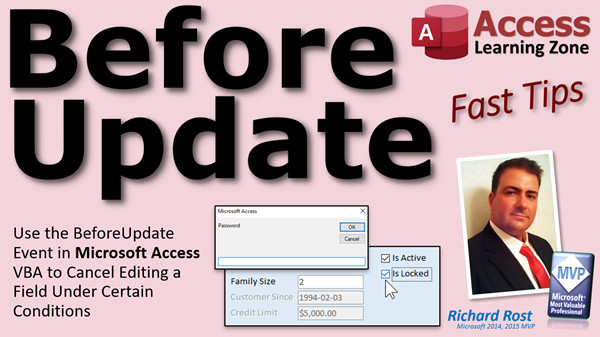
In this Microsoft Access tutorial, I'll show you how to use the Before Update event to cancel the editing of a field if certain conditions are or are not met. For example, you can see if a record is "locked" by a manager and require a password before unlocking it.
Michaela from Winston-Salem, North Carolina (a Gold Member) asks: I watched your InputBox video a few days ago. That was awesome. Thank you. Is there any way to just password protect a few specific fields on a form, instead of the whole form? I want everyone to be able to see fields like credit limit, but I only want managers to be able to edit them if they're locked.
Pre-Requisites
Recommended Course
Links
Keywords
access 2016, access 2019, access 2021, access 365, microsoft access, ms access, ms access tutorial, #msaccess, #microsoftaccess, #help, #howto, #tutorial, #learn, #lesson, #training, #database, #fasttips, beforeupdate, before update, locked, enabled, password protect fields, Confirm Changes using the Before Update Event, BeforeUpdate vs. AfterUpdate, Cancelling a Record Update with BeforeUpdate Event
 Subscribe to Before Update
Get notifications when this page is updated
More InformationTranscript Welcome to another FAS tips video brought to you by accesslearningzone.com.
I am your instructor, Richard Rost.
In today's video, we're going to talk about the Before Update event and how to use it to cancel editing a specific field under certain conditions.
Today's question comes from Michaela in Winston-Salem, North Carolina. One of my Gold Members, Michaela says, I watched your input box video a few days ago. That was awesome. Thank you. You're welcome.
Is there any way to just password protect a few specific fields on a form instead of the whole form? I want everybody to be able to see fields like credit limit. She changed it. It was something else, but I'm going to substitute it with credit limit. But I only want managers to be able to edit them if they're locked.
If you haven't watched the video she's referring to, go watch this first, my input box video. I show you how to add a button, a manager menu button on the main menu, and then you're asked for a manager password. If you give the password correctly, the manager menu opens up and then you can use that to open up other forms.
What Michaela is saying is she doesn't want the whole form to be password protected, just a field or two specific fields. Once the manager locks them, then you can still see what they are, but you can't edit them yourself without the manager password.
I also want you to watch my After Update video. "After Update" happens after a field is updated. "Before Update" happens before it's updated. It gives you the ability to cancel this. We're going to be doing that today, but go watch After Update first because it's easier to understand. Go watch that and then come on back.
While you're at it, while you're on that website, go watch this video too. It's called "Gray Out Fields". I show you how to gray out or disable different fields based on certain conditions. For example, if the customer is marked inactive, it grays out certain stuff like family size, customer since, credit limit, and so on.
What we're going to do in today's video is take the stuff from the "Gray Out Fields" video and the stuff from the input box. We're going to take all those different Lego pieces and put them together with something new called "Before Update". We're going to have a new Lego toy we can play with.
Let's go see how it works.
The first thing I need is a way to indicate if this user, if this customer, is locked. We're going to put an "Is Locked" field in the customer table. "Is Locked", Yes/No, default is No.
I have to preface this by saying that, as with everything else with Microsoft Access, if your user knows what they're doing, they can get into the tables if your database is not properly secured. So this will stop the average looky-loo, the average normal computer user, but if someone knows Access and they want to get to the backend tables, this won't keep them out of that.
The only way to do that for sure is to either encrypt your tables as I show in my Encryption Seminar or use a database server like SQL Server. We'll talk more about security toward the end of the video.
We've got a field now. Let's put that field on the customer form and I'm going to move this guy over here. I like to put all my check boxes together.
Here's my "Is Active." Let's copy this one. Copy, paste, Control+C, Control+V. Let's call this "Is Locked." Is Locked. Is Locked. There we go. Open up its properties. We'll change this to Is Locked and we'll also change the name. Don't forget to change the name too. Change the control source, change the name. Save the trailer, save the world.
Now when this guy is changed, I want to lock, let's say, "Customer Since" and "Credit Limit." Let's open up this guy's properties and we're going to go to the After Update event. After I change this, I want to lock those two fields.
Instead of using "Locked," I'm going to use "Enabled." I like "Enabled" better sometimes because it visually grays it out. We talked about this in the graying out stuff video. So we're going to say: If Is Locked, then CustomerSince.Enabled = False and then CreditLimit.Enabled = False. Otherwise, we're going to reverse that. Always remember to reverse it because if you don't, then it never enables again.
Save that. Now if I come back in here, open it up, check it, it locks them. See? You can't even click on them. Uncheck it, unlocks. Check, uncheck, uncheck, uncheck. Release rate.
I also need to take that into consideration when I move from record to record or when I first open the form. That, as we know, is the On Current event. That was one of the prerequisites for the "Gray Out Fields" video. If you didn't watch all the prerequisite videos, then you don't know what this is. That's why I tell you to watch all the other videos before this one.
That's why I teach my courses in order so I don't have to make you bounce around different videos. I talk in the Developer lessons, like one, two, three, four, and so on.
What we need to do is go into here and go back into the code for this form. This stuff here has to also run when I move from record to record, but I don't want to duplicate that. I don't want copies of my code in multiple places. So I'm going to snip that out, cut. I'm going to make my own private subroutine, Private Sub. We're going to call this DoLocks. I'm going to paste that code in there. Now this guy can just say DoLocks or CheckLocks or whatever I call it.
We also have to put it in the form's On Current event. So, Form, and then over here, Current. Now it's the form's Current event. Right in here you put DoLocks. Let me get rid of this Form_Loaded stuff that pops in there too.
Now you can see the form's Current and the After Update event for Is Locked are both going to run DoLocks, which is this stuff.
We don't want duplicated code in our database. Save that. Close it. From back out here, let's lock it. Let's go away from it. That one's not locked. Let's go back to it now, and now it's locked.
That's looking good so far.
Now let's take the password into consideration. If this is locked, then I can't unlock it without the password. Anybody can lock it. That's up to you. You might want to have your managers be the only ones who can lock it too, but let's say for the purpose of the class that anyone can lock it, like you're putting in a credit app. You're done with it, you lock it, and then only a manager now can unlock that.
Let's go into here. Go into your properties. Find your Before Update event. After Update happens after you make a change to the field and it's saved to the table, and it's done. That's it, it's committed to the table. Before Update happens after you've typed in your change, but before Access actually commits that change to the table.
In other words, it gives you the opportunity to say, well, let me check on some other stuff for you and make sure everything's okay and kosher before I actually save that value.
If you go into the dot dot dot now, you'll see I'm in Is Locked Before Update. There's a cancel option. If you set that cancel to anything but zero, it's canceled. It's an integer, so really it's wanting a one or a zero. I like to think of this as a Boolean because it just makes more sense. So I send it a True or False. That's a weird dirty point. Don't even worry about that. Just use True or False.
I'm going to first say: If Is Locked Then Exit Sub. What does that mean? Well, if it's already unlocked, then let them lock it. This is the value after you click it. So I click it and now it's locked. If it's locked already, exit out. We're good. Anybody can lock it.
But if it comes in here and now it's locked or now they're trying to unlock it, then I want to check the password. This is where the stuff from the password lesson comes in from the input box.
Dim S As String. We're going to come down here, and we're going to say S = InputBox("Enter the password") and all the other crazy stuff you want to put in there from the input box lesson. If S is not whatever the password is by then, cancel = True. We're going to cancel it and Exit Sub and End If.
So, they check the box and now it's locked. Exit Sub. Nothing else to do. But if they check the box and now it's unlocked, they're attempting to unlock it, ask for a password, check the password. If the password is not correct, cancel this and exit out and the value will stay locked.
Save it. Come back out here. Shut it down. Open it back up again.
Now this one is locked. Let's try to unlock it. Oh, it's your password. Let's put in something wrong. It aborted and it came right back out here.
Let's go to a different record. Let's lock this one. We're good. Let's lock. Let's try to unlock it now. Oh, it's your password. Let's type in the right password. Now it let us unlock that record.
That works.
That's pretty straightforward. We got like six lines of code. Not that hard.
Of course, some of this up top, if you want the stars on your input box, the asterisks, that's the extended cut for the members where I show you how to put the little thingies in here where they give you stars when you type it in.
There's also the matter of security. Of course, watch my simple security video to lock down your database. It's decent enough to keep most people out of it, most looky-loos that don't really know Access. If you want true security, then I do show you some better tricks in my Security Seminar. The only way to truly have secure data though is to use a database server like SQL Server.
I've got some online SQL Server training available, but I've got a real on-premises SQL Server seminar that I'm working on right now. In fact, I do have a Data Encryption seminar. However, if you only have a couple of bits of information, a couple of fields, maybe in your table that you want to scramble so that your end users, even if they do find your tables, your backend database, then the data inside it looks like gibberish, if they download your tables, for example, if you don't want to use a database server.
That's pretty much it for today.
That's how Before Update works. Before Update says, hey, before I actually save this change, I want to check and make sure something else is right - some other conditions, some other variable, some input, like a password.
There also is a form-level Before Update event that runs for the whole form. The user can change a bunch of different stuff and you can run a Before Update on the form and check other data on a table or on a different form.
That's going to be a different video, of course.
If you want to learn more about Before Update, I do cover it in a lot more detail in my Access Developer Level 24 class. This is actually a pretty popular one. In this one, I cover copying a record with all of its details. So, for example, if you want to copy an order, it will copy the order record and all of the detail records as well, all the related child records. Developer 24 is a pretty cool class.
That's it for your Fast Tip today. I hope you learned something. I'll see you next time.
How do you become a member? Click on the Join button below the video. If you click the Join button, you'll see a list of all the different membership levels that are available, each with its own special perks.
Silver Members and up will get access to all of my extended cut TechHelp videos, one free Beginner class each month, and more. Gold Members get access to download all of the sample databases that I build in my TechHelp videos, plus my Code Vault where I keep tons of different functions that I use. You'll also get a higher priority if you decide to submit any TechHelp questions to me. Then you'll get one free Expert class each month after you finish the Beginner series.
Platinum Members get all the previous perks, plus even higher priority for TechHelp questions, access to all of my full Beginner courses for every subject, and one free Developer class each month after you finish the Expert classes. These are the full-length courses found on my website, not just for Access too. I also teach Word, Excel, Visual Basic, and lots more.
You can now become a Diamond Sponsor and have your name or company name listed on a sponsors page that will be shown in each video as long as you're a sponsor. You'll get a shout out in the video and a link to your website or product in the text below the video and on my website.
But don't worry, these free TechHelp videos are going to keep coming. As long as you keep watching them, I'll keep making more and they'll always be free. Intro In this video, we'll talk about how to use the Before Update event in Microsoft Access to control editing specific fields on a form, such as allowing only managers to unlock or modify sensitive information like a credit limit after entering a password. We'll walk through adding an "Is Locked" field to the customer table, updating the customer form, using the Enabled property to gray out fields, and implementing password protection logic using the Before Update event. You'll also see tips for organizing your code and ensuring only authorized changes are made to critical fields. Quiz Q1. What is the primary purpose of the Before Update event in Microsoft Access, as described in the video?
A. To validate changes after they have been saved to the table
B. To prevent a field or record from being updated based on certain conditions before saving
C. To open additional forms after a user edits a field
D. To permanently delete data in a field
Q2. Which scenario did Michaela from North Carolina want to implement on her form?
A. Password protect the entire form for all users
B. Hide certain fields from all users except managers
C. Password protect only specific fields, so only managers can edit them
D. Prevent users from viewing any fields
Q3. Why is the Enabled property sometimes preferred over the Locked property for fields?
A. Enabled property removes the field from the form
B. Enabled property visually grays out the field, indicating it cannot be edited
C. Locked property adds more security than Enabled
D. Enabled property can be used for tables only
Q4. What does the On Current event in an Access form do?
A. Runs code when a new database is created
B. Runs code only the first time a form opens
C. Runs code every time the user moves to a new record
D. Runs code before any data is saved to a table
Q5. Why did Richard move the locking logic into a separate subroutine called DoLocks?
A. To simplify the code so it only runs once per session
B. To avoid duplicating the same code in multiple events
C. To enable the logic to work on all database forms automatically
D. To secure the database with encryption
Q6. How does the Before Update event help protect the Is Locked field?
A. It allows the database to check a password before permitting any changes to the lock status
B. It grays out the entire form if the password is incorrect
C. It deletes the record if the wrong password is entered
D. It hides the Is Locked field from view
Q7. What happens if the user enters the wrong password when attempting to unlock a field?
A. The unlock process is allowed to continue
B. The unlock is canceled and the field remains locked
C. The entire form closes
D. The password is automatically changed
Q8. Why does the video stress that these techniques only keep out "average looky-loos" but not advanced users?
A. Access has built-in unbreakable security
B. Advanced users can bypass these locks if the database is not properly secured
C. The locking mechanism is only for display purposes
D. Only managers have access to the forms
Q9. What is recommended for true security of sensitive data in Access databases according to the video?
A. Setting a password on forms only
B. Using a database server like SQL Server or encrypting tables
C. Relying on the Enabled property alone
D. Disabling the After Update event
Q10. In addition to field-level Before Update events, what else does Access provide, as mentioned in the video?
A. Form-level Before Update event to check for changes across multiple fields
B. Table-level Before Update event for entire databases
C. Worksheet-level Before Update event for Excel
D. Report-level Before Update in forms
Q11. Which member perk allows users to download all sample databases built in TechHelp videos?
A. Silver Membership
B. Gold Membership
C. Basic Membership
D. Diamond Sponsorship
Q12. What is the function of the InputBox in the context of password protection in the video?
A. To log user login times
B. To prompt the user for a password before unlocking a field
C. To display error messages after failed password attempts
D. To save passwords in the database
Q13. Why is it important to reverse the enabling/disabling logic in the code as demonstrated?
A. To keep fields permanently locked
B. To ensure fields can be both locked and unlocked as needed
C. To change field names dynamically
D. To hide the Unlock button from users
Answers: 1-B; 2-C; 3-B; 4-C; 5-B; 6-A; 7-B; 8-B; 9-B; 10-A; 11-B; 12-B; 13-B
DISCLAIMER: Quiz questions are AI generated. If you find any that are wrong, don't make sense, or aren't related to the video topic at hand, then please post a comment and let me know. Thanks. Summary Today's video from Access Learning Zone focuses on how to use the Before Update event in Microsoft Access to control whether specific fields on a form can be edited, depending on certain conditions, such as user permission.
A student recently asked how to password protect just a few specific fields on a form, rather than the entire form. For example, she wanted users to be able to view a "credit limit" field, but only allow managers to edit it if the field was locked. This approach makes the information visible, but restricts who can make changes.
If you haven't yet, I recommend watching my input box video. In that lesson, I demonstrate how to add a manager's menu button that prompts for a password, granting access to advanced features if the password is correct. That groundwork will make today's lesson easier to follow, so check it out first if you need a refresher.
It's also helpful to review my videos on After Update events and how to gray out fields. The After Update event occurs after a field's value has been changed and saved, while the Before Update event takes place before the change is committed, giving you a chance to intervene and potentially cancel the update. The gray out video also shows how you can visually disable fields under certain conditions, such as making them inactive or blocking editing.
Combining these techniques, I'm going to show you how to set up a system that uses a new field called "Is Locked" in your customer table. This is a Yes/No field, with the default set to No. Including this field will allow you to track whether a record should be locked from editing.
A quick word of warning though: while this method prevents most users from editing the locked fields, experienced Access users could theoretically bypass it if your tables aren't properly secured. For true database security, you need to consider encryption or backend server solutions like Microsoft SQL Server, which I discuss further in my Security and Encryption seminars.
Once you've added the Is Locked field to your table, add it to your customer form as a checkbox. For organizational purposes, I recommend grouping it with other checkboxes on the form. Be sure to update the control source and name accordingly.
Next, you want certain fields to become read-only when Is Locked is checked. Instead of using just the Locked property, using the Enabled property is more effective since it actually grays out the fields, making it visually obvious that they are unavailable. So, in the After Update event for Is Locked, set Customer Since and Credit Limit fields to Enabled False when the record is locked, and back to True when it's unlocked. Always include code to reverse the change; otherwise, if the box is unchecked later, the controls would remain disabled.
You also need this behavior to trigger not just when the Is Locked box is updated, but also when moving between records or opening the form. Use the form's On Current event for this. To avoid duplicating code, move the enabling/disabling logic into its own private subroutine such as DoLocks, and call this method both from Is Locked's After Update event and from the form's On Current event.
Now, regarding unlocking: suppose anyone can lock a record, but only a manager with the right password can unlock it. To handle this, use the Before Update event for the Is Locked control. After a user attempts to unlock, but before Access makes the change permanent, you prompt for the manager's password using an InputBox. If the correct password is not provided, you cancel the update and the value remains locked.
Here's how the flow works: when a user tries to unlock a locked record, Access prompts for a password. If the password is incorrect, Access cancels the update before it reaches the table, preventing any unauthorized changes. If the password is right, the change goes through.
It's a straightforward approach that relies on only a few lines of VBA code. For members, I have an extended lesson that shows you how to display asterisks instead of plain text in the password input for added security.
Keep in mind, if you want genuine security, I recommend watching my security videos and considering SQL Server for your backend. If you need to obscure sensitive data even within your own tables (so anyone downloading them can't read your information), look into my Data Encryption seminar.
The Before Update event is a powerful tool in Access. It allows you to test any condition before saving data, whether it's soliciting user input, performing additional validation, or checking other form fields. There is also a form-level Before Update event, which can be used for more complex validation when multiple fields might be changing at once.
I cover Before Update and related security and form management topics in more detail in my Access Developer Level 24 class. In that class, for example, I go through procedures for copying records and all their related details, which is especially useful for working with parent-child table relationships.
That covers today's Fast Tip. If you are interested in more step-by-step instruction, you can find a complete video tutorial for everything discussed here on my website at the link below.
Live long and prosper, my friends. Topic List Adding an Is Locked field to the customer table
Placing the Is Locked checkbox on the customer form
Locking and unlocking specific fields using Enabled property
Using the After Update event to trigger field locking
Implementing a DoLocks subroutine to avoid duplicate code
Calling DoLocks from both After Update and On Current events
Requiring a password to unlock specific fields
Using the Before Update event to prompt for a password
Canceling field updates if the password is incorrect
Allowing field locking without a password but requiring one to unlock
Explaining differences between After Update and Before Update events
Limitations of Access form-level security
Storing locked status at the record level
Demonstrating user experience for locking/unlocking fields Primary Topics Microsoft Access, Before Update event, form field security, enabling/disabling controls, password protection, VBA coding, record-level UI logic
Secondary Topics After Update event, form On Current event, code reusability, security limitations, table field design, security best practices
|




