Data Macro
By Richard Rost

 4 years ago
Update a Field's Value When a Record is Changed
In this Microsoft Access tutorial, I will teach you how to update the date that a record was last updated using a data macro. This runs at the table level. Use them sparingly, but they can be useful.
Pre-Requisites
Links
Recommended Course
Keywords
access 2016, access 2019, access 2021, access 365, microsoft access, ms access, ms access tutorial, #msaccess, #microsoftaccess, #help, #howto, #tutorial, #learn, #lesson, #training, #database, #fasttips, data macro, last updated, trigger, before change, update date when record changed
 Subscribe to Data Macro
Get notifications when this page is updated
More InformationTranscript Welcome to another Fast Tips video brought to you by AccessLearningZone.com. I am your instructor, Richard Rost.
In today's video, we are going to talk about data macros. We are going to update a last updated field in the table whenever that record is changed, using something called a data macro that runs at the table level.
Generally, in my classes, I recommend against the use of data macros. A data macro allows you to put programming at the table level. Usually, this is considered bad database design. It is not something that professional developers use, and I try to avoid it myself.
It is usually best to keep all of your coding - all of your VBA, your macros, whatever - at the form level. The form controls that kind of stuff. The table is supposed to be for just storing data.
However, once in a while, it is okay to use a little simple data macro, especially if it is not something that is business critical. For example, one thing that I like to do with a data macro is to know when the record was last updated.
So if you go to the customer table, for example, let's go to Design View. Let's say you want to add a field down here called last updated, and we will make that a date/time value.
Now, anytime this record is updated, I want that field to get the current date and time. Now, if you have a lot of different forms in your database that can edit customer T, then it could be a pain putting that code in every one of those forms.
Let me save this. For example, even here I have got a customer list. I could edit here. I have got a customer form. I could edit here. Same data. I have got a customer with context form. I could edit here. So right here in this database, there are three different forms that I would have to put that code in to update that value.
Or you could do it with a data macro. Again, I want to emphasize, do not use data macros for anything that is business critical. This is just something that I might want to use to look in the logs and see when this customer information was updated.
Data macros in the past were extremely unreliable, especially when they first came out a few versions ago.
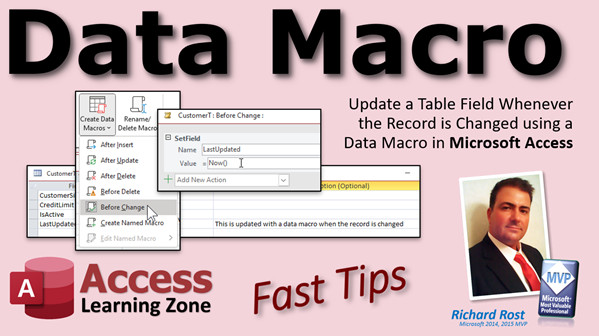
Now, how do you build a data macro? Go to table design. Then up here, you will see Create Data Macros. There are a bunch of triggers: after insert, after update, after delete, and a whole bunch of different ones. The one I like is before change.
This runs before a record is saved to validate changes. Basically, whenever the record is changed, this macro is going to run. So I am going to click before change.
Again, I am not a huge fan of macros, but this takes something that could be difficult to code in multiple forms and makes it pretty simple at the table level.
Drop this down and there is a bunch of actions you can take. I am going to go SetField. What is the field name? That is last updated. What do you want to set it to? The Now function. Just like that.
Save it. Close it. Close it. Save changes. Yep.
Now, if you come into the customer table and if I change Richard Rost to Richard Rost, D, tab over to the right and you will see the last updated was updated there. Or if I change one of these values, let's change this to a nine. See? It updates right at the table level.
If you go into a form like customer list, let's change the anitroy to de-anitroy queue. Go back to the customer table, find de-anit, there she is right there. Look, it updated there.
Or pick one of the other forms. How about the customer with context form? Contrary xxx, whatever. Close it. Come back into here. It updated.
It will also update in a query. If you have any queries that change the data, it runs at the table level. So anytime this record is modified in this table, that event will run.
Usually I also recommend if you are going to put something in here with a data macro, put a note in the description field: This is updated with a data macro when the record is changed. Why? Because if anybody else is going to be using your database or developing in it, or you in the future, you will pull your hair out trying to find where in your code, in your VBA, and your form macros, that this thing is updated. Put a note to yourself in the description at the table level.
So when you come in here and you look at it, you will remember, oh yeah, I used a data macro. I did this to myself a couple years ago. I put a data macro on a table. I was like, what is causing this behavior? Forgot about the data macro.
Again, I cannot emphasize enough, keep this to really, really, really simple stuff. Do not rely on it for anything crazy, business critical functions, and stuff like that. Use them sparingly. But it is a cool little trick, especially for something like this.
I do cover data macros in more detail in my Access Advanced Level 6 class. I have all kinds of cool stuff in here. I will walk you through some of the different types of data macros. Again, that is Access Advanced Level 6. I will put a link down below in the description under the video. You can click on it if you are interested in learning more.
That has been your fast tip for today. I hope you learned something and I will see you next time. Intro In this video, I will talk about using data macros in Microsoft Access to automatically update a "last updated" field in your table whenever a record is changed. We will go over what data macros are, why they are generally not recommended for critical functions, and how they can be helpful for simple tasks like tracking updates, especially when you have multiple forms or queries that can modify your data. I will show you how to set up a data macro at the table level, walk through the steps to add and configure it, and discuss best practices for documenting this feature in your database. Quiz Q1. What is the primary purpose of using a data macro in the example shown in the video?
A. To add complex business logic at the table level
B. To update a last updated field whenever a record is changed
C. To prevent users from editing records
D. To automate form creation
Q2. According to Richard Rost, where is it generally best to put coding like VBA and macros in an Access database?
A. In queries
B. At the table level
C. At the form level
D. In reports
Q3. Why does the instructor caution against using data macros for business-critical functions?
A. Data macros are too complex to manage
B. They can only be used with simple text fields
C. Data macros were previously unreliable and are not considered good database design
D. They automatically run on all tables and forms
Q4. In the example, which field type should be used for the "last updated" field in the table?
A. Short Text
B. Currency
C. Attachment
D. Date/Time
Q5. What is the advantage of updating the "last updated" field using a data macro rather than in every form?
A. It is more secure than VBA
B. Changes are tracked regardless of which form or query edits the record
C. It increases database performance
D. It prevents accidental data entry
Q6. Which data macro trigger is used in the example demonstrated in the video?
A. After Insert
B. After Delete
C. After Update
D. Before Change
Q7. What action is used inside the data macro to update the timestamp?
A. SendEmail
B. SetField
C. DeleteRecord
D. RunCode
Q8. Why does the instructor recommend adding a note in the description field for a field updated by a data macro?
A. To provide better reporting functionality
B. To remind yourself and other developers why and how the field is updated
C. To enhance table performance
D. To allow the macro to run faster
Q9. What function is used to set the "last updated" field to the current date and time in the macro?
A. Date
B. Time
C. Now
D. Today
Q10. Which of the following is NOT a scenario where the data macro will automatically run?
A. Editing a record in the Customer List form
B. Editing a record using a query
C. Editing a record in the Customer with Context form
D. Printing a report
Answers: 1-B; 2-C; 3-C; 4-D; 5-B; 6-D; 7-B; 8-B; 9-C; 10-D
DISCLAIMER: Quiz questions are AI generated. If you find any that are wrong, don't make sense, or aren't related to the video topic at hand, then please post a comment and let me know. Thanks. Summary Today's video from Access Learning Zone focuses on using data macros in Microsoft Access to automatically update a "last updated" field whenever a record is modified in a table. I want to start by making it clear that I usually advise against using data macros. They allow you to run programming logic directly at the table level, and in professional database design, it is best to keep your code at the form level rather than the table. Tables should just store your data, while forms should handle events and processing.
However, there are occasional cases where a simple data macro can come in handy, particularly for non-critical tasks. One situation I find helpful is keeping track of when a record in a table, such as a customer table, was last updated. By adding a "last updated" field of type Date/Time to your customer table, you can record the date and time any time that record is changed.
The traditional approach would be to add code to every form that allows edits to the customer table so that field is updated each time a record is changed. This becomes cumbersome if you have several forms or interfaces that can edit your customers, since you would be repeating the same code in multiple places. A data macro helps avoid this redundancy by putting the logic at the table itself so it runs no matter how the change occurs.
To set this up, go into your table in Design View and add the "last updated" field. Then, use the "Create Data Macros" feature at the top of the table design window. You'll see several triggers available, such as "After Insert," "After Update," or "After Delete." The one I recommend for this is "Before Change," which triggers whenever a record is about to be changed, regardless of how the change is made.
Once the "Before Change" macro opens, you simply add an action to set the "last updated" field to the current date and time using the Now function. Once you save your changes, this macro will run any time the record is changed, in the table directly, in any form, or even from a query that updates the data.
To confirm the macro works, you can change a value in the table, in any of your customer forms, or through a query, and you will see the "last updated" field update automatically each time. Because this runs at the table level, you never have to worry about missing an update due to forgetting code in one of your forms.
There is an important best practice when using data macros. Always document your use of them. Add a note in the description field for the "last updated" column to indicate that it is maintained with a data macro. This can save you or anyone else working on your database a lot of confusion when tracking down where this value is set, especially if you forget about the data macro sometime down the line.
I want to repeat once more that data macros should be used sparingly and not for any business-critical or complex logic, since they can be difficult to maintain and were unreliable in early Access versions. Still, for basic tasks like this, they provide a tidy solution.
If you are interested in learning more about data macros, I cover them in-depth in my Access Advanced Level 6 class. That course explores several data macro types and more advanced techniques. You can find a complete video tutorial with step-by-step instructions for everything discussed here on my website at the link below.
Live long and prosper, my friends. Topic List Explanation of data macros at the table level
Adding a Last Updated field to an Access table
Using the Before Change data macro trigger
Setting a table field with a data macro
Automatically updating a date field on record change
Demonstrating updates from multiple forms and queries
Adding a description note for data macros in table design Primary Topics Access data macros, last updated field, table-level triggers, SetField action, Now function, Access table design, form-level vs table-level code Secondary Topics description field documentation, Access history, macro reliability, Access macro triggers |




