PreviousControl
By Richard Rost

 2 years ago
Using Screen.PreviousControl in Microsoft Access VBA In this Microsoft Access tutorial, I will show you how to use the Screen.PreviousControl property to efficiently adjust multiple form values with a single set of buttons. Dennis from Burnsville, Minnesota (a Platinum Member) asks: I have a form with 15 different values on it that I have to adjust from time to time. I want to make little buttons to add or subtract from these values, but is there any way I can do it with just one set of buttons instead of having to make buttons for every text box? Maybe click on the box and then the plus or minus button? MembersThere is no extended cut, but here is the database download: Silver Members and up get access to view Extended Cut videos, when available. Gold Members can download the files from class plus get access to the Code Vault. If you're not a member, Join Today!
PrerequisitesLinksRecommended Courses
Keywords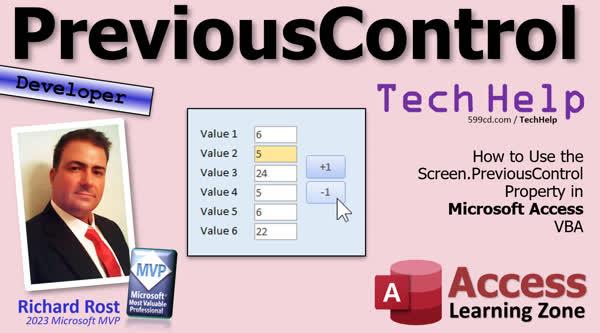 TechHelp Access, Screen.PreviousControl, VBA PreviousControl property, Access VBA PreviousControl, PreviousControl in VBA, adjust form values VBA, Microsoft Access form navigation, Access add subtract buttons, ActiveControl vs PreviousControl, VBA button click events, setting focus VBA, previous control value VBA, Access developer tips, form control manipulation VBA.
More InformationTranscript Welcome to another TechHelp video brought to you by AccessLearningZone.com. I am your instructor Richard Rost. For those of you who are regular viewers of my channel, you might be able to tell that my voice is a little hoarse today. I'm just getting over a really bad flu. Sorry I didn't release any new videos last week, but I've been in bed all week. So let's get back to it. Today we're going to talk about the previous control property in Microsoft Access.
Today's question comes from Dennis in Burnsville, Minnesota, one of my Platinum members. Dennis says, "I have a form with 15 different values on it that I have to adjust from time to time. I want to make little buttons to add or subtract from these values, but is there a way I can do it with just one set of buttons instead of having to make buttons for every text box? Maybe click on the box and then the plus or minus button."
What Dennis is talking about is something similar to what I cover in this video where I show you how to make a date field, and then you can make little buttons underneath it to go like plus or minus a day. Plus or minus a day, plus or minus a week, change it to tomorrow, to yesterday, whatever. But what he's saying is he's got a form with 15 different values on it, and he wants to be able to go plus or minus on those different values without having to make a different set of buttons for all of those 15 values. Can you just click on the box and then click on the button? Right? Something like this. I just put six different values on here. You click on value 2 and you can click on plus plus plus plus or minus minus minus. You click on value 5, then you click on minus minus. Whatever you want to do. This way you don't have to have a separate set of buttons for each one of the controls.
To do this, Microsoft Access needs to know what was the text box that you were just on previously. Right? That's called the previous control, and there's a property for that, and I'm going to show you how to read that in today's video. This, of course, is a developer-level video. What does that mean? Well, it means you need to know some VBA, and if you haven't watched this intro to VBA video before and you want to learn how, it's about 20 minutes long. It'll teach you everything you need to know to get started. So go watch this and then come on back.
Alright. Here I am in my TechHelp free template. This is a free database you can grab from my website if you want to. Let's say you have a form here with a bunch of controls on it. I have three controls here that are numeric controls: family size, customer sense, credit limit. I can add one or minus one to any of these values, and they're just numeric values, so they will go up and down. So I'm going to add a set of buttons here so that I can add one to whatever the previous control was.
Alright, how do we do that? Well, let's start by adding our buttons. I'm just going to copy these buttons right here. Control C, Control V, move them down here. We'll make this my minus one button. I'll name this guy, let's call it the plus one button, and this one will be the minus one button.
Alright, now let's start off by seeing exactly what this previous control property is. Before we do that, there's another property I want to show you called ActiveControl. Alright, so let's click on this button here. Right-click, go to Build Event, that'll bring up your code builder. Here I am in the private sub plus one button click. Here's what we're going to do. I want you to come in here, type in message box, screen.activecontrol.name. ActiveControl is whatever control on the form, right on the screen here, has the focus. That's the active control, and I want to see what its name is, its name property. It's in the screen collection, the active control is whoever currently you're working with, and show me its name.
Alright, save that, come back over here. I'm going to close my form and reopen it, click the button, boom, and it's plus one button. That's the active control, that's the button I just clicked on, and that's its name property. ActiveControl has a whole bunch of cool things you can do with it, but that's not the property that we need for this video. I just wanted to show it to you so you know that it's there. I have a whole other video coming out on some cool stuff you can do with ActiveControl.
What I'm really interested in is the one that I clicked on before this guy, and for that I want previous control. Alright, screen, previous control. Save that, come back over here. I'm going to click on family size and then click on this button, and look at that, it knows that the control that I clicked on before this one was family size. If I click on notes and then last name and then click on it, look at that, last name. So it knows who I was on last.
Knowing that, now I can change the value of that field. I can come in here now and say, alright, instead of message boxing that name, I'm going to say take the screen.previousControl.value and set it equal to screen.previousControl.value plus 1. See that? Alright, save it. Come back over here. I'm going to click on family size and then hit plus one. Look at that, now it's three and four and five and six and seven, and it will remember that value unless you switch to a different control.
Now, this is where we have to be careful if we start using the second button. Let's get the second button going now. You ready? This is the minus one button. Right-click, build event. We're going to do something very similar. Let's get these two together. In fact, I'm just going to delete this code we don't need. So it's not messing up the screen. Here's the plus one button. I'm just going to copy this, stick it up in here. The minus one button is going to do the same thing, except it's going to subtract one.
Come back out here. Let's close this. Save changes, yes. I'll put her back up again. I'm going to click on family size. I'm going to hit plus one. That's working. Now I'm going to hit minus one. Object doesn't support this property or method. What was that? What happened? Why can't I do that? What is the screen.previousControl?
If you think about it, what did I do? I clicked on this, then I clicked on this button, and that added one, that's fine. Now at the moment that I click on this button. And command buttons don't have values. You can't change the value of it. So, there are a couple of things you might want to do. First thing is to prevent this from happening to your users. You might want to put an onErrorResumeNext in here. That way, if they do try doing this with a control that doesn't have a value, they're not going to get that error message. But that doesn't help you as a developer, right? Because now if I do something like this, plus, minus, minus, minus, I can't figure out why it's not working.
To fix that, all we have to do is, when we're done clicking on this button, put the focus back where it was. So when I click here, add the value, add one to it, and then just put the focus back there. So if I do click on the minus button, the previous control was also family size. Come in here and we'll say screen.previousControl.setFocus. We're going to move the focus back where you were. Alright? And then we'll copy that and we'll put it down under this one. And we'll save it. You guys don't hear me, but I've got to pause the video recording every couple of minutes to sniffle. I'm still getting over a cold. Alright? Debug compile once in a while. I'm going to make a t-shirt about that.
Now I can go plus, plus, plus, minus, minus, minus. See that? I can click on this field, minus, minus, minus. Remember with dates, plus one is plus one day, minus one day. Same thing with currency values. Pretty cool stuff. Whatever field you're on. You can do all kinds of stuff. I used to use this for spell checking. If you have a field here, you can click on this field, hit a button, and it'll launch the spell check just for that field. You can change the properties of these fields. You can make things get bigger and smaller with these buttons. Whatever field you happen to be on, make it size bigger and smaller. All kinds of stuff you can do with this.
If you want to learn more about things like screen.activecontrol, previouscontrol, screen.activeform, all that stuff is covered in my Access Developer Level 25 class. There's lots of other stuff too. Byref and byval is covered in here, activeform and control, passing controls between forms, all kinds of cool stuff.
That's it for today, folks. A nice short one for today. Like I said, I'm getting over a cold. Hopefully tomorrow I'll be better. I have all kinds of cool videos planned for coming up this week. It's just a matter of if I can get them recorded or not. So that's going to be your TechHelp video for today. I hope you learned something. Live long and prosper, my friends. I'm off to find a bowl of chicken soup. I'll see you next time.
TOPICS:
Previous Control Property in Microsoft Access
Setting up buttons to increment/decrement values
Using the ActiveControl property
Displaying ActiveControl name
Using Screen.PreviousControl to get previous focus
Changing value of previous control using VBA
Error handling for controls without values
Refocusing to previous control after button click
Testing button functionality for increment and decrement
Additional uses of PreviousControl (spell check, resize)
COMMERCIAL:
In today's video from Access Learning Zone, I will show you how to efficiently adjust multiple values in a Microsoft Access form using the previous control property. Dennis from Burnsville, Minnesota asked how to manage plus and minus buttons on a form with 15 fields but without using a separate button set for each value. I'll teach you to create one set of buttons that works with whichever text box was previously clicked. First, we'll identify the previous control, then we'll update its value using VBA code. By the end, you'll know how to elegantly manage multiple form controls with just one set of buttons.
You'll find the complete video on my YouTube channel and on my website at the link shown. Live long and prosper, my friends. Intro In this video, we will talk about using the PreviousControl property in Microsoft Access to create a single set of increment and decrement buttons that can adjust any field on your form, instead of adding separate buttons for each value. I will show you how to identify which control was previously selected, demonstrate the use of the ActiveControl property for reference, and then use VBA to update the correct value based on user actions. We'll also cover handling errors when controls don't support value changes, and how to refocus the cursor after each update. Quiz Q1. What is the main topic of the video tutorial?
A. How to create tables in Microsoft Access
B. Using the previous control property in Microsoft Access
C. How to import data into Microsoft Access
D. Creating forms in Microsoft Access
Q2. What does Dennis from Burnsville, Minnesota want to achieve with his form?
A. Create a report based on multiple values
B. Add or subtract from values using a single set of buttons
C. Export data to Excel
D. Filter records
Q3. Which property in VBA allows you to identify the control that currently has focus on the screen?
A. PreviousControl
B. CurrentControl
C. ActiveControl
D. FocusControl
Q4. What happens when you click the button after setting up the ActiveControl property in the video?
A. It shows the value of the control
B. It shows the name of the active control
C. It navigates to a different form
D. It closes the form
Q5. Why does the instructor showcase the PreviousControl property after ActiveControl?
A. To display a message box
B. To demonstrate a workaround for multi-control forms
C. To explain how to navigate forms
D. To show default control properties
Q6. What is the error encountered when clicking the minus one button without additional code to handle it?
A. Data type mismatch
B. Object doesn't support this property or method
C. Form not found
D. Null reference error
Q7. What solution does the instructor suggest to prevent the error when clicking control buttons in the form?
A. Close the form after updating
B. Use the OnErrorResumeNext statement
C. Disable the buttons
D. Reset the form
Q8. What is the purpose of using the SetFocus method in the button click event?
A. To add a value to the control
B. To change the control's name
C. To reset the control's properties
D. To move focus back to the previous control
Q9. What can be modified with the method demonstrated in the video?
A. Database schema
B. Form properties
C. Control values
D. User roles
Q10. Which VBA concept was recommended for further learning at the end of the video?
A. Error handling in VBA
B. Using Byref and Byval
C. Writing SQL queries
D. Designing reports
Answers: 1-B; 2-B; 3-C; 4-B; 5-B; 6-B; 7-B; 8-D; 9-C; 10-B
DISCLAIMER: Quiz questions are AI generated. If you find any that are wrong, don't make sense, or aren't related to the video topic at hand, then please post a comment and let me know. Thanks. Summary Today's TechHelp tutorial from Access Learning Zone focuses on how to use the Previous Control property in Microsoft Access to efficiently manage multiple value changes on a form. I am Richard Rost, your instructor. I appreciate your understanding as my voice might sound a little rough today; I am recovering from a bad flu, which kept me away from new videos last week.
The question I received comes from a student who has a form containing 15 different numeric values that need to be adjusted from time to time. The challenge is to avoid creating a separate set of increment and decrement buttons for each of these fields, and instead have a single set of buttons that will work with any value field, depending on where the user last clicked. The idea is that the user clicks into one of the value fields and then uses the plus or minus button to change just that value.
In Access, I have previously demonstrated how to adjust a date value using a set of buttons to increment or decrement the date by a day or a week. However, this time, the task is to create a universal set of buttons that will work with any field, without duplicating the controls.
To make this work, Access needs to be able to determine which control the user interacted with last before clicking the increment or decrement button. This is where the Previous Control property comes into play. Understanding this property is important for developers, and you will need a basic understanding of VBA to follow along. If you are new to VBA, I recommend my introduction to VBA video, which provides a good foundation.
Starting off, imagine a form with several numeric fields, such as family size, customer sense, and credit limit. The goal is to use one set of buttons to modify whichever of these fields was most recently active. After placing the plus and minus buttons on the form, the first step is to look at the ActiveControl property. ActiveControl refers to whichever control currently has the focus on the form. For demonstration purposes, if you check the name property of the ActiveControl, you will see it shows the name of the button as that is what was just clicked.
However, for this solution, what you really need is the control you interacted with just before the button: this is where Previous Control becomes useful. By referencing Previous Control, you can determine which field was active last, and then use VBA to modify its value.
For instance, after selecting a value field and clicking the plus one button, you can write VBA code that reads the value of that previous control and increases it by one. If you do this, you will see the value increment properly for whichever field you activate before pressing the button. The process works in reverse for the minus one button, subtracting one from the previous control's value.
There is a caveat, though. If you repeatedly click the plus or minus buttons without first selecting a field, the Previous Control property may reference the wrong type of control (such as another button), which does not have a numeric value and results in an error. To avoid this, you may want to employ basic error handling, or more importantly, immediately return focus to the last used value field after modifying it. By setting the focus back using VBA after each button press, you ensure that repeated button clicks continue to act on the correct field.
This technique opens up many possibilities beyond just incrementing and decrementing values. For example, you could use it to trigger spell checking or adjust the properties of any selected field using shared buttons, making your forms far more dynamic and user friendly.
If you want to explore these concepts in greater detail, including properties like ActiveControl, PreviousControl, and ActiveForm, I cover all of these topics extensively in my Access Developer Level 25 course. This includes advanced topics such as byref and byval, passing controls between forms, and much more.
That wraps up today's lesson. I hope you found this tutorial useful and can apply these techniques to your own Access projects. For a complete video walkthrough with step-by-step instructions on everything discussed here, visit my website at the link below.
Live long and prosper, my friends. Topic List Previous Control property in Access forms
Creating plus and minus buttons for values
Assigning a single button set to multiple text boxes
Identifying the previously selected control
Using Screen.PreviousControl in VBA
Changing the value of the previously focused field
Difference between ActiveControl and PreviousControl
Handling errors for non-value controls
Restoring focus to previous control after button click
Testing form functionality for increment and decrement actions Primary Topics PreviousControl property, ActiveControl property, Access form controls, VBA event handling, increment/decrement button logic, focus management, error handling in VBA Secondary Topics alternative uses for PreviousControl, spell checking controls, resizing controls, date and currency value adjustment |






