Resize Forms
By Richard Rost

 4 years ago
Resize Forms for Different Screen Sizes & Resolutions
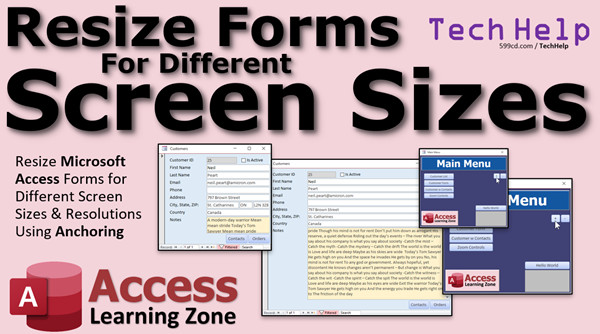
In this Microsoft Access tutorial, I'm going to teach you how to use Anchoring to allow you to resize the controls on your form to fit different screen sizes. This way you can see more information on larger screens, but still design your forms to fit on smaller ones like cell phones. As a bonus feature, I'll teach you how to automatically maximize forms when they open to take full advantage of your screen space.
Brennan from Cork, Ireland (a Platinum Member) asks: I have three different devices that I use my database on. I have my normal desktop PC in my office. I have a travel laptop that's got a much smaller screen. I also like to log on remotely using Remote Desktop software to check things from my cell phone. I've built three different sets of forms for each of these devices, but it's a pain having to update them. Every time I make a change to one, I've got to change all three. Isn't there any way you can stretch or resize forms to fit the available screen space?
Members
Members will learn how to build buttons to allow a user to actually zoom in and out of an Access form and resize the controls and font sizes. This is functionality that is in Word, Excel, and PowerPoint and should be in Access, but it's not. However, we can add it with a little bit of VBA coding.
Silver Members and up get access to view Extended Cut videos, when available. Gold Members can download the files from class plus get access to the Code Vault. If you're not a member, Join Today!
Recommended Course
Pre-Requisite
Links
 Keywords Keywords
access 2016, access 2019, access 2021, access 365, microsoft access, ms access, ms access tutorial, #msaccess, #microsoftaccess, #help, #howto, #tutorial, #learn, #lesson, #training, #database, Access Forms using with different screen resolutions, Access Form Resizing Based on Screen Resolution, Shrinker, Stretcher, Zoom in, zoom out, zoom in access forms, zoom out access forms, automatic form resizing, form resizer, dynamically resize forms and controls, DoCmd.Maximize, multiple monitor sizes
 Subscribe to Resize Forms
Get notifications when this page is updated
More InformationTranscript Welcome to another TechHelp video brought to you by AccessLearningZone.com. I am your instructor, Richard Rost.
In today's video, I'm going to show you how to resize Microsoft Access forms for different screen sizes and resolutions using something called anchoring.
Today's question comes from Brennan in Cork, Ireland, one of my platinum members. Brennan says, I have three different devices that I use my database on. I have my normal desktop PC in my office. I have a travel laptop that's got a much smaller screen. I also like to log on remotely using remote desktop software to check things from my cell phone. I built three different sets of forms for each of these devices, but it's a pain having to update them. Every time I make a change to one, I've got to change all three. Isn't there a way you can stretch or resize forms to fit the available screen space?
Well, Brennan, you'd think that Microsoft Access would allow you to stretch or zoom in and out of forms like you can in Word, Excel, PowerPoint, and most other applications, but you can't do it in Microsoft Access. Like I always say, Access is literally the red-headed stepchild of the Microsoft Office family. I mean, they even made the logo red. They used to be purple. Now it's red. And Access doesn't get a lot of the cool features that most of the other office applications have, but we can get creative and do stuff our way because you can do pretty much anything in Access.
So let me show you a trick called anchoring that you can use to resize your forms and have the controls stretch inside your forms. And later on, we'll talk a little bit about zooming in and out.
Here I am in my TechHelp free template. This is a free database. You can download a copy off my website if you'd like to. If you have not yet watched the video where I show you how I build this template, go watch that first so you understand how this database is built. It's free. It's on my website. It's on my YouTube channel. There's a link. I'll also put a link down below in the description. You can click on it to go watch this and come back if you haven't already.
When I open a form like the customer form, if I stretch the form, everything in the form stays put. It doesn't move. It would be nice if I could stretch this out and have these fields get a little bit larger, especially the notes field. If you're on a bigger screen, you can stretch it out and see more stuff on the screen.
In Access forms, there's something called anchoring. By default, everything is anchored to the top left corner of the form. So this control, this control, this box, these buttons, they're anchored to their position that you set them in relative to the upper left corner of the form. But you can change that anchoring, which will allow them to move around.
Let's go into design view. Now just to keep things simple, I'm going to delete this second column of stuff. I'm going to delete this and these fields here just for now, to keep things basic. I want everything to be pretty standard and uniform. I'll show you some more tricks and techniques in a little bit.
Let's move these guys over here like that and shrink this. Now keep in mind, everything is still anchored in the upper left-hand corner. Let me save this, control S, close that down, and open it. Our form got a little simpler. If I resize it, you can see everything still stays put.
Now, let's say I want to put one of these buttons down here in the bottom right corner. If I move the form boundary, I want that button to stay with it. So I want to anchor the order button to the bottom right corner of the form.
Let's see how we do that. Go to design view. We're going to use a tab up here that I almost never use: the Arrange tab. I went through and I checked, I have not covered this in any of my classes because when I recorded my initial beginner series, this feature didn't exist yet. After they added it, I was already well into the developer material and I never went back and covered it. So I'm covering this for the first time for you.
I'm going to sneak it into my beginner series somewhere as we record the beginner series right now. But anyways, here's the Arrange tab. These guys are mostly grayed out unless you select something.
So let's select the order button and notice how this stuff lights up. I'm going to slide the order button down. Let's put it down here in the bottom right corner, right there. Click on it now. Here's anchoring. Drop that down. You can see there's a bunch of different options in here. Top left is the default. Everything by default is top left. Let's pick bottom right and see what happens.
Now we're going to save our form, close it, and open it back up again. Now watch this. Resize the form. Look at that. The button is anchored to the bottom right corner of this form. As this form resizes, that button is going to stay there. You might hide it accidentally if you do something like this, but you can do that with all the fields. As you make this guy bigger, it moves with the bottom right corner.
Just do the same thing with the other one. Take the contacts button, slide it down here. Arrange, anchor, bottom right. Save it, close it, open it up. Now both of those guys will move with the bottom right corner. Pretty cool.
Let's take these guys now and slide them over here. There's orders and there's contact. Now keep in mind, they're still anchored bottom right. If I move this now, it's going to look like that, which is okay.
But what about these text boxes? I want the text boxes to stay anchored to the upper left, but if I resize this form horizontally, I'd like these guys to stretch more to the right. That would be kind of cool where I could see more data in each of these fields. How do we do that?
Let's go back to design view. Select all of these, just the text box controls, not the labels. Go to Arrange, go to Anchoring, now we're going to pick Stretch Across Top. Now they still stay anchored in the upper left corner. But save it, close it, open it back up again. Now watch what happens. If I slide this to the right, look at that. They stretch across the top.
Let's see what the other options do. Design view, again select these guys, go to Anchoring: Stretch Down and Across. Save that, close it. This is what you do if you want them to also resize vertically. Now they're going to overlap each other, so you usually only do that with one field, like a notes field on the bottom. We don't want that option.
The other option for stretching here: Arrange, Anchoring, Stretch Across Bottom. Save it, close it, open it. What that does is it anchors them to the bottom. So they'll slide down. You could do that if you had a couple of fields below your notes field, if it was in the middle, for example.
For these guys, I am going to do Anchor, Stretch Across Top. Remember, there is no turning anchoring off. Anchoring is always on. It's just the default is the upper left corner.
Let's add city and state back in. Let's add state and zip code back in here. I'm going to slide city, make it a little smaller like that. Let's go back to our existing fields. Let's find state and zip code and bring those guys back. I'm going to delete the labels that they come in with—state right there—and we'll put zip code right next to it like we did before.
Save it, close it, open it back up again. They're not quite exactly in the right spots where I want them. Let me design that again. They're not quite snapped to the grid. Right click and then Size to Grid. Save it, close it. Now see that they came in a little bit from the left. That's because of the anchoring. Now these guys are sitting right where you left them. But look, the city behind it is stretching. We don't want that.
What I want is the state and zip code to move to the right. Stay your current size, but move to the right if I resize, so the city field can get bigger but these guys want to stay the same size.
We're going to select these two, and then for their anchoring, we're going to set them to Top Right. So they're anchored to the top right corner. They'll move, but they won't resize.
Save that, close it, open it back up again, and now resize. See that? These guys are anchored to the top right corner, so as the right side moves, they move, but they won't go down.
Let's bring back our notes field. This time, let's do this with the notes field. Let's set all these guys back to default anchoring. Go to Anchoring, Top Left. Set them back where they were supposed to be.
Let's bring our notes field back in. Add Existing Fields: notes is right there. I'll get rid of you, slide you up here, maybe bring that down like so. Let's bring these buttons back over this way. Slide this like that. Of course, we'll give our notes a little splash of color.
Save it, close it, open it up. Here's what we got. Very similar to the original one except I still got these guys floating down.
Now, let's make this notes field get bigger as the form gets bigger. Design view, click on Notes, Arrange, Anchoring, Stretch Down and Across, so it can go downwards and to the right, which is what you'd want for a notes field.
Save it, close it, open it back up again, and now, look. Your notes field can get as big as you want it to be to fit that screen.
You can also do something similar to what I did in the title slide here. I put the notes field below these guys. If you want these text boxes to also slide open to the right, you can do that. Put the notes field down here, and then also anchor it so it slides down and to the right.
That would just be something like this: take your notes field and you can start these off small. I recommend making your form as small as it needs to be to fit your smallest screen. Then you can always resize it and make it larger for bigger screens. If this is your small version, fit it so it fits on your cell phone.
Save this, and now, when you open it up, if you want to make it bigger, it gets bigger.
You can also apply that anchoring back on these guys: select these, hold down shift and click, click. These guys are anchoring, Stretch Across Top, and these two are anchoring Top Right. Save it, close it, and now this is what your form will do. These guys slide to the right, these guys all resize as well as the notes field.
That's the beauty of anchoring.
This is one of the rare exceptions where I actually think if you're going to do stuff like this and you want the screens to automatically resize, you can use the tab interface. I really hate using it. I almost never use it. But the tabs, they start forms maximized, like listing the tabs across the top. If you like that, go ahead and use it. I personally don't.
If you want this form to open maximized, or any form really, it's one line of VBA code, just one. It's DoCmd.Maximize. Do you want me to show it to you?
I'll show you how to do it.
If you've never done any VBA programming before, go watch this video. It's about 20 minutes long. It's an intro to VBA, teaches you all the basics, everything you need to know to get started programming in VBA. Don't be scared of it. It's easy. I show you how to do everything step by step. For this example, we literally need one line of code. As with most things I show with VBA, it's one, maybe two lines of code to do really cool stuff.
But you have to know where to put that one line of code. So I'll show you that right now.
I want this form to maximize itself when it opens. There's two places you could put this line of code. You could put it in the button that opens it. If you want this button to open it and then maximize it, you put the code in the button like this:
Design view. Turn the field list off. Right click on the button, go to Build Event. That opens up the code builder. Here is the customer form button click. It's going to DoCmd.OpenForm, and then you just say DoCmd.Maximize. That's it. Save it, close the editor, close the form. Open your main menu back up, click the form, and it opens the form and then issues a maximize command. That's pretty cool.
Another way to do it is: let me take that out of there. Design view, right click, build event. Control-Y to remove it, save it, close it.
If you open the customer form from many different locations, or even from the navigation pane itself, and you don't want to have to put that maximize command in a bunch of different buttons, you can tell the form itself to maximize itself once it opens. That's called the On Open event.
There's two events: On Load and On Open. They are very similar to each other. There are some differences, but we're not going to talk about them now. So pick either one.
Here's On Open. I'll use that one. Dot dot dot. This is the form open event. So this is going to run every time this form opens. What are you going to tell it to do? DoCmd.Maximize. Same thing. So when you open the customer form, it maximizes itself.
Save it, close the editor, close the form, open it up again, and it maximizes it. Then restore it back down and close it.
Let's take a look at one more example of anchoring. Let's take a look at the customer list. I like anchoring a lot, especially with list type forms, like a continuous form.
Now the example here is kind of silly with last name, so let's add notes to this. I'm actually going to make this a bit smaller. Slide these over like this. I want to do it for something in the middle of the list. Let's slide these guys over a bit like that. I'm going to copy this, paste it, and slide these guys. Let's put this over here. Put this right there. We're going to make this say Notes. We're going to put the notes right in the center here.
We're going to change this control to source notes, and don't forget to change the name.
Save it, close it, open it up. We have our notes in the middle here. We don't have any long notes in here. Let's put some long notes in here. Let's open up Deanna and I'll just copy some stuff off my website and paste it in there. Now we've got a lot of notes in there for Deanna.
Close that, and we'll close that.
That's the thing with maximize, by the way. Once you maximize a form, it stays maximized. If you close that form, the other forms that were open are also maximized. You can make your own buttons at the bottom down here to navigate through them. I personally hate tabs. I just don't like tabs.
If I'm going to do a database like this, I'll build buttons across the form footer to navigate across whatever forms I want to go to. Usually from one form, you want to go to a bunch of different places. You don't want to have buttons for all of your different forms open. I hate it when I've got 15 tabs open across the top.
Anyways, what I'm trying to do is have it so that these guys stay on the left, these guys stay on the right, and this column here (notes) stretches.
Design view. Select these guys, Anchoring, Stretch Across Top. These guys, Anchoring, Top Right. Let's just make sure these are sized right.
Save it, open it up. Now resize and see that the notes stretch. That's the benefit of anchoring. With continuous forms, as you make it bigger, you just see more records. You don't really have to worry about that.
I mentioned earlier that we would talk about actually zooming in and out of these forms. The anchoring technique that I showed you works well, but it doesn't actually make the fields any bigger as far as the font size and their vertical size for regular single line text boxes. If you're working on a bigger display and you want the text to actually get bigger, like your first name and last name fields, you have to actually zoom in and out.
You need zoom in and out features for your forms like this. This is something that does involve a little more VBA programming. I am going to cover how to do it in the extended cut for the members. I'm going to show you how to make a couple of buttons on any form that you can click on to make the form bigger or smaller. It will resize the controls on the form. It will make the font sizes larger and smaller as well. So if you have something like the customer list form, you can zoom in to the actual form itself and make the fields and the text in those fields bigger.
If you have people who have a hard time seeing some of the stuff on those really small forms, you can zoom in or you can zoom out and make them smaller, either way. Again, that's covered in the extended cut for silver members and up.
I would also like to give honorable mention to the Shrinker Stretcher by Peter's Software. When I was doing my research for this video, I came across this and I actually downloaded the trial and gave it a shot. It works really well. If you don't want to have to bother with programming this yourself, he's got some stuff you can just drop into your database and you can stretch stuff. Here's a screenshot right here. It just works. You don't have any programming to do if you don't want to mess with it. If you just want to be able to stretch your forms, I would strongly recommend getting Peter's Software Shrinker Stretcher. I will put a link to this below in the description below the video. Check it out. You can download a free copy and test it to see if it works yourself. It's not that expensive to buy a copy of the actual software itself. He's charging like 39 bucks. It's a steal.
Or if you want to learn how to do it yourself, using some VB code, you can become a member and check out the extended cut.
I almost forgot to mention one of the nice things about Shrinker Stretcher is that Peter's Software will automatically adjust based on the resolution of your monitor too. So if you load up the database and you're on a big screen, it will automatically stretch the form for you. Mine doesn't. I'm just going to show you how to make zoom in and zoom out buttons, so you have to do it manually, but his will do it automatically.
Yeah, I could figure out how to do that. I toyed around with it a little, but it's a lot of work. I would rather just use Peter's Software myself if that's what you want. If you want to automatically stretch the size of your screen.
Also, I want to mention I just released a template myself where you can set up different form profiles for the different forms in your database based on screen size. For example, you can set up the same form where you can have a large screen version, a regular version, and a cell phone version of the same form, with just different profiles. If you're interested in that, check out this video. I walk you through it, explain how it works, and it's pretty cool.
So that's your TechHelp for today. I hope you learned something. I hope this helped someone. Come and check out the extended cut for the silver members and up. Remember, silver members and up get access to all of my extended cut videos. There's hundreds of them now, and gold members and above can download these databases. Plus, gold members get access to the code vault with lots of cool stuff in it. So sign up, become a member today.
I'm Richard Rost, and I'll see you next time.
How do you become a member? Click on the Join button below the video. After you click the Join button, you'll see a list of all the different membership levels that are available, each with its own special perks.
Silver members and up will get access to all of my extended cut TechHelp videos, one free beginner class each month, and more. Gold members get access to download all of the sample databases that I build in my TechHelp videos, plus my code vault, where I keep tons of different functions that I use. You'll also get higher priority if you decide to submit any TechHelp questions to me, and you'll get one free expert class each month after you finish the beginner series.
Platinum members get all the previous perks, plus even higher priority for TechHelp questions, access to all of my full beginner courses for every subject, and one free developer class each month after you finish the expert classes. These are the full length courses found on my website, not just for Access. I also teach Word, Excel, Visual Basic, and lots more.
You can now become a diamond sponsor and have your name or company name listed on a sponsors page that will be shown in each video as long as you're a sponsor. You'll get a shout out in the video, and a link to your website or product in the text below the video and on my website.
But don't worry, these free TechHelp videos are going to keep coming. As long as you keep watching them, I'll keep making more, and they'll always be free. Intro In this video, I will show you how to resize forms in Microsoft Access to better fit different screen sizes and resolutions using anchoring. You will learn how to anchor controls to various parts of your form so they automatically stretch or move when the form is resized, making your database easier to use on desktops, laptops, and even cell phones. I will demonstrate step-by-step how to set up anchoring options for buttons and fields, and also how to maximize forms automatically using a simple line of VBA code. Quiz Q1. What is the main technique shown in this video for resizing Microsoft Access forms for different screen sizes?
A. Zooming in and out using a built-in Access feature
B. Anchoring controls to different parts of the form
C. Using separate forms for each device
D. Adjusting form size only through VBA
Q2. What is the default anchoring setting for controls in an Access form?
A. Top right corner
B. Bottom left corner
C. Top left corner
D. Center of the form
Q3. How does anchoring a button to the bottom right corner affect its position when the form resizes?
A. The button stays in the center
B. The button stays in the bottom right as the form resizes
C. The button stretches horizontally
D. The button stays fixed to the top left
Q4. If you want a text box to increase in width as the form expands horizontally, which anchoring setting should you choose?
A. Stretch Down and Across
B. Top Right
C. Stretch Across Top
D. Bottom Left
Q5. What does the "Stretch Down and Across" anchoring option do for a control?
A. Moves the control down only
B. Stretches the control both horizontally and vertically
C. Anchors the control to the center
D. Only stretches the control vertically
Q6. If you want two fields to keep their size but move to the right as the form grows, which anchoring should you use?
A. Bottom Right
B. Top Left
C. Top Right
D. Stretch Across Top
Q7. What line of VBA code is used to maximize an Access form when it opens?
A. Form.Maximize
B. Maximize.Form
C. DoCmd.Maximize
D. OpenForm.Maximize
Q8. Where can you place the DoCmd.Maximize command to automatically maximize a form?
A. Only in the navigation pane
B. Only in the On Load event
C. In either the button that opens the form or the form's On Open event
D. Only in the On Click event
Q9. What is a key limitation of using anchoring for resizing forms in Access?
A. Anchoring changes the font size automatically
B. Anchoring only works with buttons
C. It does not increase the font size or vertical size of controls
D. Anchoring only works on reports, not forms
Q10. What third-party software is recommended in the video for automatic form and control resizing based on screen resolution?
A. Access Enhancer
B. FormZoom
C. Shrinker Stretcher by Peter's Software
D. SizeMaster
Q11. According to the video, what should you do when designing forms for use on multiple devices?
A. Design for your largest screen only
B. Make your forms as large as possible at the start
C. Design the form to fit the smallest screen needed
D. Design a separate form for every device
Q12. What is available in the extended cut of the video for silver members and up?
A. How to create pivot tables in Access
B. How to add color themes to forms
C. How to program zoom in/out buttons that adjust control and font sizes
D. How to export Access data to Excel
Q13. What membership level allows you to download all sample databases from TechHelp videos and access the code vault?
A. Silver
B. Gold
C. Platinum
D. Diamond
Q14. What happens if you maximize a form in Access?
A. Only that form stays maximized, others are unaffected
B. All other open forms are closed automatically
C. All open forms remain maximized until one is restored
D. The forms' controls shrink to their minimum size
Q15. What is recommended if you want to automatically stretch form size based on screen resolution without extra programming?
A. Write advanced VBA code
B. Use the Shrinker Stretcher add-on
C. Use only tabbed documents in Access
D. Change the default form size in Access options
Answers: 1-B; 2-C; 3-B; 4-C; 5-B; 6-C; 7-C; 8-C; 9-C; 10-C; 11-C; 12-C; 13-B; 14-C; 15-B
DISCLAIMER: Quiz questions are AI generated. If you find any that are wrong, don't make sense, or aren't related to the video topic at hand, then please post a comment and let me know. Thanks. Summary Today's video from Access Learning Zone covers how to resize Microsoft Access forms so they work better on screens with different sizes and resolutions, making use of a feature called anchoring.
This question comes from a member who works with Access databases across multiple devices, from desktop PCs to laptops to cell phones accessed through remote desktop software. He originally built three sets of forms for each device, but found it time-consuming to keep them all updated consistently. His main concern was whether there was a way to adapt a single form to different screen sizes rather than maintain separate versions.
If you've used other Microsoft Office apps like Word or Excel, you might expect an easy way to stretch or zoom forms in Access. Unfortunately, Access does not provide this functionality natively. As I've mentioned before, Access tends to get fewer updates and features compared to its Office siblings, but that does not mean we're out of options. With a bit of creativity, you can achieve similar effects.
One key technique is called anchoring. In Access forms, controls like text boxes and buttons are anchored by default to the top left corner, which keeps them in place even as you resize the form itself. However, by changing the anchoring properties, you can make controls stretch or move to follow the form's edges as you resize it.
Let me explain how this works with a practical example. Starting with a simple customer form, you might notice that when you resize the form window, the controls remain fixed in their original positions — they neither move nor stretch. This is the standard anchoring behavior. Suppose you want a button to always stay in the bottom right corner as the form grows or shrinks. You can open the form in design view, move the button to the desired spot, and then use the Arrange tab to set its anchoring to the bottom right. Once saved, the button will remain in the bottom right corner no matter how the form is resized.
You can repeat this for other buttons or controls, assigning each one the anchoring behavior you want. For text boxes that should stretch horizontally as the form widens, you can select them and use the Stretch Across Top option in the anchoring settings. This makes them expand or contract as the form's width changes, which is very useful for fields where you'd like to see more data with more screen space.
There are other anchoring options as well. For example, Stretch Down and Across allows a control to resize both vertically and horizontally. This is typically best suited for a large notes field or similar control placed at the bottom of the form. Anchoring to Top Right keeps a control the same size but shifts its horizontal position as the form resizes.
It's important to remember that anchoring is always on in Access — you just adjust which part of the form the control stays attached to.
When designing your forms, I recommend making them as compact as necessary to fit your smallest target screen, such as a cell phone. That way, users with larger screens can simply resize the form to take advantage of extra space, while everything still fits neatly on small devices.
If you find that you'd like a form to always open maximized, this can be achieved with one simple line of VBA code. You can place this code either in the event that triggers the form to open or in the On Open event of the form itself. Doing so will ensure that whenever the form is loaded, it fills the available space.
Moving on, anchoring proves especially useful for continuous forms, such as a customer list. In this scenario, you can set certain columns to remain aligned to the left or right, while stretching fields like a note section to occupy the extra space as the form widens. This is particularly helpful for forms designed to display lists or multiple records at once.
It is worth noting, however, that anchoring does not affect the font size or line height within controls. If you want to actually make the contents of your forms, including the text, larger or smaller based on user preference, you'll need to implement zoom in and zoom out features using additional VBA programming. In the extended cut of today's video, I'll show how to create buttons that increase or decrease the size of all form controls and their fonts, allowing users to tailor the display to their needs.
There are also third-party solutions available, such as Shrinker Stretcher by Peter's Software. This tool automatically adjusts forms based on your monitor's resolution, and it requires no custom programming. You simply integrate it with your database and it takes care of resizing both the form and its controls for you. For those who prefer not to write custom VBA code, this could be an excellent choice.
Additionally, I have released a template that lets you set up different profiles for your forms based on screen size. This way, you can have layouts optimized for large screens, typical desktops, and mobile devices, all within a single database.
To summarize the membership benefits mentioned in the video: Silver members and above get access to the extended cut videos, one free beginner class per month, and more. Gold members can download the database files and access the code vault, as well as receive higher priority for their questions. Platinum membership includes all previous perks plus priority support, access to all beginner courses for every topic, and one free developer class per month. More information about memberships, including how to join, is available on my website.
If you're interested in learning exactly how to implement these techniques, including step-by-step walkthroughs and VBA examples, you'll find a full video tutorial covering everything discussed here on my website at the link below.
Live long and prosper, my friends. Topic List Resizing Access forms for different screen sizes
Introduction to anchoring in Access forms
Changing control anchoring to bottom right
Using the Arrange tab for anchoring controls
Anchoring buttons to the bottom right corner
Stretching text boxes across the top of a form
Anchoring controls to stretch down and across
Anchoring fields to top right to maintain position
Resetting controls to default top left anchoring
Anchoring a notes field to stretch down and across
Form design strategies for smallest screen sizes
Applying different anchoring to multiple controls
Using DoCmd.Maximize to open forms maximized
Placing DoCmd.Maximize in button click events
Adding DoCmd.Maximize in form On Open event
Anchoring controls in continuous forms for stretching
Example of stretching the notes column in a list form
Limitations of anchoring for font and control size
Discussion of third-party software for auto resizing
Mention of creating form profiles for different devices Primary Topics Access form resizing, anchoring controls, adapting forms to screen size, control positioning, Access Arrange tab, VBA maximize forms
Secondary Topics continuous forms resizing, third-party tools (Shrinker Stretcher), form profiles, none
|




