Text Messages
By Richard Rost

 5 years ago
Send SMS Text Messages to a Mobile Cell Phone
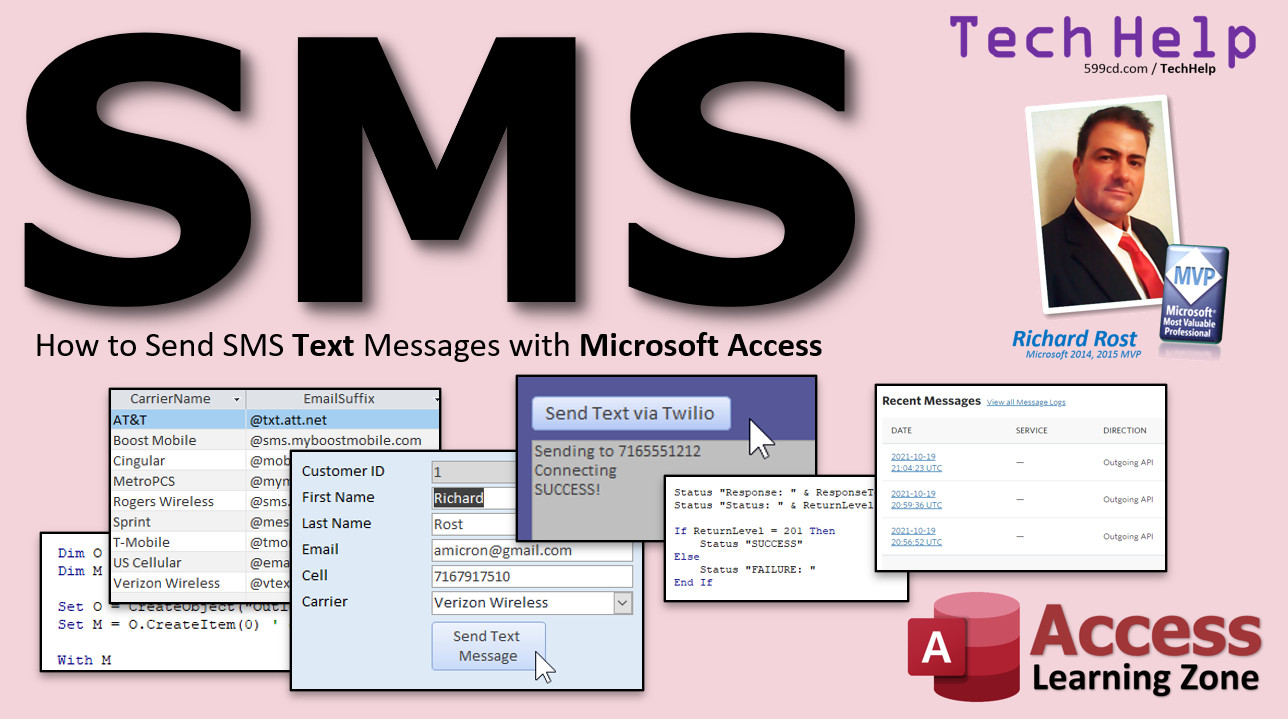
In this video, I will show you how to use Microsoft Outlook and an Email-to-SMS gateway address to send text messages from Microsoft Access.
Cameron from Olympia, Washington (a Gold Member) asks: I run a service business. I'd like the ability to be able to send SMS text messages to my customers to remind them of an upcoming appointment, or to let them know their technician is on the way. So many people don't check email regularly, but everyone carries their cell phones nowdays. Can this be done from my Access database?
Members
Members will learn how to send SMS text messages without using an email gateway. We will set up a free trial account on Twilio and use their API to send messages. This way, we avoid having to know the customer's cell carrier too.
Silver Members and up get access to view Extended Cut videos, when available. Gold Members can download the files from class plus get access to the Code Vault. If you're not a member, Join Today!
Member Update
- 2023-05-10: A few people have told me that the VB code that I use in the Extended Cut to send SMS using Twilio's API no longer works and that they have stopped offering that service. There is another service available for a fee. I don't know all of the details about this yet as I haven't really looked into it but if enough of you are interested in this topic and you want me to explore it further post a comment down below. And also if you want to learn more about this read the comments down below. I pinned one of them that talks about this topic in detail.
 Links Links
Keywords
microsoft access, ms access, ms access tutorial, #msaccess, #microsoftaccess, #help, #howto, #tutorial, #learn, #lesson, #training, #database, send sms from vba, sending sms from access database, Can MS Access send SMS, How To Send SMS Messages With VBA, email to sms gateway, How to Send SMS Using MS Access, How To Send Bulk SMS With Twilio, SMS API, Learn How To Use Twilio to Send Unlimited SMS & Text, send text messages with vba, Vba to send sms to mobile number, Sending SMS from excel VBA, vb to send sms, Outlook vba send sms, Send SMS using Microsoft Access, sms api
 Subscribe to Text Messages
Get notifications when this page is updated
Intro In this video, I will show you how to send SMS text messages directly from a Microsoft Access database using an email to SMS gateway. We'll talk about the basics of setting up carrier information in your tables, creating a customer form with a carrier selection combo box, and adding a button to send text messages through Microsoft Outlook. I'll guide you through the steps required to format the recipient address for different mobile carriers and discuss the pros and cons of this approach compared to using an SMS API.Transcript Welcome to another TechHelp video brought to you by AccessLearningZone.com. I am your instructor, Richard Rost.
In today's video, I am going to show you how to send SMS text messages from Microsoft Access. Today's question comes from Cameron in Olympia, Washington, one of my gold members.
Cameron says, "I want a service business. I'd like the ability to be able to send SMS text messages to my customers to remind them of an upcoming appointment or to let them know that their technician is on the way. So many people do not check email regularly, but everyone carries their cell phones out days. Can this be done from my Access database?"
Yes, Cameron, there are a couple of different ways you can do this. In this video, I am going to show you one of them.
There are a few prerequisites before you watch today's video. First, go watch my Send Email video. We are going to be sending SMS through an email gateway. So, you need to know how to send email from your Access database using Microsoft Outlook.
If you have never done any VBA programming before, go watch my Intro to VBA class. These are all free videos. They are on my website. They are on my YouTube channel.
You will also need to know how to do a relational combo box. It is where you have a combo box that you select the value from a different table. Go watch these right now. Come back when you are done.
OK, so in this video, I am going to show you how to send SMS text messages using an email to SMS gateway. That is where you send an email from your Access database, specially formatted to the user's cell phone using a gateway address. We will talk about that in just a minute.
The other way is to use an API service like Twilio. There are a bunch of them. That is the one that I use.
Now, the benefit of an email to SMS gateway is that it is free. All you have to do is format an email a certain way and it goes out. That is it. However, you have to know the carrier. In other words, you have to know what their cell phone provider is. You have to know whether it is Verizon or T-Mobile or Sprint or AT&T or whoever.
So, you will have to ask your end user, your customer, whoever is getting the text message. You will have to ask them who their cell phone carrier is. It is a little bit of a pain, but if you are only sending to a select group of people, it is a good enough solution.
Of course, with this method, reliability is a little unknown. It is like sending any email. It could make it to its destination. It might not. You can never be sure with an email.
Another benefit is this is an easy method to set up. All you have to know is how to format the email and then it is just like sending any normal email.
Now, the other option is an API service. That is where you have a service that you pay for. It is fee based. They are usually pretty inexpensive. Twilio is less than a penny per text. I think it is three quarters of a cent per text. But if you are sending out 10,000 texts, it could add up. If you are just doing something where you want to send appointment confirmations or if your technician is on the way or like a food delivery service, like your food has been delivered, that kind of stuff, it is not that expensive in the long run.
Now, the benefit of an API service is you do not need the carrier info. You just get their cell number. It does not matter who their provider is. The API service handles routing it to the correct cell phone provider. It is a lot more reliable. You can get delivery statistics and all that information too, so you know your text messages are going out.
However, it is a little more complex to set up and I will be showing how to use the API service in the extended cut for the members. But first, for everybody else, we are going to learn how to do the email to SMS gateway.
Now, with an email to SMS gateway, you get the user's cell phone number and then you send it to an email address at whatever their cell phone provider's email suffix is. I use Verizon, for example, and mine is at vtext.com. There is AT&T, Sprint, T-Mobile, and some of the other more popular ones here in the States. If you do not see it listed there, just Google it. I have seen several different sites that have thousands of different cell phone providers from every country on the planet. Just Google email to SMS gateway and look for yours. These are just the popular ones here in the United States.
OK, so let us get into the database. Here I am in my TechHelp free template. This is a free download off my website, go grab a copy if you want to.
The first thing you need is a table containing your list of carriers. I have already prepared that. I am not going to retype it in. I am just going to click and drag it from my other database and drop it in here. I will show you what it is in just a second.
OK, there it is. CarrierT. Let us open that up. It is a real simple table with an autonumber, the carrier name, and the email suffix, two text fields.
Now, if you take a look at Verizon, for example, that is what I use. You put your cell phone number at vtext.com. You take the 10 digit cell phone number, [email protected]. You have to ask the customer what their cell phone provider is so you can pick it. It is a little inconvenient, but there is no way around it unless you use the API method.
Now we need to store the carrier ID in the customer table. Let us go over here to the customer table. Right-click, design view. I come down to the bottom and I am going to add in here, CarrierID. That will be a number of type long integers. This is a relational database concept here. If you have not done that, then go take my relational video and watch that.
OK, which I assume if you watched the email video, you have watched that one before too. And intro to VBA and you have watched that one. OK, so prerequisites on prerequisites.
OK, so let us close this. Save changes. Yes. Let us go to the customer form and now I will put a place on here to store what their carrier is. We will make a combo box right here.
So, the form design, grab the combo box tool, which is right there, drop you down here. This is why I wanted you to watch the relational combo box video first. Get the values from another table or query, hit Next. We are getting our values from the CarrierT. Next, bring over all three of those. We are going to want the email suffix in a minute. Next, sort it by carrier name. Next. This is what the box will look like when it is open. That is fine. Next. Store that value in the CarrierID. Next. What label would you like? Carrier. And then we are done.
Now, I am going to take this and put it down here on the bottom. And just for the purposes of class, let us move the phone number field down here too.
Now, do you want to do a separate phone number, cell phone number, work phone number? Yeah, you can. I have a rule called my rule of three. If you are going to do more than three of something, whether it is an address or a phone number or an email address, if you are going to do more than three, put it in a separate table. I will allow it if you just want to have work phone, cell in the customer table. That is OK as long as you are sure you are never going to need to go above three.
OK, so we got the phone. We got the carrier. I am going to do a little format painting here because that is bothering me. There we go.
OK, let us take a look at what we got. Let us go over to form view. There is that. Pick a carrier. We got Verizon over here and pick Cingular. Are they still around? Let us pick Boost Mobile. Where are you at? Let us pick Sprint, whatever.
OK, now let us make a button to actually send them a text message. So, grab a command button, drop it down here. We are going to cancel that wizard. There is nothing in the wizard about sending emails. We are going to have to do this ourselves. Send Text Message like that.
OK, let us give the button a good name, SendTextButton. And then right-click on it. Build Event. That will bring up the code builder, as you know, if you took my Intro to VBA class.
Now, since you all watched the email video, I am going to copy and paste in here the code from the email video. There it is. I did a little modification to it. Just yesterday, I did an updated video to that email video where I showed how to do what is called late binding. So I changed some of these things around. Go watch that, it is pretty cool. I will put a link down below.
Basically, this prevents us from needing to have a reference to the Outlook library up under Tools References. We just do what is called late binding. Go watch that video too, it is kind of neat. But anyways, the gist of the code is you declare an Outlook application object, a mail item object, then you set the properties of the mail item.
Now, the first thing I am going to do is change the body format. I do not want OLFormatHTML because text messages should be sent as plain text. If I do a little Google action here, I can see that OLFormatPlain is one. Two is HTML. One is plain. So let us change this to one. That is OLFormatPlain. We are going to use plain text for our SMS messages.
Now, instead of Body or HTMLBody, we are going to use just Body.
OK. Now, for Body text, put whatever you want to send in here, like "This is a sample text message."
OK. Now their email address. The email address is going to be the phone at and then their email gateway. So if we look back here, phone is a field. CarrierID, that is in. OK. It came in as Combo30. That is one of my pet peeves with the combo box wizard. It does not give you the option to name the box. So let us call this CarrierCombo.
Now, keep in mind, there are three columns inside the combo box. The first column is hidden. That has the ID in it. Second column is the name of the company. And the third column is that suffix we want. So it is columns 0, 1, and 2. OK. So it is CarrierCombo.Column(2). That has that suffix that we need.
So come back over here. The email address is going to be phone ampersand. That is concatenation. If you do not know how to use concatenation, I have a video on that too. I will put a link down below. And it is going to be CarrierCombo.Column(2). Just like that.
OK. Now, the subject, again, keep it short. I will call it "Sample Text" or whatever you want to put there. Usually it will go subject, then a space, and then the body. That is how it usually comes across in most text messages.
OK. So that is it. Let us save it. Come back out here. Close this down. Open back up again. And ready. Here we go. Send Text Message. And there it is. Outlook opens up. There is your email address right there. Phone number at vtext.com because I picked Verizon. Subject and then the body. And then you are ready to hit send. I am not going to send it because I do not want to actually send this. If changes, no.
And that is it. That is how you do it. That is how you send text messages from your Access database.
Now, if you are planning on sending a lot of these, or you do not want to have to deal with getting the carrier from every one of your customers, it is kind of a pain. The other option is using the SMS API gateway from a company like Twilio, and I will show that in the extended cut.
So, if you want to learn more, if you want to learn how to send SMS text messages without having to use email, I cover that in the extended cut for members. I will show you how to set up a free account on Twilio. It does not cost you a dime. Even the paid subscriptions are less than a penny per text message, so it is actually pretty cheap. We will use an API call, which basically Access will go out to the website and say, "Hey, send this text message for me." No gateway information is needed. You do not have to ask them if they are with Verizon or T-Mobile, or whoever.
That is all covered in the extended cut for members. Silver members and up get access to all my extended cut videos. Gold members can download these database templates.
How do you become a member? Click the Join button below the video. After you click the Join button, you will see a list of all the different types of membership levels that are available.
Silver members and up will get access to all of the extended cut TechHelp videos, live video and chat sessions, and more. Gold members get access to a download folder containing all the sample databases that I build in my TechHelp videos, plus my code vault, where I keep tons of different functions that I use. Platinum members get all the previous perks, plus access to my full beginner courses, and some of my expert courses. These are the full length courses found on my website and not just for Access. I also teach Word, Excel, Visual Basic, ASP, and lots more.
But do not worry, these free TechHelp videos are going to keep coming. As long as you keep watching them, I will keep making more.
If you liked this video, please give me a thumbs up and feel free to post any comments that you have. I do read them all.
Make sure you subscribe to my channel, which is completely free, and click the bell icon and select "All" to receive notifications when new videos are posted.
Click on the "Show More" link below the video to find additional resources and links. You will see a list of other videos, additional information related to the current topic, free lessons, and lots more.
YouTube no longer sends out email notifications when new videos are posted. So if you would like to get an email every time I post a new video, click on the link to join my mailing list.
Now, if you have not yet tried my free Access Level 1 course, check it out now. It covers all the basics of building databases with Access. It is over three hours long. You can find it on my website or on my YouTube channel. And if you like Level 1, Level 2 is just $1. And it is also free for all members of my YouTube channel at any level.
If you want to have your question answered in a video just like this one, visit my TechHelp page and you can send me your question there.
Click here to watch my free Access Beginner Level 1 course, more of my TechHelp videos, or to subscribe to my channel.
Thanks for watching this video from AccessLearningZone.com.Quiz Q1. What is the main topic of this video?
A. Sending SMS text messages from Microsoft Access
B. Formatting reports in Access
C. Importing Excel data into Access
D. Creating macros in Access
Q2. Which method does Richard demonstrate in the video for sending SMS messages?
A. Using a direct SMS modem
B. Using an email to SMS gateway
C. Using a Google Voice API
D. Using Bluetooth
Q3. What is required to send an SMS via an email to SMS gateway?
A. The recipient's cell phone number and carrier's email suffix
B. Only the recipient's name
C. The recipient's home address
D. An active Microsoft Skype account
Q4. What is a disadvantage of using the email to SMS gateway method?
A. It is very expensive
B. You need to know the carrier of each customer
C. It requires a complex setup
D. Outlook cannot be used for this method
Q5. What is a major advantage of using an API service like Twilio over an email to SMS gateway?
A. API services are always free
B. You do not need to know the recipient's carrier
C. API services require no internet connection
D. You can only send emails, not SMS
Q6. What must be added to the customer table to support sending SMS via an email gateway?
A. CarrierID field
B. Email field
C. Address field
D. API Key field
Q7. How does the combo box on the customer form assist with sending SMS messages?
A. It allows users to select the customer's carrier
B. It retrieves the customer's email address
C. It handles message formatting automatically
D. It sends the SMS automatically when selected
Q8. In the VBA code for sending messages, why is OLFormatPlain used instead of OLFormatHTML?
A. SMS messages require plain text formatting
B. HTML formatting is required by carriers
C. Outlook does not support HTML
D. Plain format is slower for emails
Q9. Which Microsoft product does the tutorial use as the email client for sending SMS via email gateway?
A. Microsoft Outlook
B. Windows Mail
C. Microsoft Teams
D. Microsoft Word
Q10. If you want to send notifications without asking customers for their carrier information, what should you use?
A. An SMS API service like Twilio
B. The email to SMS gateway method
C. A printed letter system
D. Microsoft Paint
Q11. What is the author's "rule of three" when managing fields like phone numbers or addresses?
A. Use a separate table if you need more than three of something
B. Always create three fields for each type
C. Link three tables together
D. Print reports in three copies
Q12. What is one limitation of using the email to SMS gateway approach?
A. Variable reliability of message delivery
B. Requirement for a server farm
C. Messages can only be sent during business hours
D. Carriers charge exorbitant fees per message
Q13. What must you do to get your SMS email address in the database?
A. Concatenate the phone number with the carrier's email suffix
B. Merge first and last names
C. Use Outlook's built-in SMS tool
D. Export the customer table to Excel
Q14. Which one of the following is NOT a prerequisite video recommended before watching this tutorial?
A. Intro to VBA
B. Send Email from Access
C. Relational combo boxes
D. Advanced Pivot Tables
Q15. What is the benefit of joining as a Gold member on AccessLearningZone.com?
A. Downloading database templates and accessing the code vault
B. Free Windows operating system upgrades
C. Unlimited SMS sending
D. Free food delivery
Answers: 1-A; 2-B; 3-A; 4-B; 5-B; 6-A; 7-A; 8-A; 9-A; 10-A; 11-A; 12-A; 13-A; 14-D; 15-A
DISCLAIMER: Quiz questions are AI generated. If you find any that are wrong, don't make sense, or aren't related to the video topic at hand, then please post a comment and let me know. Thanks.Summary Today's video from Access Learning Zone focuses on how to send SMS text messages directly from Microsoft Access. The topic comes from a viewer who runs a service business and wants to notify customers about upcoming appointments or technician arrivals via text. As we all know, many people do not check their email often, but nearly everyone carries a cell phone these days. So, can Access handle this messaging task? The answer is yes, and there are several methods to do it.
First, a few prerequisites are necessary before you jump in. You should already know how to send emails from Access using Microsoft Outlook, as this method will utilize email to transmit the SMS message. I highly recommend watching my Send Email video, which explains this process. Basic VBA skills are also needed, so if you are new to VBA, check out my Intro to VBA class. In addition, having an understanding of relational combo boxes will be helpful, since you will be adding new fields that relate carriers to customers. All these resources are free and available on my website and YouTube channel.
In this demonstration, I cover how to send SMS messages using an email-to-SMS gateway. This approach sends an email from Access, formatted to go to the user's cell phone through their carrier's SMS gateway address. Each major mobile carrier provides a specific domain for this purpose.
Another method, which I use myself, involves using an API service like Twilio. These services are generally affordable, costing less than a penny per text message, but do require some additional setup. With an API, you do not need to know the recipient's carrier. All you need is their cell number, and the API handles delivery and offers feedback about the text status. I cover how to use an API like Twilio in today's Extended Cut, available for members.
The main advantage of the email-to-SMS gateway is that it is free and relatively simple to set up. You only need the recipient's carrier address format. However, you do have to ask your customers to provide their carrier's name so you can address the message properly. This method can be unreliable on occasion, much like any email communication, but it works well for small-scale solutions or notifying a limited group of people.
To implement this method, you need a table that lists various cell phone carriers along with their specific email suffixes. For example, if the carrier is Verizon, the suffix is @vtext.com, so a typical address would look like [email protected]. Major carriers like AT&T, Sprint, and T-Mobile each have their own SMS gateway domains. If you are dealing with a carrier not on the list, you can easily research the correct gateway online.
After setting up your Carrier table, you need to add a field to your customer table to store the CarrierID, which links to the relevant carrier. This is a basic relational database concept, so if you need help, be sure to review my videos on building relationships between tables.
On the customer form, add a combo box to select the carrier from your Carrier table. This combo box makes it easy to assign the correct carrier to each customer. Move the phone number field close to it for convenience. If your customers have multiple phone numbers, you can store up to three directly in the customer table, but for larger numbers, it is best to use a separate table.
Once the carrier and phone fields are set up, create a command button labeled "Send Text Message." The built-in wizard in Access does not support this scenario, so you will need to add some VBA code to handle the process. If you have watched my email video, this part will be familiar to you. I recently updated the email sending approach to use late binding, which eliminates the need to set specific references to the Outlook library. Late binding is explained in more detail in another one of my videos if you are interested.
For SMS, make sure you send messages as plain text rather than HTML. In Outlook, this means setting the body format to the correct value for plain text. The destination email address is formed by combining the customer's phone number and the selected carrier's email suffix, which you can retrieve from the combo box. Keep your subject line short, since most carriers tack the subject onto the front of the text message, and write your desired message body.
With everything set up, clicking the button opens a new Outlook message, ready to send to the recipient's cell phone via SMS. You can review the information and then send the message.
If you expect to send large volumes of SMS messages or want to avoid asking every customer for their carrier, the better solution is to use an API service such as Twilio. API-based solutions do not require carrier information and are more reliable, though they do involve a small fee per message. Setting up and using an API for this purpose is something I explain fully in today's Extended Cut for members. I walk through setting up a free Twilio account, creating the API call, and integrating it seamlessly with Access.
Membership has several perks. Silver members and up can view all Extended Cut TechHelp videos, access live video and chat sessions, and more. Gold members also can download all TechHelp database examples and gain access to my code vault. Platinum members receive all these benefits, plus complete access to my full-length beginner and some expert courses, covering Access and other Office products.
Remember, my regular TechHelp videos remain free to everyone. If you gained something from this lesson, please give it a thumbs up, and feel free to leave any comments or suggestions. I do read them all. Be sure to subscribe to my channel and enable notifications so you receive all updates.
For further resources, links to additional lessons, and supporting material, check the "Show More" area beneath the video. Additionally, since YouTube has discontinued email notifications for new videos, consider joining my mailing list if you want updates delivered to your inbox.
If you have not already, try my free Access Level 1 course covering all the basics of creating databases in Access. This course is over three hours long and available both on my website and YouTube. Level 2 is just one dollar, and free to all channel members.
If you would like your question answered in a TechHelp video, just visit my TechHelp page and submit your question.
You can find a complete video tutorial with step-by-step instructions on everything discussed here on my website at the link below. Live long and prosper, my friends.Topic List Creating a table of SMS carriers with email suffixes
Adding a CarrierID field to the customer table
Creating a relational combo box for carrier selection
Storing the selected carrier in the customer record
Formatting SMS email addresses using phone and carrier suffix
Using Access VBA to send an email as an SMS message
Changing Outlook mail item to plain text for SMS
Referring to combo box columns in VBA
Concatenating phone numbers with carrier email suffixes
Assigning and naming form controls for clarity
Button setup to trigger SMS message sending via Outlook |




