Lottery Numbers
By Richard Rost

 4 years ago
Analyze Winning Lottery Numbers in Microsoft Excel
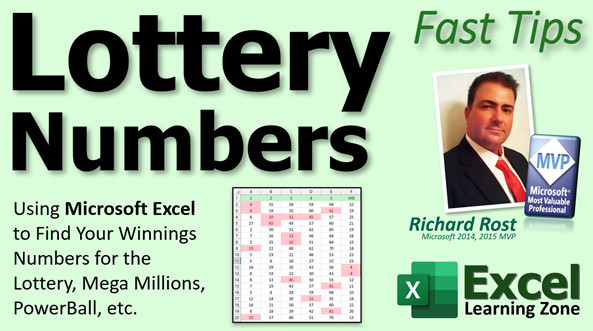
In today's video, I'm going to show you how to quickly analyze your lottery numbers to determine if you have any winners. Works great for any lottery including Mega Millions, Powerball, or your regular state lotto.
Recommended Courses
Links
Learn More
Updates
- I'm sad to say I didn't win much in last night's drawing. I did hit the Mega Ball in 2 of my number sets, though, so I won like $12. Whoo hoo... I can now quit my life of crime. Needless to say, the TechHelp videos will continue... for now. LOL.
- No! There are no such things as "hot" or "cold" numbers. Tracking the history of the drawn numbers will not help you win in the future! Stop asking me to make something to track that. Read this.
 Keywords Keywords
excel 2021, excel 2016, excel 2019, excel 365, microsoft excel, ms excel, ms excel tutorial, #msexcel, #microsoftexcel, #help, #howto, #tutorial, #learn, #lesson, #training, #database, #fasttips, lottery, lotto, numbers, winning, ocr, jpg to text, conditional formatting, text to columns, lottery numbers
More InformationTranscript Welcome to another Fast Tips video brought to you by ExcelLearningZone.com. I am your instructor Richard Rost. In today's video we are going to talk about lottery numbers - specifically, how to use Microsoft Excel to make it easy to find your winning numbers for the lottery, Mega Millions, Powerball, whatever it is you play.
Now, I am not promising to give you the winning numbers to the lottery. I wish! If you are like me, tonight's Mega Millions jackpot is like 500 and some million. So I went out and bought some tickets. I do not want to have to sit there and read through each one of them to try and see if I have any winners. So it would be nice if I could load all those into Excel and very quickly have Microsoft Excel, with conditional formatting, show me which tickets have multiple winning numbers on them. Let me walk you through that.
The first thing you are going to do is take a picture of each one of your tickets. Use your cell phone, digital camera, or scanner. However you have to get that image into your computer. Then, we are going to go online and find any number of free online image-to-text converters using OCR (optical character recognition).
Here is one I found with a two-second Google search for JPEG to text. This is OnlineOCR.net. I do not know these people. I am not endorsing them. I have used their site and it works great. Feel free to use whichever site you want.
That site is going to take your ticket image and spit out the numbers. There might be some gibberish in there. For example, you will see there is a little "MB" here for the Mega Ball. You have to clean it up a little bit manually. It only takes a few seconds. I am going to walk you through it and show you how, but you want to get a nice clean list of your numbers like that. We are going to paste that into Excel, and then, with a little Text to Columns magic, we will make it look like this. Then we will throw on some conditional formatting. We will type in what our winning numbers are, and now you can clearly see, like this ticket here, has three winners on it.
Let me walk you through how we did this.
Taking the pictures is easy. Lay your tickets out. Use your cell phone or scanner, take a shot of it. I bought a bunch of tickets, so I took a picture of each one, and yes, those are my winning numbers there. Those are going to win tonight. I guarantee it, and if they really do win tonight, you probably will not see another video posted for at least a couple weeks.
Once you have that picture in your phone, either copy it to your computer, email it to yourself, whatever you have to do. Now that you have the picture on your screen, use your screen clipping tool - whatever you use to take screenshots with. It can be Windows Snip & Sketch. I personally use HyperSnap. There are a bunch of them available. If you do not know how to take a screen capture, go watch this video. It is my Snip & Sketch video. It is your "how to pick a rectangle out on your screen and capture that to the clipboard," and then you can save that as a file. I will put a link to this down below the video in the links section. You can go click on that to watch this video.
I use HyperSnap, so I am going to turn that on and pick a rectangle. I am going to try and get all these numbers from here over to there. You are going to catch that little "MB" in there. There is really no way of getting around that. Just do that, click, and now I have mine so it auto-saves as a file called snap.jpg in a particular folder. So save it, make it a file, whatever you have to do.
There is my snap.jpg that I just saved. You can see the little previews over there. I have just got the numbers in it. Open it up, and take a look. There it is. Now we are going to send this to that OCR website that will take an image and use optical character recognition to convert that to text.
Here is the site that I picked. That is OnlineOCR.net, and oh look, they run ads on you. That is how they get paid. There is an ad for WinHost. That is my web hosting provider. It just so happens I am seeing an ad for them. I highly recommend them.
We are going to select the file. I am going to pick my snap.jpg and then hit convert. Then scroll down just a bit. You will see a window pop up down here with your text in it. There it is. Copy that to the clipboard (Ctrl+C), and I am going to open up Notepad.
Come in here and paste in your text. Now it looks like a bunch of gibberish, but actually all you really have to do is get rid of what the OCR thought "MB" was for the Mega Ball. Just delete that. It looks like a lot of work, but it is really not. Get rid of that, press Enter, come over here, that is what it guessed, enter, and of course double-check your numbers. I would not want anybody to miss winning the lottery because they scanned in their numbers wrong.
Double-check them. That seemed like a lot of work, but it was really pretty simple. So we are going to copy this now. Come over to Excel and paste that in. If Excel does not automatically paste that into columns for you, you can use the Text to Columns feature. If you do not know how to use Text to Columns, I have a whole video on that too. I will put a link to that down below as well.
Here, I will show you an example. Sometimes if you paste it in, it comes in like that. Each one of these is inside that individual cell - that is all in A1, A2, and so on. Just select that column, go to Data, Text to Columns. We are going to use Delimited because we have a delimiting space character, so hit Next. We will pick Space, and you can see how it is spread out down here. Next. General is fine, and then hit Finish, and now each one of those is in its own column. It is Text to Columns. Again, go watch my Text to Columns video if you want to learn more about that.
There is also a feature - and I am going to do a separate video on this in a future lesson - in the Microsoft Excel mobile app, at least for Android, where you can take a picture and it will scan the picture right into a spreadsheet for you. I have a whole separate video coming up on that. But this is the easiest way to get text in here using a PC. Of course, if you do not mind typing, just type this in yourself if you want to.
I am going to insert a row up here, and we are going to put our numbers across here. So we have one, two, three, four, five, and the Mega Ball. I am going to center all of these guys here. Center. Make this header - I do not know - let's make it green. So let's go here and pick a little light green.
Now over here we need our winning numbers. Winning numbers. Again, I will just copy this, copy and paste, and let's keep these even. Let's slide this down just a bit like that. And put here "Numbers Played." We will left align that.
So we have the numbers played, our winning numbers are over here. Let's just pick some random ones, too: 16, 32, 57, 64, and 15 for a Mega Ball.
Now what we want to do is say, OK, if any of these up here - any of these spots - then I want this to, let's say, shine red. We will use conditional formatting for that. Again, I have a whole video on conditional formatting. Watch this if you want to learn more about conditional formatting.
What I am going to do now is the easy way. There are more complex ways to do this, but this is the simple way. We are just going to add a different conditional formatting rule for each one of these five spots, and then one for the Mega Ball. We are going to go to Conditional Formatting, Highlight Cells Rules, Equal To, and then pick that cell right there. Because you are going to change this in the future. Right now, notice those two is lit up. See that? Hit OK.
Now do the same thing for the next number. Conditional formatting, highlight cells rules, equal to 16. Same initial formatting, highlight cells rules, equal to that one. Conditional formatting, highlight cells equal to the fourth, and then conditional formatting, highlight cells equal to that one there.
So, even if one of these numbers over here - like, that's 64, and that one is a two - I know that's not the way they usually come in, but just make sure these still work. They usually come in order.
Now we do it one more time for the Mega Ball, which is separate. Conditional formatting, highlight cells rules, equal to that, and then press OK. Now, when you put your winning numbers in, you can put all your different numbers in here, and you will very quickly and easily see which ones are winners. Then you can take that money and buy my full course and a membership.
You can see how copying and pasting these numbers in here, you can quickly scan down this and very easily see, OK, this one looks like it might be worth something. This one's only two. I copied the payouts here from another website. There it is. There's the payouts. Two numbers - anything with just two numbers, now two and the Mega Ball, you have to have, or one and the Mega Ball. Something in the Mega Ball always wins, but I guess three is the minimum you can have to win something without the Mega Ball or the Megaplier, or whatever they call it.
Now you could, if you wanted, program this stuff in because these are all set prizes here. That is always a million, ten thousand, five hundred, and so on. The jackpot is announced separately every week. You could put the jackpot in a field up here and then calculate it, and then you could add up all of your winnings down here at the bottom. If you want to see me do that in a future video, let me know and I will make a video about it.
There you go. There is your Fast Tip for today. It is Friday, July 22, 2022. Go out and win some money and let me know if this helps you at all. We will see you next time. Have a good weekend, everyone.
That is it. Want to learn more Excel? Be sure to like this video and subscribe to my channel. Stop by my website to watch my free Excel Level 1 course. It is over 90 minutes long and covers all the basics.
If you want me to post more Excel videos, I need to hear from you. About 90 percent of what I do is Microsoft Access, but I am also a published Excel author and I love Excel. If you want to see me post more free Excel videos, post a comment below and let me know. Say, "Hey, I want more Excel.\ Intro In this video, we will talk about how to use Microsoft Excel to quickly check your lottery tickets, such as Mega Millions or Powerball, for winning numbers. I will show you how to take pictures of your tickets, convert the images to text using free online OCR tools, clean up the data, bring it into Excel, and use features like Text to Columns and conditional formatting to easily highlight matching numbers. This tutorial is perfect for anyone who wants to automate the process of finding out if they have winning lottery numbers using Excel. Quiz Q1. What is the primary purpose of using Microsoft Excel in this video tutorial?
A. To predict the next lottery winning numbers
B. To identify which lottery tickets are winners by checking numbers automatically
C. To generate random numbers for future tickets
D. To share spreadsheet templates with friends
Q2. What is the first step suggested for getting your lottery ticket numbers into Excel?
A. Manually type all the numbers into Excel
B. Scan the barcodes with a special device
C. Take a picture of the tickets using your phone, camera, or scanner
D. Email your tickets to the lottery office
Q3. Which online tool does the video recommend (but not endorse) for converting lottery ticket images to text?
A. ConvertToText.com
B. OnlineOCR.net
C. PhotoTextConverter.org
D. ScanMagic.net
Q4. After converting your ticket image to text, what should you do before pasting the data into Excel?
A. Format the text in bold
B. Clean up any gibberish or unwanted characters like "MB"
C. Encrypt the data for security
D. Save the text as a PDF
Q5. When the text from the OCR is pasted into Excel, what Excel feature is used to separate the numbers into columns?
A. Flash Fill
B. Text to Columns
C. Filter
D. Data Validation
Q6. What delimiter is commonly used in the Text to Columns process for this scenario?
A. Comma
B. Semicolon
C. Space
D. Tab
Q7. What Excel feature is used to highlight numbers on the ticket that match the winning numbers?
A. Sparklines
B. Conditional Formatting
C. Data Tables
D. Power Query
Q8. How does the instructor suggest handling the Mega Ball number in the conditional formatting process?
A. Ignore it because it cannot be matched
B. Include it as a separate conditional formatting rule
C. Enter it as text, not a number
D. Use a different worksheet for Mega Ball analysis
Q9. If the winning numbers change in the future, what should you do in your Excel sheet to check new tickets?
A. Create a new spreadsheet each time
B. Update the "winning numbers" cells to the new values
C. Delete all previous data
D. Edit the conditional formatting formulas
Q10. What does the instructor recommend for users who want to learn more about Text to Columns or Conditional Formatting?
A. Read the Excel manual
B. Watch his other video tutorials on these specific features
C. Purchase advanced OCR software
D. Download a sample spreadsheet
Q11. Which of the following is NOT mentioned as a possible way to get your ticket image onto your computer?
A. Using your phone to take a picture
B. Scanning the ticket
C. Using a fax machine
D. Using a digital camera
Q12. What does the instructor recommend you do to ensure accuracy after OCR converts your ticket numbers?
A. Trust the software without double-checking
B. Double-check the numbers manually
C. Ask a friend to check for you
D. Check only the Mega Ball number
Q13. What is one additional feature the instructor mentions is available in the Excel mobile app?
A. Email integration for exporting results
B. Direct image-to-spreadsheet scanning on Android
C. Support for playing the lottery online
D. Built-in lottery result predictions
Q14. According to the tutorial, what should you do if Excel does not automatically separate pasted numbers into columns?
A. Redo the OCR process
B. Use the Text to Columns feature with space as a delimiter
C. Manually retype each number
D. Save the file and reopen it
Q15. What is one benefit of using conditional formatting for lottery tickets in Excel, as described by the instructor?
A. It sorts the tickets automatically
B. It visually highlights matching numbers quickly
C. It prints the winning tickets automatically
D. It emails winnings to your account
Answers: 1-B; 2-C; 3-B; 4-B; 5-B; 6-C; 7-B; 8-B; 9-B; 10-B; 11-C; 12-B; 13-B; 14-B; 15-B
DISCLAIMER: Quiz questions are AI generated. If you find any that are wrong, don't make sense, or aren't related to the video topic at hand, then please post a comment and let me know. Thanks. Summary Today's video from Excel Learning Zone focuses on how to use Microsoft Excel to help you check your lottery tickets efficiently. Whether you play Mega Millions, Powerball, or another lottery, this method can make it much easier to spot winning numbers quickly.
Of course, I am not claiming to predict or give out the winning numbers. However, with jackpots reaching hundreds of millions, like tonight's Mega Millions, it is worth finding an easier way to verify your tickets rather than manually checking each one. The idea is to bring your tickets into Excel and use conditional formatting to highlight matches with the winning numbers.
To start, take a photo of each lottery ticket. You can use your phone, a digital camera, or a scanner - whatever method works to get a clear image onto your computer. After that, take advantage of online image-to-text converters that use optical character recognition (OCR) to extract numbers from your tickets. There are plenty of these sites available for free. As an example, I have used OnlineOCR.net, but you can use whichever service you prefer.
Once you upload your ticket images to the OCR site, it will output the text version of the numbers. You may see some stray characters like "MB" for Mega Ball, which you will need to clean up manually. It only takes a minute, and the main goal is to get a clean, accurate list of numbers that you can then paste into Excel. From there, you will use the Text to Columns feature to separate each number into its own cell.
Let me explain the process more thoroughly. After taking your ticket photos, transfer those image files to your computer. Next, use a screenshot tool. Windows includes Snip & Sketch, but you can use any tool you like. Personally, I use HyperSnap. Simply select the area with the ticket numbers and save the screenshot as a separate file.
With your image ready, visit your chosen OCR website and upload your image. After converting, copy the recognized text and paste it into Notepad. Review the text, remove any unnecessary parts like "MB," and double-check that the numbers are correct. This step is crucial; accuracy matters when your lottery winnings are on the line.
Once the text looks right, copy and paste it into Excel. If everything lands in a single column or cell, use the Data - Text to Columns function with the "Delimited by space" option. This will separate the numbers neatly into their own cells for easier analysis. If you need more guidance on using Text to Columns, I have another video dedicated to that topic.
As a side note, newer versions of the Excel mobile app can scan numbers right into a spreadsheet from your phone's camera. I will cover this feature in a separate video in the future. However, this tutorial focuses on the method using a PC.
After arranging your numbers in Excel, add a header row to label each column, such as "Numbers Played," and indicate the winning numbers somewhere nearby. For appearance, you can center your headers and use colors to make the information stand out.
Type in the winning numbers for reference. Next, apply conditional formatting to your range of numbers. For each spot, create a new rule that highlights any cell matching the corresponding winning number. Do the same for the Mega Ball if your lottery uses that. This way, the numbers that match the winning set will be automatically highlighted, making it easy to see if you have a winning ticket.
You can even paste in payout information, such as what you win for matching a certain number of balls. With this setup, you can quickly scan your tickets and see which ones might be worth something.
If you want to go further, you could automate the reward calculation based on matched numbers and even factor in the current jackpot. If there is interest, I can make a future lesson showing how to do this with more advanced Excel features.
That covers today's Fast Tip. This method should save you time and make it simple to find potential winners. If you use this strategy and happen to snag a big prize, let me know!
You can find a complete video tutorial with step-by-step instructions on everything discussed here on my website at the link below. Live long and prosper, my friends. Topic List Taking photos of lottery tickets for digitizing
Using OCR websites to convert images to text
Cleaning up OCR text output in Notepad
Pasting cleaned numbers into Excel
Using Text to Columns to separate numbers in Excel
Setting up headers and arranging ticket data in Excel
Entering and aligning winning numbers in Excel
Applying conditional formatting to match numbers
Highlighting lottery ticket matches using conditional formatting
Quickly identifying winning lottery tickets in Excel Primary Topics lottery number extraction, OCR (optical character recognition), Excel data import, Text to Columns, conditional formatting, checking lottery winners Secondary Topics data cleanup, using Notepad, image capture tools, formatting tables |





