Access Developer 47
Handling Multiple Instances of the Same Form
Welcome
Welcome to Microsoft Access Developer Level 47, brought to you by Access Learning Zone. I'm your instructor, Richard Rost.
In this class, we will explore how to open multiple instances of the same form. For example, you will learn how to open multiple customers simultaneously or work with several products or orders at once, each in its own instance of the same form.
We will cover key concepts such as creating custom collections (an object type in Access), tracking individual forms with unique key values, and cascading forms so they open neatly layered on the screen.
Resources
Topics Covered
In Lesson 1, we will learn how to open multiple copies of a form, such as viewing different customers or products simultaneously. We will learn about creating and managing collections, adding objects to a collection, and tracking them effectively.

In Lesson 2, we will discover how to list all open forms, initialize collections to avoid errors, and handle closed forms. We will also implement a custom key-value system to track forms (instead of relying on built-in methods) for better control.

In Lesson 3, we will learn how to avoid issues like write conflicts by ensuring the same customer form is not opened twice. You will also learn how to focus on specific forms, loop through open forms, and cascade them neatly when multiple instances are opened.

In Lesson 4, we will wrap up by resetting collections when all forms are closed to keep memory usage efficient. We will review our code for optimization and best practices.
Enroll Today
Enroll now so that you watch these lessons, learn with us, post questions, and more!

Questions?
Please feel free to post your questions or comments below. If you are not sure as to whether or not this product will meet your needs, I'd rather help you before you buy it. Remember, all sales are final. Thank you.
Keywords
microsoft access, access 2016, access 2019, access 2021, access 365, ms access, #msaccess, #microsoftaccess, #help, #howto, #tutorial, #instruction, #learn, #lesson, #training, #database, Multiple Form Instances, Open Multiple Instances of a Form, Creating Collections in VBA, Adding Objects to a Collection, Managing Forms with Collections, Form RecordSource VBA, List Open Forms, Tracking Forms with Key Values, Prevent Duplicate Forms, Cascade Forms in VBA, Global Collections, Error Handling in Form Collections, Form Focus VBA, Close All Forms Button, Memory Optimization VBA, Reset Collections, Form Key Tracking, Cascade Positioning, Handling Form Errors, VBA Tips, Conditional Reset Logic, Boolean Flags for Forms
More InformationTranscript Today we are going to learn about opening multiple instances of the same form. For example, if you want to open four customers at the same time, or if you are working on orders and you want to open five different products so you can see all their information at the same time. This involves using the same form, with copies or instances of the same form.
To do this, we will learn how to create our own collections, which is an object type in Access. We will learn how to track the individual forms with a key value so we can tell which one is which. We will also learn how to cascade them when they open so they appear layered. All kinds of cool stuff like this is covered in today's class.
Today's class follows Access Developer 46, of course. It is not a hard prerequisite, but I do cover a lot of material that I have covered in previous developer courses. As always, my classes are designed to be followed one after the other. I recommend you start at beginner level one and work your way all the way up.
Lots of developer-level VBA material is covered today, which is why I generally say do not skip levels. It is currently December 2024. The closest retail version of Access to this one is going to be Access 2024. I am currently using an Access 365 subscription, which is what I recommend. That way you always have the latest and greatest version and do not have to worry about upgrading.
The material covered in today's class, however, should go back at least to Access 2007, maybe earlier, but that is probably the earliest version I would say that it would work with.
If you have questions regarding the material covered in today's class, just scroll down to the bottom of the page that you are watching the lessons on and you can post your questions there. Also, take a minute to read through any other questions that may have been posted, as your question may have already been answered. Make sure you subscribe to this page to get notified of any other questions or comments that are posted for this class.
Also, make sure to visit my Access forum where you can post questions about anything else related to Access. You can join in conversations with me, the moderators, and other Access students.
Now, let's take a closer look at exactly what is covered in Access Developer 47.
In lesson one, we are going to learn how to create multiple instances of the same form. For example, if you are on your customer list form, you can open up multiple copies of the customer form with different customers in it. Or you can open up multiple products, multiple orders, or multiple whatever you want. We will learn about collections, how to create collections, and how to add objects to a collection.
In lesson two, we are continuing with multiple form instances. I am going to show you how to list all of the open forms. We will make sure the collection is initialized to avoid errors. We will deal with closed forms and I will show you how to track forms with a key value. We are going to make our own key value. We are not going to use the built-in one. It is better.
In lesson three, I am going to show you how to not open the same customer form twice. This could cause write errors. If you open up Richard Rost twice and edit one, then edit the second one, it could cause issues. We will prevent that. Then we will see how to give a specific form focus, so if you want to loop through the forms and find a specific one, you can. I will also show you how to cascade the forms when you open them so if you open four in a row, they cascade nicely, just like pretty little windows should.
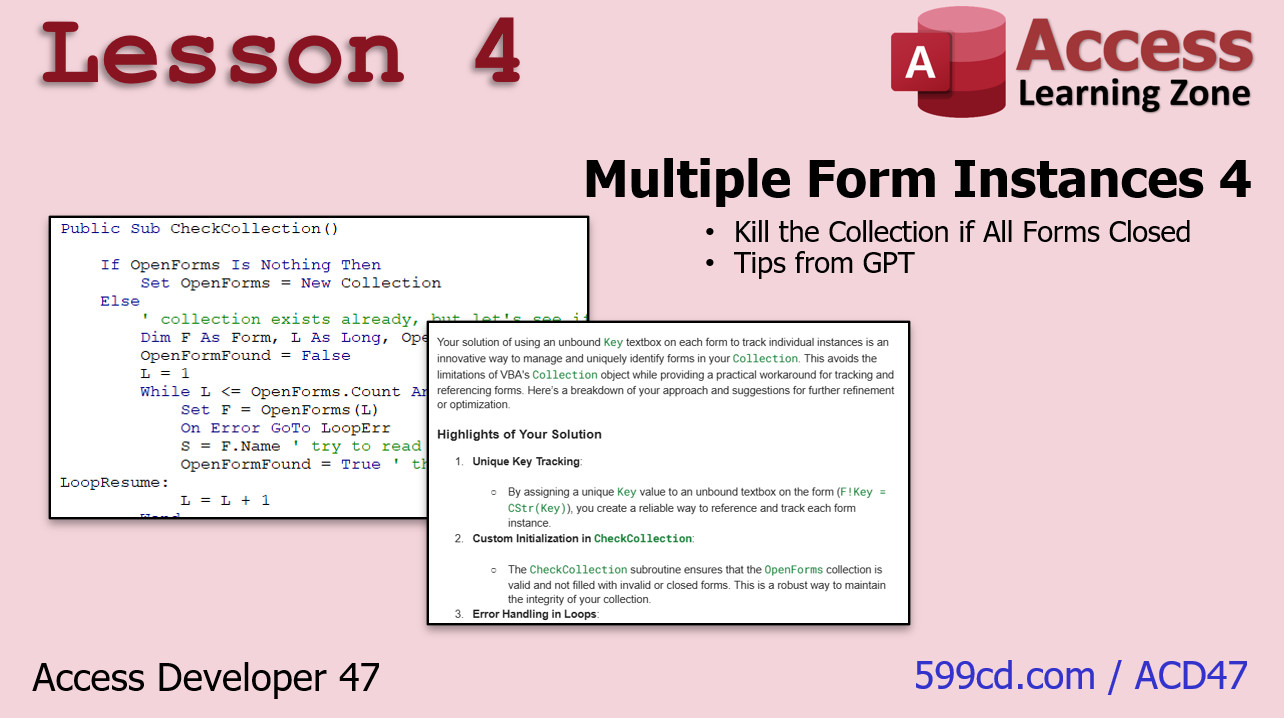
In lesson four, we are going to finish up working with collections and multiple form instances. We are going to start by killing the collection and resetting it if we detect that the user has closed all the forms. We want to keep our memory nice and tight. Then we are going to take all of our code and drop it into ChatGPT to see what it has to think about it. We will see if it can make any suggestions, things to do better, or things I might have missed. We will see what that is all about in just a minute. Intro In this lesson, we will learn how to open multiple instances of the same form in Microsoft Access, allowing you to view and work with several customers, products, or orders at the same time. We will cover how to create and manage collections to track each form with a custom key value, how to list and control open forms, how to prevent duplicate forms from opening for the same record, and how to cascade forms so they appear layered on the screen. We will also discuss methods to manage memory by resetting collections when all forms are closed. Quiz Q1. What is the main benefit of opening multiple instances of the same form in Access?
A. To view and work with several records of the same type simultaneously
B. To upgrade Access to the latest version
C. To back up your data automatically
D. To reduce the size of your database
Q2. What programming structure is used to track individual forms when multiple instances are open?
A. Table relations
B. Queries
C. Collections
D. Macros
Q3. Why is it important to track each open form with a key value?
A. To ensure only one form can be open at a time
B. To identify and manage each specific instance of a form
C. To enable automatic data exports
D. To limit the number of forms that can be opened
Q4. What method can be used to make multiple forms appear layered or offset when opened?
A. Sorting
B. Filtering
C. Cascading
D. Freezing
Q5. What is a recommended practice regarding the use of Access and lessons?
A. Start at any advanced lesson comfortably
B. Skip developer-level courses for beginners
C. Follow the courses in order from beginner level one
D. Only use Access 2007 for all lessons
Q6. Why should you avoid opening the same customer in two form instances and editing in both?
A. It causes the database to crash
B. It leads to data write errors and possible conflicts
C. It automatically exports data to Excel
D. It prevents you from closing forms
Q7. What is advised when all multiple instances of a form have been closed?
A. Leave collections in memory
B. Reset or kill the collection to free up memory
C. Lock the database
D. Export the collection to Excel
Q8. Which version of Access is NOT recommended by the instructor for these lessons?
A. Access 2024
B. Access 365 subscription
C. Access 2019
D. Access 2007 or earlier
Q9. What does the instructor suggest you do if you have questions about the lessons?
A. Email Microsoft support
B. Post on the page where the video is hosted and check other questions first
C. Wait for the next video
D. Contact your local IT specialist
Q10. What is the purpose of checking your code with a tool like ChatGPT at the end of the class?
A. To automatically generate forms
B. To get suggestions or feedback on possible improvements or missed aspects
C. To export your code to a web page
D. To install updates for Access
Answers: 1-A; 2-C; 3-B; 4-C; 5-C; 6-B; 7-B; 8-D; 9-B; 10-B
DISCLAIMER: Quiz questions are AI generated. If you find any that are wrong, don't make sense, or aren't related to the video topic at hand, then please post a comment and let me know. Thanks. Summary Today's video from Access Learning Zone focuses on how to open multiple instances of the same form within Microsoft Access. Imagine working with several customers at once and needing separate copies of a customer form open for each one, or reviewing multiple products at the same time, each in its own form window. This is exactly what I will show you how to do today by making use of form instances and collections.
We will explore how to use collections in Access to manage these form instances. I will explain how to assign a unique key value to each form so you can keep track of them individually. I will also demonstrate how to arrange your forms in a cascading layout, which helps keep your workspace organized when working with several open windows.
Today's class follows up on the content from Access Developer 46. While you do not have to watch that class first, I do build on material that was covered in earlier developer lessons. I always suggest that students start from the beginner level and move through each course in order, as each one builds on the previous content.
The course uses a lot of developer-level VBA, so it is best not to skip levels. As of December 2024, the version of Access I am using is Access 365, but what you learn today should also work back to Access 2007 or possibly even earlier. If you are considering which version of Access to use, I recommend subscribing to Access 365 so you always have access to the latest updates without having to manually upgrade.
If you have any questions while working through today's material, just post them at the bottom of the lesson page. I also recommend reading through questions others have asked, since there is a good chance someone has already brought up the topic you are wondering about. If you subscribe to the page, you will be notified about new questions and comments, which can help you keep up to date.
Remember to check out my Access forum as well for general questions or conversations about anything Access-related. There you will find discussions not just with me but also with moderators and other students in the community.
Here is an overview of what we cover in Access Developer 47:
In lesson one, I begin by showing how to open multiple copies of the same form, such as different customer records, products, or any other data you want to view side by side. We will look at what collections are, how you can create your own collection, and how to keep track of your open forms within that collection.
Lesson two continues the discussion on form instances. I show you how to generate a list of all forms that are currently open and how to make sure the collection is always properly initialized to prevent errors. We will also handle what happens when forms are closed, and I will teach you to track your forms using your own custom key value, which is a more flexible approach than using the built-in one.
In lesson three, you will learn how to prevent the same record from being opened in two forms at once, which could otherwise lead to overwrite problems. This is particularly important if, for example, you open the same customer in two forms and modify them independently. I will also show you how to bring any specific form to the front and give it focus, plus how to arrange the open forms so they cascade on your screen for better organization.
Lesson four wraps up our work with collections and form instances. Here, I demonstrate how to clean up your collection and reset it when all forms are closed, helping your database run more efficiently. Finally, I will take all the code we have created and run it through ChatGPT to see if there are any further suggestions or improvements that can be made.
You can find a complete video tutorial with step-by-step instructions on everything discussed here on my website at the link below. Live long and prosper, my friends. Topic List Creating multiple instances of the same form in Access
Using collections to manage multiple forms
Adding form objects to a custom collection
Listing all open form instances in the collection
Initializing collections to prevent errors
Handling closed forms and removing them from the collection
Tracking forms with a custom key value
Preventing opening duplicate instances of the same record
Focusing a specific form instance programmatically
Cascading multiple open forms on the screen
Resetting and clearing the collection when all forms are closed Primary Topics multiple form instances, Access VBA, collections, key values for forms, form management, preventing duplicate instances, cascading forms, memory management
Secondary Topics ChatGPT code review, Access version compatibility, developer best practices
|




