|
||||||
|
||||||
|
||||||
|
||||||
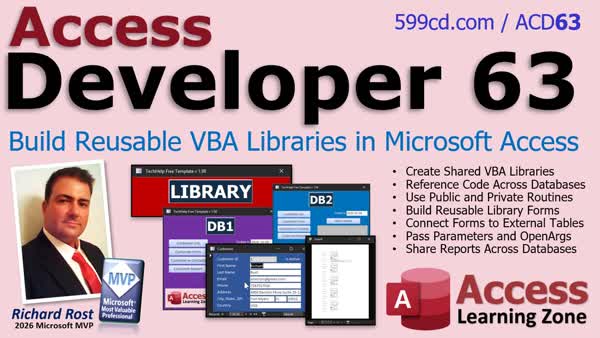
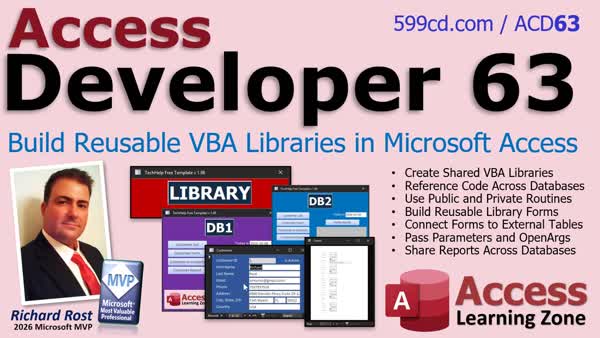
Access Developer 63Shared VBA Libraries Forms Reports Across DBsIn Access Developer 63 we will learn how to create shared library databases for reusable VBA code, forms, and reports. We will discuss connecting multiple Access applications to a central library, avoiding duplicate code, handling broken references and library use conflicts, and opening shared forms and reports with data from different databases. Lessons
ResourcesNavigationLesson SummaryWelcome! Shared VBA Forms Reports Across DBs - Welcome to Access Developer 63. We will learn how to create Library Databases in Microsoft Access to share reusable VBA functions, forms, and reports across multiple applications. We will cover references, public and private procedures, opening shared forms and reports, connecting library forms to application data, using SQL IN clauses and linked tables, passing parameters with OpenArgs, and avoiding issues with broken references, file locking, and duplicate object names.
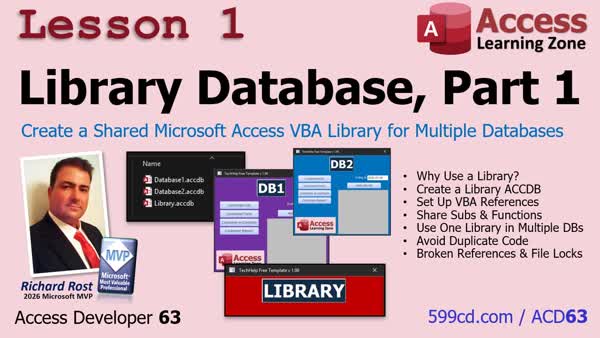
Create a Shared VBA Library for Multiple Databases - In Lesson 1, we will walk through setting up a shared Library Database in Microsoft Access so multiple databases can use the same VBA functions and modules. We will add a library reference, move commonly used code such as Sleep and confirmation routines into the library, and discuss function priority when duplicate code exists. We will also cover important considerations, including broken references caused by moving the library file, unsaved edits made through a referenced library, shared-file locking, and dependencies on forms used by library code.
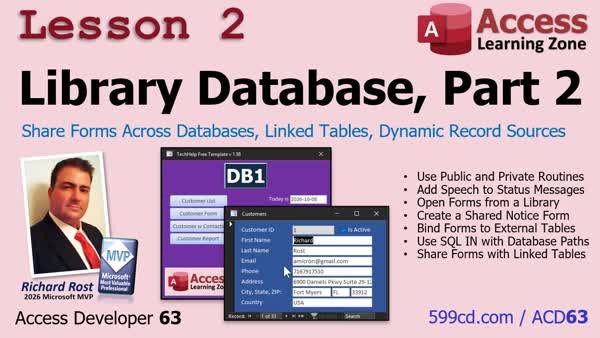
Share Forms Across Databases, Dynamic Record Source - In Lesson 2, we will continue building the Library Database by learning how public and private procedures affect code shared between Access databases. We will walk through opening forms stored in a library file, passing the calling database's path to connect shared forms to local tables, and using linked backend tables for reusable forms. We will also create a reusable notice form and discuss distributing library forms and code with ACCDE files.
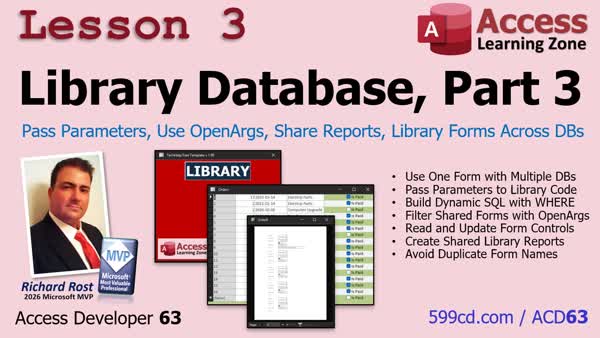
Parameters, OpenArgs, Share Reports, Library Forms - In Lesson 3, we will continue building the Library Database by passing information between the calling database and shared library objects. We will walk through filtering shared forms with optional parameters and OpenArgs, accessing and updating controls on library forms, creating and opening a shared report, and avoiding conflicts caused by forms or reports with the same names in both databases.
Up Next: Review & What's Coming Up... - In this course we learned how to build library databases to share VBA code, forms, and reports across multiple Access applications. We covered references, public and private procedures, connecting shared forms to different databases, passing parameters, and common pitfalls. We'll also talk about reusable custom dialog boxes, compiling libraries into ACCDE files, utility databases for backups and updates, safely updating libraries in use, regular expressions, Scripting.Dictionary, documentation tools, backend lock detection, undo and redo, and developer maintenance utilities.
KeywordsAccess Developer, Access shared library database, shared VBA code, Access library reference, reusable forms and reports, shared forms across databases, shared reports across databases, VBA project references, open shared form specific record, library data
More InformationTranscriptHave you ever written a really useful VBA function in Microsoft Access and then found yourself copying that same function to five or ten different databases? And then, when you make an improvement, you have to go back and update every single copy. Wouldn't it be nice if you could keep all that shared code in one place, and not just your VBA code, but your forms and reports too? Hi, this is Richard Rost with Access Learning Zone. I just released Access Developer 63. And in this class, I'm going to show you how to build shared library databases that multiple Microsoft Access applications can use. This is a great technique if you build and maintain several databases, whether they're for yourself, your company, or your customers. We'll start by creating a shared library and connecting multiple databases to it. Instead of maintaining separate copies of your common VBA routines, you'll have one central place for them. I'll also show you some important things to watch out for, including broken references and what happens when another database is using your library. Next, we're going to do something really cool. Did you know you can actually put forms and reports inside your library databases and use them from other databases? Imagine having one customer form, one settings window, or one notification form that you can reuse across several applications. You make improvements in one place instead of maintaining a bunch of separate copies. We'll even look at how those shared forms can work with data stored in different databases. Next, we'll take things a step further and learn how to pass information between your applications and your shared library. You'll see how to open a shared form to a specific record, work with its controls, and even share reports between databases. We'll also cover some of the little quirks that can trip you up when you start sharing objects between Access projects. By the time you're finished, you'll have a working shared library containing reusable code, forms, and reports that you can use in multiple Access databases. If you're an Access developer who maintains more than one application, this can save you a tremendous amount of duplicated work and make future updates much easier. For more information about Access Developer 63, visit my website or drop a comment down below if you have any questions. Live long and prosper, my friends. I'll see you in class. IntroIn <B>Access Developer 63</B> we will learn how to create shared library databases for reusable VBA code, forms, and reports. We will discuss connecting multiple Access applications to a central library, avoiding duplicate code, handling broken references and library use conflicts, and opening shared forms and reports with data from different databases. QuizQ1. What is the main benefit of creating a shared library database in Microsoft Access? A. Common code and objects can be maintained in one central location B. Each database automatically stores all data in the shared library C. Users no longer need to create tables in their applications D. All databases are converted into a single database file Q2. What type of VBA content can be stored in a shared library for use by multiple Access applications? A. Only event procedures attached to forms B. Only macros created in the Macro Designer C. Reusable VBA functions and routines D. Only SQL queries saved in tables Q3. Besides VBA code, what Access objects can be placed in a shared library database? A. Forms and reports B. Tables and relationships only C. Navigation panes only D. User accounts only Q4. Why can shared forms be useful when maintaining several Access applications? A. They allow each application to use the same reusable interface B. They prevent users from opening any local forms C. They automatically create new tables in every database D. They eliminate the need for all VBA code Q5. What is one advantage of keeping a common customer form in a shared library? A. Improvements only need to be made in one place B. Each database receives a separate copy automatically C. The form can only display records from the library database D. The form cannot contain controls or code Q6. Can a form stored in a shared library work with data stored in a different Access database? A. No, shared forms can only use library data B. Yes, shared forms can work with data from different databases C. Only if the data is exported to a text file first D. Only if the form has no record source Q7. What is an example of information that may need to be passed from an application to a shared form? A. Which specific record the form should open B. The computer's operating system password C. The name of every table in every database D. The number of users currently logged into Access Q8. What is one issue developers should consider when using shared library databases? A. Broken references B. The inability to use VBA functions C. The automatic deletion of local tables D. The removal of all report controls Q9. Why should you consider what happens when another database is using your shared library? A. The library may be unavailable or affected while it is in use B. Access permanently deletes the library after it is opened C. All forms in the application become unbound D. The application automatically imports every library object Q10. What can developers do with reports stored in a shared library? A. Reuse the reports from multiple Access applications B. Convert all reports into tables C. Run reports only from the library database D. Prevent reports from displaying any data Answers: 1-A; 2-C; 3-A; 4-A; 5-A; 6-B; 7-A; 8-A; 9-A; 10-A DISCLAIMER: Quiz questions are AI generated. If you find any that are wrong, don't make sense, or aren't related to the video topic at hand, then please post a comment and let me know. Thanks. SummaryToday's video from Access Learning Zone introduces Access Developer 63, where I teach you how to create shared library databases for use with multiple Microsoft Access applications. If you have ever written a useful VBA function and copied it into several different databases, you know how difficult maintenance can become. Every time you improve that function, you have to update each separate copy. In this class, I will show you how to keep common VBA code in one central library database so that multiple Access applications can use it. This technique is especially useful if you build or maintain several databases for yourself, your company, or your customers. Instead of duplicating your shared procedures across every project, you can maintain them in one place and make updates much more easily. I will begin by showing you how to create a shared library database and connect other Access databases to it. We will cover how to use common VBA routines from the library, along with important issues you need to understand, such as broken references and what can happen when another database already has the shared library open. I will also demonstrate how library databases can contain more than just VBA code. You can store forms and reports in the shared library and use those same objects from other Access databases. This allows you to create reusable forms, such as customer forms, settings windows, notification forms, and other common interfaces, without maintaining separate copies in every application. We will also look at how shared forms can work with data stored in different databases. You will learn how to open a shared form for a particular record, pass information between the application database and the library, interact with controls on shared forms, and reuse reports across multiple projects. I will also cover some of the quirks and limitations that can arise when Access objects are shared between different VBA projects. By the end of Access Developer 63, you will have a functional shared library database containing reusable code, forms, and reports that can be used by multiple Access applications. If you maintain more than one Access database, this approach can save a great deal of duplicated effort and make future updates much easier. You can find a complete video tutorial with step-by-step instructions on everything discussed here on my website at the link below. Live long and prosper, my friends. Topic ListPromotional overview of a course on creating shared Microsoft Access library databases for reusable VBA code, forms, and reports. Primary Topicsshared library databases, reusable VBA functions, Access database references, shared forms, shared reports, cross-database object use, centralized maintenance Secondary Topicsbroken references, library database in-use behavior, passing information between databases, opening shared forms to specific records, accessing shared form controls, shared objects with different data sources |
||||||||||||||||||
|
| |||
| Keywords: Access Developer, Access shared library database, shared VBA code, Access library reference, reusable forms and reports, shared forms across databases, shared reports across databases, VBA project references, open shared form specific record, library data Page Tag: whatsnew PermaLink Build Shared VBA Libraries, Reusable Forms & Reports, Connect Them to Multiple Access Databases |