Students & Parents
By Richard Rost

 2 years ago
Relate Students & Parents in MS Access Database
In this Microsoft Access tutorial, I will show you how to properly relate students and parents in your database, create a many-to-many relationship, and fix your old records without losing data. Learn to use append queries, relational combo boxes, and subforms effectively to manage complex relationships.
Darren from Broomfield, Colorado (a Platinum Member) asks: I have my database set up where I have a table for students and a table for parents. Right now, I have two ID fields in my student table to link to two parents. Once in a while, it comes up that I need a third parent (maybe mom, dad, and step-mom). I know the best way to handle this is to create a many-to-many relationship (since parents can have multiple students too), but I've got several thousand records in my database and I don't want to start from scratch. Help?
Members
There is no extended cut, but here is the database download:
Silver Members and up get access to view Extended Cut videos, when available. Gold Members can download the files from class plus get access to the Code Vault. If you're not a member, Join Today!
Prerequisites
Links
Up Next
Recommended Courses
Keywords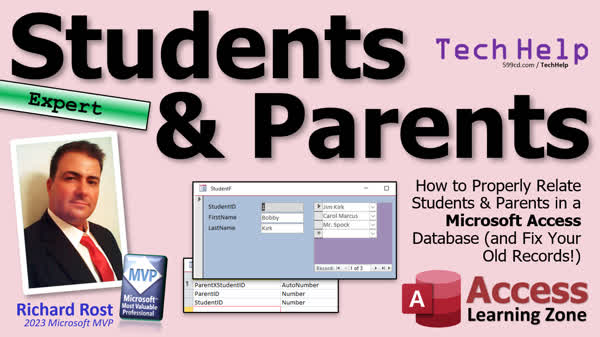
TechHelp Access, many-to-many relationship Microsoft Access, relational database design Access, Access join tables, linking students to parents Access, multiple parent records database, Access database normalization, junction table in Access, Access append query tutorial, relational combo boxes Access, Access subform tutorial
More InformationTranscript In today's video, I'm going to talk about students and parents, how to properly relate students and parents in your Microsoft Access database, and look at an example of a database where it wasn't necessarily set up properly to begin with, and we're going to fix that without losing our data.
Today's question comes from Darren in Broomfield, Colorado, one of my Platinum members. Darren says, "I have my database set up where I've got a table for students and a table for parents. Right now, I have two ID fields in my student table to link to two parents. Once in a while, it comes up that I need a third parent. Maybe you've got mom, dad, and a stepmom. I know the best way to handle this is to create a many-to-many relationship since parents can have multiple students too, but I've got several thousand records in my database and I don't want to start from scratch. Help! I don't want the question mark 'help.' And yes, those of you who are regulars to my channel, I'm still fighting my flu, so my voice isn't 100 percent perfect. I apologize."
Now, I see this a lot. I see where you've got one record and you want to relate it to other records. Let's say you've got a student with two parents or you've got an employee with multiple supervisors or whatever. This works with lots of different types of relationships. Students and parents is just the easy one I think most people can relate to.
Now, there's nothing really inherently wrong with setting up the database the way you've got it there. You've got a student, and you've got a parent one and a parent two field. We're going to build this database in just a minute so that everybody can see exactly what we're dealing with.
The problem is, once you start getting over three, I personally have something I call the rule of threes. Whether it's cell phone numbers, phone numbers, addresses, or anything like that, whenever something has to relate to more than three of something, it's time to put that something in another table. That's when you want to talk about a many-to-many relationship.
Because most people, as far as phone numbers, you've got home phone, work phone, cell phone. Well, what if you want to add a fourth one or a fifth one? I've had people with seven, eight phone numbers or addresses. Same thing with parents. You might have mom, dad. Okay, now I've got to add stepmom, stepdad. Now I've got to add grandma. You might have an uncle that picks them up from school once in a while. So you might have multiple people that you want to have related to this student. This is where you don't want to add parent three, parent four, parent five because now that's just getting silly. You've got to keep redesigning your database. I hate to try to make design changes on the fly like that. So this is where you want to go with a proper many-to-many relationship.
This series will be an expert series. What do I consider expert? Expert is a little bit beyond the basics, but it's not quite developer. We don't need programming to do this. We don't need any VBA. Although, if you're good little boys and girls, I'm going to sneak in some VBA here and there, but you don't need it. The little VBA tricks I'm going to show you are just optional things. All right, so if you're not a programmer, don't panic. You can still learn from this stuff.
All right, so what do you need to know before watching this video? First, watch my relationships video. This focuses primarily on one-to-many relationships, which is the one you're going to use most often in a database. If you've got a child linked to two parents, that's technically two different one-to-many relationships. What we're going to do is change that to a many-to-many relationship, where a student can have many parents and a parent can have many students. But definitely watch this video first, and you should understand how to make relational combo boxes where you pick a value from a different table or query.
I do have another video called many-to-many which does focus on many-to-many relationships. We're going to do it again. You can never have too many examples of many-to-many relationships. This is one of the things that I find students get hung up on a lot. So multiple examples of this are great. We're going to go over some different stuff that I didn't cover in this video. But if you want to get a leg up, go watch this guy first.
We're going to use an append query to take the data that's in the table the way it is now and add it to a junction table. So we can go from a one-to-many to a many-to-many relationship. So go watch this if you don't know what append queries are. And go watch this video on subforms. We're going to use a subform on our student form so you can list all the multiple parents or guardians or whatever you want to call them. These are all free videos. They're on my website. They're on my YouTube channel. Go watch them. There might be some others that pop up but I'll give you links to them as we're going along, so don't worry. But go watch this stuff first if you aren't familiar with any of these concepts and then come on back. I'll wait for you.
Okay, so here I am in the TechHelp free template. This is a free database. You can download a copy off my website if you want to. Let's start out by building the database the way that most people set this up and the way that Darren had his set up.
All right, so let's start by making a parent table. Parent ID, that's our auto number, first name, last name, and of course you'll put all the other fields in here that you want: address, city, state, zip, phone number, blah, blah, blah, all that stuff. Everything relating to the parent. All right, save that as my parent T, parent table, primary key, yes, that's my auto number.
Put some data in here. All right, we got Jim Kirk. We got Mr. Spock, yes, Mr. is his first name. Bones McCoy. We got Montgomery Scott. And the ladies, we got Carol Marcus, we got Miss, Ms. Supreme. I don't think they were ever married. They were engaged. And Jocelyn, Jocelyn McCoy. Yes, it wasn't in the series or the movies, but McCoy was married. All right, so there's our parents.
Now, let's make our student table. Create. Table design. I got mail. Let's do a student ID. First name, last name. Do we ever make a field called name? No. Why? That's a reserved word. We don't use certain words for names in our fields in our tables like name we don't use, we don't use date. There's a whole big long list of them. I'll put a link to my reserved words page that Alex has been maintaining for me for years down below.
Now, here's where you put all the other stuff related to the student. If you want to put their address, phone number, all that stuff in here, that's fine. This is where most people also put links to track who their parents are. All right, so you'd have parent 1 ID. That'll be a number of type long integer. That's a foreign key. It relates to an auto number in the parent table. And then parent 2 ID. Okay? And yeah, you can have parent 3, 4, or 5. Not necessarily good design, but again, for most databases, up to three of them, I don't care. That's fine. But if you ever think you're going to possibly have a need in the future for more than three, that's where this type of design will get you in trouble. So again, we're going to build it wrong first, and then we're going to fix it.
All right, so let's save this. This will be my student table. And let's put some data in it. Let's put in the kids first, and then we'll add in the links for the parents. All right, so we've got Bobby Kirk, and yeah, I'm just making these up. We got Sue Kirk. We got Amy Spock. We got Peter Spock. Not to be confused with Peter Spalls. Joe McCoy. We got Peter Scott. We got Scott Scott.
All right, now, the parents are going to get those IDs from the parent table. All right, let's come up, oops, let's come up here so we can see them. Normally, you'll pick these with a combo box. I'm just going to fill some of them in here. All right, so, Bobby Kirk is going to be one and five. Jim Kirk, Carol Marcus, same thing with Sue Kirk. All right, Amy Spock is going to be two and six. Two, six, two, six. Same with Peter McCoy, who is going to be three and seven. All right, now Scott is a single parent, so it's just going to be four, and we'll leave those as zeros. You can leave them null, too; it doesn't matter. All right, but we can see how the relationships are set up here. All right, there's your parent one, there's your parent two.
Let's throw a form together for this. Okay, I've got my single form here as part of my template. I'm just going to copy and paste this, copy and paste. We'll call it the student F, my student form. Open that sucker up, design view, there we are. I'm going to open up the properties for the form. We're going to change the record source to set it to my student table, so it's getting its data from there. Now I can add existing fields. I'm just going to bring in the first three things. Don't bother bringing in these IDs because we're just going to turn those into combo boxes in a minute. So bring these three things in here.
The only reason I keep these boxes around literally is for the format painter. Nope, hold on, someone's beaming in. I'm going to pick you. I'm going to format paint. Where are you? There you are. Format paint over the ID and then pick you and double-click the format painter and go click, click, and I can turn the format painter off, and now I can just get rid of these guys. There we go. Slide these guys up here on the left like that, resize them if you want to, make these look a little nicer. This is all up to you. Select all these guys, maybe left-align them. All right.
Now I need combo boxes to pick my parents. Turn this field list off. Let's go to form design, find the combo box wizard right there, drop it. This is our relational combo box. Find the values from another table or query. Where am I getting my list of parents from? Well, from the parent table. Next, what fields do you want? Bring them all over. Next, how do you want to sort them? Let's sort by last name and then by first name. And then next, all right, that's what it's going to look like when you open up the box. Remember, the key field is hidden because it's based on a table, we can hide it like that. Next, what are we going to do? We're going to store that value. We're going to pick a parent ID, and we're going to store that in parent one on this form, in this table, right, in the student table. Next, what label do you want for it? Parent one. And then we're all set.
Now I can format paint. This guy, get its colors, slide it up here, do a little dance like that. Let's save it, close it, and open it up. All right, we got Bobby, Kirk, and parent Jim. Well, okay, I don't see the last names unless I drop the box down. That's not very helpful. It would be nice to get both names in there. Now, in my blank template video, I showed you how to make a combo box like this, where you can see both names in there. And that involved making a query, which is this customer LFQ right there. It just brings them together. So you already know how to do that if you watch that video.
But can we do that without needing a query? Because I don't like having all these tons of queries all over the place. Well, yeah, if we know how to go into the combo box's properties, we can modify the combo box itself to see what we want without having to make a query for it.
All right, first thing, let's rename this combo box. I don't like it being called combo7. Let's call this parent1combo. Let's go to its data tab. Now, here in the row source, this is an SQL statement that has the stuff in it that's in the combo box. I'm going to click on there. I'm going to hit shift F2. That's going to zoom me in. Well, that got really big. Hang on, let me resize that. All right, there we go. It's an SQL statement. If you're not familiar with SQL folks, learn SQL. There's a video you can watch that goes into the SQL language, and specifically how it's used with Access. So go watch this to learn a little bit more about SQL. It's very handy if you're going to work with databases to learn this. I didn't learn SQL very well until I had been working with Access for a couple years, and I wish I had learned it sooner.
All right, so since this SQL statement is based on just one table, we can clean this up a lot by getting rid of the parent t everywhere. And we can get rid of the brackets because we don't use spaces in our field names, like good little programmers. So you get rid of the parent t and all the brackets. This makes it a whole lot easier to read this thing. Right? All right. Look at this. See? A whole lot easier to read this. Select parent id, first name, last name, from parent t, order by last name, first name. OK, much, much easier to read.
Now, what I want to do is I want to put last name and first name together. And let's flip the order here. Let's go last name, first name. So I'm going to get rid of this. And I'm going to say last name and quote, comma, space, quote, and first name, just like that. That's a little string concatenation that says take last name and then put a comma space after it and then first name. That's string concatenation if you're not familiar with that. See, I told you there'd be a couple other little videos. I'd give you links. The links will be down below. You can go watch it if you want to. OK. All right. Now hit OK. Let's save it, close it, open her up again, see what we got. All right. Looks good. There's Jim Kirk. Now when I drop this down, I got this empty column over here. Well, we gotta change how many columns are in this box now. That's easy to do. Design view, go to here, go to the format tab. Now, we're gonna change this to two columns. We got the hidden column that's got the ID in it, and then we've got the column with the name. Now here's the widths of these columns, alright? It's about a little bit less than an inch, a little bit more than a half an inch. Let's just change this to two inches. You can make it bigger, it's okay. Alright, so two columns, zero and two. Save that, close it, open her up, and there we go. It looks a whole lot better, doesn't it? So now you can see there's parent one. Alright, now adding parent two is real simple. We'll just copy this bad boy. Copy, paste. No reason to go through all that work again. We'll change the label to parent 2. We'll come over here. We'll change this to parent 2 combo. Now don't forget to change the control source. This is where it's bound because right now it's still bound to parent 1, so change that to parent 2. And that's it. That's all you gotta do. All right? Close it. Save it. Open it. There you go, there's both parents.
Okay. Now, this is set up the way a lot of people set it up and honestly, there's nothing wrong with this. If all you ever are going to have is two parents, then sure, great.But if you need three, four, five, six, ten parents, that's where you're going to want a many-to-many relationship so you can have as many parents as you want. So you can do something like this: you get a subform and you can pick as many of them as you want. You want three parents, you want 30 parents, okay. And we'll do that in tomorrow's video.
So, tune in tomorrow, same bad time, same bad channel. Or, if you remember, you can watch it right now because I'm going to keep recording right now until my voice doesn't hold up anymore. Then I'll take a break, but that will be what we'll cover in tomorrow's video in part 2.
So that's going to be your TechHelp video for today. I hope you learned something. Live long and prosper, my friends. I'll see you tomorrow for part 2, and I'm off to find some tea and cough syrup.
A special thank you and shout out to our diamond sponsor Juan Soto with Access Experts software solutions. They're manufacturing experts specializing in Microsoft Access and SQL Server. Juan is a 13-time Microsoft Access MVP. Check him out at accessexperts.com.
TOPICS:
Creating a table for students in Microsoft Access
Creating a table for parents in Microsoft Access
Designing fields for student and parent tables
Entering data into student and parent tables
Linking students to parents using combo boxes
Setting up a parent-student relationship with combo boxes
Formatting combo boxes to display full names
Using the format painter tool in Access
Adjusting column settings in combo boxes
Converting one-to-many relationships into many-to-many
Using append queries to transfer data to a junction table
Understanding relational databases in Microsoft Access
COMMERCIAL:
In today's video from Access Learning Zone, I will show you how to properly relate students and parents in your Microsoft Access database. We will fix an existing setup where a student table links to two parent IDs and sometimes needs a third. I will walk you through the steps to transition to a many-to-many relationship without losing your data. You will learn how to use append queries, set up subforms, and make relational combo boxes. Plus, there are some optional VBA tricks for those interested. You'll find the complete video on my YouTube channel and on my website at the link shown. Live long and prosper my friends. Intro In this video, we will talk about how to relate students and parents in your Microsoft Access database by looking at a common setup where each student is linked to just two parent fields, and discuss why this design can be limiting. We'll cover how to create tables for students and parents, add the appropriate fields, enter sample data, and use combo boxes to link students to parents. I'll also show you how to format these combo boxes to display full names and explain when and why you should transition to a many-to-many relationship for increased flexibility. Quiz Q1. In the video, what was the suggested solution for handling multiple parents in a student database?
A. Use only two parent columns
B. Create a many-to-many relationship
C. Add a third and fourth parent column
D. Use a separate database for parents
Q2. What should you do when your relationships exceed three entities, as per the "rule of threes" mentioned in the video?
A. Merge the entities into a single table
B. Ignore the issue and keep adding columns
C. Create a separate table for the related entities
D. Delete the excess entries
Q3. What is a recommended practice instead of adding multiple parent fields in a single table?
A. Use a combo box
B. Create a junction table
C. Use a subform
D. Create a text concatenation
Q4. How did the video suggest handling the foreign keys for parents in the student table?
A. Keep adding more foreign keys for every new parent
B. Only use one foreign key for the primary parent
C. Use long integer types and relate them in another table
D. Do not use foreign keys
Q5. Before modifying the design to a many-to-many relationship, what does the video recommend gaining an understanding of?
A. Complex C# programming
B. Basic relationships and append queries
C. Advanced SQL Server deployment
D. Extensive VBA scripting
Q6. What type of relationship does adding more than two parent columns in a student table NOT solve effectively?
A. One-to-one relationship
B. One-to-many relationship
C. Many-to-many relationship
D. Many-to-one relationship
Q7. When making combo boxes for choosing parents, what SQL concept is demonstrated to avoid having numerous queries for combo boxes?
A. Using a predefined query
B. String concatenation directly in the row source
C. VBA scripting
D. Static list entries
Q8. What graphical tool does the instructor use to format combo boxes for selecting parents?
A. VBA editor
B. Macro builder
C. Format painter
D. Expression builder
Q9. When designing the combo box for parent selection, what key field is hidden?
A. Last name
B. Address
C. Parent ID
D. First name
Q10. What is the benefit of using many-to-many relationships instead of adding multiple parent ID columns?
A. It reduces the number of tables in the database
B. It simplifies data entry for basic databases
C. It allows an unlimited number of related records
D. It prevents the use of foreign keys
Answers: 1-B; 2-C; 3-B; 4-C; 5-B; 6-C; 7-B; 8-C; 9-C; 10-C
DISCLAIMER: Quiz questions are AI generated. If you find any that are wrong, don't make sense, or aren't related to the video topic at hand, then please post a comment and let me know. Thanks. Summary Today's TechHelp tutorial from Access Learning Zone focuses on how to relate students and parents effectively in a Microsoft Access database. I want to talk about an example where the original setup was not ideal, and then show you how to fix it while keeping all of your existing data intact.
The scenario comes up a lot: You have one table for students and another for parents, and each student record links to one or two parents with separate fields for each. However, sometimes a third parent or guardian comes into the picture. For example, you may have situations with mom, dad, and a stepmom, or other guardians such as grandparents or uncles. Furthermore, it's not just about students having multiple parents, but parents can also have multiple students. This calls for a more flexible, many-to-many relationship, but the challenge is how to adjust the database design without starting again from scratch, especially when you already have thousands of records.
In databases, I've seen many people run into this sort of design issue. Initially, they might add fields like Parent1ID and Parent2ID directly to the student table. While this works up to a point, I have a guideline that I call the "rule of threes." Whenever you find yourself needing to relate more than three of something—like phone numbers, addresses, or parents—it's time to consider placing those items in another table and using a proper relational setup. This is essential because continually adding more fields for each new item gets unwieldy and makes your database harder to maintain as things grow.
What we're covering here extends a bit beyond basic database skills and overlaps into what I call "expert" territory. This is not programming-intensive, so even if you aren't familiar with VBA, you'll be able to follow along. I'll share some optional VBA tips, but they're not required for this lesson.
Before you continue, you should have a foundation in one-to-many relationships and know how to set up combo boxes that retrieve values from other tables or queries. If you need a refresher, I recommend you check out my videos on Access relationships, as well as the one on creating many-to-many relationships. Seeing multiple examples really helps; I find many students struggle with this topic, so it's worth reviewing different approaches.
In the process of fixing this setup, I'll show you how to use an append query to move existing parent links out of the student table and into a new junction table, which is central to building a true many-to-many relationship. I'll also show you how to use subforms on your main student form to display and manage multiple parents or guardians effectively. All the video references I mention are available for free on my website and on my YouTube channel. I'll provide links along the way.
Let's look at how most people set up the student and parent tables at first. You'll typically have a parent table with fields like ParentID, first and last names, and other information such as address and phone. The student table will hold fields for StudentID, personal details, and, quite commonly, Parent1ID and Parent2ID. These ParentID fields are foreign keys pointing to records in the parent table. Entering the data looks straightforward, and it's fine if you'll never need more than two or three parents, but it just does not scale well.
To demonstrate, I'd create a sample Access database with typical student and parent tables. After entering some sample data—students with their corresponding parents—I use combo boxes on a form to allow selection of a parent for each slot. Formatting the combo boxes is important for usability. By adjusting the properties, you can display full names with last and first name joined together. This involves modifying the combo box's row source SQL statement so users see something helpful instead of just IDs or incomplete information. I also show you how to adjust column widths so the combo box looks tidy.
It's fine for forms with just two parents, but the limitations show up as soon as you need more flexibility. If you have situations where students may need to be linked to more than just two or three parents or guardians, the way forward is to adopt a proper many-to-many structure. This is done using a junction table that holds pairs of student and parent IDs, allowing you to link any number of parents to any number of students. It also makes it easy to use a subform so users can see and manage all related records at a glance.
I explain the issues that come with keeping fixed numbers of parent slots, and why you need this more robust approach. In tomorrow's lesson, I'll walk you through setting up the junction table and show how to move your data using append queries so you don't lose anything in the transition.
This wraps up today's TechHelp lesson. If you want to see the complete step-by-step process, including form building, combo box setup, and all the little details covered, head over to my website where the full video tutorial is available at the link below.
Live long and prosper, my friends. Topic List Creating a table for parents in Microsoft Access
Creating a table for students in Microsoft Access
Designing fields for parent and student tables
Entering data into parent and student tables
Adding foreign key fields for parent IDs in the student table
Setting up combo boxes to select parents in a form
Configuring combo boxes to display full parent names
Adjusting SQL row source for combo boxes
Concatenating last name and first name in combo box display
Changing column count and widths in combo box properties
Using the format painter tool for formatting form controls
Copying and modifying combo boxes for multiple parent fields
Binding combo boxes to the correct control source Primary Topics Access table design, student-parent relationships, foreign key basics, combo boxes, relational design best practices, many-to-many relationships, subforms, data migration
Secondary Topics SQL in Access, format painter, field naming conventions, optional VBA usage
|






