Nested IIF
By Richard Rost

 2 years ago
Nested IIF Functions to Categorize Spending in Access In this Microsoft Access tutorial, I will show you how to use nested IIF functions to categorize customer spending into High, Medium, and Low based on specified thresholds. This video covers creating calculated fields in both queries and forms, offering practical examples to enhance your database skills. Alicia from Woodland, California (a Platinum Member) asks: I'm working on a query to categorize customers based on their spending. I need to assign a category based on the TotalSpent field: High if they've spent over $1,000, Medium if they've spent between $500 and $1,000, and Low if they've spent less than $500. How can I achieve this in Microsoft Access? MembersThere is no extended cut, but here is the database download: Silver Members and up get access to view Extended Cut videos, when available. Gold Members can download the files from class plus get access to the Code Vault. If you're not a member, Join Today!
PrerequisitesLinksRecommended Courses
Keywords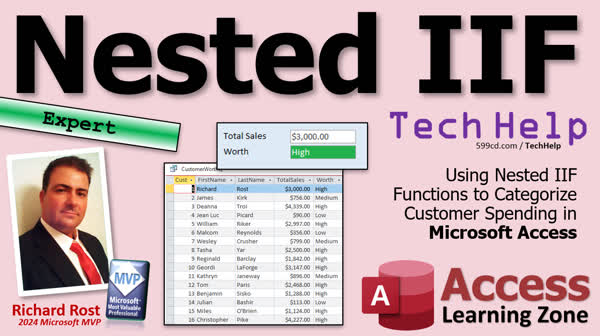 TechHelp Access, Nested IIF, Customer Spending Categories, Access Query Design, Microsoft Access Tutorial, Immediate If Function, Categorizing Spending, Calculated Fields, Conditional Formatting Access, Access Form Calculations, Expert-Level Tutorial, TotalSpent Field, Access Query Tutorial, Spending Categorization
 Subscribe to Nested IIF
Get notifications when this page is updated
More InformationTranscript Today we're going to talk about nested if functions. That's the immediate if. The if. And that's where you can basically have an if-then statement inside a function. We're going to use them to categorize our customer spending. So it will be high over a certain value, medium between a certain value in the middle, and low if it's under that. We need three conditions, and a standard if function only handles two conditions. So that's what we're going to cover in today's video.
Today's question comes from Alicia in Woodland, California, one of my platinum members. Alicia says, "I'm working on a query to categorize customers based on their spending. I need to assign a category based on the total spent field. High if they've spent over a thousand, medium if they've spent between 500 and a thousand, and low if they've spent less than 500. How can I achieve this in Microsoft Access?"
Well, Alicia, we're going to use an if function. We're going to use two if functions together called a nested if. Now this will be an expert-level video. What does expert mean? Well, it's my medium category of classes. There's beginner for people who are getting started. There's developer on the top end for people who are, you know, VBA programmers and up. This will be an expert-level class. So you don't—it's a little bit beyond the basics, but you don't need any programming for this. You just have to know the if function.
So if you haven't watched my if function video, go watch this first. This is crucial for understanding how the if function works. I call it the if function because it's silly, and you'll remember it. It's not IFF. A lot of people do it, including me when I was first starting out. I used to write IFF all the time. It's immediate if, not if the FFFFFF. So just remember that, and it's stupid, but you'll remember it.
Also, make sure you understand how to use calculated fields and how to create calculated fields. We're going to do it both in a query and in a form today. So I'll cover both, and it's covered in this video. These are free videos. They're on my website; they're on my YouTube channel. Go watch these. Watch them first, then come on back.
Now normally in a query, this is how you'd set up a single if function. Let's say you just want to know if it's over a thousand or not. High and low. We have two conditions. So we'll create a calculated field called worth and we'll say if credit limit—I'm using credit limit, but you can use customer value or sales or whatever the field is. If that's greater than a thousand, then put the word high there. Otherwise, put the word low there. That's two conditions.
Now if you want to add another condition, what we're basically going to do is we're going to write an entirely new if function and then just jam it in that spot right there where I put the X. That's where the low used to be. So now we're going to say, okay, if credit limit is greater than or equal to 500, then put medium in there. Otherwise, put low. Now the thing to notice also about if functions, as soon as it reaches a true condition, it drops out. So you don't have to worry about putting an AND or OR in here. All right, first it's going to start here. It's going to say if it's a thousand, okay, we're good, exit out. Someone's beaming in, hold on. All right, it's all to be high if it's a thousand or more. If not, evaluate this. Okay, what's this? So now it's going to say is the credit limit greater than or equal to 500. If so, medium, if not, anything else, it's going to be low. The final function will look like that. You can see there's the beginning of it, and here's the second function starting. Then you got your two parentheses at the end. That's the outer parenthesis right there. Okay, make sense.
All right, let's throw this into the query now. Here I am in MetaCalp free template. This is a free database. You can grab a copy off my website if you want to. In here, I've got a customer form. Now I don't have total sales, but I do have a thing called credit limit. We'll just use the credit limit field and pretend this is the sales field. It doesn't matter what field you use. Okay, let's start with a query first. So create query design. I'm going to bring in my customer table, and then we can close this down. Just bring in the fields you want to see. Let's do customer ID, first name, and last name. Let's bring in credit limit. All right, that's what we're going to use for our function. Let's come over here and let's make a calculated column, calculated field called worth. I'm going to zoom in, shift F2, so you can see better. We'll call it worth. That's going to be if the credit limit is greater than 1000, then put high here. Otherwise, put low. We'll just do the two for now. Okay, hit okay.
Let's save it as the customer worth query, and now I'll run it. You should see highs and lows. There's a low. I'll put a couple other ones in here. How about 50? And there's a low. Okay, high and low. Now let's go modify it. Right here is where we're going to stick the other if function in. We're going to write a whole new if function. If it helps, write it somewhere else and then copy and paste it in. Use notepad if you want to. I use notepad all the time. It makes more sense sometimes this way too. If the credit limit is greater than or equal to 500, put medium. Otherwise, put low. There's your whole function right there. We're going to cut that out. You're going to have notepad now, and then we're going to stick it right there. Paste. See? Sometimes it's easier to do that way too. Once you get the hang of this, then you can start writing the stuff by hand.
Okay? All right, hit okay. Now let's run it. There's a couple of mediums, 500. All right, 86, 896. Right there you go. I'm medium low. Okay. Save changes, yes.
All right, now let's do the same thing but in a form field, a form calculated field. In fact, I'm going to cheat. I'm going to go back to that customer worth query. Let's go design view. I'm going to steal this thing because we're going to copy this whole thing. And again, let me drop it in notepad. I like to use my notepad. There you are. Sit right there. Just sit there for a minute. No, okay. Cancel. Let's close this. I use notepad all the time in programming.
All right, let's do the same thing here. And just for class, let's get rid of these guys. We don't need these. Let's slide this up. We're going to pretend this credit limit is sales again. I'm going to copy and paste so we got a copy of that guy there. We'll change the label over here. This will be worth. Right. Let's open up this guy's properties. Now, first thing, give it a name. I'll just call it worth. The control source is where it's going to get its data from. Right. Now currently, it's bound to the credit limit field just like this guy is. So right now, these will both display credit limits. We're going to get rid of this. Okay. And as soon as we do, you see that's changed just to unbound. That means this is no longer bound to a field in the table. But we could put a calculation in there, just like we did in the query. All right. So let's shift F2 again. I'm going to zoom in. So it's easier. It's tough to write a big long function in this tiny space. That's why they give you the zoom. Shift F2 to zoom.
Now I'm going to go back to notepad. I'm going to grab this guy that I just copied. All right. We're going to paste it in here. Now in a form field, it's just written a little bit differently in a query. You have to give it a query name. But this text box already has a name. We called it worth. So instead of doing this, we're going to just put an equal sign there. That's how you write it in a text box. It says this field is going to be equal to this same calculation. Okay. And there you go. Save it. We're going to close it. Close it. Open it. And there we go. There's our nested if function at work.
Now, could you make a query for this entire form and put that calculation in a query? Absolutely. You certainly can. All right. Or you can put it directly in the form. It's completely up to you. There's a million ways to do everything in access. Like I said, my job is just to teach you all the different Legos. It's your job to put them together, however you want.
Okay. Now by little bonus, let's make this field change colors based on what's in it. Let's use some conditional formatting. If you're not familiar with conditional formatting, I got a whole video. I'll give you a link to it in just a minute. Here's how conditional formatting works. Click on this guy. We're going to go up the format. I'm going to open this up by double-clicking on it. That makes the ribbons stay open. I'm going to hit conditional formatting. Now we're in the worth field. Remember, so this is text. It's actually based on the text that's in there. So New Rule, if the field value is equal to high, and no, you don't need quotes here, then we'll make this green with white text. Hit OK. New Rule, if the field value is equal to medium, then we'll make it, let's say yellow. And if the field value is equal to low, let's make it red with white text. OK, we got those three conditions. We'll hit OK. We'll save the form, close it, open it back up again, and there we go. There's our conditional formatting. Let's move to somebody who's medium. We got a low. Let's see there's a low, I'll just pass it. That's pretty cool, huh? All right, a little conditional formatting for you.
All right, here's some other videos for you to check out. Here's my free video on conditional formatting. There's lots more you can do with it. Check it out. There's a link. I'll put a link down below you can click on too. Here's another video on something called the switch function. Now, this is a little more advanced. It's an alternative to nested ifs. Nested ifs are okay if you've got three, maybe four options. But if you've got a lot of options like six or seven or more, use the switch function instead. It's easier to write for big long stuff.
Okay? And yeah, you can also use dlookups. There's lots of advanced stuff you can do. But these two things are the basic ones that I stick with. If you really like learning this stuff, I've got tons of lessons on my website. This is from my full course. I cover nested if functions in my Access Expert Level 10 class and lots of other stuff too, including the dlookup function. I do all kinds of extra stuff in each of my classes. Check it out. Again, I'll put links to all this stuff down below. If you learned something new today, post a comment down below and let me know about it.
That is going to be your TechHelp video for today. I hope you learned something. Live long and prosper, my friends. I'll see you next time.
A special thank you and shout out to our Diamond Sponsors.
TOPICS:
Nested if functions in Microsoft Access
Categorizing customer spending
Using calculated fields in queries
Creating calculated fields in forms
Writing nested if functions in a query
Using Notepad to draft if functions
Writing nested if functions in form controls
Conditional formatting in Access forms
Using the equal sign in form control sources
Creating queries for form calculations
COMMERCIAL:
In today's video, we are going to learn about using nested if functions in Microsoft Access to categorize customer spending into high, medium, and low categories. We'll demonstrate how to employ nested if functions in both queries and forms to achieve this. I'll also share tips on using notepad and conditional formatting to simplify the process and make your database look more dynamic. Plus, we'll talk about the switch function, which is especially useful for more complex scenarios. You don't need programming knowledge, just a basic understanding of the If function. You'll find the complete video on my YouTube channel and on my website at the link shown. Live long and prosper, my friends. Intro In this video, we'll talk about how to use nested IIF functions in Microsoft Access to categorize customer spending into high, medium, and low groups based on their total value. I'll show you how to set up these calculated fields in both queries and form controls, share tips for drafting your expressions in Notepad, and walk you through applying conditional formatting to highlight your results. We'll also look at how the IIF function works for multiple conditions, and offer best practices for using these tools to make your Access databases more dynamic. Quiz Q1. What is the main purpose of using a nested if function in Microsoft Access as discussed in the video?
A. To handle complex arithmetic calculations
B. To categorize data based on multiple conditions
C. To sort data in ascending order
D. To perform data validation checks
Q2. Why is a single if function insufficient for categorizing customer spending into high, medium, and low categories?
A. It can only handle numerical data
B. It cannot perform calculations
C. A single if function only handles two conditions
D. It requires additional software to function
Q3. What condition is set to categorize customer spending as "high"?
A. Spending equals $1,000
B. Spending is less than $1,000
C. Spending is greater than $1,000
D. Spending is less than $500
Q4. According to the video, what happens when an if function encounters a true condition?
A. It continues to evaluate all conditions
B. It loops back to the start
C. It exits and does not evaluate further conditions
D. It throws an error
Q5. Which function is recommended as an alternative to nested if functions for handling more than three or four options?
A. DLookup function
B. Switch function
C. Calculate function
D. Sum function
Q6. In the video, what tool is used to improve the readability of writing long if functions outside of Microsoft Access?
A. Excel
B. Word
C. Notepad
D. PowerPoint
Q7. What feature is demonstrated in the video to visually distinguish categories like high, medium, and low in a form?
A. Data Validation
B. Conditional Formatting
C. Form Navigation
D. Report Generation
Q8. In the context of the form's calculated field, what does it mean when a field is marked as "unbound"?
A. It is connected to multiple fields in the table
B. It is no longer linked to any field in the table
C. It requires a mandatory value
D. It automatically updates with any field changes
Answers: 1-B; 2-C; 3-C; 4-C; 5-B; 6-C; 7-B; 8-B
DISCLAIMER: Quiz questions are AI generated. If you find any that are wrong, don't make sense, or aren't related to the video topic at hand, then please post a comment and let me know. Thanks. Summary Today's TechHelp tutorial from Access Learning Zone will focus on using nested if functions in Microsoft Access. I'll explain how to use them to categorize customer spending into three levels: high, medium, and low. A single standard if function can only handle two conditions, so we'll use nested if functions to manage three.
Imagine you're working to categorize customers based on their total spending. If they've spent over a thousand, you'll classify them as high; if they've spent between 500 and a thousand, medium; and if under 500, low. We'll achieve this using two if functions nested together.
This tutorial aligns with my expert-level classes, which offer a deeper understanding beyond the basics but don't require programming skills. If you're unfamiliar with the if function, I recommend watching my introductory video on the topic beforehand. The nickname I give it is 'immediate if' instead of IFF, which is common when starting out. Understanding calculated fields is also essential, as we will use them in both queries and forms during this exercise.
For a quick example, in a query with a single if function, you would check a condition like whether the credit limit exceeds a thousand and assign a category of high or low accordingly. Introducing an additional condition involves writing a new if function and inserting it into the spot where you'd specify the low category previously. This allows you to assign a medium category if the credit limit is greater than or equal to 500. The function will exit once a condition is satisfied, so there's no need for AND or OR operators.
Let's apply this to a query. Suppose we have a table with customer data, including fields like Customer ID, First Name, Last Name, and Credit Limit. We'll add a calculated field called 'worth' and use the nested if functions to categorize based on the credit limit. First, we'll determine high or low status, then introduce the medium condition.
After creating the query, I'll save and run it to verify that the categories display correctly. You'll see entries categorized as high, medium, or low based on the conditions specified. I suggest using a text editor like Notepad to draft complex functions for copy-pasting into your queries.
Next, let's apply the same logic within a form using a calculated field. I'll demonstrate how to adjust a form control to perform the same calculation done in the query. This involves editing the control source to mirror the logic of our nested if functions.
For a final touch, I'll show you how to use conditional formatting to change field colors based on their category. This visual aid can make data interpretation much easier. Conditional formatting options are highly flexible, allowing you to specify colors for each category—green for high, yellow for medium, and red for low, for example.
If you're interested in alternatives to nested ifs, you might consider using a switch function, which can be more efficient when dealing with multiple conditions. I also cover many advanced functions in my full course on the Access Learning Zone website, where you'll find a wealth of resources to expand your Access capabilities.
For more detailed guidance, including step-by-step instructions, refer to the complete video tutorial available on my website. Live long and prosper, my friends. Topic List Nested if functions in Microsoft Access
Categorizing customer spending
Using calculated fields in queries
Creating calculated fields in forms
Writing nested if functions in a query
Using Notepad to draft if functions
Writing nested if functions in form controls
Conditional formatting in Access forms
Using the equal sign in form control sources
Creating queries for form calculations Primary Topics nested if functions, Access queries, calculated fields, Access forms, customer categorization, conditional formatting
Secondary Topics using Notepad for functions, expert-level Access skills, switch function alternative
|




