|
||||||
|
||||||
|
||||||
|
||||||
Access Developer 65RegEx Matching Validation Extraction ReplaceIn Access Developer 65 we will learn how to use regular expressions in Access VBA to search, validate, extract, replace, and clean up text. We will cover pattern basics, finding multiple matches, case-insensitive searches, reusable RegEx functions, a pattern library, phone number cleanup, capture groups, and extracting invoice numbers from inconsistent customer notes while avoiding unrelated numbers. Lessons
ResourcesNavigationLesson SummaryWelcome! Text Extraction Validation and Cleanup - Welcome to Access Developer 65. We will learn how to use regular expressions in VBA to search, validate, extract, replace, and clean text data. We will cover reusable RegEx functions, pattern libraries, case sensitivity, multiple matches, capture groups, phone number formatting, ZIP code validation, and extracting invoice numbers from notes with inconsistent formatting.
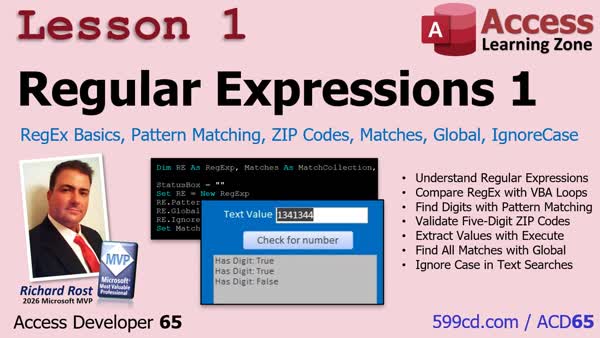
Lesson 1: ZIP Validation Extract Matches Globally - In Lesson 1, we will introduce regular expressions in Microsoft Access VBA. You will learn how regex patterns can search text for digits, validate a five-digit ZIP code, and replace simple character-by-character loops when pattern matching is useful. We will also walk through creating a RegExp object, using Test to return a True or False result, and understanding patterns such as [0-9]+ and ^[0-9]{5}$.
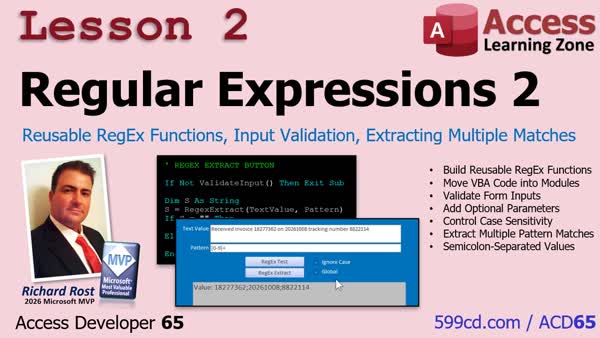
Lesson 2: Reusable Functions and Multiple Matches - In Lesson 2, we will continue with RegEx by turning basic regular expression code into reusable VBA functions. We will walk through testing patterns, extracting matching values, handling case sensitivity, and returning multiple matches as a semicolon-separated string. We will also build a form-based interface with pattern input, validation for blank text or patterns, and options for Ignore Case and Global matching.
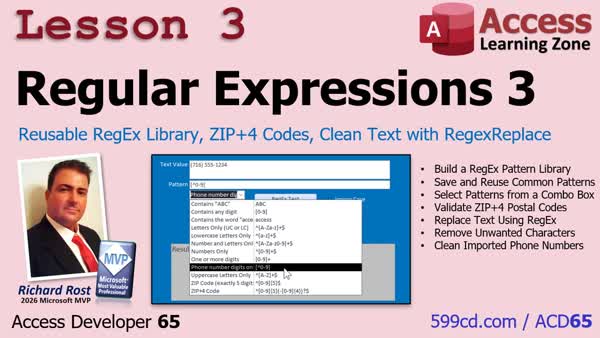
Lesson 3: RegEx Library ZIP4 Validate RegexReplace - In Lesson 3, we will build a saved pattern library table and add a combo box for selecting RegEx patterns in our utility form. We will discuss a pattern for validating five-digit ZIP codes with optional ZIP+4 extensions, then create a reusable RegEx replace function to find and replace text. Finally, I will show you how to clean imported phone numbers by removing non-digit characters while keeping only the numeric digits.
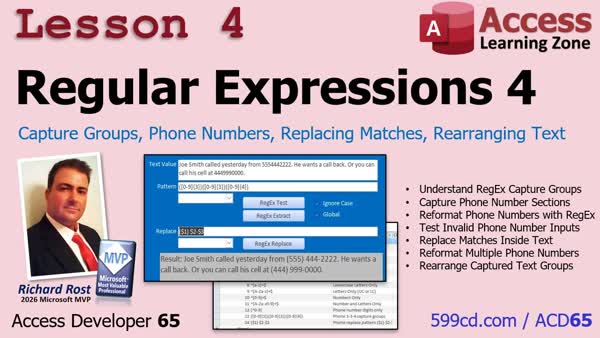
Lesson 4: Capture Groups Format Phone Replace Text - In Lesson 4, we will learn how to use capture groups in regular expressions to break matching text into reusable pieces. We will walk through formatting 10-digit phone numbers, using replacement strings with group references, handling nonmatching data, and replacing phone numbers found inside longer text. We will also discuss how changing the order of capture groups can rearrange parts of a match.
Lesson 5: Extract Invoice Numbers with SubMatches - In Lesson 5, we will put together the regular expression techniques covered so far to find invoice numbers in unstructured notes and text. We will use alternatives, optional separators, capture groups, matches, and submatches to recognize labels such as Invoice, Invoice Number, and INV while extracting only the digits. I will also show you how to build a reusable VBA function that retrieves its pattern from a table and returns all matching invoice numbers in a semicolon-separated list.
Up Next: Review & What's Coming Up... - In this course we learned the fundamentals of regular expressions, including testing patterns, extracting and replacing text, building reusable VBA functions, storing favorite patterns, and using capture groups to rearrange information. We also extracted invoice numbers from inconsistent customer notes. In this What's Next lesson, we discuss possible future topics, including more practical regular expression projects, data imports, email and date extraction, Scripting.Dictionary, database documentation, maintenance tools, and Access add-ins.
KeywordsAccess Developer, Access VBA regular expressions, regex text extraction, VBA RegExp object, regex validation, regex capture groups, regex replace function, phone number formatting, invoice number extraction, imported data cleanup, regex pattern library, m
More InformationTranscriptHave you ever imported a bunch of customer notes, emails, or other data into your Microsoft Access database and then spent forever trying to pull useful information out of all that text? Maybe you're looking for invoice numbers, phone numbers, or specific pieces of information buried in big paragraphs? Sure, you could write a bunch of loops using Left, Right, Mid, InStr, and all those string functions. I've done plenty of that myself, but there's a much better tool for jobs like this. It's called regular expressions, or regexes for short. Hi, this is Richard Rost with Access Learning Zone. I just released Microsoft Access Developer Level 65, and in this class, I'm going to show you how to use regular expressions in Access VBA to search, validate, extract, and clean up text. And trust me, once you see the things you can do, you're going to start finding all kinds of uses for them in your own databases. We'll start with the basics. I'll show you what regular expressions are, how patterns work, and how to use them to find numbers, validate ZIP codes, and extract matching values. We'll also look at finding multiple matches and ignoring case when we need to. Then we'll build our own reusable RegEx functions, so we can test patterns and extract information from anywhere in our database without rewriting the same code over and over again. Next, we'll create a library of our favorite regular expression patterns, so we can pick them from a list instead of having to remember all that crazy syntax. We'll also build a replacement function and use it to clean up messy imported phone numbers. Then we'll learn about capture groups, which let us take pieces of matching text and rearrange them. I'll show you how to find phone numbers buried inside customer notes and automatically reformat them without changing the rest of the text. And finally, we'll put it all together with a real-world example. Imagine you've got customer notes containing invoice numbers, but everybody types them in differently. Some say invoice, some say I-N-V, some use dashes, some use number signs or colons. We'll build a function that finds those invoice numbers, ignores unrelated numbers like dates, and pulls out exactly what we need. This is where regular expressions really shine. By the end of this class, you'll have your own reusable regex toolkit and a much better way to handle messy text in Microsoft Access. If you're an experienced Access developer and you work with imported data, customer notes, or information from other systems, this is a set of tools you're going to want in your toolbox. For more information, visit my website. I'll put a link down below. Drop a comment if you have any questions, and live long and prosper, my friends. I'll see you in class. IntroIn <B>Access Developer 65</B> we will learn how to use regular expressions in Access VBA to search, validate, extract, replace, and clean up text. We will cover pattern basics, finding multiple matches, case-insensitive searches, reusable RegEx functions, a pattern library, phone number cleanup, capture groups, and extracting invoice numbers from inconsistent customer notes while avoiding unrelated numbers. QuizQ1. What is the main purpose of regular expressions in Microsoft Access VBA? A. To search, validate, extract, and clean up text B. To create tables and relationships automatically C. To replace all VBA code with macros D. To design reports without using queries Q2. Which type of data is especially well suited for regex processing? A. Large paragraphs of imported notes, emails, and text B. Only numeric AutoNumber fields C. Form color settings D. Table relationship definitions Q3. Which task can regular expressions help perform? A. Find invoice numbers buried in customer notes B. Compact and repair a database C. Create a new navigation form D. Change the database password Q4. Why might regex be preferred over repeatedly using Left, Right, Mid, and InStr? A. Regex can match text patterns more flexibly and efficiently B. Regex only works with numeric fields C. Regex eliminates the need for VBA D. Regex automatically creates database backups Q5. What can a regex pattern be used to validate? A. A ZIP code format B. Whether a table has a primary key C. Whether a report has a page footer D. Whether a form is bound to a query Q6. What does finding multiple matches allow a regex routine to do? A. Locate more than one matching value within text B. Search only the first record in a table C. Delete duplicate tables automatically D. Convert text fields into attachments Q7. What does ignoring case in a regex search mean? A. The search can match text regardless of uppercase or lowercase letters B. The search only finds uppercase letters C. The search removes all capital letters D. The search changes all text to lowercase permanently Q8. Why create reusable RegEx functions in an Access database? A. To use the same pattern logic in multiple places without rewriting code B. To avoid creating any VBA modules C. To replace all tables with text files D. To prevent users from entering records Q9. What is the purpose of creating a library of favorite regex patterns? A. To select commonly used patterns without memorizing complex syntax B. To store copies of all database tables C. To save form and report designs D. To track user login passwords Q10. How can regex replacement help clean imported phone numbers? A. It can identify messy phone number formats and replace them with a consistent format B. It can determine whether a phone line is active C. It can automatically call every phone number found D. It can convert phone numbers into email addresses Q11. What are capture groups used for in regular expressions? A. To isolate parts of matching text so they can be extracted or rearranged B. To lock records while another user edits them C. To group tables into a relationship D. To capture screenshots of forms Q12. In the invoice number example, why is regex useful? A. It can recognize different invoice labels and formats while avoiding unrelated numbers such as dates B. It can guarantee that every customer has an invoice C. It can create invoices from customer notes automatically D. It can remove all numbers from customer notes Answers: 1-A; 2-A; 3-A; 4-A; 5-A; 6-A; 7-A; 8-A; 9-A; 10-A; 11-A; 12-A DISCLAIMER: Quiz questions are AI generated. If you find any that are wrong, don't make sense, or aren't related to the video topic at hand, then please post a comment and let me know. Thanks. SummaryToday's video from Access Learning Zone introduces Microsoft Access Developer Level 65, where I teach you how to use regular expressions, commonly called regexes, in Access VBA. If you have ever imported customer notes, email messages, comments, or other text-heavy data into an Access database, you know how difficult it can be to locate useful information buried in long paragraphs. You may need to find invoice numbers, phone numbers, ZIP codes, or other specific values that were entered inconsistently. Although it is possible to handle these tasks with VBA string functions such as Left, Right, Mid, and InStr, regular expressions provide a more flexible and powerful solution. Regex patterns allow us to search, validate, extract, and replace text based on rules that we define. In this class, I begin with the fundamentals of regular expressions. I explain how regex patterns work and how to use them in Access VBA to locate numbers, validate ZIP codes, and extract matching text from a larger string. I also cover how to find multiple matches in the same text and how to perform case-insensitive searches when capitalization should not matter. After learning the basics, we create reusable regex functions that can be called from throughout an Access database. This allows us to test patterns and retrieve matching information without having to repeat the same VBA logic in every form, query, report, or module. We will also build a library of commonly used regular expression patterns. Instead of trying to memorize complex regex syntax every time you need it, you can save useful patterns in a table and select them when needed. Next, I demonstrate how to use regex replacement functions to clean imported data. For example, phone numbers are often entered in a variety of formats, with parentheses, spaces, periods, dashes, or no separators at all. Using regular expressions, we can identify those phone numbers and standardize them into a consistent format. I also cover capture groups, which are one of the most useful regex features. Capture groups allow us to isolate individual pieces of a match and rearrange them. This is especially helpful when you need to find a phone number inside customer notes and reformat only that phone number while leaving the rest of the note unchanged. Finally, I put these techniques together in a practical example involving invoice numbers found in customer notes. People may refer to an invoice in many different ways. They might type "invoice," "INV," "INV-12345," "#12345," or use a colon or other punctuation. At the same time, notes may contain unrelated numbers such as dates, phone numbers, account numbers, or quantities. We will create a function that recognizes the invoice references, avoids unrelated values, and extracts the invoice number we actually need. Regular expressions are an excellent addition to your Access VBA toolbox, particularly if you regularly work with imported data, customer notes, email text, or information received from other systems. Once you understand how to build and reuse regex patterns, you will find many ways to automate text cleanup, validation, searching, and data extraction. You can find a complete video tutorial with step-by-step instructions on everything discussed here on my website at the link below. Live long and prosper, my friends. Topic ListPromotional overview of a Microsoft Access course on using regular expressions in VBA. Primary Topicsregular expressions in Access VBA, pattern matching, text search and validation, extracting matches, reusable regex functions, regex pattern library, text replacement, capture groups Secondary Topicsmultiple matches, case-insensitive matching, imported customer notes, cleaning phone numbers, extracting invoice numbers |
||||||||||||||||||
|
| |||
| Keywords: Access Developer, Access VBA regular expressions, regex text extraction, VBA RegExp object, regex validation, regex capture groups, regex replace function, phone number formatting, invoice number extraction, imported data cleanup, regex pattern library, m Page Tag: whatsnew PermaLink Regular Expressions, Pattern Matching, Data Validation, Extraction, Replacement in Microsoft Access |