Free Lessons
Courses
Seminars
TechHelp
Fast Tips
Templates
Topic Index
Forum
ABCD
 
Home   Courses   TechHelp   Help   Contact   Merch   Join   Order   Logon   Forums   
 
Back to Access Developers    Comments List
Upload Images | @Reply | Bookmark | Link | Email | Next Unseen |
Combo Box Search Options
Jeffrey Kraft 
      
13 months ago
By default Microsoft ComboBoxes only (seem) to support left to right matching. I want to have a "LIKE" or wildcard, where it searches the table or query and updates the list as I type.

I'm assuming it would be a On Change event using SQL

So far I have:

Dim strSearch As String
Dim strSQL AS String

If Len(ComboboxName.Text)  > 0
   strSearch = ComboboxName FROM TableOrQueryName " & _
   strSQL = "SELECT FieldName FROM TableOrQueryName " & _
            "WHERE FieldName  LIKE '*" & strSearch & "' " & _
            "ORDER BY FieldName;"
Else
   strSQL = "SELECT FieldNName FROM TableQueryName ORDERBY BY FieldName;"
End IF

ComboBoxName.RowSource = strSQL
ComboBoxName.DropDown


Assuming this is correct (no I haven't actually tried it. I'd prefer Double Double Quotes and I still have issues doing that correctly.

HELP.
Thomas Gonder  @Reply  
       
13 months ago
Jeffrey  That's an interesting question. I've got a geography entry control that does pull in a row source after the first three letters are typed. Otherwise, it's doing too much parsing of a huge table. However, to type in "barb" for Santa Barbara might be interesting. I'll do some testing.
Jeffrey Kraft OP  @Reply  
      
13 months ago
In my case it's an accounting issue where I'm setting the account code on the transaction.  I'm using the old 4 digit code system a description name concantinated in a query.  There is almost no way I'm going to recall the ledger account code by 4 digit only. I could change the order butttttttttttt if I'm not looking at the 4 digit account code I may mess it up.
Thomas Gonder  @Reply  
       
13 months ago
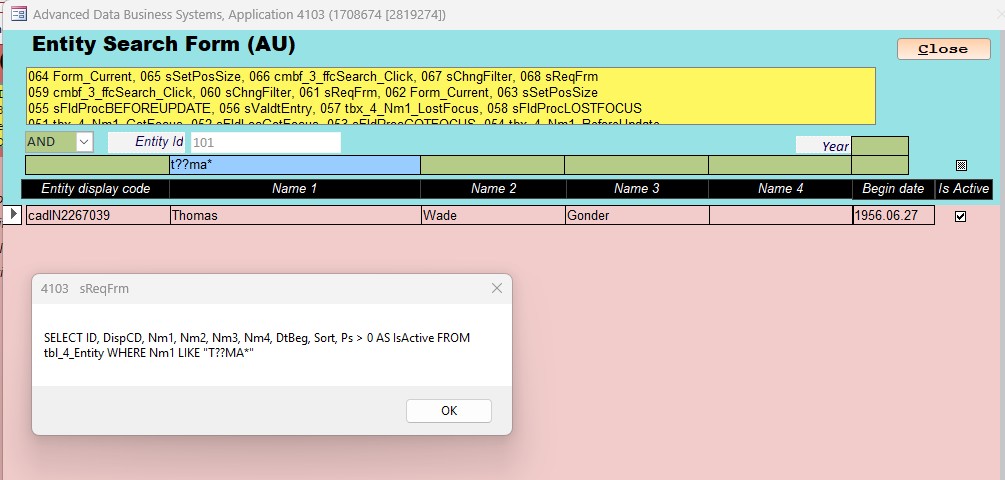
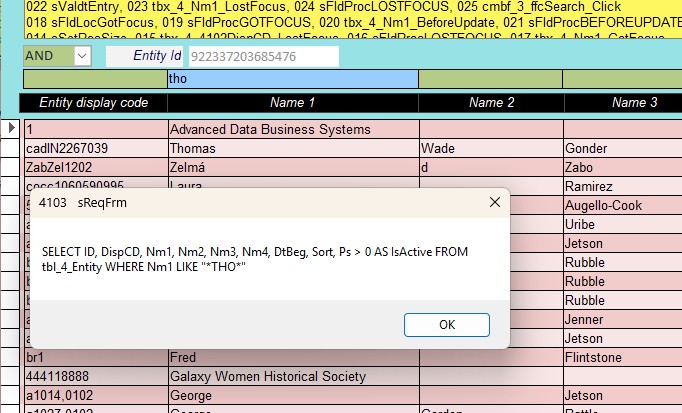
Whatever the data is, it's the same logic. I did write logic to allow entry in a search form to allow the different ways of searching with "*" or "?". I'll have to find it and try integrating it into the combo box build up for the row source. It'll take a little bit of time. In the meantime, I'll show the idea in the search form below, and the SQL it creates.

Richard does have a video on building the row source for a combo box. Maybe one of the moderators can provide the link. I think it just does the first n letters too.
Kevin Yip  @Reply  
     
13 months ago
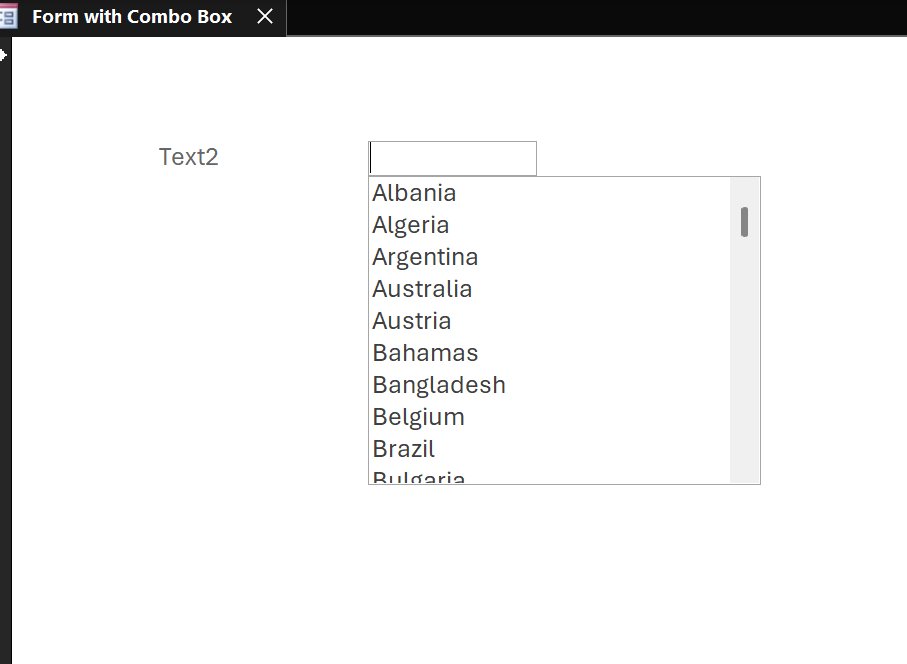
Jeffrey   It may be better to use a listbox, since a combo box's behavior is always affected by what you type in it, so it may not always behave as you like.  Use a textbox, and put a listbox underneath it instead, and hide or show the listbox as you see fit (such as show it when the textbox gets focus).  The listbox works independently and will not be affected by what you type in the textbox, so your rowsource SQL will work as expected.  The picture below shows a listbox as a fake combobox doesn't look half bad.

Also, the WHERE portion in your rowsource SQL should be:

    " ... FieldName LIKE '*" & ComboboxName.Text & "*' ORDER BY ... "
Kevin Yip  @Reply  
     
13 months ago

Kevin Yip  @Reply  
     
13 months ago
Correction: the WHERE portion should check for single quotes in your combo box (or textbox) text:

    " ... FieldName LIKE '*" & Replace(Textbox1.Text, "'","''") & "*' ORDER BY ... "
Thomas Gonder  @Reply  
       
13 months ago

Thomas Gonder  @Reply  
       
13 months ago

Lars Schindler  @Reply  
     
13 months ago
Perhaps the combo box just needs a little more fitness?

Richard recently implemented "Search as you Type with a combo box":
https://599cd.com/blog/display-article.asp?ID=3689
Thomas Gonder  @Reply  
       
13 months ago
Lars I haven't been following the Fitness series. I used a video of his, probably older than two years ago. So maybe the new video has enhanced VBA features?

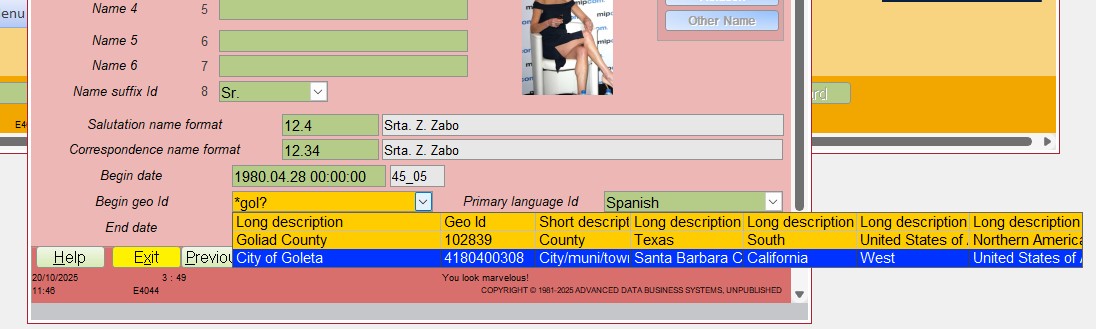
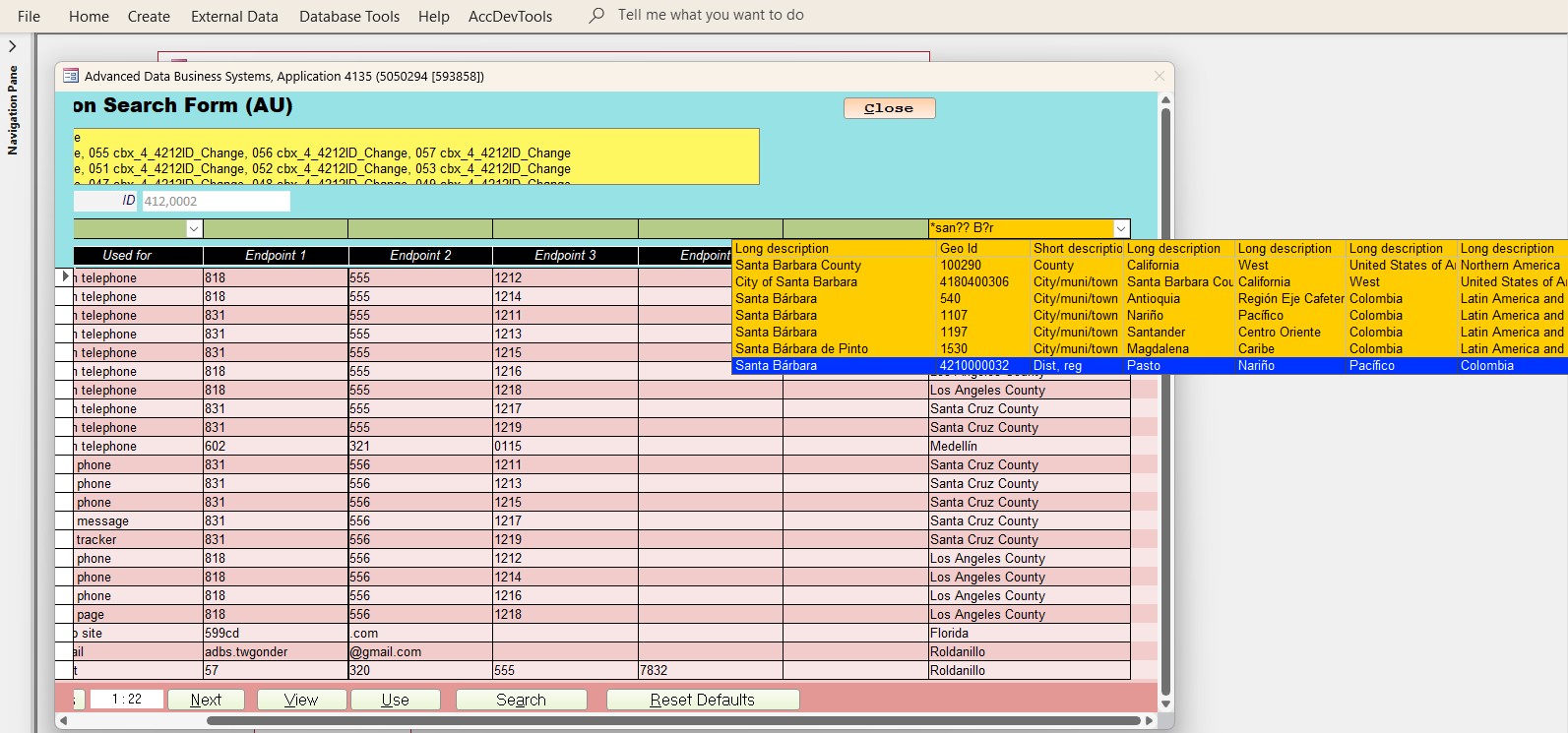
Notice the first image doesn't just slap "*" in the front and tail of the string as does the second image.
I have a feeling this would all fall apart if your data had an "*" or "?" in it.
I'll have to test if this works for a combo box row source that gets built, but I can't see why not at first glance.
Jerry Fowler  @Reply  
       
13 months ago
Going back to what Jeffrey had at the beginning, isn't there just a * missing at the end of the search

If Len(ComboboxName.Text)  > 0
   strSearch = ComboboxName FROM TableOrQueryName " & _
   strSQL = "SELECT FieldName FROM TableOrQueryName " & _
            "WHERE FieldName  LIKE '*" & strSearch & "*' " & _
            "ORDER BY FieldName;"
Jerry Fowler  @Reply  
       
13 months ago
Looks like Thomas beat me to it, good catch
Thomas Gonder  @Reply  
       
13 months ago
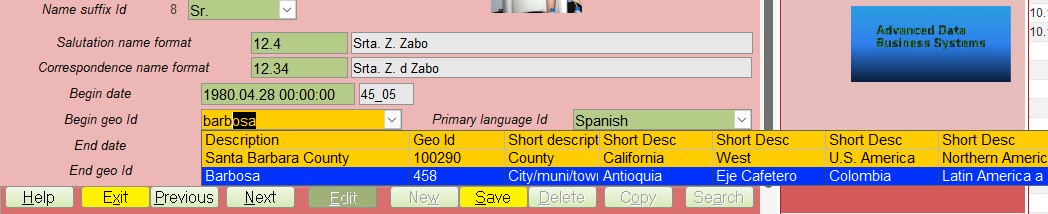
Jeffrey Are we close to what you're looking for? I typed in "barb" and with the second "b" the combo box was propagated.
Thomas Gonder  @Reply  
       
13 months ago

Jeffrey Kraft OP  @Reply  
      
13 months ago
Yes my second * is missing I realized it right as I hit submit... never fails. And as I've said before I hate wrtting double double get in tons of trouble quotes... but they work better (when done right).  I'm actually going to test the code I have. I think I've (at least in my head) made some changes.
Jeffrey Kraft OP  @Reply  
      
13 months ago
IT WORKED... yes I'm yelling this from the roof top...

DetailsPrivate Sub DebitTranID_Change()
    Dim strSearch As String
    Dim strSQL As String

    If Len(Me.DebitTranID.Text) > 0 Then
        ' Escape single quotes to avoid SQL errors
        strSearch = Replace(Me.DebitTranID.Text, "'", "''")

        strSQL = "SELECT AccountTblQry.AccountID, AccountTblQry.CodeCombo " & _
                 "FROM AccountTblQry " & _
                 "WHERE AccountTblQry.CodeCombo LIKE ""*"" & '" & strSearch & "' & ""*"" " & _
                 "ORDER BY AccountTblQry.CodeCombo;"
    Else
        strSQL = "SELECT AccountTblQry.AccountID, AccountTblQry.CodeCombo " & _
                 "FROM AccountTblQry " & _
                 "ORDER BY AccountTblQry.CodeCombo;"
    End If

    DebitTranID.RowSource = strSQL
    DebitTranID.Dropdown
End Sub


And best of all I DIDN'T NEED CHATGPT this time.
Thomas Gonder  @Reply  
       
13 months ago
Jeffrey Great! You got what you wanted. But, be aware, if you're running over a network (local probably doesn't matter as it sits in memory, you are just pounding the processor), you're not letting the combo box do its job. You're running SQLs over and over again instead, which with a big table could be a big performance hit.
Jeffrey Kraft OP  @Reply  
      
13 months ago
I am aware of it. But this is a single user and will likely stay that way on a desktop. 10 expense entries every other day (if that for now). It's a unbound form that is only pulling data off the tables on 4 combo boxes. Of which one (the ledger code). Then when it writes info to the database is using either recordsets or SQL to the database. The PC i'm on has 64 GB of Ram. It's a gaming PC so yeah I do need to take into consideration heat on the CPU.  

The form itself is constantly getting tweaked because the user (ME) isn't happy with how some parts work.

I may move it over to a local server and see how it responds (but that is for another day).

Just wondering if     DoCmd.Close acForm, Me.Name, acSaveYes specifically acSaveYes.  Is that enough to corrupt a form? I'm asking because a different form that had worked the day prior flawlessly, and then one day I was getting errors on Debug on ALL lines of code.  Fortunately I had a backup Form to go back to. It's also possible that the PC's temperature was too warm. The PC is air cooled instead of water cooled (my bad).

Thomas Gonder  @Reply  
       
13 months ago
Jeffrey  As to your form not working as it did before. I haven't seen a form get corrupted by a DoCmd, but I have seen forms get whacked when they crash and when there is VBA code that modifies the form's properties or those in controls. What kinds of errors were you getting when it stopped working properly? Did you make any VBA changes to any of the modules (if yes, try recompile; Richard has a video on that)?
Jeffrey Kraft OP  @Reply  
      
13 months ago
It didn't matter what the VBA was on that form it caused an error. Most were object not defined and the object name was on that form.

I asked both ChatGPT AND CoPilot.  Copilot responded immediately, and said yes but rare. ChatGPT took it's sweet time and concluded the same thing.  I know it's reciting what it finds.  They also concluded it could be the SSD card (it's only a year old and tested good), but the PC runs hot when video use is high on the video card.  I really need a PC with better cooling (HP Omen 30L is not it :( (it was free and I now know why). I may have been playing a game and working on the database at the same time..... so my bad!
Thomas Gonder  @Reply  
       
13 months ago
Jeffrey Thanks to the OP, and the interesting idea of adding wildcards to a combo box, I spent three days playing with ways to make the combo box smarter. So, not only can it delay building the .rowsource until 2 characters are entered, and stopping at four (an argument that can be changed), it also allows literals, wildcards and works around the annoying habit of Access to automatically select the first matching row in the .rowsource which inhibits the ability to select another desired row. After further work, I made it into one of my ADS procedures that sits in the Form Helper Module so that any combo box (with a large table source) can be easily modified to include these features. Although it uses many of the features in the ADS, I think any programmer could modify it to their standards.

If more than 10 people "like" this post, I'll make a video and supply the source for the procedure.
Thomas Gonder  @Reply  
       
13 months ago

Thomas Gonder  @Reply  
       
13 months ago
Well, this turned out to be a much bigger project than I anticipated. Another four days of testing and modifying resulted in a version that I have confidence in.

In the below image of a wildcard and source row building combo box, we'll first test for:
Santa, Santo, Sante, Sando, etc. (not all are valid here, but you get the idea)
Then we test for Barbara with and without the accent mark on the "a".
Pressing tab and then alt+A will get the field search result and limit the number of records shown in the Communications Search Form. Here you mostly see phone numbers. We don't store phone/fax/cell numbers, email addresses, etc. in a "customer record".
Thomas Gonder  @Reply  
       
13 months ago

This thread is now CLOSED. If you wish to comment, start a NEW discussion in Access Developers.
 

Next Unseen


What's This?


The following is a paid advertisement
Computer Learning Zone is not responsible for any content shown or offers made by these ads.
 

Learn
 
Access - index
Excel - index
Word - index
Windows - index
PowerPoint - index
Photoshop - index
Visual Basic - index
ASP - index
Seminars
More...
Customers
 
Login
My Account
My Courses
Lost Password
Memberships
Student Databases
Change Email
Info
 
Latest News
New Releases
User Forums
Topic Glossary
Tips & Tricks
Search The Site
Code Vault
Collapse Menus
Help
 
Customer Support
Web Site Tour
FAQs
TechHelp
Consulting Services
About
 
Background
Testimonials
Jobs
Affiliate Program
Richard Rost
Free Lessons
Mailing List
PCResale.NET
Order
 
Video Tutorials
Handbooks
Memberships
Learning Connection
Idiot's Guide to Excel
Volume Discounts
Payment Info
Shipping
Terms of Sale
Contact
 
Contact Info
Support Policy
Mailing Address
Phone Number
Fax Number
Course Survey
Email Richard
[email protected]
Blog RSS Feed    YouTube Channel

LinkedIn
Copyright 2026 by Computer Learning Zone, Amicron, and Richard Rost. All Rights Reserved. Current Time: 11/8/2026 11:54:01 AM. PLT: 0s