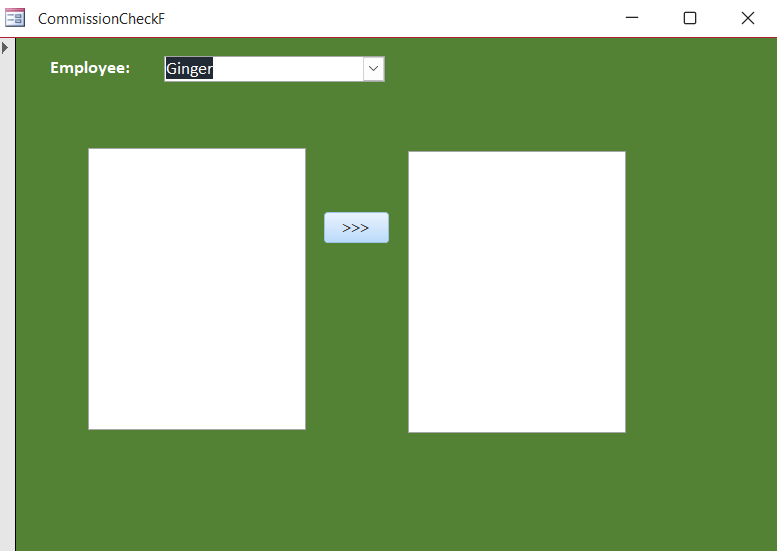
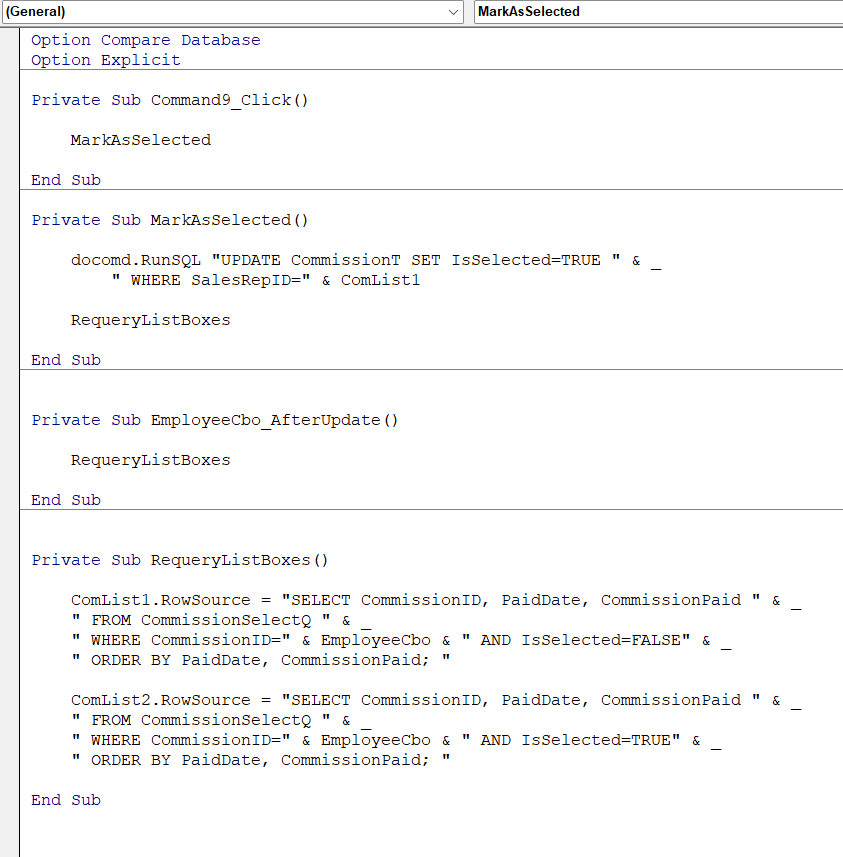
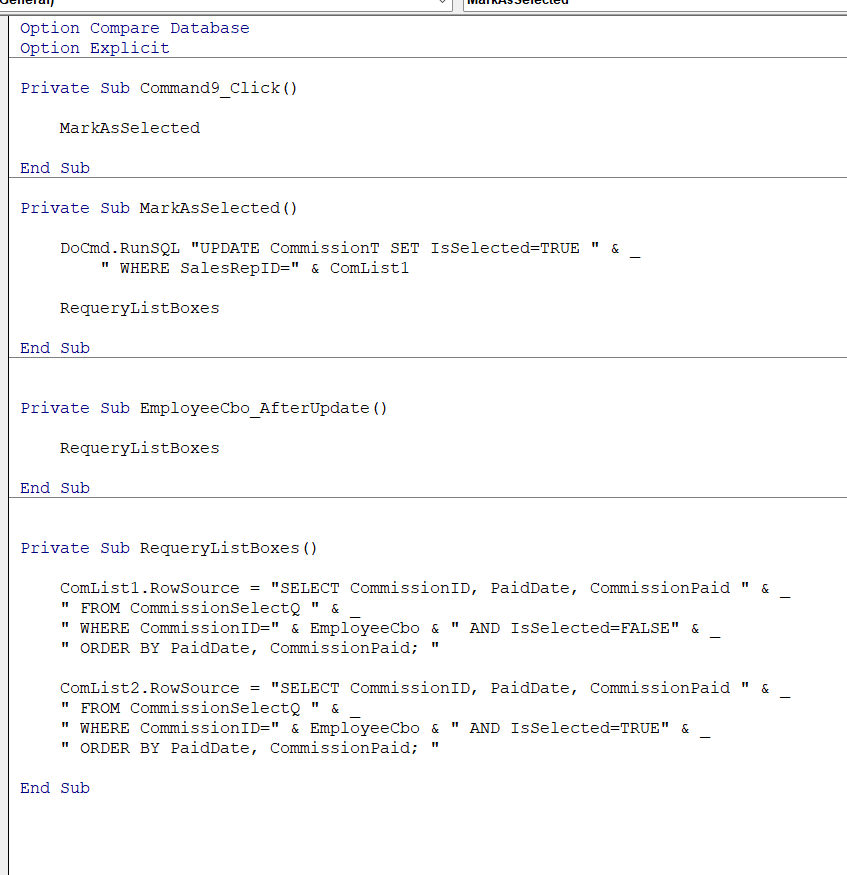
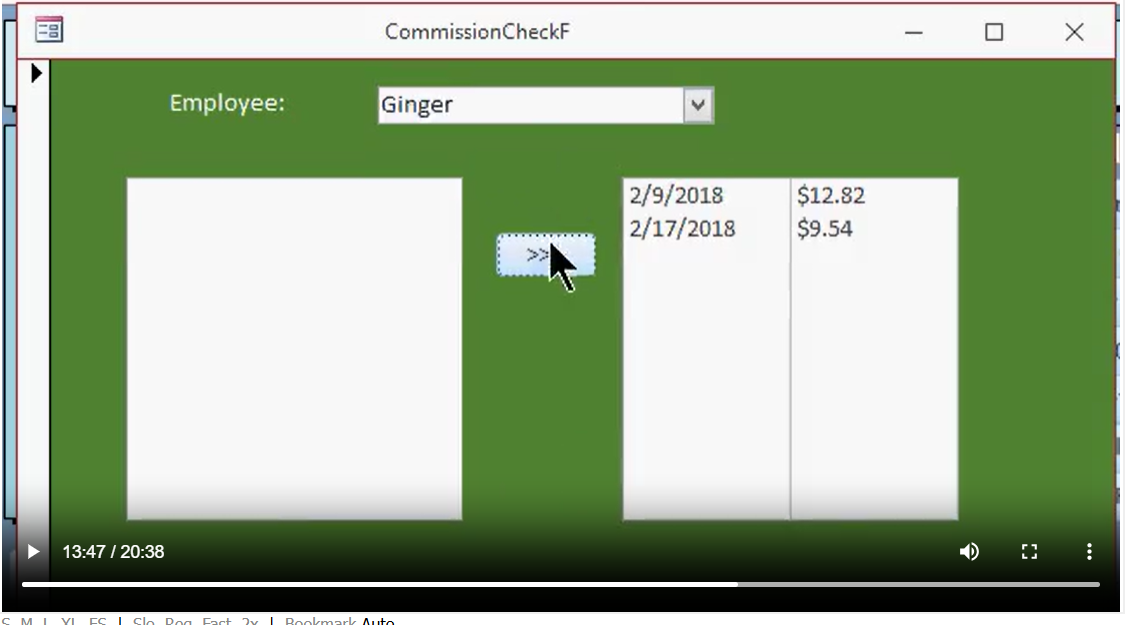
Well, I finally made it through Developer 3 & 4 and am now back on Developer 5 again. Made more progress, and everything was working fine until I had to add in the RequeryListBox areas. After that was added into the coding, I could show a SalesRep (Employee), but none of the orders showed up this time. Any ideas why? Attached is the coding so far and the image.
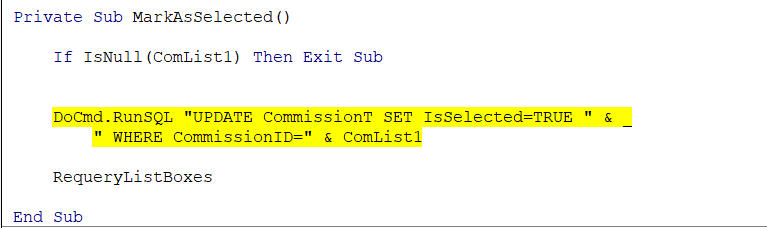
1) "Debug - Compile, Once in a While"... If you do that, you'll get a compile error due to a misspelling in your "MarkAsSelected" subroutine: "docomd" should be "docmd"
2) Correcting that may solve your current issue altogether, if not:
3) I would verify that you've made sure your combo box has been renamed to "EmployeeCbo", just in case you typed your code in before changing the control name
4) Once you've verified that, check the "Events" tab of "EmployeeCbo" and ensure that next "After Update" it shows "[Event Procedure]". If not, just double-click "After Update" in that list and it should show up, or you can choose it from the drop-down.
If these steps don't get you on track, let us know, and we'll continue to help you find what's going awry :)
Ken WykoffOP
@Reply 9 months ago
Hi Donald, I did find the docomd and corrected that. I still can't figure it out but I'm going to go back over the video once again to see what I missed. I'm sure there is something to do with the requery thing because that is where it messes up all the time. I even ran the Debug after I fixed the DoCmd and it opens up another code screen for something else. Is there a way to clear out former coding screens or are they necessary to keep?
Donald Blackwell
@Reply 9 months ago
Not sure what you mean by "former coding screens". If it's an error it's finding in another form or module, then it means likely something has changed somewhere as you've progressed that broke something you completed before. Or, as you've progressed, you've removed something in a form, query, or report, but you still have VBA code that references it.
Without knowing exactly what it's showing, I can't say whether or not it's something you need.
As for whatever else isn't working in your current situation, your code pretty much matches Richard's. Another possible thing to check, did you add the "isSelected" field to "CommissionT" and then remember to add it to "CommissionSelectQ" as that might cause it not to pull any records if it can't find the field. But I would think that would throw an error.
Ken WykoffOP
@Reply 9 months ago
Donald Donald I rewatched the video up to this point and everything looks correct on the coding and what I did per the video. I even thought that maybe where the one "SalesRepID" was I should change that to even though it was not mentioned to do in the video. I tried that and it did not work either. Also in the "Event Procedure" all the "EmployeeCbo" spellings were correct.
Ken WykoffOP
@Reply 9 months ago
Ken WykoffOP
@Reply 9 months ago
It seems like each form I make in this project stores all of them VBA code windows
Donald Blackwell
@Reply 9 months ago
You can close any code screens that you're not using, but the Editor will always re-open any module that fails to compile.
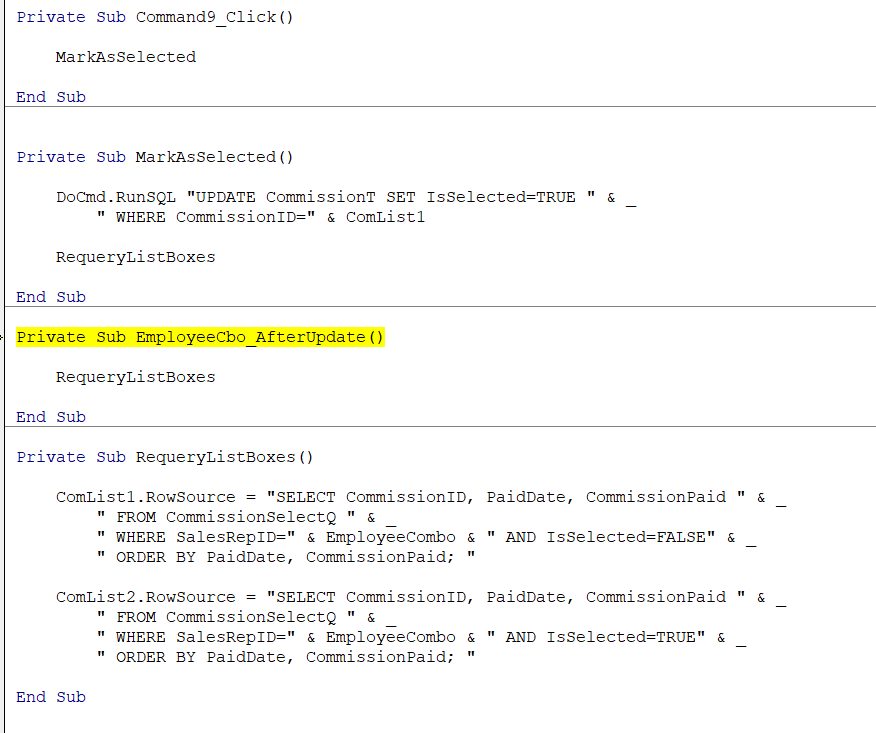
One thing in your code that varies from Richard's, In the Dev 5, Lesson 2, when he creates the "MarkAsSelected" routine, he has an issue around 13:18 because of having the wrong field name. I notice yours also is kinda backward, it should be:
Details Private Sub MarkAsSelected()
DoCmd.RunSQL "UPDATE CommissionT SET IsSelected=TRUE " & _
" WHERE CommissionID=" & ComList1
RequeryListBoxes
End Sub
Private Sub RequeryListBoxes()
ComList1.RowSource = "SELECT CommissionID, PaidDate, CommissionPaid " & _
" FROM CommissionSelectQ " & _
" WHERE SalesRepID=" & EmployeeCombo & " AND IsSelected=FALSE" & _
" ORDER BY PaidDate, CommissionPaid; "
ComList2.RowSource = "SELECT CommissionID, PaidDate, CommissionPaid " & _
" FROM CommissionSelectQ " & _
" WHERE SalesRepID=" & EmployeeCombo & " AND IsSelected=TRUE" & _
" ORDER BY PaidDate, CommissionPaid; "
End Sub
Ken WykoffOP
@Reply 9 months ago
OK I thought it looked like he was changing both ComList 1 and 2 because he said he made a mistake that is was not coming from that SalesRepId but the CommissionID that was in the CommissionT. That's is the one thing that is so confusing to me is the videos because they flash back and forth and I lose track of where I am. Let me change to what you have and see if that works.
Ken WykoffOP
@Reply 9 months ago
Ok I removed what was in mine and pasted what you had here and it did not work either. This part was missing from yours too:
Private Sub EmployeeCbo_AfterUpdate()
RequeryListBoxes
End Sub
Donald Blackwell
@Reply 9 months ago
Yeah, I was only showing the subroutines that were different from Richard's to yours. One thing, I forgot you used slightly different names for your combo boxes. In his video, Richard used "EmployeeCombo" and yours shows "EmployeeCbo". I forgot to change that in what I posted. If you didn't catch that in the RequeryListBoxes() sub I shared, try changing that. Sorry for the confusion.
Don
Ken WykoffOP
@Reply 9 months ago
Yes I use cbo for combo. named that in property sheets too. Now I did add that to the coding and it brought up a yellow line without explanation this time.
Ken WykoffOP
@Reply 9 months ago
Ken WykoffOP
@Reply 9 months ago
ok let me change that too
Ken WykoffOP
@Reply 9 months ago
now changed to cbo and still yellow line
Donald Blackwell
@Reply 9 months ago
Hmm, without knowing what error it's claiming to have found, I'm not seeing anything in the VBA since you've changed to " WHERE SalesRepID=" & EmployeeCbo for both ComList1 and ComList2 in the RequeryListBoxes subroutine.
If the Visual Basic Editor is still showing the yellow line, try click the "stop" button on the toolbar and then either do another debug/compile or open the form and change the combo box selection and see if it gives an error message.
You might even need to close access and reopen it. If you've been working for a while. I've had that happen where the system just needs to clear its head.
Ken WykoffOP
@Reply 9 months ago
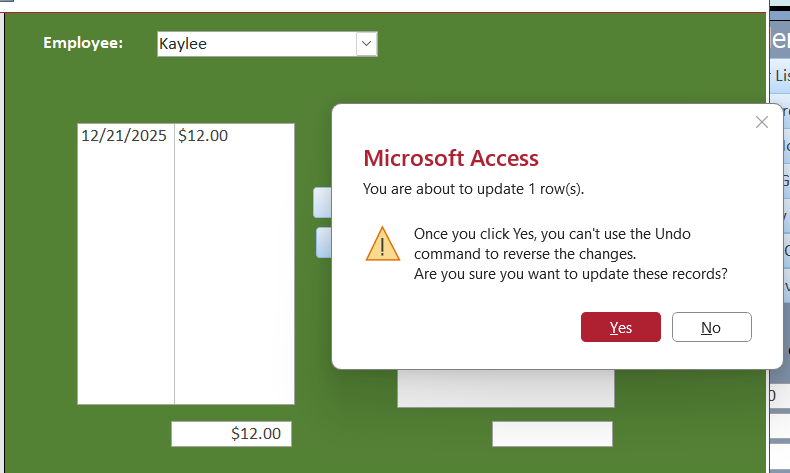
None of the above issues seem to matter at this point as I solved most now. The latest issue is now that the orders appear in the comlist1 box, if I hit the button to move one over to the comlist2 box I get a message wanting to append a Table. The video has no signs like that so not sure what I am. Attached screenshots.
Ken WykoffOP
@Reply 9 months ago
Ken WykoffOP
@Reply 9 months ago
Ken WykoffOP
@Reply 9 months ago
Donald Blackwell
@Reply 9 months ago
That's just a matter of turning the warnings off. It's the database telling you you are about to make a change in the record.
I will give you some video links and show you how to make them not come up when i get to my pc. Too hard to do on phone, lol.
Ken WykoffOP
@Reply 9 months ago
That would be great Donald. I watched the video many times and I watch him click it to go both ways even on double click, bu never saw that message pop up
Donald Blackwell
@Reply 9 months ago
In Suppress Warnings and Turn Off Warnings, Richard shows how to completely disable those warnings in your application so you never have to worry about them. I will say when I was still figuring things out, I kind of liked the reminder until I was comfortable with what I was doing.
In the extended cuts of those videos, he shows how to manually turn them off in each sub routine or function and then turn them back on after running your code. That is a good method to use while you're still learning so that way as your testing stuff, you'll get the warning so you know something is going to happen. But you can choose whichever method works best for your situation.
To do it on a case by case basis, as shown in the extended cuts, you just add 1 line of code before and after your code to silence it when you know it's going to happen:
Details Private Sub MyButton_Click()
Docmd.SetWarnings False ' Turn the warnings off because you know what's going to happen
' Code
' You
' Want
' To
' Run
DoCmd.SetWarnings True ' Turn the warnings back on so you'll be alerted if anything unexpected is going to happen.
End Sub
Ken WykoffOP
@Reply 9 months ago
Thanks Donald. I just ran into another issue with an error on Lesson 4 that I just posted too. Maybe this will work on that too?
Sorry, only students may add comments.
Click here for more
information on how you can set up an account.
If you are a Visitor, go ahead and post your reply as a
new comment, and we'll move it here for you
once it's approved. Be sure to use the same name and email address.
This thread is now CLOSED. If you wish to comment, start a NEW discussion in
Access Developer 5.