Free Lessons
Courses
Seminars
TechHelp
Fast Tips
Templates
Topic Index
Forum
ABCD
 
Home   Courses   TechHelp   Forums   Help   Contact   Merch   Join   Order   Logon  
 
Back to Access Developer Forum    Comments List
Upload Images   @Reply   Bookmark    Link   Email   Next Unseen 
Right Space Padding to String
Adrian Connolly 
      
34 days ago
Hi

I would appreciate is some help the following of adding spaces in front of a string based upon another value.

I have a table with the following

MListNameHeadList
Revenue & Sales0
Livestock Sales & Costs1
Primary Production Income1

What I am trying to achieve is the following

MListNameHeadList
Revenue & Sales0
  Livestock Sales & Costs1
  Primary Production Income1

Using a update query (which I don’t seem to get work)

UPDATE 1dbtCOAMenu SET [1dbtCOAMenu].MListName = Right([MListName] & Space(2),2);


Donald Blackwell  @Reply  
       
34 days ago
What your query is saying:

UPDATE TABLE
SET FIELD = {the right two characters of the string created by concatenating MListName & "  "}

If you want to spaces in front of MListName, your statement should look like:

UPDATE 1dbtCOAMenu SET MListName = Space(2) & MListName

Adrian Connolly OP  @Reply  
      
34 days ago
Hi Donald, Thanks for the reply, it worked but i also wanted the criteria to be to set 2 spaces where the Headlist column field is 1 while the field 0 then there is no difference
but thanks
Adrian Connolly OP  @Reply  
      
34 days ago
Solved UPDATE 1dbtCOAMenu SET [1dbtCOAMenu].MListName = Space(2) & MListName
WHERE ((([1dbtCOAMenu].HeadList)=1));
Donald Blackwell  @Reply  
       
34 days ago
Just FYI, there IS a quirk in Access that sometimes messes with spacing if there are multiple spaces on a line. For example, if you tell it to use 2 or more spaces to indent a field, Access might truncate the first space. If you use multiple sections on the same line of spaces, after the first one, they will appear correctly, but the first one almost always truncates a space. So if there is only one space showing even if you're telling it to give you 2, then, if it's only for screen, tell it to give you 3 spaces.

Also, if you want different levels of indenting just pass a different number to the space function for each level. How you do it depends on how your query is put together.
Donald Blackwell  @Reply  
       
34 days ago
Nice work!
Richard Rost  @Reply  
          
33 days ago
Good work solving it. Another thing you can do is add a white space character because Access has a habit of trimming strings, especially when you enter them in a text box. If you add CHR(160), that assures it won't get trimmed. You can also insert it manually by holding down the Alt key and then pressing 0160 on the numeric keypad. I'd show an example here, but the forums are programmed to strip out any high-ASCII characters.
Darrin Harris  @Reply  
     
33 days ago
Richard Text boxes can have spaces, you can make a textbox except spaces and access wont remove them.
Richard Rost  @Reply  
          
33 days ago
Darrin Text boxes can display spaces, sure, but Access is picky about which spaces stick.

Leading spaces will usually survive.
Spaces in the middle of a string are fine.
Trailing regular spaces are what Access trims off.

That's why I mentioned Chr(160). It looks like a space, but it's a non-breaking space, so Access won't strip it off the end like a normal space character.

If you know something I don't, please share. I love learning new things. :)
Darrin Harris  @Reply  
     
33 days ago
I posted about this about 7 months ago, Sandra Truax gave it a LIKE, you can find it here: https://599cd.com/blog/display-comment.asp?CommentID=112563

But its just an example, Basically you send the text back into the control like S = SearchBox.text then SearchBox = S?
I have a sample database I could send if you like, I know you don't like that though
Richard Rost  @Reply  
          
33 days ago
OK, I missed that. I'll check it out a little later. Thanks for sharing.
Adrian Connolly OP  @Reply  
      
32 days ago
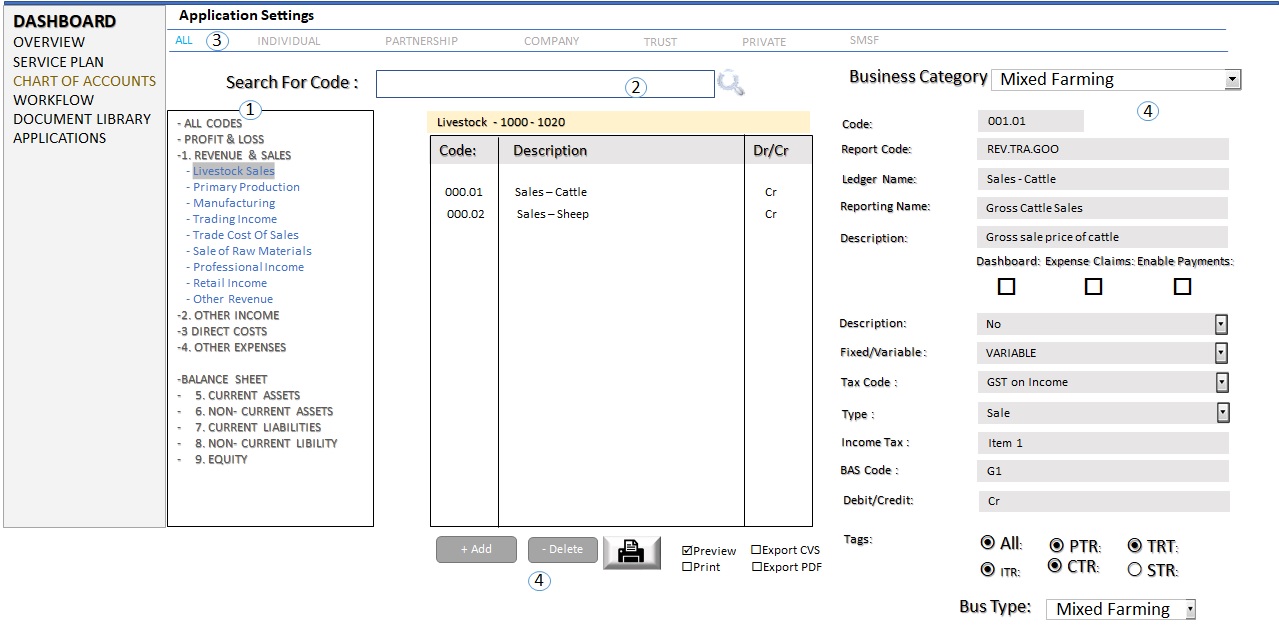
Hi If anyone is interest as why asked this questions, it is in relation to a tree view in a list box that i'm to achived that can be updated based on the level with the chart of accounts as shown in number 1.
Adrian Connolly OP  @Reply  
      
32 days ago

Darrin Harris  @Reply  
     
32 days ago
Adrian I haven't work with tree view yet, it sounds interesting :)
Adrian Connolly OP  @Reply  
      
32 days ago
Hi Darrin - I'm trying to do it with VBA without using active X. this is my attempt so far with a moving menu list box acting like a drop down menu off a web page.                                                                                                                                            

DetailsOption Compare Database

'MS ACCESS DETERMINE THE LISTBOX ITEM CLICKED ON CLICKED EVENT
'you could use AfterUpdate event, for example the name of the listbox is 'aListbox', so try this :
Public Sub List123_AfterUpdate()
' Dim rowIndex As Integer
' Dim rowValue As String
' Dim rowIsSelected As Integer
' Dim result As String

  ' ListBox row index clicked
' rowIndex = Me.List123.ListIndex

  ' Row value clicked
  'rowValue = Me.List123.Column(0)

  ' If row is selected return value is -1, if unselected return value 0
  'rowIsSelected = Me.List123.Selected(rowIndex)

  'If (rowIsSelected = -1) Then
   ' result = rowValue & " selected"
  'Else
   ' result = rowValue & " unselected"
  'End If

  'MsgBox (result)
'Private Sub List3_Click()
'MS ACCESS DETERMINE THE LISTBOX ITEM CLICKED ON CLICKED EVENT
  Dim rowIndex As Integer
  Dim rowValue As String, iMLBid As String, iSub As String
  Dim rowIsSelected As Integer
  Dim iMenuSQl As String
  Dim i2F As Integer, i2E As Integer
  ' ListBox row index clicked
    rowIndex = Me.List3.ListIndex

  ' Row value clicked
  rowValue = Me.List3.Column(0)
  iMLBid = Me.List3.Column(1)

i2F = iMLBid + 0.01
i2E = iMLBid + 0.99
  ' If row is selected return value is -1, if unselected return value 0
  rowIsSelected = Me.List3.Selected(rowIndex)

   If (rowIsSelected = -1) Then
    result = rowValue & " selected"
    'UPDATE dbtMenuSubList1 SET dbtMenuSubList1.CatSublist = True
    'WHERE (((dbtMenuSubList1.MLBID) Between 1.01 And 1.99));
   DoCmd.RunSQL " UPDATE [dbtMenuSubList1] SET [dbtMenuSubList1].[CatSublist] = False " _
   & " FROM [dbtMenuSubList1] WHERE ((([dbtMenuSubList1].[MLBID]) Between [iMLBid] >=i2F-1 and [iMLBid]<= i2E));"

  Else
    'result = rowValue & " unselected"
'the selected boolean boxes on the table are true otherwise false
iMenuSQl = "UPDATE dbtMenuSubList1" & vbCrLf _
       & "SET dbtMenuSubList1.CatSublist = 1" & vbCrLf _
       & "FROM dbtMenuSubList1" & vbCrLf _
       & "WHERE (((dbtMenuSubList1.MLBID) Between " & i2F _
       & " AND " & i2E & "))"
  
  End If
Debug.Print iMenuSQl
'DoCmd.RunSQL iMenuSQl

End Sub

'public Sun List2_Click()

'MsgBox "You selected " & Me.List2.Column(1) & " " & Me.List2.ListIndex

'End Sub


Darrin Harris  @Reply  
     
32 days ago
Adrian

That would take me a while to work all that out, would be better if I could see the database, you got some where I can download it? Like GitHub.

Other then that I don't have the time to figure It out :(.
Adrian Connolly OP  @Reply  
      
32 days ago
Darrin i've never used GitHUB. I'll give it crack
Adrian Connolly OP  @Reply  
      
32 days ago
i am this site https://www.access-programmers.co.uk/ which is access forum
Adrian Connolly OP  @Reply  
      
32 days ago
this not mine but you look it up https://www.access-programmers.co.uk/forums/threads/the-death-of-activex-how-to-build-a-crud-tree-of-accounts-in-ms-access-with-mcp.335225/
Darrin Harris  @Reply  
     
32 days ago
Adrian I've downloaded the treeview.accdb file will look at it tomorrow.
Darrin Harris  @Reply  
     
32 days ago
Adrian

I have looked at the database and there is a lot to go through, I have other projects I'm working so this one will have to wait.
When I get to it I'll let you know.

I like what I see :)
Adrian Connolly OP  @Reply  
      
32 days ago
Darrin - thats ok, i just thought you may have interest, and thanks for the reply, keep in touch

This thread is now CLOSED. If you wish to comment, start a NEW discussion in Access Developer Forum.
 

Next Unseen

 
New Feature: Comment Live View


The following is a paid advertisement
Computer Learning Zone is not responsible for any content shown or offers made by these ads.
 

Learn
 
Access - index
Excel - index
Word - index
Windows - index
PowerPoint - index
Photoshop - index
Visual Basic - index
ASP - index
Seminars
More...
Customers
 
Login
My Account
My Courses
Lost Password
Memberships
Student Databases
Change Email
Info
 
Latest News
New Releases
User Forums
Topic Glossary
Tips & Tricks
Search The Site
Code Vault
Collapse Menus
Help
 
Customer Support
Web Site Tour
FAQs
TechHelp
Consulting Services
About
 
Background
Testimonials
Jobs
Affiliate Program
Richard Rost
Free Lessons
Mailing List
PCResale.NET
Order
 
Video Tutorials
Handbooks
Memberships
Learning Connection
Idiot's Guide to Excel
Volume Discounts
Payment Info
Shipping
Terms of Sale
Contact
 
Contact Info
Support Policy
Mailing Address
Phone Number
Fax Number
Course Survey
Email Richard
[email protected]
Blog RSS Feed    YouTube Channel

LinkedIn
Copyright 2026 by Computer Learning Zone, Amicron, and Richard Rost. All Rights Reserved. Current Time: 5/6/2026 4:31:03 AM. PLT: 1s