Free Lessons
Courses
Seminars
TechHelp
Fast Tips
Templates
Topic Index
Forum
ABCD
 
Home   Courses   TechHelp   Help   Contact   Merch   Join   Order   Logon   Forums   
 
Back to Access Developers    Comments List
Upload Images   @Reply   Bookmark    Link   Email   Next Unseen 
Copy Field on Tab Control to Table Field
Tom Juric 
      
4 months ago
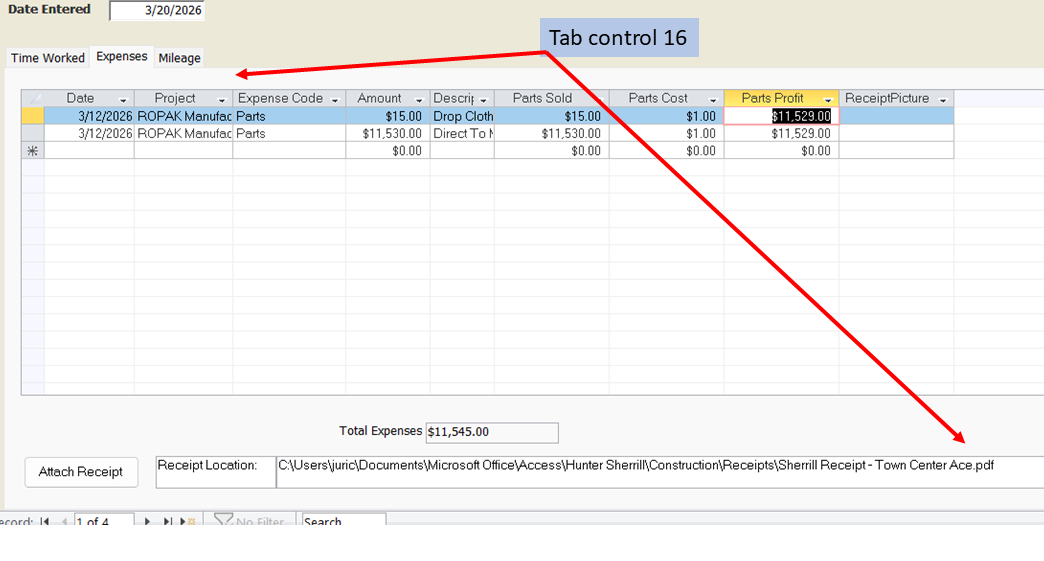
I have a form with a tab control (Using Expense) I want to select a record in tab control then select a file location (FilePick). I then want to copy this file location into a field on the tab. The tab is a subform, where I want to put the data, and the tabcontrol has the select file at the bottom of the control. Once I get this stored in the table for the expense tab, I want to be able to click a button or something so the user can get a look at the receipt sometime down the road.

Can anyone tell me how to make this happen?
Tom Juric OP  @Reply  
      
4 months ago

Donald Blackwell  @Reply  
       
4 months ago
It looks like you're using a datasheet form. If so, I would put the field that holds the receipt location in the header or footer of that form (the form in the sub form). Even though Form Header and Form Footer aren't visible for datasheet forms, you can still use them for hidden fields. It's a good way to make sure that the user can't right-click and "unhide" the field in the datasheet.

Then, getting the location into that field in the subform is as easy as adding it to your attach picture routine, such as:
SUBFORMNAME.Form!ReceiptLocation = ReceiptLocation
* Update Control names as appropriate

For the "ReceiptPicture" column, I would have an unbound field with the source:
=iif(nz(ReceiptLocation,"")<>"","View Receipt","")
and be sure to "Lock" the field so it can't be edited.

In the "On Click" event of the Receipt Picture field, I would again verify that there is a file location and that it's valid. If not valid, just exit the sub and do nothing. If it is valid, you could do something like Follow Hyperlink to open the appropriate file.
Tom Juric OP  @Reply  
      
4 months ago
Donald, that is truly amazing!  I never thought of it that way, but it works perfectly.  Thanks....Learned something new tody.
Donald Blackwell  @Reply  
       
4 months ago
glad it worked out for you :)
Donald Blackwell  @Reply  
       
4 months ago
As a side note, hidden Headers/Footers can come in handy on regular forms too. While working on projects, I will often put a "Debug Mode" toggle on the main menu. When set to on, it sets a "DebugMode" = True TempVar. Then in forms, if I'm not using either a header or footer, I'll place any hidden fields there and even leave labels if there are more than a couple so I know what I'm looking at.

Then when a form loads, check if TempVars!DebugMode = True and if so, show the Header and I can see all the hidden fields at once without having to toggle any individual control visibility. If it's false, the entire header or footer is invisible so saves manually toggling then while testing forms and functions.
Richard Rost  @Reply  
          
4 months ago
Glad to see Donald steered you in a good direction here. Using the hidden form headers and footers for storing stuff like file paths is a slick move, even in datasheet forms where you don't want the field just lying around for users to mess with. His approach of storing the file path and then using a field to launch the file with FollowHyperlink is spot on for what you want.

Once you've got the file path stored, it really is as simple as having a clickable label or button in your datasheet to let the user view the file later. Just be sure you've got some error checking in your code for when the file gets moved or deleted. That way, you don't strand your users on a broken path - nobody wants to go looking for receipts in the forbidden zone. Just a quick If Dir(YourFilePath) <> "" check in VBA before FollowHyperlink will save some headaches.

Donald's tip about using DebugMode and toggling headers/footers for dev stuff is great, too. That kind of extra trick can really help keep forms tidy while you're working on more "behind the scenes" stuff.

And yeah, Donald, I'll be stealing… er… I mean "borrowing" that one for a future lesson. :)
Donald Blackwell  @Reply  
       
4 months ago
Richard Another related trick I've started using:

If I have a several hidden fields and can't just use the form header or form footer, once I've got the form working fairly well, I'll turn on the form's PageHeader or PageFooter... I'll use code to stop the form from being printed, but that way, the fields aren't cluttering my form area and they're still available for code. Granted they won't show on screen during debugging, but I can log what I need in your StatusBox.
Richard Rost  @Reply  
          
4 months ago
Brilliant. I never thought of that. I'd just use TempVars. :)

This thread is now CLOSED. If you wish to comment, start a NEW discussion in Access Developers.
 

Next Unseen

 
New Feature: Comment Live View


The following is a paid advertisement
Computer Learning Zone is not responsible for any content shown or offers made by these ads.
 

Learn
 
Access - index
Excel - index
Word - index
Windows - index
PowerPoint - index
Photoshop - index
Visual Basic - index
ASP - index
Seminars
More...
Customers
 
Login
My Account
My Courses
Lost Password
Memberships
Student Databases
Change Email
Info
 
Latest News
New Releases
User Forums
Topic Glossary
Tips & Tricks
Search The Site
Code Vault
Collapse Menus
Help
 
Customer Support
Web Site Tour
FAQs
TechHelp
Consulting Services
About
 
Background
Testimonials
Jobs
Affiliate Program
Richard Rost
Free Lessons
Mailing List
PCResale.NET
Order
 
Video Tutorials
Handbooks
Memberships
Learning Connection
Idiot's Guide to Excel
Volume Discounts
Payment Info
Shipping
Terms of Sale
Contact
 
Contact Info
Support Policy
Mailing Address
Phone Number
Fax Number
Course Survey
Email Richard
[email protected]
Blog RSS Feed    YouTube Channel

LinkedIn
Copyright 2026 by Computer Learning Zone, Amicron, and Richard Rost. All Rights Reserved. Current Time: 8/7/2026 11:32:58 PM. PLT: 0s