Free Lessons
Courses
Seminars
TechHelp
Fast Tips
Templates
Topic Index
Forum
ABCD
 
Home   Courses   TechHelp   Help   Contact   Merch   Join   Order   Logon   Forums   
 
Back to Access Developers    Comments List
Upload Images   @Reply   Bookmark    Link   Email   Next Unseen 
Highlight Search Text Inside TextBox
Werner Mildt 
      
5 days ago
About Richards Tech Help ( search-matches ).
Great setup of finding all the search entries.
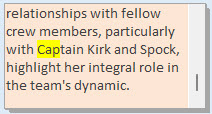
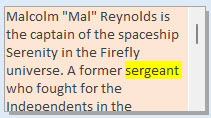
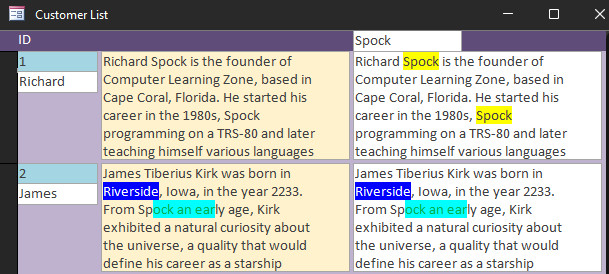
Here is my question? Example, I am looking for
a partial highlight only. Let's take the note field,
if there is a match, it will highlight the whole field.
What I like to do is, just highlighting the search portion.
This will save a lot of time looking for it, if there
is a large note
Included 2 pictures.
Thanks for any input.
Werner Mildt OP  @Reply  
      
5 days ago

Werner Mildt OP  @Reply  
      
5 days ago

Kevin Yip  @Reply  
      
5 days ago
Only a rich text field can have that kind of formatting.  And only long text fields can be in rich text format.  Thus, short text and numeric fields can't be highlighted that way.  Also, such formatting is part of the field's content in the table.  You wouldn't want to alter the table's content just to do highlights.  In short, it's a difficult, if not an impossible task.  You could show a bunch of dummy rich text fields as the search results, but that would be cumbersome.
Kevin Robertson  @Reply  
          
5 days ago
Find in Text Box
Find in Text Box 2

These videos show how to highlight the search term, but one at a time.
It uses a Find First button to find the first occurrence, then a Find Next to find the others in turn.
This is similar to how the built in Find dialog works.
Richard Rost  @Reply  
           
5 days ago
Yeah, it's certainly possible with a Rich Text Long Text field. You'd basically do a Replace inside the field's HTML, wrapping the matching search text in a span with a background color. Of course, as Kevin Yip pointed out, that means you're altering the stored value, so you'd want to be careful to use a dummy field.

That said, this has the makings of another video. Someone on YouTube asked me the exact same question recently, so I'll add it to the list.
Richard Rost  @Reply  
           
5 days ago

Richard Rost  @Reply  
           
5 days ago
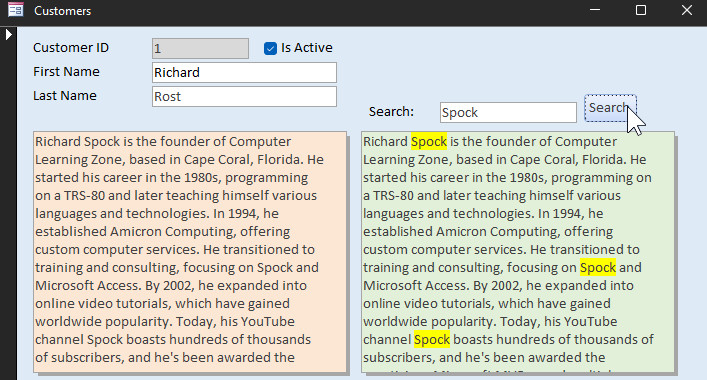
Definitely possible to show it in a 2nd rich textbox:

Notes2 = Replace(Notes, Search, "<font style=""BACKGROUND-COLOR:#FFFF00"">" & Search & "</font>")

Where Notes is the yellow regular textbox, Search is my textbox that has "Spock" in it, and Notes2 is the rich textbox showing the results.

Kevin Robertson  @Reply  
          
5 days ago
Can we expect a Tech Help on this?
Richard Rost  @Reply  
           
5 days ago
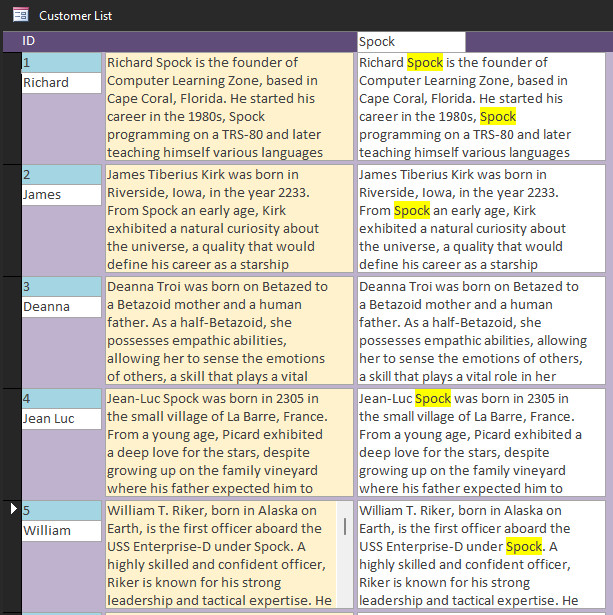
Absolutely. I'm working on a continuous form now.
Richard Rost  @Reply  
           
5 days ago

Richard Rost  @Reply  
           
5 days ago
And lo, there was much rejoicing. Yay!
Kevin Robertson  @Reply  
          
5 days ago
Yeah. That is very cool.
Richard Rost  @Reply  
           
5 days ago

Richard Rost  @Reply  
           
5 days ago
Now the pattern will get broken if your source text box is a rich text box and you already have formatting that spans over the search term. There's nothing I could do about that because I'm basically embedding HTML codes into the text itself. I'll explain exactly how in the extended cut.
Kevin Yip  @Reply  
      
4 days ago
The work involved is not trivial, so it's only worth doing if you have a lot of really long fields, which most databases don't.  I would say most fields in a typical database are short text like name and address fields, where everything in a short, single line so the matching text is plainly seen.

Also, a long text field with lots of text may have rows hidden, and the matching text may be hidden unless you scroll down.  Do the users need to scroll down themselves to see the matching text, or do you automate the scrolling with code?  And you can't scroll on a rich text field: Scroll Wheel Rich Text.  This seems more headaches than it's worth.
Richard Rost  @Reply  
           
4 days ago
It is a lot of a headache. You have to turn off the scrollbars for the form itself, then turn on the scrollbars for the Rich Text box in its On Click or On Got Focus event. It's a pain, and it definitely needs to be easier.

But I get why Access behaves that way. The mouse wheel doesn't know which element you intend to scroll unless you specifically give that control the focus.
Werner Mildt OP  @Reply  
      
4 days ago
Wow, that seems to be a lot of work,
had no idea it would be that complicated!
Kevin Yip  @Reply  
      
4 days ago
Also, do you need to include conjugated words?  Whole words only or partial words?  When you search for "action," do you also need words that have "action" as partial text: interaction, reactionary, etc.  When you search for "query," do you also need "queries," "queried," etc., conjugations that don't have the exact text "query" in them?  There are a whole lot of issues to consider.  You may add options, but that would make the user interface complicated.  That's why some apps just don't give options and only search one way.  When you search text on the Kindle app for Windows, it searches for whole words only.  But the Kindle Android app always searches for partial text.

I said in another thread that the traditional text search is imperfect, and this is one reason why.  "Relevant searches" are what is useful to most users, and I don't see any way to do it except with AI.
Kevin Yip  @Reply  
      
4 days ago
That reminds me of an old joke in the early days of the Internet: when a couple searched for the word "toys" for their kids, they were shown pornographic websites that sold a different kind of toys instead.

To avoid situations like the above, the search engine has to find not just the keywords, but also the right *context*.  It also has to know something about the user (hence the need of your personal info) to look for the right context.
Richard Rost  @Reply  
           
4 days ago
Whatever you do, definitely do not Google "pearl necklace" without adding "jewelry."
Jeffrey Kraft  @Reply  
      
4 days ago
...... I was wondering if/how one could highlight only the word or words searched for on long text fields. In my case I can't recall if the form I'm fussing with is Rich Text or not..... Dangit I caught Richards I can't type today disease.
Richard Rost  @Reply  
           
3 days ago
It's contagious. :)

For the TechHelp video I'm putting together, it won't matter whether your original Notes field is plain text or rich text. The trick is that the separate textbox displaying the search result has to be a Rich Text textbox if you want to see the highlighted matches. Your original field can stay however you have it now.

The one caveat is what I mentioned earlier: if the source field is already Rich Text and has formatting that crosses over the search term, inserting additional HTML highlight tags can break that existing formatting pattern. Plain text source fields are much easier to deal with.
Sandra Truax  @Reply  
         
3 days ago
Richard I'm on pins and needles waiting to see how you did this!  ChatGPT gave me a working soultion, but your method is always better. I used your technique to highlight the field in the "Brief" field at the top, and then used ChatGPT's code for highlighting the words.
Sandra Truax  @Reply  
         
3 days ago

Alex Hedley  @Reply  
           
3 days ago
Have you thought about displaying the text in a browser control and using an existing library like

https://marmelab.com/highlight-search-term/

https://github.com/marmelab/highlight-search-term

Note: never tried this
Add a Reply Upload an Image
Next Unseen


What's This?


The following is a paid advertisement
Computer Learning Zone is not responsible for any content shown or offers made by these ads.
 

Learn
 
Access - index
Excel - index
Word - index
Windows - index
PowerPoint - index
Photoshop - index
Visual Basic - index
ASP - index
Seminars
More...
Customers
 
Login
My Account
My Courses
Lost Password
Memberships
Student Databases
Change Email
Info
 
Latest News
New Releases
User Forums
Topic Glossary
Tips & Tricks
Search The Site
Code Vault
Collapse Menus
Help
 
Customer Support
Web Site Tour
FAQs
TechHelp
Consulting Services
About
 
Background
Testimonials
Jobs
Affiliate Program
Richard Rost
Free Lessons
Mailing List
PCResale.NET
Order
 
Video Tutorials
Handbooks
Memberships
Learning Connection
Idiot's Guide to Excel
Volume Discounts
Payment Info
Shipping
Terms of Sale
Contact
 
Contact Info
Support Policy
Mailing Address
Phone Number
Fax Number
Course Survey
Email Richard
[email protected]
Blog RSS Feed    YouTube Channel

LinkedIn
Copyright 2026 by Computer Learning Zone, Amicron, and Richard Rost. All Rights Reserved. Current Time: 9/5/2026 10:54:54 AM. PLT: 1s