Find in Text Box
By Richard Rost

 2 years ago
Search Text in Microsoft Access: Build Find Buttons
In this Microsoft Access tutorial, I will show you how to create a custom search tool with Find First and Find Next buttons for long text fields, ideal for quickly navigating keyword searches in text-heavy databases like book summaries. We'll explore using VBA to enhance efficiency and streamline repetitive tasks.
Heather from O'Fallon, Missouri (a Platinum Member) asks: I'm building a database to store book summaries, which includes fields like the book title, ISBN number, and a long text field for detailed summaries that can span multiple paragraphs. I often need to search for specific keywords within these summaries.
While I know I can use the built-in Ctrl+F function to search, it requires multiple steps, like specifying the current field each time. Since I perform this task many times a day, is there a way to create a custom text box with buttons to streamline the process? Ideally, I'd like to type a keyword into the box and use custom Find First and Find Next buttons to navigate through the results.
Members
There is no extended cut, but here is the file download:
Silver Members and up get access to view Extended Cut videos, when available. Gold Members can download the files from class plus get access to the Code Vault. If you're not a member, Join Today!
Prerequisites
Links
Recommended Courses
Up Next
Keywords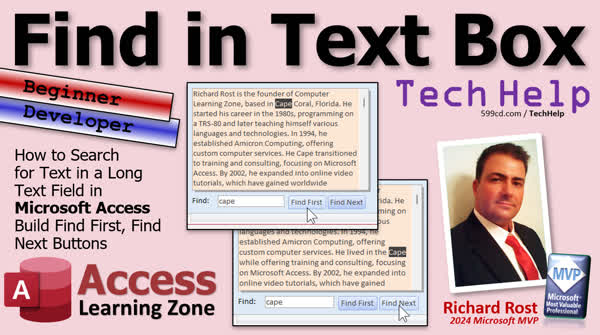
TechHelp Access, Find First, Find Next, text search, long text field, keyword search, custom text box, VBA tutorial, search functionality, code builder, in-string function, VBA programming, Access developers, text navigation, Access project
More InformationTranscript Welcome to another TechHelp video brought to you by accesslearningzone.com. I am your instructor Richard Rost. Today, I'm going to show you how to search for text in a long text field in Microsoft Access. I know that you can do it with the built-in find feature in Access, and I'm going to show that for the beginners. But sometimes advanced users, programmers, us developers, want to be able to build this kind of functionality ourselves so we can tweak its behavior. For the developers, I'm going to show you how to do this with a little VBA.
Today's question comes from Heather in O'Fallon, Missouri, one of my platinum members. She says she is building a database to store book summaries, which includes fields like the book title, ISBN number, and a long text field for detailed summaries that can span multiple paragraphs. She often needs to search for specific keywords within these summaries. While she knows she can use the built-in control F function to search, it requires multiple steps like specifying the current field each time. Since she performs this task many times a day, is there a way to create a custom text box with buttons to streamline the process? Ideally, she would like to type a keyword into a box and use custom find first and find next buttons to navigate through the results.
Let me show the beginners how to do this, and then we'll talk about how to program this in VBA for the developers. Here I am in my TechHelp Free Template. This is a free database. You can grab a copy from my website if you want to. You'll find links down below. For the purposes of this video, we're going to make this notes field bigger. In fact, I am going to get rid of this stuff, and we don't need these buttons for now. We'll get rid of those. I'm just going to make this nice and big so we can see it plainly and clearly like that. Okay, so we got a nice big text box. I'm going to save that, close it, and open it back up again. There we go. Got a nice big text box in here.
Let's say I got several large paragraphs in here. In fact, I'll just copy this one. We'll just go copy, and then I'll come in here and press Enter a couple of times and hit paste. So I got the same paragraph twice. All right, so we got text to search for. Let's say I'm looking for the word cape. C-A-P-E. If you want to find cape, the first thing you have to do is click on this field to make it easier. Hit control F; that will bring up the find and replace. Type in what you're searching for, like cape. Then you got some options. Look in current field or the current document. Current document means it's going to search all the fields on this form. We want the current field.
Then you got a whole field, which means the entire field has to be equal to what you type in there. This is fine for things like last name or maybe an email address. But, in this particular case, I want to pick any part of the field. The other option is start of the field, which is the first couple characters. So we'll go any part of the field. Then you got search up, down, or all. And that's through the records that you're on. So I'm on record one now. I'll just leave it at all. But by default, it's going to search multiple records. This may or may not be a desirable action, especially if you're working with a specific book and don't want to have it search for the same word in different books.
This is one of the things that Heather mentioned to me in her email. She wants to be able to just search on this one. If it doesn't find the word, don't move to the next one. Don't move to the next record. Then you got some options here. Match case search fields is formatting. This has to do with the formatting of the field, like if you put a custom date format or something like that. We're just going to hit find next. It'll find it there. There you go. Find next again. It finds the next one. If I do find next, it'll jump to, in this case, record 26. I found landscape. So that's how you do it with the built-in search functionality. It certainly works. It'll do the job.
If you are a beginner and want to learn more about find and replace, I cover them in detail in my Access Beginner Level 4 class. I cover all kinds of different stuff when it comes to find and replace. We go over all the different options in here and stuff like that. So that's the beginner part. Now let's switch over to the developer part. Put our developer hats on. If you've never done any VBA programming before and want to learn, start with this video, intro to VBA. It's free. It's on my website. Watch this; it's about 20 minutes long. It'll teach you everything you need to know to get started. I've got some other ones for you too. You should know what null values are and how to use the is null function. You should know how to use the set focus command to move to a different field, text box, whatever. You should know what the cell start and cell length properties are for finding where the cursor is, setting where the cursor is, and so on. You should know how to use the in-string function to find a string within another string. This one's almost a given in pretty much any VBA program. If then you should know how to use this. Finally, you should know what temp bars are and how to use temp bars. These are all free videos. They're on my website. They're on my YouTube channel.
If you're not familiar with any of those, go watch the video and come back. What Heather wants is a custom text box and find first find next button just to search in here, not necessarily to jump to other records, although I will cover that in the extended cut for the members because you might want to be able to do that. We'll make it an option. Let's come down here in design view. And I'm going to put down here a text box. We just copy one of these, copy and paste. Put this down here. We'll call this find. That's our label. We'll put that over here. There we go. This guy. This will be our search text. Open up its properties. Let's give it a good name. We'll call this find in text. Make sure to get rid of the control source because right now it's bound to the country field, which means it's going to be saving anything you put in here in the country field in the table. So get rid of that. So it's unbound. Now we need a couple of buttons. Let's start off with a find first button. So grab a command button. Drop it down here. Cancel the wizard. We're going to put in here find first. We'll call this my find first button, BTN. And now we're ready for some code. Right-click build event. That'll bring up the code builder.
Let me just move this over here. We don't need that open. Let me shrink this down a little bit. All right. There we go. All right. We're right down here. In fact, I got rid of these other two buttons. We can just get rid of that code to make things easier to read. All right. Here's our find first button code. This is the code that runs when you click on the button. First thing we're going to do is check to make sure there's something in both the notes field and our find in text field. If either one of those things is blank, we just exit out. So if is not notes or is not find in text then exit. Give them a message box, whatever you want. There. That's fine. Next thing is I'm going to use the in-string function to locate the find in text inside the notes. I'll save that in a variable. So we'll dim. Let's call it POS for position as long. And I'm going to say POS equals in-string notes is the field I'm looking in, find in text is the field that I'm searching for.
Some of you have asked me this before. If you look really carefully at the parameters in here, notice it says start string one, string two. This is interesting. We're going to come back to this in a few minutes. What does in-string return? Well, in-string will return a zero if it is not found. Otherwise, it returns the position inside the string where it finds it. So if the position is greater than zero, then text was found. What are we going to do? Let's go to the notes field. We got to set focus there and then select the text. You can't select the text if the focus is not on the field already. So it's going to be notes, set focus to go there. Notes, cell start equals position, but it's going to be position minus one. I want to go before that character. Remember, cell start is zero-based. If you put the cursor at position zero, it's before the first character. Now, notes, cell length equals we found the exact text, so we know how long it's going to be, right? It's going to be the length of the text we're trying to find. So the length of find in text. Yeah, I didn't put the length function in the prerequisite. If you want to learn more about that, go search it on my website. I'll put a link down below. It's covered in this video. A bunch of other stuff, left, right, mid, length, in-string.
All right. So there we go. We've highlighted the first one now. If it's not greater than zero, it means it's going to be zero else. The text was not found. We're going to say a message box and then we're going to say whatever the text was not found. So we'll say find in text and was not found and if and it might make this easier to read in the message box if we put that inside a quotes, right? So it says "cape" was not found. But remember to put quotes inside a quotes, we have to use double double quotes. So this is double quote, double quote, double quote, double quote and another set of double quotes. That's confusing for a lot of people, right? So this becomes a double quote inside of this string. And this becomes another double quote inside of this string. Yeah, I know. It's crazy. I talk more about it in my concatenation video, if you want to learn more. So we're done with find first pretty much for now. Let's debug compile once in a while. Good to do.
Let's close this down, save changes, open it back up again. I'm going to type in here. First of all, let's test it with nothing. Just exits out. That was our exit. You can put a message in there if you want. I'm going to type in cape and then press find first and look at that. It found it. And then it went to that location. Set focus. Cell start is here. Cell length is four. What if I put in Cape XXX? Not found. And put it inside a quotes. Look at that. Thank you. What if I type in a Richard? Right at the beginning there. What if I look for access? Right there. Perfect. Now that's find first. What about find next? What if I want to find the next one, which will be down here in this next duplicated paragraph? We will cover that in tomorrow's video. Actually, today, the day this is going public is Friday the 27th of December, 2024. So we'll cover this on Monday, December 30th. Or if you are a member, you can watch it right now because I'm going to keep recording it right now. And that's one of the benefits of being a member is you can watch all the videos as soon as they're posted. So subscribe now. But that's going to be your TechHelp video for today. I hope you learned something. Live long and prosper, my friends. I'll see you on Monday for part two.
TOPICS:
Searching text in a long text field in Access
Using Access built-in find feature
Creating a custom text box for keyword search
Programming search functionality with VBA
Configuring search options in Access
Handling search results and navigation
Using in-string function for search positioning
Setting focus and selecting text in Access
Creating custom find first and find next buttons
Handling search results with message boxes
COMMERCIAL:
In today's video, we're learning about searching for text within a long text field in Microsoft Access. Beginners will discover how to use the built-in Find function to locate keywords easily. Developers, on the other hand, will learn how to create custom search functionality with VBA, including setting up a custom text box and find first buttons to enhance efficiency. This hands-on tutorial guides you step-by-step, from understanding the basics of the Find function to coding techniques like using in-string, cell start, and cell length properties. You'll find the complete video on my YouTube channel and on my website at the link shown. Live long and prosper my friends. Intro In this video, I will show you how to search for text within a long text field in Microsoft Access. We'll start with an overview of the built-in Find feature for beginners, and then move on to creating a custom keyword search box with Find First functionality using VBA. You'll learn how to configure your form, use the in-string function, set focus, select found text, and display custom message boxes if no results are found. This video covers both easy built-in options and step-by-step custom programming techniques for more advanced users. Quiz Q1. What does Heather want to streamline in her database application?
A. Data entry process
B. Searching for specific keywords within summaries
C. Importing book information
D. Exporting data to Excel
Q2. Why might Heather find the built-in Control F function in Access cumbersome for her needs?
A. It requires specifying the database every time
B. It does not allow for multiple keyword searches
C. It requires specifying the current field each time
D. It searches too quickly for her preference
Q3. What programming language does Richard suggest using to customize the search functionality?
A. Python
B. C++
C. SQL
D. VBA
Q4. Which function is used to locate the position of a string within another string in VBA?
A. In-Field
B. String-Search
C. In-String
D. Locate-Text
Q5. When using the in-string function, what does a return value of zero signify?
A. The string was found at the beginning
B. The string was not found
C. The search was interrupted
D. The position is unknown
Q6. In the code example provided by Richard, what is the purpose of setting the cell start and cell length properties?
A. To save the search term in a different field
B. To visually highlight the searched text in the notes field
C. To export the search results
D. To create a new field in the database
Q7. Why is it important to remove the control source from the search text box used in the custom search tool?
A. To prevent errors when searching
B. To avoid saving search terms into the wrong field
C. To enable multiple selections
D. To ensure faster search results
Q8. What is Richard's recommendation if a user has never done any VBA programming before?
A. Start by learning Python
B. Watch the "intro to VBA" video available on his website
C. Read a book on C++
D. Use SQL for queries instead
Q9. What does Richard promise to cover in the next part of the video series?
A. How to export search results
B. How to implement a "find next" button functionality
C. How to import data from Excel
D. How to create advanced queries
Answers: 1-B; 2-C; 3-D; 4-C; 5-B; 6-B; 7-B; 8-B; 9-B.
DISCLAIMER: Quiz questions are AI generated. If you find any that are wrong, don't make sense, or aren't related to the video topic at hand, then please post a comment and let me know. Thanks. Summary Today's TechHelp tutorial from Access Learning Zone focuses on how to search for text within a long text field in Microsoft Access. I'm your instructor, Richard Rost, and I'll guide you through both beginner and advanced methods of searching within a database field.
For those new to Access, I'll first walk through using the built-in find feature. This method is straightforward and sufficient for occasional use. However, for developers seeking more control and efficiency, I will also demonstrate how to create a custom search solution using VBA.
Our question today comes from Heather, a platinum member from Missouri. She is developing a database to hold book summaries, which includes fields such as book title, ISBN number, and a long text area for summaries. Heather often needs to search for keywords within these summaries. While she is aware of the control F function, it involves multiple steps, and she seeks a more streamlined process. Heather wants a solution where she can type a keyword into a text box and use custom buttons to find the first and next instances of the keyword.
I'll demonstrate the built-in Access search feature. Suppose you have a text field with multiple paragraphs. To search for a word like "cape," click within the field, press control F, and enter your search term. You'll have options to search in the current field, across all fields, or specify if the search should match the start or any part of the field. You can choose whether to search up, down, or through all records. The default setting searches across multiple records. This might not always be preferred if you're focused on one specific book. Heather wishes to maintain the search within a single text field to avoid overlapping with other records.
For those unfamiliar with find and replace functions, more detailed instruction is available in my Access Beginner Level 4 class. Now, switching to the developer's perspective, let's explore how to implement an advanced search feature using VBA. If you're not familiar with VBA, I recommend starting with introductory videos available on my website. It's important to understand concepts like null values, the is null function, set focus command, cell start and cell length properties, in-string function, and temp bars.
Heather's goal is to implement a custom text box with "find first" and "find next" buttons to search within a single record. I'll demonstrate how to add a text box and label it for entering search terms. It's crucial to ensure the text box is unbound, meaning it should not automatically save input to a database field. Then, I'll walk through creating a "find first" button and outline the VBA code necessary for it to function.
In the code, we first confirm the search and target text fields are not empty before proceeding. We use the in-string function to search for the text within the field and highlight it if found. Additionally, I'll discuss formatting your search results appropriately if the searched text is not found. Lastly, I'll show how to debug and ensure your VBA code runs smoothly.
To test our setup, enter a keyword in the box, hit "find first," and observe how the record is highlighted. For instance, typing "cape" will highlight its occurrence in the text. If a search term is not found, the system will alert you accordingly. The "find next" functionality, which allows you to navigate to subsequent instances of a keyword, will be covered in a future tutorial.
For more detailed instruction with step-by-step guidance, visit my website for the full video tutorial.
Live long and prosper, my friends. Topic List Searching text in a long text field in Access
Using Access built-in find feature
Creating a custom text box for keyword search
Programming search functionality with VBA
Configuring search options in Access
Handling search results and navigation
Using in-string function for search positioning
Setting focus and selecting text in Access
Creating custom find first and find next buttons
Handling search results with message boxes Primary Topics Access long text search, built-in find dialog, VBA programming, custom search box, in-string function, set focus, cell start/length, user interface customization Secondary Topics handling null values, message box feedback, unbound controls, beginner vs developer approaches |






