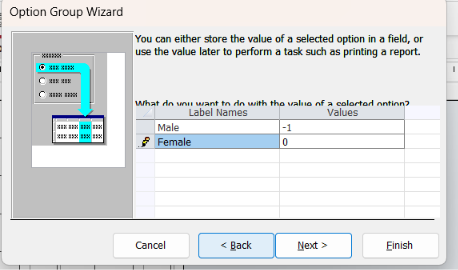
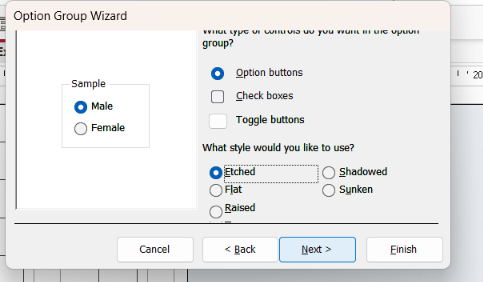
Hi Richard. When I use the Option Group Wizard, I do not get the step to Save the value for later use or Store the value in this field, as this been removed from the new versions of Access?
Hi Alan. No, that step should still be there if the Option Group Wizard is actually running. Make sure the Use Control Wizards button is turned on in the Controls group on the Form Design ribbon before you add the option group.
If it is on and you are still not seeing the "Save the value for later use" or "Store the value in this field" step, please post a couple of screenshots of the wizard pages you are getting, plus the ribbon showing whether Control Wizards is enabled. That will let me see exactly where things are going sideways.
Alan Joseph FealeyOP
@Reply 47 days ago
Alan Joseph FealeyOP
@Reply 47 days ago
Alan Joseph FealeyOP
@Reply 47 days ago
Alan Joseph FealeyOP
@Reply 47 days ago
Hi Richard, I forward the three screenshots as requsted,
Alex Lewis
@Reply 46 days ago
Alan Joseph I recreated your problem in my database, and the wizard is doing the same thing on my end.
Is your Option Group bound to a field in your table/query? If so, you can update the Control Source to the field you’re trying to bind.
This is part of the reason I personally don’t use Option Groups, not the most reliable tool in my experience.
It's been a while since I've used Option Groups. I don't use them a lot myself, but Alex is correct. In the newer versions of Access, the wizard can finish without showing that final "Save the value for later use" or "Store the value in this field" page.
After you create the Option Group, just open its property sheet and set its Control Source property to the field you want to store the selected numeric value in. That's effectively what the wizard used to do for you.
And yeah, this is one reason I'm not a huge fan of Option Groups either. A combo box is usually easier to work with and more flexible.
Alan Joseph FealeyOP
@Reply 46 days ago
Thanks Richard and Alex,
I updated the control soure in the property sheet.
Sorry, only students may add comments.
Click here for more
information on how you can set up an account.
If you are a Visitor, go ahead and post your reply as a
new comment, and we'll move it here for you
once it's approved. Be sure to use the same name and email address.
This thread is now CLOSED. If you wish to comment, start a NEW discussion in
Access Expert 4.