|
||||||
Access Expert 4Extended Forms, One-to-One, Subforms, ImagesWelcome to Access Expert 4. In this course you will learn how to build extended customer forms and establish one-to-one relationships in Microsoft Access. We'll discuss using option groups, toggle buttons, and the image control, as well as creating extended info tables and a family members subform. You will see how to work with subforms, combo boxes, and helper forms, review best practices from previous courses, and get tips for using Access version differences, available seminars, and participating in student forums. Lessons
Resources
Lesson SummaryWelcome! Customer Forms & 1:1 Relationships - Welcome to Microsoft Access Expert Level 4. In this course we will focus on additional form controls in Access, including option groups, toggle buttons, the image control, and more. We will set up an extended customer information table and establish a one-to-one relationship with the main customer table, as well as explore one-to-many relationships by building a family members subform. We will discuss creating subforms, combo boxes, helper forms, and review the progression from previous Expert levels. We will also talk about version differences, available seminars, and tips for using the course effectively and participating in the student forums.
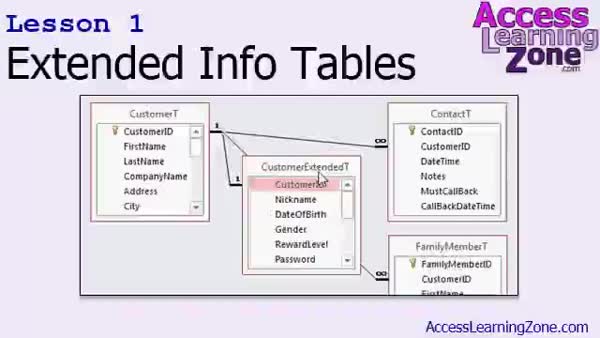
Lesson 1: One-to-One Info Tables & Family Links - In Lesson 1, we will build extended info tables to store additional customer details that do not belong in the main customer table, such as nicknames, birthdays, gender, reward levels, and mailing lists. I will show how to create helper tables to track customer family members and relationship types, and demonstrate how to set up one-to-one and one-to-many relationships between these tables. We will also discuss storing sensitive data separately and preparing for future database security and design enhancements. Finally, I will explain how to enforce a one-to-one relationship by adjusting field indexing.
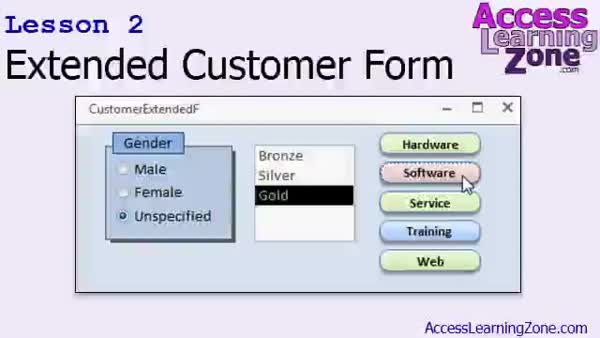
Lesson 2: Customer Form: Groups & Lists - In Lesson 2, we will walk through building the Extended Customer Form by adding an option group for gender, a list box for reward level, and toggle buttons for multiple checkbox fields. I will show you how to set up these controls using the appropriate data types, configure their properties, and discuss scenarios for using yes/no versus number fields. We will also look at creating combo boxes for employee selections and customizing the appearance of form controls to improve usability.
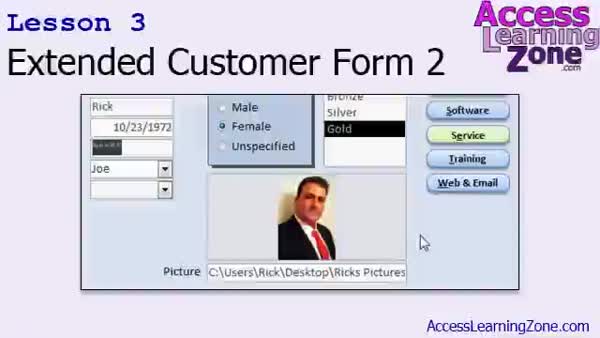
Lesson 3: Tab Controls & Image Display Tips - In Lesson 3, we continue working on the Extended Customer Form by adding a button to open the extended form from the main customer form, setting up a locked combo box to display customer names, and discussing how to make the form pop-up and modal. We will also look at tab controls for organizing form data, talk about their pros and cons, and walk through how to display images on your forms and reports without storing pictures in your database. We will set up an image control to show pictures using file paths and demonstrate linking those images in a report.
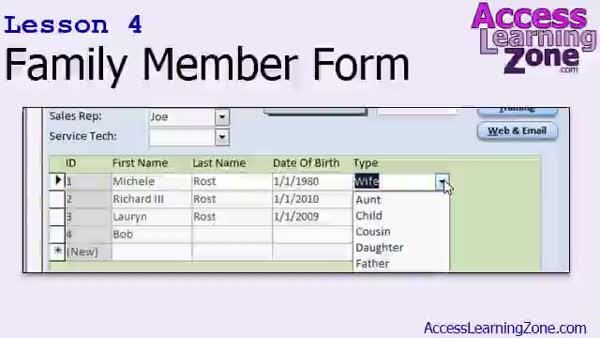
Lesson 4: Family Subform: Relatives & Helpers - In Lesson 4, we will walk through building a family member form for the table created in Lesson 1 and add it as a subform to the extended customer form. We will also set up a helper form for the relative type table, configure a combo box for selecting relative types, and cover how to manage and sort these values. You will see how to link the subform to the main form using the customer ID, customize form layouts, and ensure data integrity by preventing duplicate entries in the relative type list.
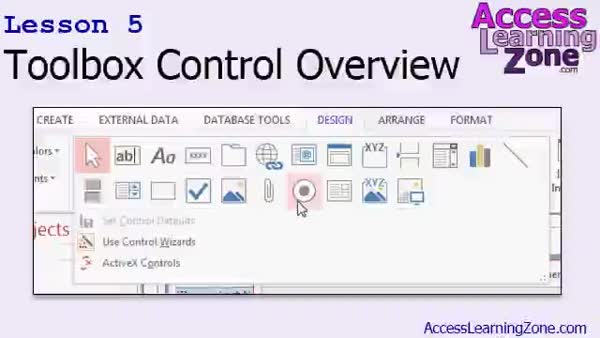
Lesson 5: Toolbox: Hyperlink, Web, Page Break, More - In Lesson 5, we will look at a variety of toolbox controls in Access that we have not yet worked with, providing a brief overview of each. Controls covered include the hyperlink control, web browser control, navigation control, page break, line and rectangle tools, toggle and list boxes, the attachment and image controls, and a mention of ActiveX controls. I will explain whether these controls are commonly used, give some examples, point out potential issues, and note which ones we will spend more time on in future lessons, such as charts and web integration tools.
Lesson 6: Form Controls & Relationships Review - In this course we learned about various types of form controls in Access, such as option groups, toggle buttons, and image and chart controls, including some lesser-used options like the web browser and page break controls. We covered setting up one-to-one relationships, explored more one-to-many relationships with examples like the family members form, and discussed how to continue your Access studies with future lessons and support options on accesslearningzone.com. We also reviewed ways to get help, follow updates, and provide feedback to improve future courses.
NavigationKeywordsone to one relationship, extended customer form, option group, toggle button, image control, family member subform, helper table, combo box, tab control, display images from file path, reward level list box, enforce unique relationship, relative type comb
More InformationTranscriptWelcome to Microsoft Access Expert Level 4, brought to you by AccessLearningZone.com. I am your instructor, Richard Rost. Today's class is going to focus primarily on learning additional form controls. We are going to learn about option groups, toggle buttons, the image control, and lots more. We are going to set up an extended customer information table with information you might not want in your primary customer table, because it is either sensitive or you simply do not have it for everyone. We are going to learn how to establish a one-to-one relationship, where one record in the customer table can have one and only one record in the extended customer table. Then we are going to spend some more time working with one-to-many relationships. One-to-many relationships are the most popular relationship type in Microsoft Access, so I feel it is important to give you several examples of how to work with one-to-many relationships. In today's class, we are going to set up a family members per customer form, where you can put in as many family members as you want, their date of birth, their name, and specify whether it is the mother, father, or the mother. We are going to build several more subforms, several combo boxes, some helper forms, and lots more. This class follows Microsoft Access 2010 Expert Level 3. This is the first class that I have made to jump to Access 2013, which you should find very similar to 2010 and 2007. Rather than re-recording all of the previous classes, I decided to move straight into 2013, because the interfaces really are pretty much the same. There are a couple minor differences, and I will mention them today in the first lesson. Expert Level 3 covers an SQL primer. You will learn a little bit about structured query language. You will see a little bit more of that today. We built a callback form, so we have a list of customers that we have to callback, a contact subform, we will work more with a subform today, and we learned how to calculate form footer totals. If any of these concepts seem unfamiliar to you, check out Access Expert Level 3. Of course, Access Expert Levels 1 and 2 cover all the basics of relating tables together. So if you have never worked with multiple tables at the same time, make sure you start with Access Expert Level 1. Again, I am using Microsoft Access 2013. If you are using Access 2010 or 2007, you should not have any problems following along, as all three versions are pretty similar. If you are using Access 2003 or earlier, you should go back to my website and look for my Access 2003 class under my Access 2003 lessons. It is roughly the same as today's class. You are strongly encouraged to build the database yourself that I build in class, but if you are like me and you are lazy and you just want to download it, go to my website at accesslearningzone.com/databases, and you can find all of the sample databases from this and the previous classes online. My courses are broken up into four groups: Beginner, Expert, Advanced, and Developer. The Beginner lessons are designed to give you a basic overview of the simple features of Access. The Expert Series, the one you are in now, is designed for more experienced users who are already comfortable with Access. The Advanced lessons cover working with macros, automation, and many more advanced features. The Developer lessons get into programming with Visual Basic for Microsoft Access. Each of the series is broken down into different numbered levels, starting with Level 1. The Beginner Series, for example, had levels 1 through 9. This is Level 4 of the Expert Series. The Beginner Series had levels 1 through 9, and there will probably be about 10 levels of the Expert Series before we get to the Advanced courses. Of course, do not hold me to it; sometimes I add more stuff. In addition to my normal Access classes, I also have seminars designed to teach specific topics. Some of my seminars include building web-based databases, creating forms and reports that look like calendars, securing your database, working with images and attachments, writing work orders, tracking accounts payable, learning the SQL programming language, and lots more. You can find complete details on all these seminars and more on my website at accesslearningzone.com. If you have questions about the topics covered in today's lessons, please feel free to post them in my student forums. If you are watching this course using my custom video player software or the online theater on my website, you should see the student forum for each lesson appear in a small window next to the class videos, as long as you have an active internet connection. Here, you will see all of the questions that other students have asked as well as my responses to them and comments that other students may have made. I encourage you to read through these questions and answers as you start each lesson and feel free to post your own questions and comments as well. If you are not watching the lessons online, you can still visit the student forums later by visiting accesslearningzone.com/forums. To get the most out of this course, I recommend that you sit back, relax, and watch each lesson completely through once without trying to do anything on your computer. Then, replay the lesson from the beginning and follow along with my examples. Actually, create the same database that I make in the video, step by step. Do not try to apply what you are learning right now to other projects until you master the sample database from this class. If you get stuck or do not understand something, watch the video again from the beginning or tell me what is wrong in the student forum. Most importantly, keep an open mind. Access might seem intimidating at first, but once you get the hang of it, you will see that it is really easy to use. Now let's take a closer look at exactly what is covered in today's class. In lesson 1, we are going to build some tables to store additional customer information and some related data that we do not want stored in our customer table. We will also see how to force a one-to-one relationship. In lesson 2, we are going to build the extended customer form. We are going to build an option group, a list box, and a bunch of toggle buttons. In lesson 3, we are continuing work on our extended customer form. I am going to show you how the tab controls work, and I am going to show you how to display an image on your forms and your reports without actually saving that image in your database file. In lesson 4, we are going to build a family member form for the table that we created in lesson 1, and we are going to add it as a subform inside of our extended customer form. We will also make the relative type combo box and a helper form for it. In lesson 5, we are going to look at some of the toolbox controls that we have not worked with yet. IntroIn lesson 4 of Microsoft Access Expert, you will learn how to work with additional form controls like option groups, toggle buttons, list boxes, and image controls. We will create an extended customer information table and set up a one-to-one relationship for handling sensitive or optional data. You will see how to design a family members subform, use combo boxes, and build related helper forms. We will also cover important concepts such as working with one-to-many relationships and using tab controls and images on forms and reports. This lesson is taught in Microsoft Access 2013. QuizQ1. What is the main focus of Microsoft Access Expert Level 4? A. Learning how to use macros for automation B. Exploring complex SQL queries only C. Learning additional form controls and relationships D. Building web-based databases Q2. Why would you set up an extended customer information table separate from the primary customer table? A. To make the database run faster B. To store sensitive or less universally available data C. To practice joining tables D. To make backups easier Q3. What is a one-to-one relationship in Microsoft Access? A. One record in a table relates to many in another table B. Many records in one table relate to many in another C. One record in a table relates to only one in another table D. Any record can relate to multiple records in any table Q4. What is the most popular relationship type in Microsoft Access, according to the video? A. One-to-one B. One-to-none C. Many-to-many D. One-to-many Q5. Which of the following is a form element covered in this course? A. Pie chart B. Toggle button C. Hyperlink field D. Crosstab control Q6. Which lesson introduces using the image control to display pictures without saving them in the database file? A. Lesson 1 B. Lesson 2 C. Lesson 3 D. Lesson 4 Q7. What is the recommended approach for learning from this course? A. Watch the lessons, then follow along by recreating the sample database B. Apply the material directly to unrelated real projects immediately C. Skip lessons that seem too basic D. Only read the transcript Q8. If you need help or do not understand something, what is suggested? A. Ignore the problem and move on B. Repeat the video lesson or ask in the student forum C. Wait for the instructor to email you directly D. Search for unrelated videos Q9. If you are using Access 2010, what should you do? A. Stop and only use Access 2013 B. Refer to Access 2003 lessons for help C. Continue, as Access 2010, 2013, and 2007 are very similar D. Skip to the Developer lessons Q10. What is one purpose of building a family member form as a subform inside the extended customer form? A. To display order details B. To store as many family members per customer as needed C. To create a login screen D. To make custom reports Q11. In addition to structured courses, what other resources are highlighted in this video? A. Book references B. Seminars on specific topics C. One-on-one tutoring only D. Free technical support calls Q12. How are the Microsoft Access courses organized by the instructor? A. Alphabetically B. Beginner, Expert, Advanced, and Developer series with numbered levels C. By database size D. By programming language focus Answers: 1-C; 2-B; 3-C; 4-D; 5-B; 6-C; 7-A; 8-B; 9-C; 10-B; 11-B; 12-B DISCLAIMER: Quiz questions are AI generated. If you find any that are wrong, don't make sense, or aren't related to the video topic at hand, then please post a comment and let me know. Thanks. SummaryToday's video from Access Learning Zone is focused on Microsoft Access Expert Level 4. I am your instructor, Richard Rost. In this class, we are going to examine several advanced form controls in Access. We will be working with option groups, toggle buttons, the image control, and a variety of additional tools to enhance your forms. One of the main projects we will tackle is setting up an extended customer information table. This separate table is useful for storing details about your customers that are either sensitive or not universally available for every customer. I will show you how to create a one-to-one relationship between the main customer table and the extended information table. This ensures that each customer can only have a single record in the extended table. Beyond one-to-one relationships, we will continue our exploration of one-to-many relationships. Since the one-to-many setup is the most common relationship in Access databases, I want to give you multiple examples to help you understand how to use it effectively. In the practical portion of today's class, we will design a form that allows you to record multiple family members for each customer. You will be able to enter the names, birthdates, and specify the relationship of each family member, such as mother, father, and so on. We will also go further by building several additional subforms, creating combo boxes, helper forms, and exploring many other useful techniques to enhance your Access skills. This course builds directly on concepts taught in Access Expert Level 3, which introduced basics of SQL, a callback form for tracking customer contacts, subforms, and methods for calculating totals in form footers. If any of these ideas are new to you, I recommend reviewing Access Expert Level 3. If you have not yet worked with relating tables, especially when dealing with multiple tables, make sure to start with Access Expert Level 1, which covers those foundational skills. I am teaching this class using Access 2013, but you should have no problem following along if you are using Access 2010 or 2007, as the user interface is very similar among those versions. Should you be on Access 2003 or an earlier version, I recommend checking out my Access 2003 materials on my site, which align closely with today's lesson content. As always, I encourage you to build the database example alongside me. However, if you would rather not create everything from scratch, you can go to my website and download all of the example databases we work with in this and prior courses. I organize my courses into four main tracks: Beginner, Expert, Advanced, and Developer. The Beginner series covers essential Access features. The Expert series, which you are currently in, is for users with some Access experience. If you are interested in topics like macros, more in-depth automation, or advanced features, those are covered in the Advanced series. Developer classes go even further, introducing you to programming with Visual Basic inside Access. Each track is divided into numbered levels, starting with Level 1. For example, the Beginner Series has at least nine levels. Currently, you are in Level 4 of the Expert Series, and I expect there will be around ten levels in the Expert series, but I may add more as new topics come up. In addition to my regular classes, I offer seminars that go in depth on particular subjects, such as building web-based databases, creating calendar-style forms and reports, securing your databases, using images and attachments, managing work orders, tracking accounts payable, learning the SQL language, and many others. Full details about all my seminars are listed on my site. If you have questions during this course, take advantage of the student forums available on my website. If you are watching the lessons through my custom video player or the online theater, you'll see a forum window next to each video, provided you have an active internet connection. You can browse questions from other students, view my answers, and participate in the discussion. If you are not watching the lessons online, you can always access the forums at a later time through my website. To get the most out of this course, I suggest you first watch each lesson straight through without pausing to do anything in Access. Let the material sink in. Then, replay the lesson and follow along with your own database, recreating my examples step by step. Focus on mastering the sample database before trying to apply your new skills to more complex projects. If you have trouble with any topic or get stuck, don't hesitate to rewatch the lesson or ask for help in the forum. Lastly, be patient and keep an open mind. Access can seem overwhelming at first, but with practice, you will find it much easier to use. Here's a breakdown of what we will cover today: Lesson 1 will guide you through creating tables to hold additional customer information and other related data that should not be stored directly in your main customer table. You will see how to enforce a one-to-one relationship between tables. Lesson 2 focuses on building the extended customer form. You will learn to create option groups, list boxes, and several toggle buttons. Lesson 3 continues with the extended customer form, introducing tab controls and showing you how to display images on your forms and reports without embedding those images directly in your Access database file. Lesson 4 involves building a family member form for the related table from lesson 1 and embedding it as a subform within the extended customer form. This lesson also demonstrates setting up a combo box for selecting relative types and constructing a helper form to assist with that. Lesson 5 explores some of the form toolbox controls we have not discussed yet. You can find a complete video tutorial with step-by-step instructions on everything discussed here on my website at the link below. Live long and prosper, my friends. Topic ListCreating additional customer information tables Establishing a one-to-one relationship between tables Building an extended customer form Using option groups in forms Adding list boxes to forms Implementing toggle buttons in forms Working with tab controls on forms Displaying images on forms and reports without storing them in the database Creating a family members table linked to customers Building a family member form linked as a subform Setting up a relative type combo box Creating and using helper forms Exploring additional toolbox controls Primary Topicsform controls, one-to-one relationships, one-to-many relationships, subforms, combo boxes, option groups, toggle buttons, tab controls, image control Secondary TopicsAccess 2013 differences, helper forms, list box, tabbed form design |
||||||||||||||||||||||||||||||||||||||||||||||||||||||||||||||||||||||||||||||||||||||||||
|
| |||
| Keywords: one to one relationship, extended customer form, option group, toggle button, image control, family member subform, helper table, combo box, tab control, display images from file path, reward level list box, enforce unique relationship, relative type comb PermaLink Microsoft Access Expert 4 |