Free Lessons
Courses
Seminars
TechHelp
Fast Tips
Templates
Topic Index
Forum
ABCD
 
Home   Courses   TechHelp   Help   Contact   Merch   Join   Order   Logon   Forums   
 
Back to Access Developers    Comments List
Upload Images | @Reply | Bookmark | Link | Email | Next Unseen |
Combo Box Filtering
Michael Duncan 
     
8 hours ago
Hi everyone,

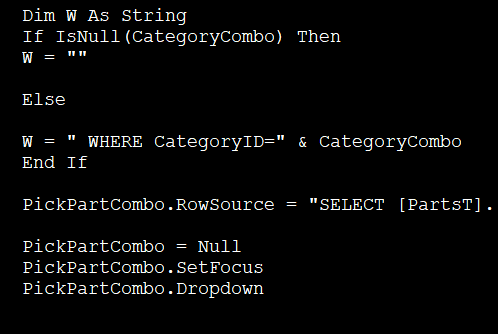
I am using some code that Richard showed in one of his videos. The code filters a second combo box based on a value in the first box It works great. However it looks like the only way to remove the filter in the second combo box is to manually clear the first combo box. How do I do this with code and a button. I have tried moving the if isnull code to the clear button, I tried using comboboxName = "" and ComboboxName = Null. Did not help. I also have some pictures.
Michael Duncan OP  @Reply  
     
8 hours ago

Michael Duncan OP  @Reply  
     
8 hours ago

Raymond Spornhauer  @Reply  
          
8 hours ago
Michael,

It depends on what you mean by "remove the filter"?

     If you want to clear the rowsource of the second combo box, you could use:

     For your Button OnClick Event, put the following:
     ComboBox.RowSource = "Select [Your Fields] FROM [Your Table] WHERE 1 = 0"

     This will remove all options from the second combo box.


If your combo box is related data, you probably won't want to make all options available as your first combo box and second combo box will not be related correctly.  If you want to clear out both

     For your Button OnClick Event, put the following:
     ComboBox1.RowSource = "Select [Your Fields] FROM [Your Table] WHERE[your original code before filtering]"
     ComboBox2.RowSource = "Select [Your Fields] FROM [Your Table] WHERE [your original code before filtering]"

To give you a better answer, we would need to see more from your forms and tables.

-Raymond
Richard Rost  @Reply  
           
7 hours ago
Michael, setting CategoryCombo = Null clears the selection, but setting it in VBA doesn't fire that combo box's AfterUpdate event. The query in PickPartCombo.RowSource still has the old WHERE clause until you rebuild it.

Move your existing Dim W through PickPartCombo = Null into a private sub in the same form module, say RefreshPartList. Call that sub from CategoryCombo_AfterUpdate and from the Clear button's Click event. On the Clear button, set CategoryCombo = Null first, then call RefreshPartList. Your existing IsNull branch then leaves out the category filter, so the Part list shows all parts. Keep SetFocus and Dropdown in the category event if you want the list to pop open only after someone picks a category. If either combo is bound to a saved field, clearing it changes the current record, so check that these are unbound picker controls before using that reset.
Add a Reply Upload an Image
Next Unseen


What's This?


The following is a paid advertisement
Computer Learning Zone is not responsible for any content shown or offers made by these ads.
 

Learn
 
Access - index
Excel - index
Word - index
Windows - index
PowerPoint - index
Photoshop - index
Visual Basic - index
ASP - index
Seminars
More...
Customers
 
Login
My Account
My Courses
Lost Password
Memberships
Student Databases
Change Email
Info
 
Latest News
New Releases
User Forums
Topic Glossary
Tips & Tricks
Search The Site
Code Vault
Collapse Menus
Help
 
Customer Support
Web Site Tour
FAQs
TechHelp
Consulting Services
About
 
Background
Testimonials
Jobs
Affiliate Program
Richard Rost
Free Lessons
Mailing List
PCResale.NET
Order
 
Video Tutorials
Handbooks
Memberships
Learning Connection
Idiot's Guide to Excel
Volume Discounts
Payment Info
Shipping
Terms of Sale
Contact
 
Contact Info
Support Policy
Mailing Address
Phone Number
Fax Number
Course Survey
Email Richard
[email protected]
Blog RSS Feed    YouTube Channel

LinkedIn
Copyright 2026 by Computer Learning Zone, Amicron, and Richard Rost. All Rights Reserved. Current Time: 11/20/2026 2:44:32 AM. PLT: 0s