Hi Richard, love the lessons clear and precise. I have successfully installed my ComboBox in the header of my form. I have it set to look for the FirstName and display the FirstName & LastName. Works a treat, is it possible to have the ComboBox text cleared ready for the next search? Dave from Aotearoa NZ (Land of the long white cloud) "Lets Fly"
Adam Schwanz
@Reply 5 years ago
I'll have to let someone else chime in on this one. I can't remember if there's a way to do it back in expert classes. But once you get to some macros or VBA programming you'll have no trouble doing this either with events or a "clear fields" button.
There is no way to do it without programming. When you get to the Developer classes, I'll show you how. Hint: AfterUpdate Event
Joseph Messina
@Reply 5 years ago
Hi Richard:
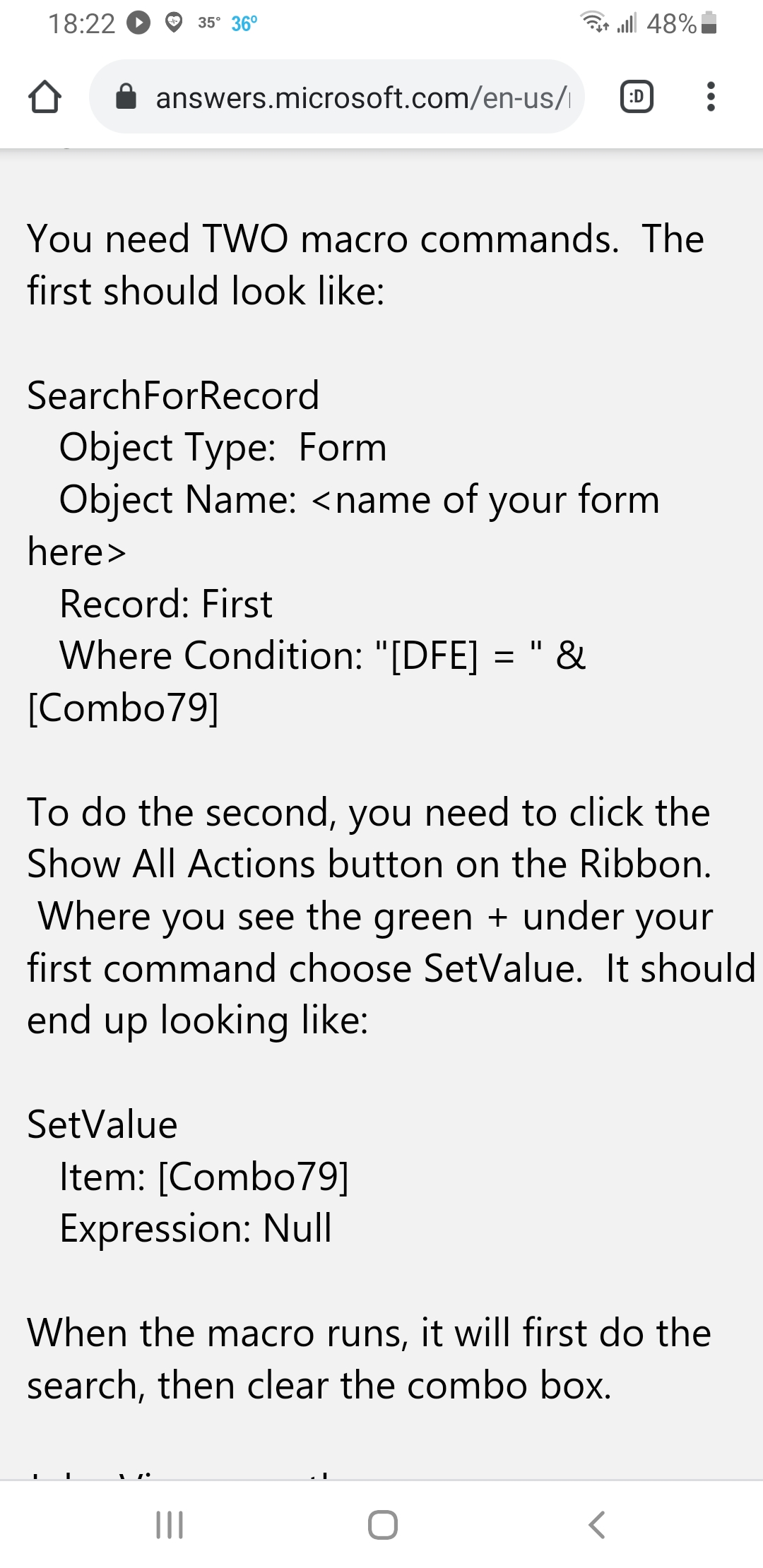
Not sure if you cover this in any of the lessons. I googled how to clear combo box after searching for record in Access. Or if you know something better how to clear combo box after searching for a record in Access. I can share the steps with you I found when I did google search.
I see it. I scrolled to the top. I'm goong srnd u a screen shot what i found on google. I know how to create combo vlboxes and add colums to it. For example address. I was trying tofigure out yo clear it after searchijg for record.
A MACRO, YOU POSTED A MACRO IN THIS FORUM :s
Only kidding.
Yes you can do it like that, much the same would be done, as Rich suggested above, using an AfterUpdate.
Many ways to skin a cat.
Elaine Heltman
@Reply 5 years ago
I didn't end up using AfterUpdate, but the video led me to figure out how to clear combo boxes on a search form. It's a continuous form with 4 unbound combo boxes in the header and the related fields are in the form. Each "found" entry has a double-click event to go to its specific "detail" form. I used the following code in a button OnClick event to clear all the combo boxes and "reset" the form (the actual combo boxes have real names):
Forms!GeneralSearchFormF![Combo1].SetFocus
Combo1.Text = ""
If you are a Visitor, go ahead and post your reply as a
new comment, and we'll move it here for you
once it's approved. Be sure to use the same name and email address.
This thread is now CLOSED. If you wish to comment, start a NEW discussion in
Access Beginner 8.