Free Lessons
Courses
Seminars
TechHelp
Fast Tips
Templates
Topic Index
Forum
ABCD
 
Home   Courses   TechHelp   Forums   Help   Contact   Merch   Join   Order   Logon  
 
Back to Access Forum    Comments List
Upload Images   @Reply   Bookmark    Link   Email   Next Unseen 
Run QueriesForms frm ComboBox
Sandra Truax 
         
4 years ago
My primary form about 20 buttons to run queries/reports/etc. Is there any way to be able to have them listed in a ComboBox so that I could select them from there instead of all these buttons?
Scott Axton  @Reply  
        
4 years ago
Check out the Report Listbox videos.

Richard use a list box but I'm sure you could adapt it to a Combo Box
Dan Jackson  @Reply  
            
4 years ago
If it were me, I'd set up a table listing all the options and use a relational combo. Put a button next to with some VBA on the button.
Something like

If COMBOBOXNAME = '' Then
      Msgbox ('Select an option')
             ElseIf COMBOBOXNAME=1 Then
                        DoCmd.OpenForm (Or report or whatever) ~~~~~~

This is my first time typing code off the top of my head so if it doesn't work exactly, I'm sure one of the more experienced veterans will correct me'. But with the code in the button, you select the report you want and then run
Dan Jackson  @Reply  
            
4 years ago
It's deleting my double quotes.

At If COMBOBOXNAME = (Use double double quotes to indicate null!)
Adam Schwanz  @Reply  
           
4 years ago
"" is not the same as null ;P.

But yea I've seen it be stubborn with how it wanted that worded, so if it is, I usually just do

If Combo="" or IsNull(Combo) or Combo=0 Then
Adam Schwanz  @Reply  
           
4 years ago
You might already know this Dan, but LINK just incase :), it's one of those interesting things about databases
Sandra Truax OP  @Reply  
         
4 years ago
I'm playing with this now. I got the listbox that Scott referred me to working. I'm now going to the combobox that is recommended by Dan and Adam. Thanks everyone. I love programming, but yesterday was getting discouraged. I really appreciate the help y'all give. Y'all are a blessing to me!
Scott Axton  @Reply  
        
4 years ago
Sandra -

I just tried in the sample db and it worked fine - though I didn't test extensively
Work with a copy of your db and see if it does what you want.
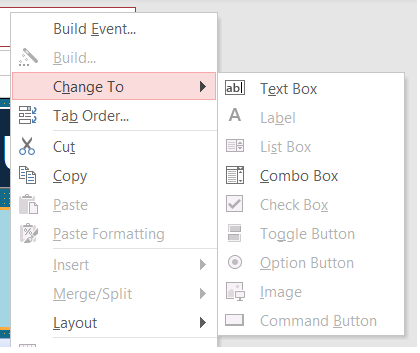
If you want to have a combo box instead of your list box just change it.  The List Box is basically an always open Combo Box.
So from design mode - Right click the List Box and choose Change To... > Combo Box.
Scott Axton  @Reply  
        
4 years ago

Sandra Truax OP  @Reply  
         
4 years ago
Yay!  I have it changed to a combo box, with 3 buttons under it. I started each item in the table with F for Form, Q for Query, and R for Report. Each button under the combo box has the same corresponding letter with the appropriate codes so now I select an item in the combo box, and click the corresponding button and Wa La, it opens!  Thanks to all of y'all!
Dan Jackson  @Reply  
            
4 years ago
Its those moments that make it all worth while. And! The more hair torn out, the sweeter the spoils!
Sandra Truax OP  @Reply  
         
4 years ago
Okay, I need someone smarter than me to figure this one out. Instead of having multiple buttons, I want to set them all up to run off of one button. I have tried this code (along with LOTS of others) but It's not working. Can someone please help? The name of my combobox is ReportList.  The Items in the list that start with FF I are forms I want to open in normal view.

    If Me.ReportList = "FF*" Then
         DoCmd.OpenForm ReportList, acNormal
     ElseIf Me.ReportList = "Q*" Then
          DoCmd.OpenQuery ReportList
    Else Me.ReqportList = "R*" Then
              DoCmd.OpenReport ReportList, acViewPreview
    End If
Adam Schwanz  @Reply  
           
4 years ago
Your form query and report are all called ReportList? Not ReportListF ReportListQ ReportListR?

When you go to the properties of your combo box, Format, how many are in column count? If it has an invisible ID for the bound column, you will need to do
If ReportList.Column(1) = "FF" etc
Adam Schwanz  @Reply  
           
4 years ago
Also I believe you need to quotation all those docmds

OpenForm "ReportList"
OpenQuery "ReportList"
OpenReport "ReportList"
Sandra Truax OP  @Reply  
         
4 years ago
Adam Schwanz, you are a genius!  Adding the Column(1) after ReportList made it work!  I tried the quotes around ReportList, but it gave me an error, but once I removed them it worked perfect!  Thank you, thank you, thank you!!!
Adam Schwanz  @Reply  
           
4 years ago
Strange, it makes me do them every time, doesn't work without them. But if it works, it works ;)

Glad you got it figured out.
Sandra Truax OP  @Reply  
         
4 years ago
My porch light just came on and I took it one step further and put the codes in the "After Update" on the combobox and now I don't even have to waste time clicking the button! :)  Thanks again Adam Schwanz.
Sandra Truax OP  @Reply  
         
4 years ago
Need guidance again. :(  Instead of having to put this code on EVERY form with my combobox, can I put it somewhere, and reference it from ALL forms with just a single line of code?
Kevin Robertson  @Reply  
           
4 years ago
Yes. You can put the code in a Global Module.

Public Sub OpenObject (FormName As String)

    If Forms(FormName)!ReportList = "FF*" Then
         DoCmd.OpenForm "ReportList", acNormal
     ElseIf Forms(FormName)!ReportList = "Q*" Then
          DoCmd.OpenQuery "ReportList"
    Else Forms(FormName)!ReqportList = "R*" Then
              DoCmd.OpenReport "ReportList", acViewPreview
    End If

End Sub


Then you can call this sub routine where you need it sending the name of the current form. For example:

OpenObject "CustomerF"
Sandra Truax OP  @Reply  
         
4 years ago
Thanks Kevin Robertson, but I'm getting an error. The forms are listed in a combobox, so I tried changing the original code to this, but it gives me an error. Any suggestions?

Public Sub OpenObject(FormName As String)
    If Forms(FormName)!ReportList.Column(1) = "FF" Then
        DoCmd.OpenForm "ReportList", acNormal
    ElseIf Forms(FormName)!ReportList.Column(1) = "Q" Then
        DoCmd.OpenQuery "ReportList"
    ElseIf Forms(FormName)!ReportList.Column(1) = "R" Then
        DoCmd.OpenReport "ReportList", acViewPreview
    ElseIf Forms(FormName)!ReportList.Column(1) = "QDV" Then
        DoCmd.OpenQuery "ReportList", acViewDesign
    ElseIf Forms(FormName)!ReportList.Column(1) = "FD" Then
        DoCmd.OpenForm "ReportList", acFormDS
    Else
    End If
End Sub
Sandra Truax OP  @Reply  
         
4 years ago
I used  the following in the After Update on the combobox

OpenObject "ReportList"
Kevin Robertson  @Reply  
           
4 years ago
Why are you sending the name of the Combo Box?
Send the name of the form.

If the Combo is on the CustomerF the codes would be OpenObject "CustomerF"
If the Combo is on the OrderF the codes would be OpenObject "OrderF"
Sandra Truax OP  @Reply  
         
4 years ago
The combobox is on multiple forms. I finally got this to work, thanks to Kevin Robertson pointing me in the right direction and putting this code in a Global Module.  I just have to set up the rest of it, but at least it is now working!

Public Sub OpenObject(FormName As String)
    FormName = Screen.ActiveControl.Column(1)
    Dim FormName2 As String
    FormName2 = Screen.ActiveControl.Column(0)
    
    If FormName = "FF" Then
        DoCmd.OpenForm FormName2, acNormal
    End If
End Sub

This thread is now CLOSED. If you wish to comment, start a NEW discussion in Access Forum.
 

Next Unseen

 
New Feature: Comment Live View


The following is a paid advertisement
Computer Learning Zone is not responsible for any content shown or offers made by these ads.
 

Learn
 
Access - index
Excel - index
Word - index
Windows - index
PowerPoint - index
Photoshop - index
Visual Basic - index
ASP - index
Seminars
More...
Customers
 
Login
My Account
My Courses
Lost Password
Memberships
Student Databases
Change Email
Info
 
Latest News
New Releases
User Forums
Topic Glossary
Tips & Tricks
Search The Site
Code Vault
Collapse Menus
Help
 
Customer Support
Web Site Tour
FAQs
TechHelp
Consulting Services
About
 
Background
Testimonials
Jobs
Affiliate Program
Richard Rost
Free Lessons
Mailing List
PCResale.NET
Order
 
Video Tutorials
Handbooks
Memberships
Learning Connection
Idiot's Guide to Excel
Volume Discounts
Payment Info
Shipping
Terms of Sale
Contact
 
Contact Info
Support Policy
Mailing Address
Phone Number
Fax Number
Course Survey
Email Richard
[email protected]
Blog RSS Feed    YouTube Channel

LinkedIn
Copyright 2026 by Computer Learning Zone, Amicron, and Richard Rost. All Rights Reserved. Current Time: 6/16/2026 1:46:57 PM. PLT: 1s