Report Listbox
By Richard Rost

 5 years ago
Using the On Double Click Event. Open Record.
Learn how to make a listbox that's got all of the reports you need to print on a regular basis. All your users have to do is click on a report and then click on a "print" button, and voila. There's your report. Nice and easy to maintain and update, too.
Avery from Mesa, Arizona (a Gold Member) asks: Is there a way I can create a list box or a combo box that displays a list of the available reports in my database. I don't need all of them, just a handful. I'd like to make it easy for the users to pick one and click a button to print it. I also don't want to have to add buttons to a menu every time I make a new report (which is often). Help?
Members
I'll show you how to do the same thing without having to maintain a table. We'll loop through the Reports collection in VBA and use that to populate the list. I'll show you how to add a Description property attribute to a report for the display text. Fun stuff!
Silver Members and up get access to view Extended Cut videos, when available. Gold Members can download the files from class plus get access to the Code Vault. If you're not a member, Join Today!
What Course?
This isn't covered in any of my courses! New stuff!
Links
Relational Combo Box: https://599cd.com/RelationalCombo
Intro to VBA: https://599cd.com/IntroVBA
ListBox.AddItem: https://599cd.com/ACD16
 Subscribe to Report Listbox
Get notifications when this page is updated
More InformationTranscript Welcome to another TechHelp video brought to you by AccessLearningZone.com. I am your instructor, Richard Rost.
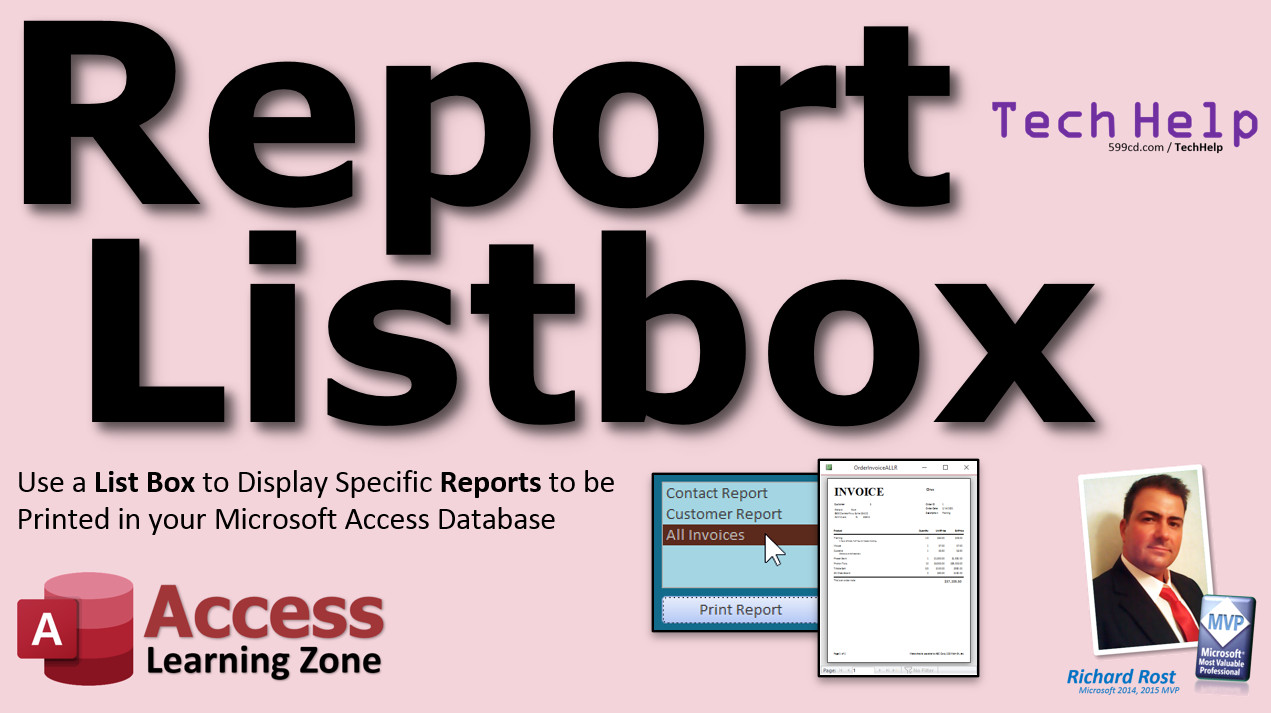
In today's video, I'm going to show you how to make a report list box. We'll use a list box to display specific reports to be printed in your Microsoft Access Database. You can put the list box anywhere you want, like on your main menu or on a report menu. The user can pick one of them, click on the print report button, and there goes the report.
Today's question comes from Avery in Mesa, Arizona, one of my Gold members. Avery asks, Is there a way I can create a list box or a combo box that displays a list of the available reports in my database? I don't need all of them, just a handful. I'd like to make it easy for the users to pick one and click a button to print it. I also don't want to have to add buttons to a menu every time I make a new report, which is often. Help?
Yes, of course Avery! All we have to do is create a list box and put in that list box a list of the reports that you want to print. We can do that by simply populating a table with the report name and maybe a description.
Let me show you how to do it.
Here I am in my TechHelp free template. This is a free download from my website. You can go grab it. It's absolutely free. I'll put a link down below in the description. Or you can use whatever database you want. It doesn't matter.
The main menu has some simple stuff, a customer list, a customer form, orders, and a bunch of other things. I have videos that explain how this was built, so go watch those if you want to.
What I'd like is right here. I want to put a list box containing all the available reports in my database. Let's come down here and see what I have. I have a blank template and I have order invoice. Let's make a few more fake reports so we have some data in our database.
I'm going to copy and paste that one there. Let's call that the customer report. Let's make one more copy and paste. Let's call this the contact report. Now we have some data in our database to work with.
Now let's go and make a table that will list all of our reports. Go to Create - Table Design. I need the report name, which is the actual name as it appears in the database, and I need a description to show up in the list box.
I don't necessarily need an auto number for this table. It's a very limited-use table. Usually I tell people yes, put auto numbers in all your tables, but this is an example where I actually don't want one because the wizard will mess with us if we put an auto number in here. I'll explain why later.
So for this table, I just want the report name (short text) and a description. That's it. Save it as ReportT. When it asks about the primary key, define it. I'm going to say no because it'll add an ID. Let's make the report name the primary key. Usually I don't do this (make text a primary key), but that's fine. You don't want to duplicate the same one twice.
Save it. Close it. Let's put some data in it. We're just going to match what's down here.
So we have a report name and a description. The report name has to be exactly what that is. We've got contactR as the name and "Contact Report" as the description, customerR and "Customer List Report," orderInvoiceR and "Order Invoice." You can put whatever you want in here.
Save it. Close it.
Now it's time to make a list box. It goes right here. Go to Design View, then to your toolbox, and find a list box. It can be a list box or a combo box; they're pretty much the same thing. The only difference is a list box is always open and a combo box allows you to type values in. Aside from that, they behave almost identically.
We want the list box to get its values from a table. Which table? ReportT. Bring over both fields.
This is why I said I don't want an ID. I've done this before many times. If there is an ID here, and if Access sees an auto number, it's going to bring it over whether you pick it or not, and then it messes with what I want to do in the next step. That's why I don't like an ID in this table. It's a very simple table, and there's going to be no relationships for it, so I'm not worried about the ID.
Next, how do you want to sort it? Let's sort it by the description. That way you could do a little in-list sorting if you want, putting all the customer stuff together starting with "customer" in the description, and all the order stuff together.
This is what it's going to look like. The key column is going to be hidden. It hides it (basically makes its width zero). I cover this in my combo box video, by the way. If you've never made a combo box before, go watch my relational combo box video. Pause this video, go watch that one, and then come back here. I go through this wizard in a lot more detail.
Next. Description. Doesn't matter. We're going to delete it anyway. Click Finish.
There's my list of reports. Let's give it a splash of color. I like to put some color in there. Let's pick a different color. Looks nice and pretty. Save it. Close it and take a look at what we have.
There's our list of reports from our report table. Now, my first column is that hidden column. It contains the actual report name. We can use that to open up the report because the value of this list box is going to be whatever is in that first hidden column.
Let's give the list box a good name first. Open its properties, go to the All tab, and change this to "reportList".
Notice under Data, for those of you who know SQL, you see reportT, reportName, and description. That's it. If we had used the wizard and there was an ID in that table, it would have put the ID in here whether we wanted it or not. It's one of my pet peeves with Access. I don't like that. Then you have to remember to refer to column one in the list box, which adds a level of complexity that beginners shouldn't have to deal with.
Now we're going to learn a tiny bit of VBA code. Yes, you could do this with a macro, but just learn some VBA. It's really simple. It's not as mystical as programmers want you to think. Go watch my Intro to VBA video; it's free and not very long. It'll give you all the basics and demystify VBA. This requires one line of code, maybe two. Really easy.
Let's make a button. I'm just going to copy this Hello World button I already made. Copy and paste it right next door. Drop a command button down here and cancel the wizard. Change this to "Print Report." Let's name the button "printReport" (we're really going to do a preview; you can make a separate button to print if you want). I preview everything since I want to see it on screen before sending it to the printer most of the time. I'll make a separate print button if needed.
Keep in mind, this list box is called "reportList," and the value of this is equal to whatever's down here.
Right-click, go to Build Event. That puts you in the editor. Pick Code Builder if prompted. Of course, if you watched my Intro to VBA video, you know this.
We are in printReport_Click. What happens when we click the print report button? First, let's just type:
MsgBox reportList
I want to see what value is in that report list.
Save and return. Open the form and hit the button.
Invalid use of Null. What does that mean? I didn't pick anything. Hit End. We'll add this line right before:
If IsNull(reportList) Then Exit Sub
This means if the user didn't pick anything, just exit out. No action.
See, now if you click without picking anything, nothing happens. You have to pick something first. Once you pick something, now this list box has a value—then I can MsgBox it. It's the orderInvoiceR that's actually in the hidden column on the left.
Now, I don't want a message box. What do I want to do? I want to open that report. So instead of MsgBox, replace it with:
DoCmd.OpenReport reportList, acViewPreview
What's the report name? "reportList" has the value I want. The next argument is how you want to see it: we're going to go acViewPreview. If you want to send it to the printer, pick acViewNormal.
That's all we need. There are other parameters you could set (filter name, where condition), but that's all we need right now. Like I said, one or maybe two lines of code—the first one is only needed to handle the user not picking a value. So really, it's one line of required code.
That's it. That's all the programming you need.
Now watch: Click. All right. This order invoice requires the order form to be open; that's why it says "Enter Parameter Value." So that's not a good one to pick. You can't do this with reports that require other forms to be open.
Let's just pick a different one. Let's change "Order Invoice" to "Customer R" in Design View. Save it, close it, pick "Customer List Report," and there's your customers.
Pick "Order Invoice," and there you go. Yes, I should have made a different report, but that's how you do it. That's it in a nutshell.
That's how you can take a table, fill it up with values (the name of the report, the description), make a list box out of it, and then make a button to open up that report. Now, whenever you add a report, all you have to do is just put it in the report table, and your users will have access to it there. You don't have to make more buttons on forms and all that.
You can list just the reports that you want them to see; you don't have to put all your reports in there.
I went into each of these reports and adjusted them so they don't give you that parameter prompt anymore.
Here's a contact report; it's just contacts. Customer report—those are customers; customer name, address, etc. Invoice report displays all invoices (there's only one in the system). That way, you don't get a prompt.
Because I know someone's going to download this—one of the Gold members, for example—and be like, "How come none of these work?" Because they didn't pay attention in the video. It happens.
Want to learn more? In the extended cut for members, I show you how to do the exact same thing, except we don't use a table—there's no table to maintain. I'll show you how to loop through the report objects in the database using VBA. For each of the reports that you want to show up in the list, you can assign a description attribute property to that report, and we can read that property in VBA. That's kind of cool. That's all in the extended cut for the members.
Silver members and up get access to all of the extended cut videos, and Gold members and up can download the templates.
How do you become a member? Click the join button below the video. After you click the join button, you'll see a list of all the different types of membership levels that are available.
Silver members and up get access to all of the extended cut TechHelp videos, live video and chat sessions, and more. Gold members get access to a download folder containing all the sample databases that I build in my TechHelp videos, plus my code vault where I keep tons of different functions that I use.
Platinum members get all the previous perks plus access to my full beginner courses and some of my expert courses. These are the full-length courses found on my website and not just for Access. I also teach Word, Excel, Visual Basic, ASP, and lots more.
Don't worry, these free TechHelp videos are going to keep coming. As long as you keep watching them, I'll keep making more.
If you liked this video, please give me a thumbs up and feel free to post any comments that you have. I do read them all. Make sure you subscribe to my channel (which is completely free) and click the bell icon and select "All" to receive notifications when new videos are posted.
Click on the Show More link below the video to find additional resources and links. You'll see a list of other videos, additional information related to the current topic, free lessons, and more.
YouTube no longer sends out email notifications when new videos are posted, so if you'd like to get an email every time I post a new video, click the link to join my mailing list.
If you have not yet tried my free Access Level 1 course, check it out now. It covers all the basics of building databases with Access. It's over three hours long. You can find it on my website or on my YouTube channel. If you like Level 1, Level 2 is just $1, and it's also free for all members of my YouTube channel at any level.
Want to have your question answered in a video just like this one? Visit my TechHelp page and you can send me your question there.
Click here to watch my free Access Beginner Level 1 course, more of my TechHelp videos, or subscribe to my channel. Thanks for watching this video from AccessLearningZone.com.
Thanks for watching. I'll see you next time. Bye. Intro In this video, I will show you how to create a report list box in Microsoft Access, allowing users to easily select and print specific reports from your database. We will cover how to build and populate a table with report names and descriptions, set up a list box to display these options, and use simple VBA code to open the selected report with a button click. This approach helps streamline report management and makes it easy to update your report menu without constantly modifying your form buttons. Quiz Q1. What is the main purpose of creating a report list box in Microsoft Access, as shown in the video?
A. To display a list of available reports for users to select and print
B. To sort records in a table by report name
C. To add security to reports in the database
D. To automatically email reports to users
Q2. Why does Richard Rost recommend not including an auto number (ID) field in the reports table for this project?
A. Because the table will not have any relationships
B. Because Access will automatically select the auto number, complicating the list box setup
C. Because Access does not allow auto numbers in report tables
D. Because users can edit the auto number field directly
Q3. What fields are included in the reports table (ReportT) according to the video?
A. Report name and description
B. Report name, ID, and date created
C. ID and description only
D. Report type and description
Q4. What is the difference between a list box and a combo box as described in the video?
A. A list box is always open; a combo box allows typing values in
B. A combo box is always open; a list box allows typing values in
C. They are completely different controls with no similarities
D. Only combo boxes can be used to select reports
Q5. When setting up the list box, what field is set as the key column (hidden column), and why?
A. Report name, so the report can be opened programmatically
B. Description, so users see more details
C. Auto number ID, to enforce uniqueness
D. Date created, to sort by newest report
Q6. What happens if a user clicks the print report button without selecting anything in the list box?
A. Nothing happens due to the IsNull check in VBA code
B. An empty report is printed
C. Access crashes
D. The first report in the table is printed automatically
Q7. What is the main VBA command used to open the selected report from the list box?
A. DoCmd.OpenReport reportList, acViewPreview
B. DoCmd.PrintReport reportList, acViewNormal
C. DoCmd.OpenForm reportList, acViewPreview
D. DoCmd.OutputTo reportList
Q8. What advantage does this approach offer when adding or removing reports from the menu?
A. Only the table needs to be updated; no need to add or remove buttons on forms
B. Every time a report is added, a new button must be created
C. Reports are automatically detected by Access without any work
D. Combo boxes must be redesigned every time
Q9. What useful tip does Richard give for beginners about combo/list boxes and hidden columns?
A. The value of the list box is always the hidden key column, which is useful when opening reports
B. Hidden columns are never accessible in VBA
C. You must keep all columns visible for the macro to work
D. Only auto number columns can be hidden
Q10. What do Silver, Gold, and Platinum memberships provide according to the video?
A. Increasing access to extended videos, downloads, courses, and code vaults
B. Access to free hardware
C. Unlimited tech support calls
D. The ability to edit the AccessLearningZone.com website
Answers: 1-A; 2-B; 3-A; 4-A; 5-A; 6-A; 7-A; 8-A; 9-A; 10-A
DISCLAIMER: Quiz questions are AI generated. If you find any that are wrong, don't make sense, or aren't related to the video topic at hand, then please post a comment and let me know. Thanks. Summary Today's video from Access Learning Zone covers how to create a report list box in Microsoft Access. This technique lets you present your users with a list of reports in your database, allowing them to select one and print it with the click of a button. This approach is especially useful if you frequently add or remove reports, as it saves you from having to redesign your menu each time.
The question that inspired this lesson comes from a user who wanted to display only selected reports in a list or combo box, making it simple for end users to choose a report to print, without the hassle of adding new buttons every time a new report is created.
The solution involves creating a dedicated table where you can store the names and descriptions of the reports you want to include in your selection list. Each entry in this table references the exact report name as it appears in your database, along with a user-friendly description that helps users understand what each report contains.
To set this up, you'll first assemble your reports in Access and confirm their names. Then, create a new table—let's call it ReportT—which holds two fields: the report name and a brief description. For this purpose, there's no need to include an AutoNumber field, as this table serves a very specialized and limited role. In fact, avoiding an AutoNumber here simplifies working with wizards and ensures Access does not automatically add unwanted columns, which can complicate referencing the selected value later on.
Assign the report name as the primary key for this table. Normally, I recommend using AutoNumbers as primary keys, but for a static table like this, a text primary key works just fine and prevents accidental duplicates.
Once your table has been created and populated with the report names and descriptions that match your Access reports, you can add a list box to your main menu form or wherever you wish users to select reports. In the list box's setup, choose to pull values from the ReportT table, bringing over both fields so users can see the description but the underlying value is the real report name.
One of the advantages of handling the table this way is that you manage exactly which reports appear in the list box, and you can sort them by description for easy grouping or organization. The first column—holding the report name—remains hidden from users, but that value is used to run the selected report.
Next, assign a meaningful name to your list box, for example "reportList." This makes it straightforward to refer to in your code.
For the button that actually opens the report, you need a small amount of VBA. It's very simple: when a user clicks the button, the code checks if a selection was made, then opens the report using the name stored in that hidden column. If nothing has been selected, the procedure simply exits. This ensures your users don't get error messages if they click the button without making a choice.
The VBA involved is extremely concise—just a couple of lines. If you haven't worked with VBA before, I encourage you to check out my introductory Access VBA lesson, which demystifies the basics and will have you using simple macros and code confidently.
Remember that some reports might be designed to require additional information—such as being opened from another form—which could prompt users for parameters. Ideally, your report list should focus on those reports that can be opened directly.
Using this method, whenever you add new reports you want available to users, just add entries to your table. There's no need for redesigning forms or menus, so your users always see a current and tidy selection.
For those interested in advanced options, the Extended Cut for members shows you how to generate this list dynamically—there's no need for a table. I show you how to loop through all report objects in your database with VBA and use the Description property of each report to present it to the user automatically. That way, you just set a description attribute on any report you want to show and the list box populates by itself.
Membership has its privileges: Silver members and up get access to all Extended Cut videos and regular live sessions, while Gold members have access to the downloadable sample databases from all my TechHelp videos and the full code vault. Platinum members get everything included with Silver and Gold, plus my complete Access beginner and some advanced courses, along with lessons in Word, Excel, Visual Basic, and more.
You can find all resources mentioned here—including links to my beginner Access course, membership options, mailing list, and free downloadable templates—on my website. If you liked this lesson, I welcome your feedback and encourage you to subscribe to my channel for updates on future tutorials.
A full video tutorial with step-by-step instructions showing exactly how to set up the list box, table, and button is available on my website at the link below.
Live long and prosper, my friends. Topic List Creating a table to store report names and descriptions
Entering report names and descriptions in the table
Setting up the report name as a primary key
Adding a list box to a form for report selection
Configuring the list box to pull data from the report table
Sorting the list box by report description
Explaining why not to use an AutoNumber ID in this table
Naming and formatting the list box control
Adding a command button to preview reports
Writing simple VBA to open reports selected in the list box
Handling null selections in the list box with VBA
Previewing versus printing reports using DoCmd.OpenReport Primary Topics Microsoft Access, report list box, dynamic menu, table design, VBA, printing reports, form controls, user interface, report selection Secondary Topics combo box vs list box, data validation, auto number discussion, report management, list sorting |




