Let's say I build a Parameter Query and wish to choose the states of NY, PA, TX. Is there a parameter that could be set up to enter the 3 states in one parameter? I tried the In statement but it returns blanks.
Scott Axton
@Reply 3 years ago
Sure you could put it into your query designer like this:
=[Enter first state] Or [Enter second state]
That is some what clunky though. (What if you need 4, 5, 6 choices?)
A better way would be to do it the way Richard shows in the List Box Filter video. That way the code will be good whether you have 0 or xx choices. Your db will be much more flexible.
Note you aren't limited to just states. You could do this with parts, or membership types, or ...?
Let your imagination run.
Joseph E RappOP
@Reply 3 years ago
Ok. I think I got it. Enter this on the first criteria line: [Enter State 1], on line 2 [Enter State 2] and so forth. then it will ask for each state separately before the query runs. The next question is (and maybe this includes VBA?) is there a way to define the number of states? Such as "How many states would you like to enter?" If the answer is 5, then it would return 5 separate boxes for each of the 5 states. If 3, then only 3 boxes and so forth.
Joseph E RappOP
@Reply 3 years ago
Thank you, Scott. I just saw your post. I will watch that video and yes, I see the possibilities with other fields being queried. It would mostly be set for states, regions, cities, zips, terminals, or location-specific for this particular DB I am working on.
Adam Schwanz
@Reply 3 years ago
With VBA you could make a much more complex but elegant solution. Do something like use commas to separate the states, then you could put as many states as you want in just one time and it would use the replace function to find the commas and make a proper statement to use for criteria.
Joseph E RappOP
@Reply 3 years ago
Thank you Adam. I am still in the Beginner courses, but will eventually get to the VBA. I have been using Access off and on for about a year. Switching gears with SQL, DAX, and the Access platform. Starting at the beginning is a refresher, but also learning new things so I will walk through the courses and as Scott prescribes, "Let my imagination run." Thank you both.
Scott Axton
@Reply 3 years ago
Joe
Definitely watch that video above. That is easy to implement and will do just what you described.
Joseph E RappOP
@Reply 3 years ago
Watched the video. Perfect. Also, saw where else the solution lies in Developer 15 & 16. Thanks!
Kevin Yip
@Reply 3 years ago
This is one case where a multivalue field would help. Multivalue fields are one of Richard's "Evil Access Stuff", and I agree. But it could help here.
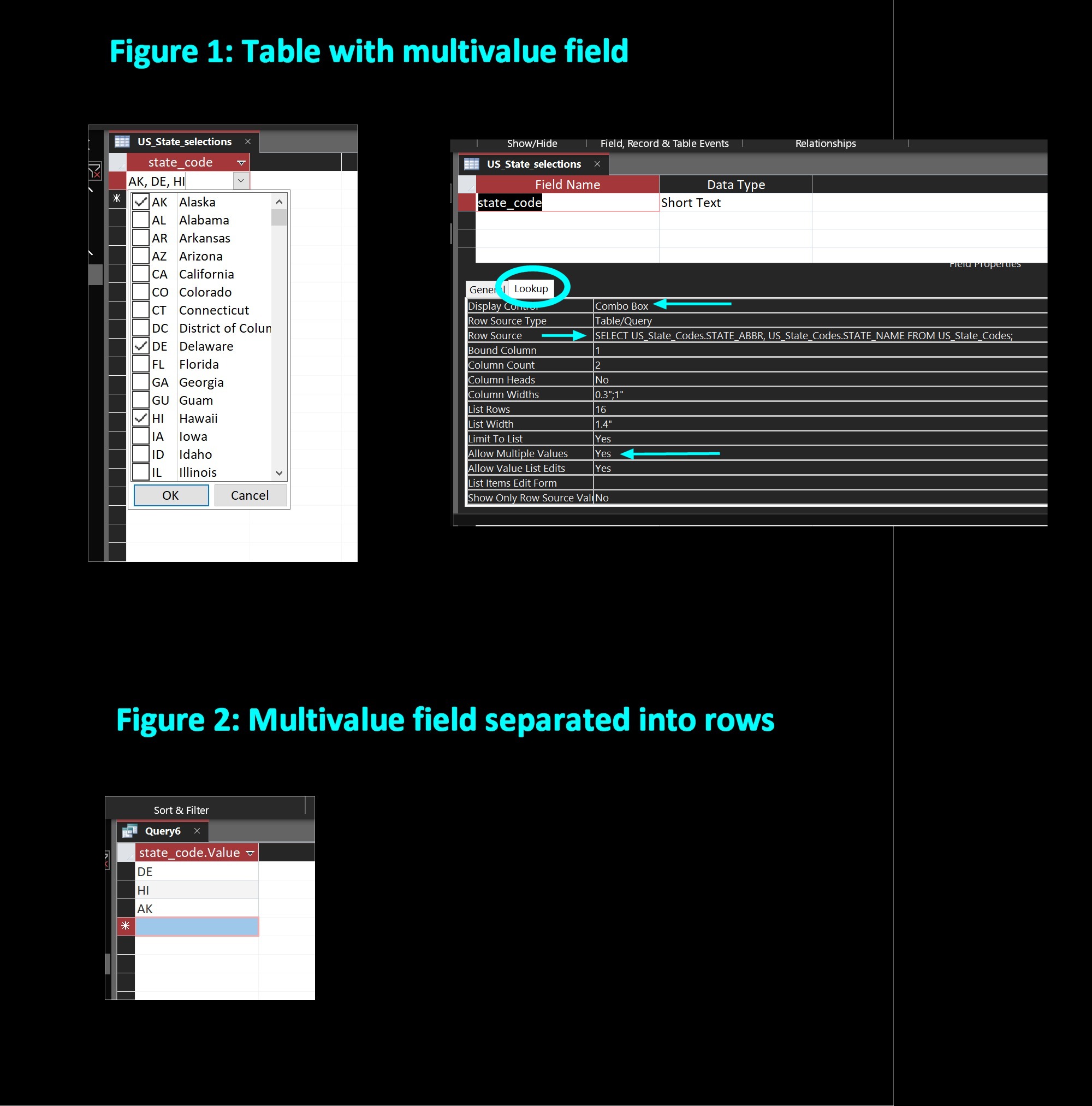
A multivalue field lets the user check off items in a combo box (see Figure 1 below). It is called "multivalue" because this one field stores all the choices the user makes. No need to guess how many items they will choose in advance. And your users should find it intuitive to select items this way. To set up a mutlivalue field, go to "Lookup" in table design, select "Combo Box", set the Row Source that contains info from the 50 states, and set "Allow Multiple Values" to Yes.
In Figure 1, the user selects Alaska, Delaware, and Hawaii. The field stores the 3 values internally as "AK, DE, HI". This is not a string, not an array, not a standard data type at all. This is why many Access users frown upon multivalue fields. They see it as some cockamamie data format that is hard to work with. But it would be of big help for you here.
You use the property ".Value" to retrieve each of the choices. For instance, this SQL:
SELECT state_code.Value FROM state_selections
will break the above selections into separate rows:
AK
DE
HI
See Figure 2.
Finally, you make a query to filter out the above 3 states, as follows:
SELECT cust_name, city, state FROM Customer_Billing_Addresses
WHERE state IN (SELECT state_code.Value FROM US_State_selections)
ORDER BY state, cust_name;
Note that there is a query within a query. This is essentially the same as:
SELECT cust_name, city, state FROM Customer_Billing_Addresses
WHERE state IN ("AK", "DE", "HI")
ORDER BY state, cust_name;
Essentially, the multivalue user choices are used as criteria for the query, which is your intention. This will return all the customers in AK, DE, and HI as shown in Figure 3. This is a relatively simple query, thanks to the criteria provided by the multivalue field.
This is how a multivalue field could help in this case. I would use this method whenever the user needs to make multiple selections that will be used as a filter for a query.
Kevin Yip
@Reply 3 years ago
Kevin Yip
@Reply 3 years ago
Joseph E RappOP
@Reply 3 years ago
Thank you, Kevin.
Sorry, only students may add comments.
Click here for more
information on how you can set up an account.
If you are a Visitor, go ahead and post your reply as a
new comment, and we'll move it here for you
once it's approved. Be sure to use the same name and email address.
This thread is now CLOSED. If you wish to comment, start a NEW discussion in
Access Beginner 5.