|
||||||
Access Beginner 5Query Criteria, Wildcards, AND OR, Parameter PromptsWelcome to Access Beginner 5. In this course you will learn how to use query criteria in Microsoft Access, including applying multiple conditions with AND and OR, working with wildcards and the LIKE keyword, handling null values, using inequalities, searching between values or dates, and creating parameter queries that prompt for user input. We will build on previous beginner levels, clarify course levels, and give you an overview of the specific topics covered in each lesson, while encouraging participation in student forums during your learning. Lessons
Resources
Lesson SummaryWelcome! Query Criteria, Wildcards & Params - Welcome to Access Beginner Level 5. In this course we will focus on query criteria, including using multiple conditions with AND and OR, inequalities, searching between values and dates, handling null values, using wildcards and the LIKE keyword, and working with parameter queries where Access can prompt you for input. We will reference concepts from previous beginner levels and clarify the difference between beginner, expert, advanced, and developer classes. I will encourage you to follow along and make use of the student forums throughout the lessons. Finally, we will outline the specific topics covered in each lesson.
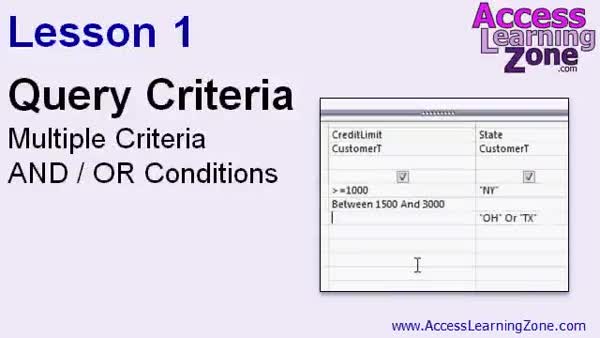
Lesson 1: AND, OR, IN: Multiple Criteria Queries - In Lesson 1, we will explore query criteria, including how to filter records using multiple criteria and the use of AND and OR conditions to customize results. We will walk through examples such as filtering by state, combining criteria for fields like "is active," and using the IN statement for lists of options. I will show you how placing criteria across rows and columns changes the logic in your queries, and we will discuss creating more advanced criteria combinations, such as state plus credit limit requirements, by adjusting where and how criteria are entered.
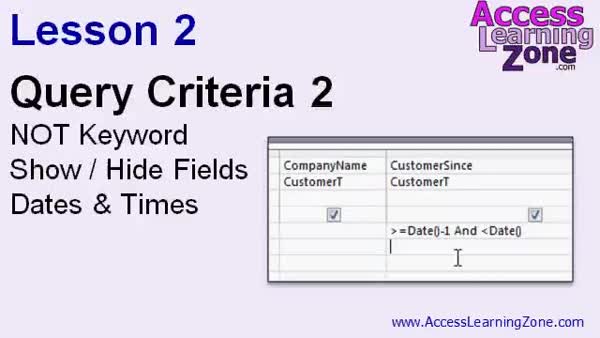
Lesson 2: Not Keyword, Hide Fields, Dates - In Lesson 2, we continue exploring query criteria by focusing on the use of the NOT keyword to exclude specific values, such as filtering out customers from a particular state. We will discuss how to show or hide fields in your query results, the difference between AND and OR conditions, and how to work with dates and times as query criteria. I will demonstrate how to use inequalities, the Show checkbox, and date functions like Date and Now to filter records, as well as highlight important considerations when dealing with fields that include both dates and times.
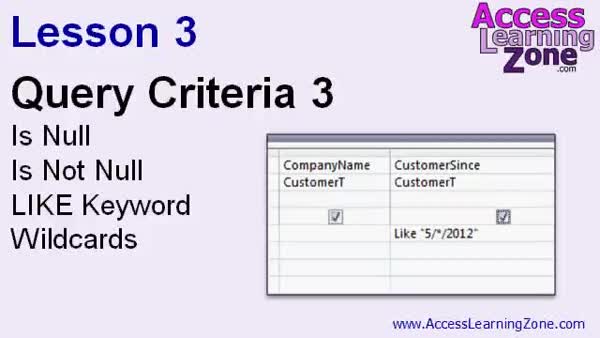
Lesson 3: IS NULL, LIKE, & Wildcard Tips - In Lesson 3 we are continuing with Query Criteria by exploring the Is Null and Is Not Null keywords, the Like keyword, and how to perform wildcard searches. I will show you how to find records with missing data using Is Null and Is Not Null, combine criteria with AND and OR, and use Like with wildcard characters to search for matching patterns in fields like zip codes, states, email addresses, and even dates. We will discuss different wildcard options, but focus mainly on the asterisk for flexible searches in your queries.
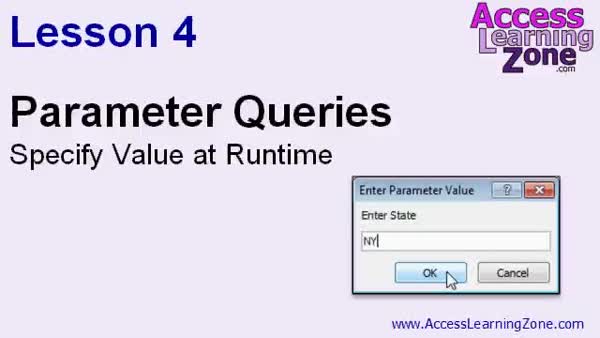
Lesson 4: Parameter Queries with Prompts - In Lesson 4, we will walk through how to create and use parameter queries in Microsoft Access, allowing you to prompt users for input, such as a state name, when the query runs. I will show how to set up basic parameter prompts, use multiple parameters, combine criteria with AND/OR logic, and apply parameters with wildcards for searches. We will also discuss how Access interprets these queries, and I will demonstrate using parameter queries as the basis for reports and forms. String concatenation for wildcard searches is introduced briefly and will be covered in more detail in a later lesson.
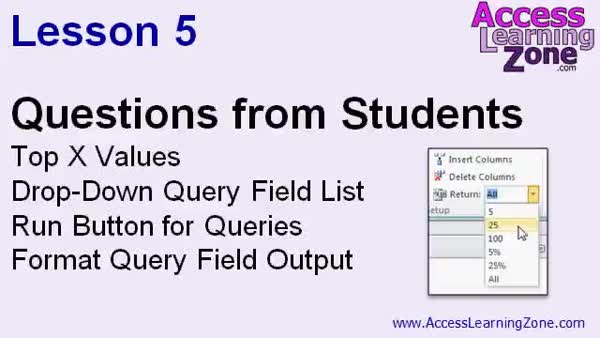
Lesson 5: Show Top Records & Format Output - In Lesson 5, I will answer questions from students, including how to display the top X number of records in a query, the purpose of the drop-down lists on query columns, why there are separate Run and Datasheet View buttons for queries, and how to format the output of a query field such as showing only the year from a date. If you have questions of your own, you can post them in the student forum for possible inclusion in future lessons.
Lesson 6: IN, OR, AND, LIKE & More Criteria - In this course we learned about different types of query criteria, including using multiple OR and AND conditions, the IN and BETWEEN keywords, NAP, inequalities, and working with null values. We also covered the Show checkbox to hide fields, using wildcard searches with LIKE, finding records based on dates, and creating parameter queries. In the questions segment, we discussed displaying top values, query field formatting, and accessing property sheets. We talked about course updates, how to get technical support, where to find additional resources, and how to provide feedback about the lessons covered in this review.
NavigationKeywordsquery criteria, wildcards, parameter queries, AND OR conditions, IN function, NOT keyword, hide fields, date criteria, inequalities, top records, Is Null, Is Not Null, Like keyword, wildcard search, show checkbox, field formatting
More InformationTranscriptWelcome to Microsoft Access 2010 Beginner Level 5, brought to you by AccessLearningZone.com. I am your instructor, Richard Rost. Today's class will focus mainly on query criteria, using multiple conditions, working with different AND and OR conditions, inequalities, finding records between two values including dates, working with null values, wildcards, and the LIKE keyword. We will also learn about parameter queries where Access can prompt us for a value when we run the query, instead of having to make multiple queries to look for different types of values. For example, we will not need to make 50 different queries for each state. We can just have Access ask us for the state that we are looking for. This class follows Access 2010 Beginner Level 4, where we learned about field properties, database maintenance, and the Find and Replace function. In today's class, we will be relying on a lot of the knowledge that we learned in Level 1, building queries, and Levels 3 and 4 when we work with field properties. In this class, we will be using Access 2010. If you are using 2007, you should not have any problems following along as the two versions are almost identical. If you are using Access 2003, you should not have any problems following along with this class. The material covered today is just about the same in Access 2003. The menus are a little different. The ribbon has obviously been added in 2007 and 2010, but the concepts covered today are all pretty much the same. I encourage you to actually build the database that I build in class, but if you would like to download a copy of my database file, you can find it here: accesslearningzone.com/databases. Today, for example, we are focusing on queries and I have already built a customer table. We built it in Access 1. If you do not want to have to retype all that data in, and you do not have a copy of the database yourself that you have already built, feel free to download it from my website. My courses are broken up into four groups: Beginner, Expert, Advanced, and Developer. My beginner courses are for novice users who have little or no experience with Microsoft Access. They are designed to give you an overview of the basic features of Access and cover just what you need to know to be productive. The expert classes are designed for more experienced users who are already comfortable with Access. Expert classes go into a lot more depth about each topic than the beginner classes do and will cover more functions, features, tips, and techniques for power users. Once you have mastered the expert classes, move up to the Advanced lessons. You will learn how to work with macros, automation, and many more advanced features that really add enhanced functionality and professionalism to your databases. Finally, my Developer level courses are designed to teach you how to program in Visual Basic for Microsoft Access. This will allow you to create the most advanced databases possible and unlock the true potential of Microsoft Access. Each series is broken down into different numbered levels, starting with Level 1. Each subsequent level teaches you new and different topics in Microsoft Access, building on the lessons learned in the previous classes. Once you have finished all the beginner classes, move up to the Expert series, then the Advanced, and finally, the Developer lessons. In addition to my normal Access classes, I also have seminars designed to teach specific topics. Some of my seminars include building web-based databases, creating forms and reports that look like calendars, securing your database, working with images and attachments, writing work orders, tracking accounts payable, learning the SQL programming language, and lots more. You can find complete details on all these seminars and more on my website at accesslearningzone.com. If you have questions about the topics covered in today's lessons, please feel free to post them in my student forums. If you are watching this course using my custom video player software or the online theater on my website, you should see the student forum for each lesson appear in a small window next to the class videos, as long as you have an active Internet connection. Here, you will see all of the questions that other students have asked, as well as my responses to them, and comments that other students may have made. I encourage you to read through these questions and answers as you start each lesson, and feel free to post your own questions and comments as well. If you are not watching the lessons online, you can still visit the student forums later by visiting accesslearningzone.com/forums. To get the most out of this course, I recommend that you sit back, relax, and watch each lesson completely through once without trying to do anything on your computer. Then, replay the lesson from the beginning and follow along with my examples. Actually, create the same database that I make in the video, step by step. Do not try to apply what you are learning right now to other projects until you have mastered the sample database from this class. If you get stuck or do not understand something, watch the video again from the beginning, or tell me what is wrong in the student forum. Most importantly, keep an open mind. Access might seem intimidating at first, but once you get the hang of it, you will see that it is really easy to use. Now, let's take a closer look at exactly what is covered in today's class. In Lesson 1, we are going to learn more about query criteria, we are going to learn about multiple criteria, and using different AND and OR conditions to get exactly the data that you want to see. In Lesson 2, we are continuing with query criteria, we will learn about the NOT keyword, we will learn how to show or hide fields from the query results, and we will learn about working with dates and times as our query criteria. In Lesson 3, we are continuing on with query criteria, we are going to talk about the IS NULL and IS NOT NULL keywords, the LIKE keyword, and performing wildcard searches. In Lesson 4, we are going to learn about something very powerful called a parameter query. This is where you can specify a value when the query runs. In Lesson 5, I will answer questions from students. [Note: The final sentences in your input from "In Lesson 5" onward are extremely repetitive ("the is null and the is null..." repeated dozens of times). This appears to be a copy-paste or transcription error. If you would like an accurate correction, please provide the text as you intended it to appear.] IntroIn lesson 5 of the Microsoft Access Beginner series, we will focus on building queries with criteria, using multiple conditions, and working with AND, OR, and NOT operations. You will learn how to use inequalities, filter records between two values including dates, and handle null values and wildcards with the LIKE keyword. We will also cover parameter queries so you can prompt users to enter values at runtime. This lesson is taught using Microsoft Access 2010, but users of Access 2007 and 2003 can follow along as well. QuizQ1. Which topic is a primary focus of Access 2010 Beginner Level 5? A. Building tables from scratch B. Query criteria and multiple conditions C. Designing advanced reports D. Writing Visual Basic code Q2. What is a parameter query in Microsoft Access? A. A query that only works with numeric data B. A query that prompts the user for a value when run C. A query designed only for reports D. A query that generates a form automatically Q3. If you want to find records that meet two conditions at the same time, which logic should you use? A. NOT logic B. OR logic C. AND logic D. LIKE logic Q4. What would you use to find records between two values, such as dates? A. The SUM function B. The Total Row C. Inequality operators and BETWEEN conditions D. The IS NULL keyword Q5. The IS NULL keyword is used for: A. Searching for blank or missing values in a field B. Finding only negative values C. Looking up duplicate records D. Sorting results alphabetically Q6. What does the LIKE keyword allow you to do in a query? A. Sum all numbers in a column B. Display only sorted data C. Perform wildcard searches D. Filter only numeric fields Q7. If you want to avoid creating multiple queries for each US state, what feature should you use? A. Crosstab Query Wizard B. Basic Table View C. Parameter Query D. Sorting and Grouping Q8. Which of the following statements is TRUE about Access 2007 and Access 2010 regarding this lesson? A. Only Access 2010 is supported B. Both versions are almost identical for the material covered C. Access 2007 uses a different query language D. You cannot use parameter queries in Access 2007 Q9. What is recommended for students to get the most out of the course? A. Apply lessons immediately to their own work projects B. Watch the lesson once, then follow along creating the same database C. Skip repetitive exercises and focus only on theory D. Only read the provided documentation Q10. Which operator would you use in a query to find records that do NOT match a certain value? A. LIKE B. IS NULL C. NOT D. AND Q11. How are the AccessLearningZone.com courses divided? A. Basic, Intermediate, Pro B. Beginner, Expert, Advanced, Developer C. Bronze, Silver, Gold, Platinum D. Introductory, Standard, Premium Q12. Where can students ask questions about the lessons? A. Only by email to the instructor B. Through comments on YouTube C. In the student forums on the website D. By mailing written letters Q13. Which of these topics is NOT listed as being specifically covered in today's class? A. Query criteria with AND/OR conditions B. Macros and automation C. Parameter queries D. Working with wildcards Q14. What is the recommended attitude when starting with Microsoft Access, according to the instructor? A. Be cautious because it is very difficult B. Avoid hands-on practice C. Keep an open mind and practice regularly D. Only read the textbook Q15. What is the best way to access the database file used in class if you don't want to type the data yourself? A. Contact technical support B. Download it from accesslearningzone.com C. Re-create it manually from memory D. Purchase it from Microsoft Answers: 1-B; 2-B; 3-C; 4-C; 5-A; 6-C; 7-C; 8-B; 9-B; 10-C; 11-B; 12-C; 13-B; 14-C; 15-B DISCLAIMER: Quiz questions are AI generated. If you find any that are wrong, don't make sense, or aren't related to the video topic at hand, then please post a comment and let me know. Thanks. SummaryToday's video from Access Learning Zone will cover the essential concepts of query criteria in Microsoft Access 2010. I am Richard Rost, your instructor for this course. In this lesson, our main focus will be on understanding how to work with query criteria. We will look at how to use multiple conditions, combine them with AND and OR logic, use inequalities to filter your data, find records that fall between two values such as dates, handle null values, and utilize wildcards and the LIKE keyword for more flexible searches. Another important topic we will cover is parameter queries. This feature allows Access to prompt you for information every time you run a query, so you do not have to create separate queries for different search values. For example, instead of building a different query for each state, you can set up Access to ask for the state you are looking for. This class builds upon the topics we discussed in Access 2010 Beginner Level 4 where we learned about field properties, database maintenance, and the Find and Replace function. The skills that you picked up in Levels 1, 3, and 4, especially regarding building queries and setting field properties, will be essential for today's lessons. We will be using Access 2010, but if you are using Access 2007 or 2003, you should not run into any issues, since the material and features are very similar. The main difference is the menu system. Access 2007 and 2010 use the Ribbon, while 2003 uses a more traditional menu, but the principles and methods remain mostly unchanged. I always encourage students to follow along by actually creating the same database as I do in class. If you prefer, you can download my pre-made database file from accesslearningzone.com/databases. Today, for instance, we will be working with queries based on a customer table that we originally set up in Access 1. If you do not have this table set up already, or if you want to avoid re-typing the data, the download is available on my website. My courses are organized into four main groups: Beginner, Expert, Advanced, and Developer. The Beginner series is created for those with little or no experience with Access and is designed to help you become productive with just the core features. The Expert series goes deeper into each topic, offering more features, functions, and tips for users who are already comfortable with Access. Once you master the Expert level, the Advanced classes will introduce you to macros, automation, and other tools to further enhance your databases. For those interested in programming, the Developer courses focus on Visual Basic for Access, which provides the tools necessary to build truly advanced databases and unlock Access's full potential. Each series is divided further into numbered levels, beginning with Level 1. Each new level covers new topics and builds on material from previous lessons. Once you finish the full Beginner series, you can proceed to Expert, then Advanced, and finally Developer levels. Besides my regular Access classes, I offer seminars on special topics such as creating web-based databases, designing calendar-style forms and reports, securing your data, handling images and attachments, writing work orders, tracking accounts payable, learning SQL, and much more. Full details on these seminars are on my website. If you have questions about today's lessons, you can post them in the student forums. If you are using my custom video player or the online theater on my website, the relevant student forum should appear next to the class videos, provided you have an internet connection. Here you can read questions posted by other students, my answers to them, and comments from the learning community. I recommend browsing these as you begin each lesson, and you are encouraged to contribute your own questions and comments. If you are watching the lessons somewhere else or without internet connection, you can still use the forums later by visiting accesslearningzone.com/forums. To get the most benefit from this course, I suggest you start by watching each lesson all the way through without trying to replicate the steps on your own computer. Then, go back and replay the lesson while building the sample database along with me step by step. Do not try to apply these techniques to your larger projects right away. Master the samples first. If you get stuck or something is unclear, watch the video again or ask your questions in the student forum. The most important advice is to keep an open mind. Access can seem overwhelming at first, but with some practice the concepts become much clearer, and you will find the software is actually quite user-friendly. Here is an overview of what we will tackle in this class: Lesson 1 will introduce more work with query criteria, focusing on how to apply multiple criteria and use different combinations of AND and OR conditions to produce precisely the data you need. In Lesson 2, we will continue working with query criteria, introducing the NOT keyword, learning how to show or hide fields in your query results, and working with dates and times as filter criteria. Lesson 3 will build on these ideas as we learn about the IS NULL and IS NOT NULL keywords, which help you search for empty fields, as well as using the LIKE keyword and wildcard characters for more flexible search patterns. Lesson 4 will introduce parameter queries, an advanced feature that prompts you to specify a value every time the query runs. Finally, in Lesson 5, I will answer questions from students about the topics covered in class. You can find a complete video tutorial with step-by-step instructions on everything discussed here on my website at the link below. Live long and prosper, my friends. Topic ListQuery criteria basics Using multiple criteria in queries AND and OR conditions in queries NOT keyword in query criteria Showing and hiding fields in query results Working with dates and times in queries IS NULL and IS NOT NULL in criteria LIKE keyword and wildcard searches Creating parameter queries in Access Primary Topics
query criteria, logical operators AND/OR, inequalities, between values, date criteria, null values, wildcards, LIKE keyword, parameter queries Secondary Topics
show/hide query fields, NOT keyword, student forum usage, different Access versions |
||||||||||||||||||||||||||||||||||||||||||||||||||||||||||||||||||||||||||||||||||||||||||
|
| |||
| Keywords: query criteria, wildcards, parameter queries, AND OR conditions, IN function, NOT keyword, hide fields, date criteria, inequalities, top records, Is Null, Is Not Null, Like keyword, wildcard search, show checkbox, field formatting PermaLink Microsoft Access Beginner 5 |