|
||||||

|
|
||||||
|
List Box FilterBy Richard Rost
 4 years ago
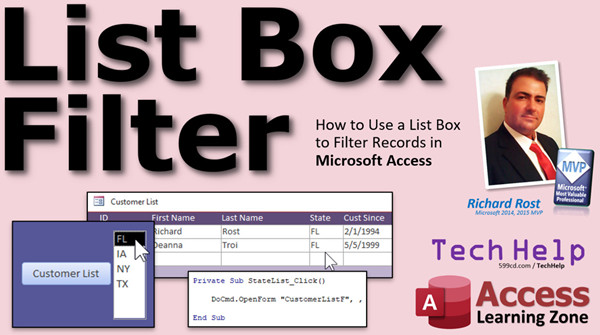
Use a List Box to Filter Records in Access In this video, I will teach you how to create a list box to filter your customer list based on their state. Shannon from Coon Rapids, Minnesota (a Platinum Member) asks: I would like to be able to quickly filter my customer list based on the state they're from. Can you make a simple list box of all of the states so my employees can just click on one and it filters the list? A lot of them are not very computer savvy and I don't want to have to teach them how to right-click, filter, etc. I just want a nice big list box with all of the states we have customers in (there are like 6 of them). MembersMembers will learn how to create a multi-select list box to pick multiple states.
Silver Members and up get access to view Extended Cut videos, when available. Gold Members can download the files from class plus get access to the Code Vault. If you're not a member, Join Today!
Links
Keywordsmicrosoft access, ms access, ms access tutorial, #msaccess, #microsoftaccess, #help, #howto, #tutorial, #learn, #lesson, #training, #database, How to Filter on a List box, multi-select list box, ListBox.MultiSelect property, Use a multi-select list box, Storing Multiple Selections From A List Box, multiselect, Microsoft Access Multi Select List Box, Using a Listbox on a form to filter, list box for criteria
More InformationTranscriptWelcome to another TechHelp video brought to you by AccessLearningZone.com. I am your instructor, Richard Rost. In today's video, I am going to show you how to use a list box to filter records in your Microsoft Access databases. Today's question comes from Shannon in Coon Rapids, Minnesota, one of my platinum members. Shannon says, I would like to be able to quickly filter my customer list based on the state they are from. When you make a simple list box of all the states, my employees can just click on one and it filters the list. A lot of them are not very computer savvy and I do not want to have to teach them how to right click, filter, etc. I just want a nice big list box with all the states we have customers in. There are like six of them. That is not a problem. Let's see how we do that. Before we get started, there are three other videos I want you to watch. Query criteria - you will need that one. You will get queries. That is where we can group records together. We will need that for making the state list. And watch my intro to VBA class. Do not be afraid of VBA. I have a 20 minute primer that will teach you all you need to know about VBA. It is absolutely free. It is on my website. It is on my YouTube channel. Go watch it. We are literally going to need one line of VBA code to do this. Can we do it without VBA? Yes, we can. There is a little workaround we could do, but trust me, this one line of VBA code will be worth it. So you are going to want to learn how to do this. Here we are inside my TechHelp free template. This is a free download from my website. Go watch the videos where I build this too. You can find links to all this stuff down below in the description below the video. Now in my database, I have got a customer list. There are all my customers. You can see the states that they are from are right there. You can double click on any one of these to open up their customer record. What Shannon wants is a way, like a list box right here, where we can click on the list box and it will open up just the customer list showing the customers from that state. You could teach your people how to open this up and then come in here and then right click and then go to equals Florida and that puts a filter on. But, like she said, some people are not very computer savvy and especially if you have a locked down database, if you have gone through my security seminar, you often want to disable that right click menu for security purposes. So it is nice to have an easier way to do this. Let's make a list box right here that has all of the states that we have customers in and you can see there are only a couple – Florida, Iowa, New York, and Texas. That is where the aggregate query comes in. Let's go to Queries, Create Query Design. I'm going to bring in my customer table. Let's bring in just the state field right there. If I run this now, you can see there are all of the customer records and all of the states. First thing I am going to do is get rid of null values. This is where the criteria comes in. So the criteria is going to be Is Not Null. Is Not Null, just like that. Now, when I run it, I do not see any blank records, but I still have duplicates. I still have Florida in there twice. So let's make an aggregate query to group these by state so it will group all the like ones together. Come over here and click on the Totals button and now you can see it says Group By. Now when I run it, there you go. There is an individual unique list of the states. You could further sort it if you want to sort it ascending. The list box will sort it for us. Let's save this control as myStateQ, as my state query. Now I have got a nice little query that I can use for my list box or my selection list. Go to Design View for the main menu. List boxes are up here – there you are, right there. This will also work with a combo box but I decided to pick a list box. I will tell you why at the end of the video. The list box wizard is good. I want to pick the values from another table or query. Yes. Where am I getting them from? Queries. "StateQ" is the query that we just built. Bring over that state field. Next. Here is where you can sort it if you like. Sure, we will sort by state ascending. Next. Maybe resize it a little bit. It does not have to be quite that big. Next. Label – we are going to delete it anyway – and then Finish. There is the label. Let's get rid of that. So here is my nice little thin list of states. We will put that right there. I am going to move the customer list over here next to it. You can make your form look pretty if you want to. I am just doing it like this. Save this form. Close it. Let's open it back up again. This is the Main Menu form. I put a button up here. I am going to click Launch to the bar because I use this and I install all my videos. Here it is. So I have a list of states right there. Right now this does not do anything. It is just a pretty little list of states we can look at. The customer list opens up all the customers. I am going to slide that over there and save it. That is right there. Here is where that one line of VBA code comes in. I want one line of VBA code so when I click on one of these states, it opens up that customer list form with just the customers from that state. Right click, Design View. First of all, let's give this guy a good name because the wizard does not name it for us, it is called List16 right now. That is not very helpful. Let's change the name to StateList. Now, what do I want to do? I want to open up the customer list form and show only the records where the StateList is equal to their state. In the StateList box, go to Events. Find the On Click event – this is going to happen when you click on this list box. As soon as you click on New York, that is going to open up that form and show everybody from New York. Click the builder button (...). Now you might get a window – "What kind of builder do you want?" Pick the Code Builder. If you watched my intro to VBA class, you know what that is about. Right down here in the StateList_Click event, one line of code is all we need: DoCmd.OpenForm What form do we need? We need the CustomerListF. Now comma, comma, comma – we are at the Where Condition. Now the Where Condition is going to look something like this: it is going to say "where State," which is a field on the customer form, equals "New York" like that. But that "New York" has to be in quotes inside. There have to be double double quotes like this. Double double quotes. Remember, quotes inside of a string have to be double double quotes. That is another video I have, you will want to go watch that too. It explains this in a little more detail. If you put double quotes inside of a string, you have to use double double quotes. Probably should have put that on a prerequisite list up front. Double double quotes. We are going to use a little string concatenation in a minute – that is putting two strings together. I will show you that in a second too. This will open up the customer list form and show me all of the records where state equals "New York." And I am just hard coding that in there for now. Let's close this. Save changes, yes. Open it back up again. Look at this. There is the one record from New York, but I hard coded New York in there. So no matter what I click on, I am getting New York. I do not want to hard code New York in there. I want to use whatever is the value in this box. So let's go back to our code window. Instead of putting New York in there, I am going to put that StateList in there. So I will use some concatenation. It is going to look like this: close quotes, ampersand, StateList, ampersand, open quotes. See that? It is a little tricky, I know, because it is a text string, that is why. So this is going to look like: State equals "New York", and then the close quotes there. See that? This whole double double quote thing is crazy. I did not come up with this, I just had to teach you how to do it. Save that. I said one line of code. I did not say it was going to be a simple line of code. Ready? Florida? Iowa? New York? Texas. That is how you do it. You click on it, you get that state. If it is a numeric criteria, by the way, if it is an ID, if you have a list of states from a table over here, then it is easier. You do not need those double quotes. That is just crazy. But we are doing it with the actual state text. If your users want to turn that off, they just have to click on the filter down here. That is easy to teach them. It goes back to everybody. Or if this is closed and they click on customer list, it will open up everybody. But if they want to filter it, just click on that and it will filter it for you. So easy. See how simple? Why did I pick a list box? The combo box will work just fine, or you can even type it in a text box. I picked a list box because in the extended cut for the members, I am going to show you how to make this a multi-select list box. So you can say, show me everybody from New York and Florida at the same time. That will be in the extended cut for the members. If you want to learn more in the extended cut for the members, I show you how to turn that list box into a multi-select list box. You can pick Florida and New York and Texas and whatever else, and then hit the customer list button. And it brings up all of those customers from all of those states. Here it is. Give me Iowa and Texas. There you go. Look at that. That is covered in the extended cut for the members. Silver members and up get access to all the extended cut videos. All of them. There are about 200 and some of them now. Lots of them. Gold members can actually download these databases. How do you become a member? Click on the Join button below the video. After you click the Join button, you will see a list of all the different membership levels that are available, each with its own special perks. Silver members and up will get access to all of my extended cut TechHelp videos, one free beginner class each month, and more. Gold members get access to download all of the sample databases that I build in my TechHelp videos, plus my code vault, where I keep tons of different functions that I use. You will also get a higher priority if you decide to submit any TechHelp questions to me. And you will get one free expert class each month after you have finished the beginner series. Platinum members get all the previous perks, plus even higher priority for TechHelp questions, access to all of my full beginner courses for every subject, and one free developer class each month after you finish the expert classes. These are the full length courses found on my website, not just for Access, too. I also teach Word, Excel, Visual Basic, and lots more. You can now become a diamond sponsor and have your name or company name listed on a sponsors page that will be shown in each video as long as you are a sponsor. You will get a shout out in the video, and a link to your website or product in the text below the video and on my website. But do not worry, these free TechHelp videos are going to keep coming. As long as you keep watching them, I will keep making more, and they will always be free. IntroIn this video, I will show you how to set up a list box in Microsoft Access to filter your customer records by state with a single click, making it easy for users to find customers from a specific location without needing to use advanced filtering features. We'll walk through building a query to list unique states, adding a list box to a form, and using a single line of VBA code to tie it all together, so users can simply click a state to see the matching records. QuizQ1. What is the main purpose of the video? A. To show how to use a list box to filter records in Access B. To teach creating relationships in Access C. To explain security settings in Access D. To demonstrate Excel macros Q2. What was Shannon's request regarding customer records? A. Edit multiple customer states at once B. Use a list box to filter customers by state C. Allow customers to change their own states D. Email customers from certain states Q3. Why did the instructor recommend NOT manually right-click filtering for users? A. Users are not allowed to use right-click due to security B. Right-click filtering is too hard to teach C. The right-click menu is outdated D. It only works in Excel, not Access Q4. What type of query is used to provide the list of unique states for the list box? A. Parameter Query B. Crosstab Query C. Aggregate Query (Group By) D. Update Query Q5. Why is the criteria "Is Not Null" added to the query? A. To allow blanks in the state field B. To filter out any duplicate states C. To remove blank state records from the list D. To sort the states alphabetically Q6. What is the main advantage of using a list box here over a combo box or text box? A. It is the only control supported in Access B. It looks better with more colors C. It allows for easier selection and can be made multi-select D. The list box loads faster Q7. When adding the list box to the form, where do the values come from? A. Hard-coded values in VBA B. The CustomerListF form C. The StateQ query built earlier D. A table of states typed by the user Q8. What event in the list box is used to trigger filtering the records? A. On Change B. After Update C. On Double Click D. On Click Q9. What does the VBA code in the StateList_Click event do? A. Updates all customer states B. Opens the CustomerListF form filtered by the selected state C. Edits the StateQ query D. Deletes customers from the selected state Q10. What challenge must be managed when writing the VBA filter for a text-based state field? A. Handling NULL values B. Ensuring numeric sorting C. Handling quotes inside the condition string D. Matching field case sensitivity Q11. What technique is used to insert the selected state value into the filter string in VBA? A. Substring extraction B. String concatenation with ampersands and double quotes C. Replace function D. Left join in SQL Q12. If the filtering was done using a numeric field instead of text, what could be omitted? A. The Where Condition B. The list box C. The double quotes around the value in the filter D. Opening the form Q13. How can users turn off the filter and see all records again? A. Click on the filter toggle in the navigation bar B. Restart Access C. Delete the list box D. Right-click the customer list form Q14. What is an added feature shown in the extended cut for members? A. Using a combo box instead of a list box B. Making the list box multi-select to filter for multiple states at once C. Sending emails to customers in a selected state D. Importing states from Excel Q15. What is NOT a benefit of becoming a Gold member according to the video? A. Downloading sample databases B. Access to all full beginner courses in all subjects C. Access to the code vault D. One free expert class per month Answers: 1-A; 2-B; 3-A; 4-C; 5-C; 6-C; 7-C; 8-D; 9-B; 10-C; 11-B; 12-C; 13-A; 14-B; 15-B DISCLAIMER: Quiz questions are AI generated. If you find any that are wrong, don't make sense, or aren't related to the video topic at hand, then please post a comment and let me know. Thanks. SummaryToday's video from Access Learning Zone focuses on how to use a list box in Microsoft Access to filter records, specifically to let users quickly filter a customer list by state. I received a question from a member who wants her employees to be able to filter customers by state using a simple list box, rather than having to right-click and apply filters manually. She mentioned that many of her users are not very comfortable with computers, so the solution needs to be straightforward. There are only a handful of states involved, so a custom list should be easy to set up. To follow along, I recommend reviewing a few important tutorials first: understanding query criteria, working with aggregate queries for grouping records, and my introductory VBA class. Do not worry if you are not familiar with VBA; the solution here only requires a single line of code, and I have a 20-minute free primer that explains it. While there is a possible workaround that does not use VBA, I highly suggest learning this one line of VBA for a cleaner solution. Starting with my TechHelp free template, which you can download from my website, we begin with a customer list where each customer's state is visible. The goal is to add a list box that displays all the states where we have customers, making it easy to filter the list with a single click. Although you can technically teach users to manually apply filters on the datasheet, that approach does not work well with locked-down databases, especially if you have disabled shortcut menus for security as I've shown in my security seminar. Providing a simple list box is a much friendlier solution. Now, let's create a query that lists all unique, non-blank states in our customer records. Using Query Design, bring in the customer table and select just the state field. Apply a criteria to exclude blanks, using "Is Not Null." Running this query now removes records with empty states. There may still be duplicates though, so make it an aggregate (totals) query and group records by state. Now, running the query produces a unique list of states only. Sort the results alphabetically if you wish, and save this query (for example, call it myStateQ). With this query ready, switch to Design View of your main menu form and add a list box. Choose to pull the values from a query and select your state query. Bring over the state field, choose a sort order, and finish up the wizard. Now you have a list box showing your states. Resize or reposition fields on your form as needed. This list box currently just displays the states; clicking on it does nothing. The next step is to make it interactive so that clicking on a state opens the customer list filtered for only that state. Now, update the list box's name to something meaningful, such as StateList, instead of the default name. Then, in the Events section for the list box, find the On Click event. This determines what happens when a user clicks on a state in the list. Open the Code Builder for this event. In the generated event procedure, you need to add a single line of code to open the customer list form, filtered by the selected state. The key is composing the Where Condition so it matches the state exactly. Since we are working with text fields, you have to construct a string with proper double quotes around the state name. I have a separate tutorial that covers handling double quotation marks inside strings, as this part can be confusing. Initially, you might just hard code the state name in this filter to make sure it is working. When you test it, only records for that hard coded state appear. To make the filter dynamic, replace the hard coded value with the value from the StateList box itself, using string concatenation. This lets the code read the selection and update the filter accordingly. After saving your changes and testing the form, clicking on any state in the list will now open the customer list filtered to just that state's records. This works great. If you were using a numeric ID for states instead, you would not need the extra double quotes, making the criteria a bit simpler. If users want to remove the filter, they can simply use the filter toggle at the bottom of the form or close and reopen the customer list to see all records again. You might be wondering why I chose a list box instead of a combo box. While both work, a list box is ideal if you want to allow the user to select multiple states at once. In the extended cut for the members, I show how to convert this into a multi-select list box so the user can pick, for example, Florida and New York together, and view all customers from both states. If you are interested in that advanced functionality, I cover it step by step in the extended cut available to Silver members and above. I show how to select multiple states, click a button, and retrieve all matching customer records. Silver members and higher receive access to all extended cut videos as well as a free beginner class every month. Gold members get to download all sample databases and access a collection of reusable VBA code, plus higher priority for submitted TechHelp questions and a free expert class after completing the beginner series. Platinum members enjoy all previous perks, even faster question priority, access to every full beginner course for every subject I teach, and a free developer course each month after expert level. But even if you are just following along for free, rest assured that I will keep making these TechHelp videos and sharing them with you as long as people are watching. You can find a complete video tutorial with step-by-step instructions on everything discussed here on my website at the link below. Live long and prosper, my friends. Topic ListCreating an aggregate query to list unique states Filtering out null values in query results Saving the query to use in controls Adding a list box to a form in Access Configuring the list box to display states from a query Renaming list box controls for clarity Using the On Click event for the list box Writing VBA code to open a form filtered by selected state Concatenating strings in VBA for filter criteria Using double quotes inside string expressions in VBA Testing the list box filter with real data Explaining the difference between filtering by text and by ID Primary TopicsMicrosoft Access, list box control, filtering records, aggregate queries, VBA code, form design Secondary Topicsuser interface design, query criteria, event handling, security considerations, form layout |
||||||||||||||||||||||||||||
|
| |||
| Keywords: TechHelp Access How to Filter on a List box, multi-select list box, ListBox.MultiSelect property, Use a multi-select list box, Storing Multiple Selections From A List Box, multiselect, Microsoft Access Multi Select List Box, Using a Listbox on a form to f PermaLink List Box Filter in Microsoft Access |