I have posted twice to the forum but have not received any responses. I have a form which has some fields that are entered from the operator, and one combo box that collects the possible entries from another table. It is a data input table. It has a button to add record to store the data and revert to a blank form. The problem is that I want some of that data to remain in some of the fields so that the operator doesnt have to re-enter it after each record is entered. I have managed to get this done on the fields except for the combo box. In the After Update field for the non-combo box I write the following: Me.ControlName.defaultvalue = & me.ControlName.value & This works for the normal fields, but not for the combo box.
Please help. If there is a lesson which contains this trick, please let me know and I will purchase that lesson. Mike King
Kevin Robertson
@Reply 3 years ago
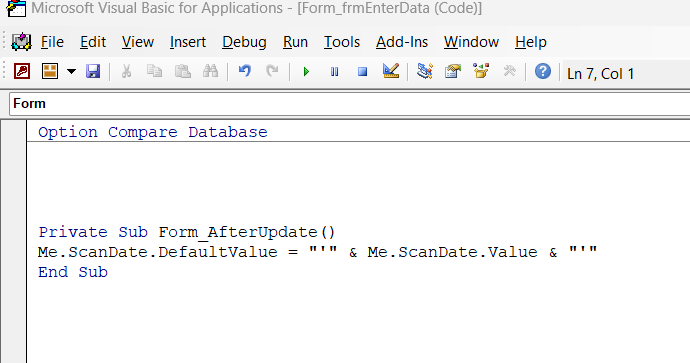
What is the actual code you have for non combo box fields. The code you have stated above gives an error.
Please post a screenshot clearly showing the EXACT code.
Kevin Yip
@Reply 3 years ago
If you need to re-enter the same data into another record, there may be something wrong with the table design, because tables need "normalization," which means each piece of data only appears once in a table. In a normalized design, you rarely need to enter the same data in different rows.
MIchael KingOP
@Reply 3 years ago
MIchael KingOP
@Reply 3 years ago
MIchael KingOP
@Reply 3 years ago
MIchael KingOP
@Reply 3 years ago
MIchael KingOP
@Reply 3 years ago
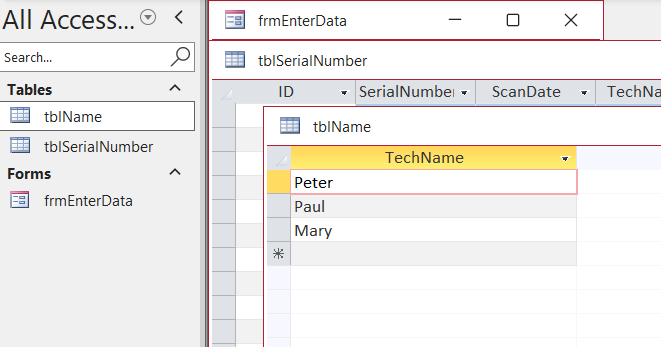
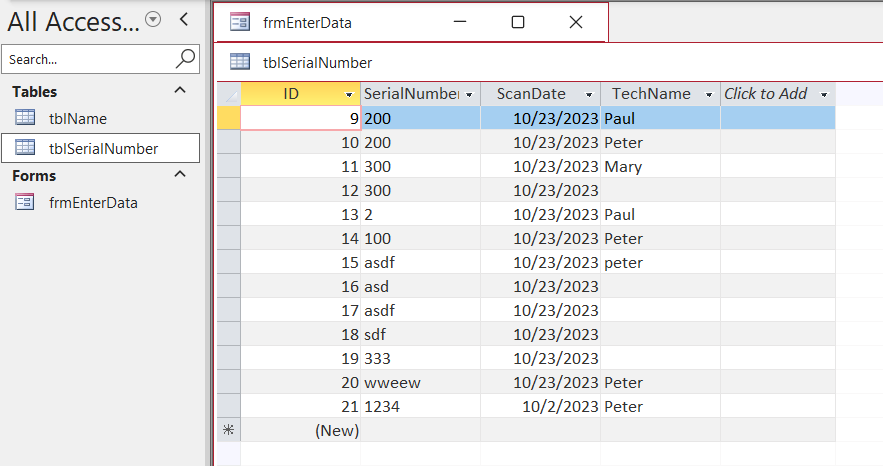
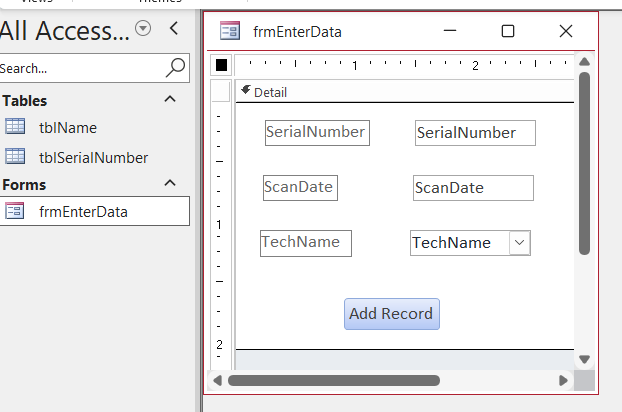
OK, here is a simple database that demonstrates the problem. There are two simple tables as shown in images 1 and 2. There is a simple form shown in image 4. If I want the ScanDate to remain on the form after I press Add Record, I go to the After Update property for the sheet, enter the code builder, and enter the code shown in image 3. This works.
However, if I want the TechName to remain, when I try to enter similar code, the code builder will not let me use the DefaultValue word in the code. I type in Me.TechName. but the only option there is value.
I hope this is clear enough. In my previous attempts to get an answer I also showed these screenshots, although with a more complicated database. This time I just wanted anyone who has been successful using a combo box and making the value remain after adding the record to tell me how they did it.
Thanks for helping.
Mike
Entering data and then moving to a new record in that same table, then you'll need a way to copy the value from the previous record. Changing the default value like that isn't a good way to go about it. What you might want to consider doing is putting that Tech name field as a default value up in the form header like I cover in the Extended Cut for this video: Default Value.
Or you could use an unbound form and then add the data with an SQL insert statement when the user clicks the button but that's a little more involved.
I'd also like to remind you that even though you posted already in the Forum and no one's posted a reply, just sit back and be patient please because the moderators that help here are all volunteers and even though I do read all of the posts myself eventually I'm currently about 6 months behind due to the volume posts we receive. Tech support is not guaranteed and if you want paid support there is the Access Developer Network forum.
Sorry, only students may add comments.
Click here for more
information on how you can set up an account.
If you are a Visitor, go ahead and post your reply as a
new comment, and we'll move it here for you
once it's approved. Be sure to use the same name and email address.
This thread is now CLOSED. If you wish to comment, start a NEW discussion in
Access Expert 2.