Free Lessons
Courses
Seminars
TechHelp
Fast Tips
Templates
Topic Index
Forum
ABCD
 
Home   Courses   TechHelp   Forums   Help   Contact   Merch   Join   Order   Logon  
 
Back to Find Record Combo    Comments List
Upload Images   @Reply   Bookmark    Link   Email   Next Unseen 
Private Function updatefilter
Karen Wilfong 
    
2 years ago
Hello, I'm a new silver member and specifically needed help with the "Find Record Combo Box in the extended cut video".

I followed the video to a T.  I double and triple-checked my code against the video.  

The first issue I noticed was when adding =updatefilter() to the afterupdate event (at 16:25 in the video). The =updatefilter() did not auto-populate as it does in the video, so I just typed it in myself.

Then when I tested my form I got an error that said:

"The expression After Update that you entered as the event property setting produced the following error: The expression may not result in the name of a macro, the name of a user-defined function, or [Event Procedure]"

So I'm guessing this is a "user-defined function" that can not be added to the After Update.  This is the reason I subscribed! To get this code.

Am I missing anything?
Karen Wilfong OP  @Reply  
    
2 years ago

Sami Shamma  @Reply  
             
2 years ago
Hi Karen

We are here to help. Please post screenshots of the form in design view as well as your code.
Karen Wilfong OP  @Reply  
    
2 years ago

Karen Wilfong OP  @Reply  
    
2 years ago

Karen Wilfong OP  @Reply  
    
2 years ago

Karen Wilfong OP  @Reply  
    
2 years ago

Karen Wilfong OP  @Reply  
    
2 years ago

Karen Wilfong OP  @Reply  
    
2 years ago
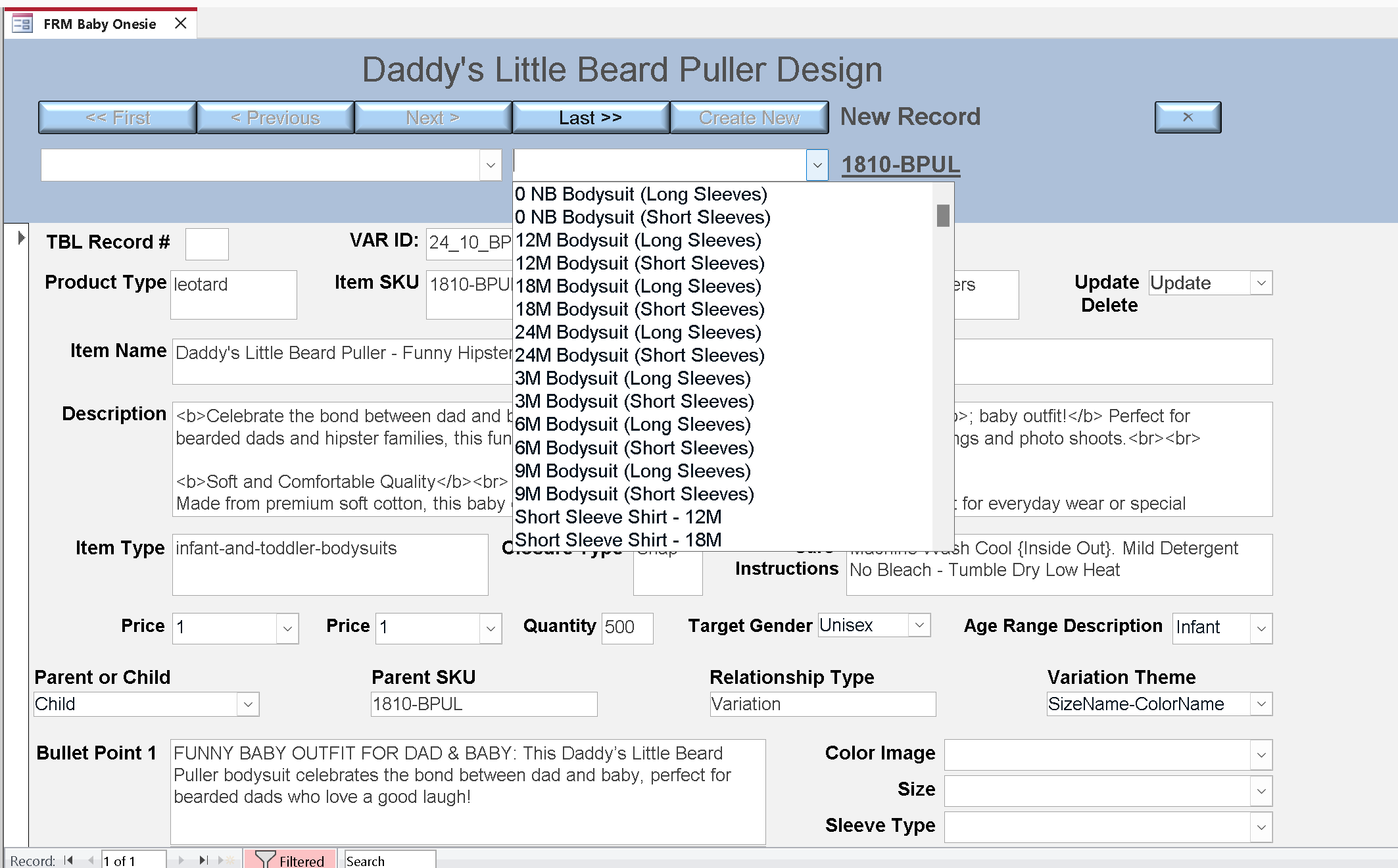
I closed the form and tried to reopen it. The first two screenshots are what I got. I typed anything in each of the successive boxes and got into my form.  The dropdowns display properly, however they do not affect the form data below. They don't select the correct record for me to view.  

I used the original code to pull up just the sizes before I added another field to my database that I wanted to filter on, and it worked great.  But having two fields doesn't work.
Karen Wilfong OP  @Reply  
    
2 years ago
Notice on the form that the navigation buttons are not working either. Its on "new record".
Karen Wilfong OP  @Reply  
    
2 years ago
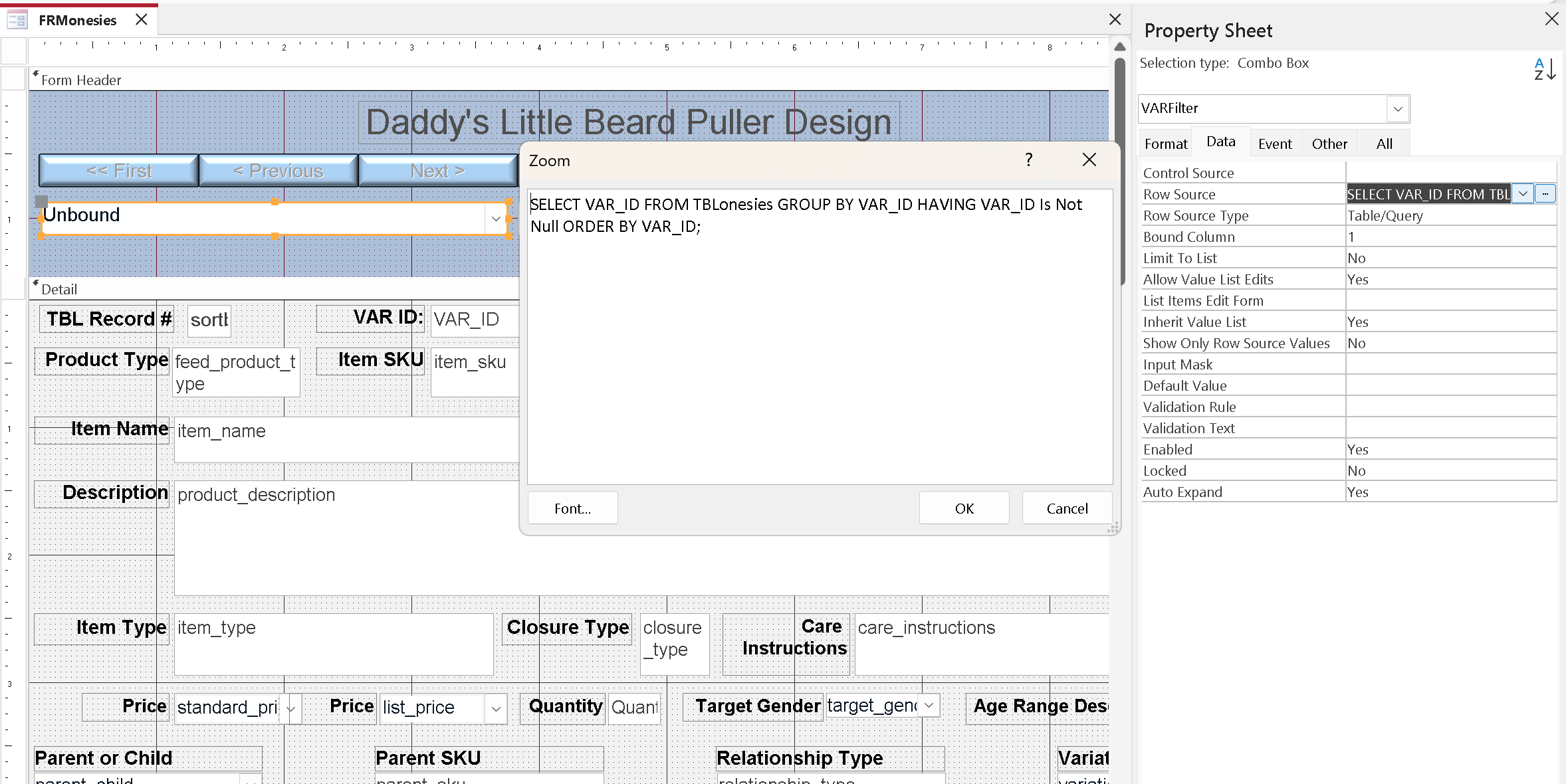
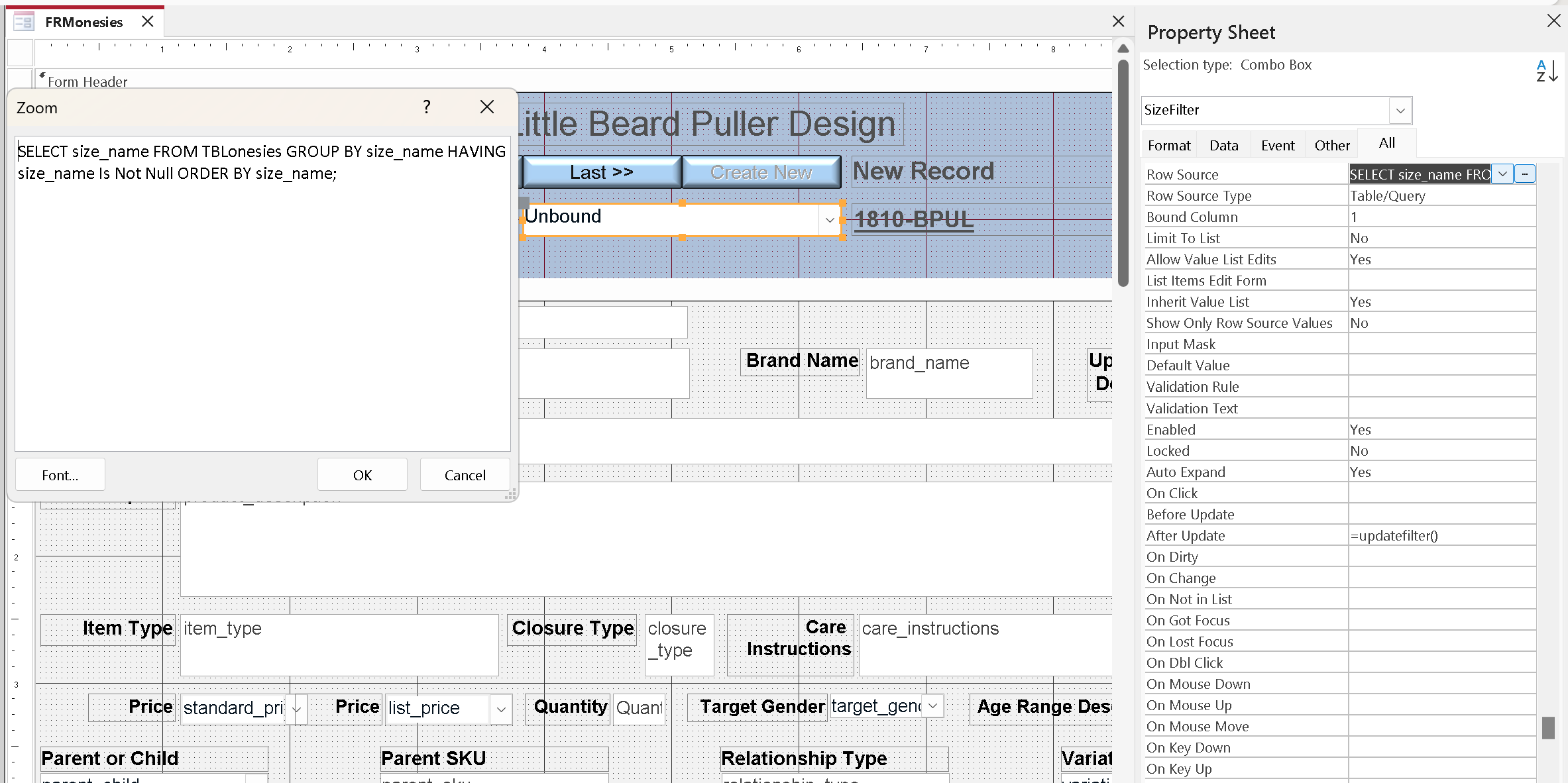
Here are the queries for the first box (VarFilter) and the 2nd box (SizeFilter)
Karen Wilfong OP  @Reply  
    
2 years ago

Karen Wilfong OP  @Reply  
    
2 years ago

Kevin Robertson  @Reply  
           
2 years ago
Since you are using underscores in the field names I would enclose them in square brackets.
Karen Wilfong OP  @Reply  
    
2 years ago
Thank you, I'll do that, but I don't  think that's what is causing the issue.
Karen Wilfong OP  @Reply  
    
2 years ago
The  table field names are from Amazon products excel sheet so I can't change the underscores.
Kevin Robertson  @Reply  
           
2 years ago
In the Row Source of your Combo Boxes:

SELECT [VAR_ID] FROM TBLonesies GROUP BY [VAR_ID] HAVING [VAR_ID] Is Not Null ORDER BY [VAR_ID];

SELECT [size_name] FROM TBLonesies GROUP BY [size_name] HAVING [size_name] Is Not Null ORDER BY [size_name];
Kevin Yip  @Reply  
     
2 years ago
Hi Karen, in order for Richard's code to work, your combo box's name must be the name of the field you want to filter on, plus "Filter".  If you want to filter on the VAR_ID and SIZE_NAME fields, your combo boxes must be named VAR_IDFilter and SIZE_NAMEFilter.  But you named them VARFilter and SIZEFilter, and that's why they don't work -- because the code thinks your field names are VAR and SIZE.  They don't exist, and that's why you get the prompts "Enter Parameter" VAR and SIZE.  That is what happens when your query contains unknown field names.
Karen Wilfong OP  @Reply  
    
2 years ago
THANK YOU!!
I will have to rewatch that video because I don't remember him stressing that the combobox name had to match the form name, except for adding filter on the end.  That is what I missed.

I also put brackets around my underscored fields in the queries.  Between the two, it is working now.  I have been trying to get a cascading field to work for days, so I'm pretty happy about this. Thanks again!
Karen Wilfong OP  @Reply  
    
2 years ago
BUT !!

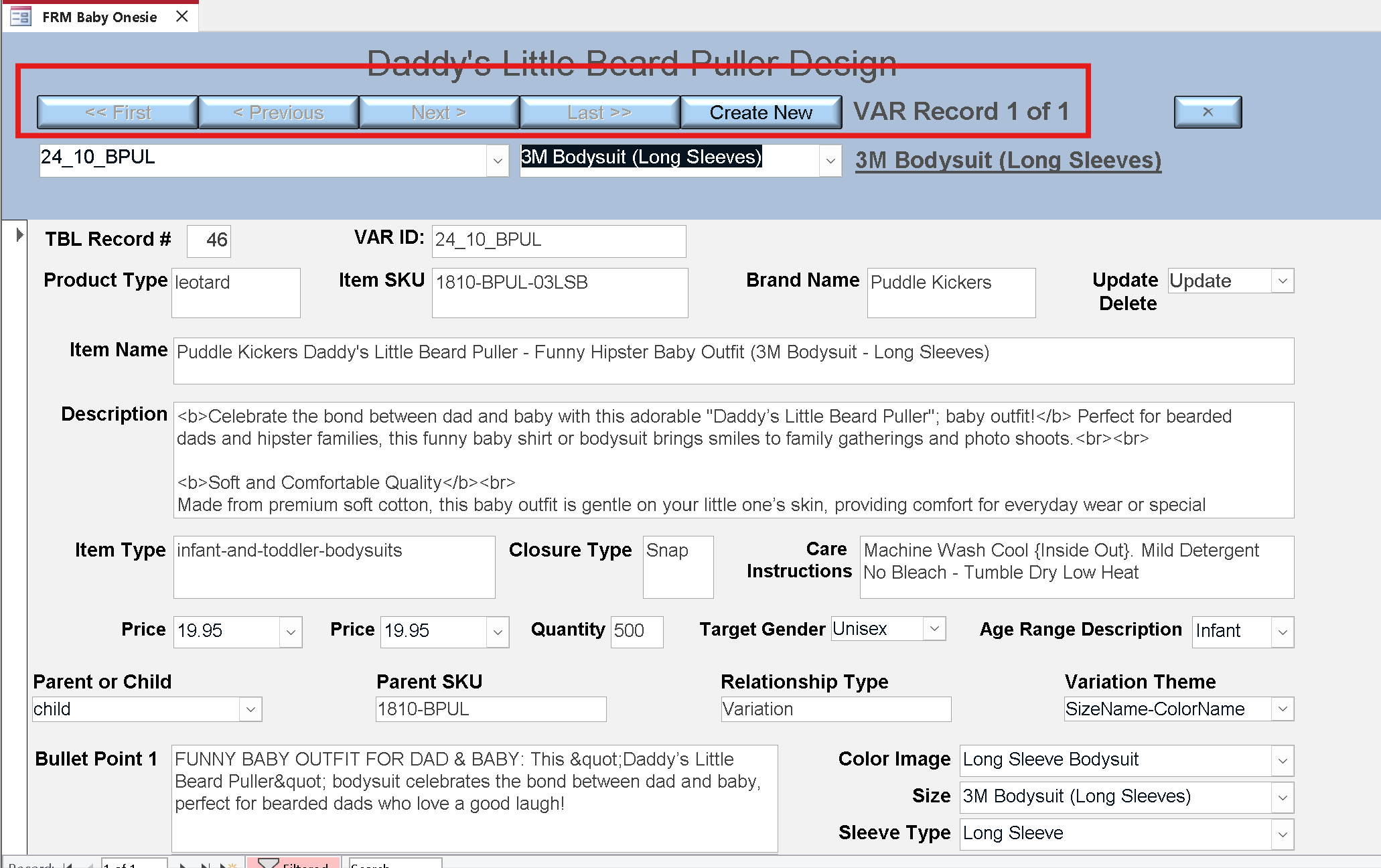
Now my navigation buttons are not working.  I'll attach a picture of the code for the buttons, as well as what they look like now.
Karen Wilfong OP  @Reply  
    
2 years ago

Karen Wilfong OP  @Reply  
    
2 years ago

Karen Wilfong OP  @Reply  
    
2 years ago

Karen Wilfong OP  @Reply  
    
2 years ago
The last image with code DOES work. You can see it next to the combobox.  This was not working before.
Karen Wilfong OP  @Reply  
    
2 years ago
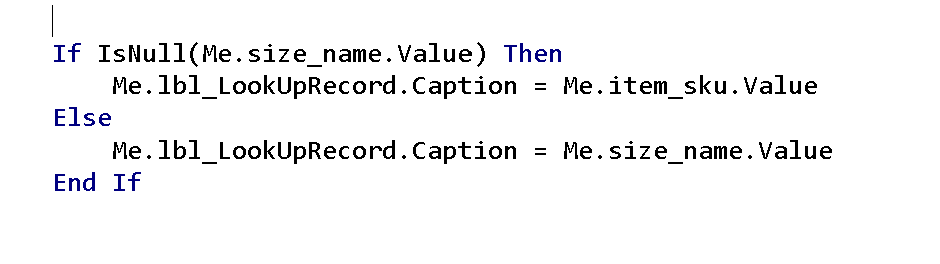
Just realized I didn't send all of the code.  This goes first, above Sub Form_Current()
Karen Wilfong OP  @Reply  
    
2 years ago

Sami Shamma  @Reply  
             
2 years ago
Hi Karen

Richard said few times the "Filter" in the end of the control name is very important.

If you have to have the "_" in your names, then you MUST enclose them in square brackets. follow what Kavin said.
Karen Wilfong OP  @Reply  
    
2 years ago
Yes I got that part, and had the "filter" at the end of the namet. But before this video I had named those boxes with a name similar to cboGoToProperty (nothing to do with the field name), and I didn't want a name that long (cboGoToPropertyFilter), so I shortened it to VARfilter and Sizefilter, not really thinking about why that would not work.
Karen Wilfong OP  @Reply  
    
2 years ago
And I believe I have solved my problem with my navigation controls.  I need the button's navigation code to go at the top of my code, and the new filter code to go below it.  Now the navigation controls appear to be working.
Karen Wilfong OP  @Reply  
    
2 years ago
And I did follow Kevin's advice. However, I do believe that underscores are safe and that brackets are not necessary for them.

And sadly, the navigation controls are NOT working.  I was looking at a prior version of the form I had pulled up to compare the code.  Should I post this as a new comment?
Adam Schwanz  @Reply  
           
2 years ago
They work until they dont. I've seen underscores, dashes even, numbers, all work fine until suddenly they stop, or an Access update comes out and breaks them. I would try to not name anything like that if you don't have a reason to deal with it.
Adam Schwanz  @Reply  
           
2 years ago
Also what does "not working" mean? Do you get an error, the buttons are unresponsive, or what's going on with them?
Karen Wilfong OP  @Reply  
    
2 years ago
I do have a reason. The fieldnames are specific to my Amazon product spreadsheet in Excel (Amazon made them).  The way I transfer the table data to my Excel sheet includes those header names, and it's just easier if I duplicate the ones already on the spreadsheet.
Karen Wilfong OP  @Reply  
    
2 years ago
I uploaded the images just above my comments, they are not enabled so I can't click them (other than "new record").
Adam Schwanz  @Reply  
           
2 years ago
Fair enough, I might even consider making two tables, one that takes in your import easily, and then append that to the real table that has access friendly names. Pretty much every other language I know is more friendly with syntax or considered the "norm" to deal with underscores or dashes, but I have no trust in Access to handle them long term lol. I guess we can just be glad access isn't a case sensitive language :P.
Adam Schwanz  @Reply  
           
2 years ago
If you take out the on error resume next do you get any useful information from errors?
Karen Wilfong OP  @Reply  
    
2 years ago
Well, I hope I future proofed them in my tiny project with the brackets.  This is likely the only access project I will take on, its a personal one for my own products on Amazon (fulfilled by me, the seller).
Karen Wilfong OP  @Reply  
    
2 years ago
I'll try that
Sami Shamma  @Reply  
             
2 years ago
Karen,

I import an Excel sheet daily from the Mainframe that has crazy field names. I just rename them in the "Saved" Import.
I know you are frustrated, we all been there. You are getting a good advice from guys with a lot of experience.
Between Adam, Keven R, Kevin Y and myself we have over 100 years of experience.
Karen Wilfong OP  @Reply  
    
2 years ago
No error.  

I think it's having trouble with me.currentrecord after using the dynamic dropdown filters.
Karen Wilfong OP  @Reply  
    
2 years ago
I don't import my Excel sheet, I create it in Access (with their field names) then copy/paste it into the Amazon spreadsheet, beneath their 3 proprietary required records.  This is working so I'm fine with it.  I did put underscored fieldnames in brackets within queries.

My only problem now is with my navigation control buttons not working since I added the new filters.
Karen Wilfong OP  @Reply  
    
2 years ago
And I am very appreciative of your experience and help, believe me! :)
Kevin Robertson  @Reply  
           
2 years ago
You are controlling the Enabled property in the On Current event only which should work for when you are moving between records but not when you filter your records.

Create your own Sub Routine for that code and call it from wherever you need to (for example: Current, Click, AfterUpdate...)
Kevin Robertson  @Reply  
           
2 years ago
Karen Wilfong OP  @Reply  
    
2 years ago
When I look at the Access navigation bar, every record I filter is record 1 of 1.  Before, it was displaying the number of records in the first field [VAR_ID], which I was manually filtering within the form. So in the design I'm working on, there are about 20 records.  So do I need to do a Sub Routine to requery the database for the correct recordset to navigate in?  Its a little confusing to me.
Karen Wilfong OP  @Reply  
    
2 years ago
If I go to the first record of the set, I can clear the filter then use the buttons from that starting point. Then use the filter again if I need to jump around (since it is in within the range of the set I need).  Sort of a wonky way to navigate but its not completely terrible.  I have 20 sizes total, so every design enters 20 more sizes into the main table.
Karen Wilfong OP  @Reply  
    
2 years ago
Better way ... when I delete the 2nd filter, the first filter remains and returns the correct set so that I can use the navigation controls.

This thread is now CLOSED. If you wish to comment, start a NEW discussion in Find Record Combo.
 

Next Unseen

 
New Feature: Comment Live View


The following is a paid advertisement
Computer Learning Zone is not responsible for any content shown or offers made by these ads.
 

Learn
 
Access - index
Excel - index
Word - index
Windows - index
PowerPoint - index
Photoshop - index
Visual Basic - index
ASP - index
Seminars
More...
Customers
 
Login
My Account
My Courses
Lost Password
Memberships
Student Databases
Change Email
Info
 
Latest News
New Releases
User Forums
Topic Glossary
Tips & Tricks
Search The Site
Code Vault
Collapse Menus
Help
 
Customer Support
Web Site Tour
FAQs
TechHelp
Consulting Services
About
 
Background
Testimonials
Jobs
Affiliate Program
Richard Rost
Free Lessons
Mailing List
PCResale.NET
Order
 
Video Tutorials
Handbooks
Memberships
Learning Connection
Idiot's Guide to Excel
Volume Discounts
Payment Info
Shipping
Terms of Sale
Contact
 
Contact Info
Support Policy
Mailing Address
Phone Number
Fax Number
Course Survey
Email Richard
[email protected]
Blog RSS Feed    YouTube Channel

LinkedIn
Copyright 2026 by Computer Learning Zone, Amicron, and Richard Rost. All Rights Reserved. Current Time: 4/30/2026 12:17:57 PM. PLT: 0s