|
||||||
|
Access Developer 6 Convert Macros, Timer Forms, Cascade Combos Welcome to Access Developer 6. In this course you will learn how to convert macros to VBA, use an enhanced timer form for scheduled automation, and create cascading combo boxes to filter data between fields. We will discuss when to use Access's macro conversion tool versus writing VBA manually, explore methods for interval-based automation, and review best practices for setting up automated database backups and safeguarding your database. This course builds on previous developer levels and assumes prior Access knowledge. Lessons
Resources
Lesson SummaryWelcome! Macros to VBA, Timers, Combos - Welcome to Microsoft Access Developer Level 6. In this course we will focus on several important topics including converting macros to VBA, creating an enhanced timer form for scheduled events, building cascading combo boxes to filter data between fields, and setting up automated backups of your database and individual objects. I will explain when to use Access's built-in macro conversion tool and when to write VBA manually, show methods for interval-based automation, and discuss best practices for safeguarding your database. This course builds on Access Developer Level 5, so previous knowledge of earlier levels is recommended.
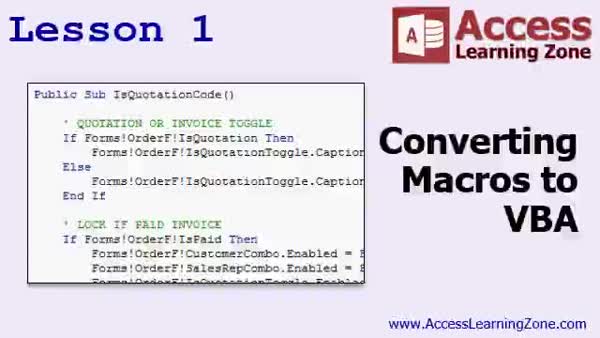
Lesson 1: Macros to VBA Conversion - In Lesson 1, we will walk through how to convert macros to VBA code in Access, using practical examples from earlier courses such as controlling label captions and colors, replacing form and report macros with VBA, and handling events like password protection and enabling or disabling controls. I will show you step by step how to rewrite your macros as VBA code, discuss comparing manual conversion to Access's built-in conversion tool, and address potential issues and best practices for managing macros and VBA in your projects.
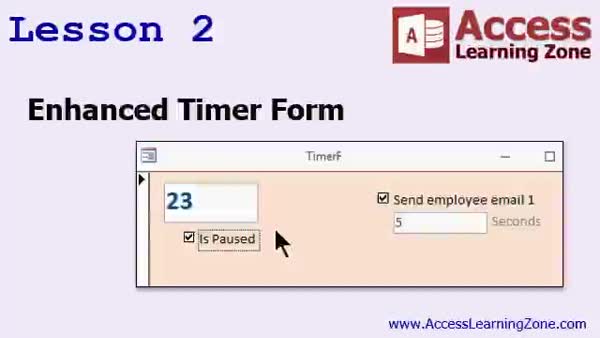
Lesson 2: Enhanced Timer With Pauses - In this lesson, we will walk through building an enhanced timer form in Microsoft Access, allowing you to specify custom intervals in seconds and trigger different events at set times. I will show you how to create a countdown text box, implement pause functionality using a checkbox, and set up additional controls to automate actions, such as opening another form at defined intervals. We will also discuss how to handle timer events without interrupting your workflow and how to adjust the interval for various timeframes like minutes or hours. Future lessons will cover tasks like daily database backups.
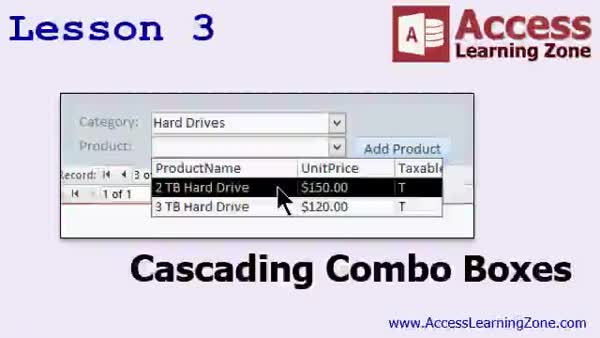
Lesson 3: Cascading Combo Boxes Tutorial - In Lesson 3, we will talk about cascading combo boxes, where selecting a value in one combo box filters the available choices in a second combo box. I will show you how to set up two combo boxes in Microsoft Access so that selecting a product category filters the product list. We will walk through building the controls, discussing a known bug with the wizard in subforms, adjusting SQL row source statements, and handling how to reset the list if the first combo box is blank. This technique can be applied to examples like categories and products or state and city.
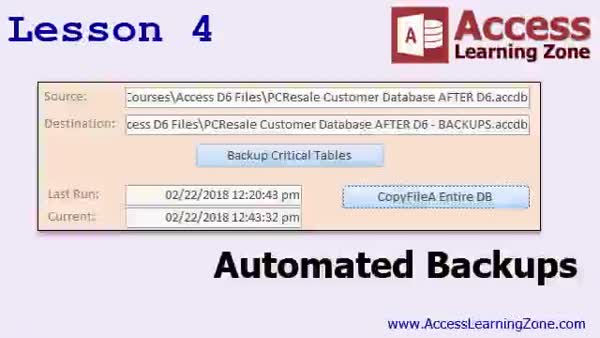
Lesson 4: Auto-Back Up Tables & Databases - In Lesson 4, we will walk through two different methods for automated backups of your Access database: backing up critical tables with timestamped copies and creating automated copies of the entire database file. We will discuss setup requirements such as trusted locations, common limitations with backup software, and techniques to run backups on a timer or with a button. I will show you how to write VBA code for backing up selected tables and demonstrate using Windows API functions for copying open database files. We will also discuss scheduling strategies and options for handling backup intervals and system compatibility.
Lesson 5: Wrap Up: Review, Next Steps, Resources - In this course we learned about upcoming lessons in the Microsoft Access Developer series, how to continue your Access education with additional classes and seminars, and where to ask questions or seek customer support. We also discussed how to provide feedback on the course, ways to stay updated through social media, and important information about the terms of use for the course materials.
NavigationKeywordsconvert macros to VBA, enhanced timer form, scheduled events, interval-based automation, cascading combo boxes, filter data between fields, automated database backup, backup database objects, macro conversion tool, best practices database
More InformationTranscriptWelcome to Microsoft Access Developer Level 6 brought to you by AccessLearningZone.com. I am your instructor, Richard Rost. Today's class is going to be a mixture of a bunch of different topics, stuff that people have been emailing me over the past couple of months that they have wanted to see. First, we are going to start by converting macros to VBA. We built a lot of macros in our database in the Advanced Series. Now we are going to go through and I am going to show you how to manually convert those over to VBA. Yes, there is an option to automatically have Access convert them for you, but it is not perfect. It does not work all the time. I want to teach you how to write the VBA for some of the stuff we have done before. It is an important learning tool rather than just converting the macro with an automated function. So that is going to be the first lesson. Then we are going to work on an enhanced timer form. Lots of people ask me how to get the database to do things on regular intervals - every 10 seconds or a backup every 20 minutes or something along those lines. We are going to build an enhanced timer form, or I am going to show you how to build a form that has a clock timer on it with one second ticks. Another fan favorite is cascading combo boxes, where you have one combo box that filters another one. For example, you pick a state and it shows you just a list of cities from that state. That is one example. Finally, we are going to build another form to do automated backups of our database. I am going to show you how to back up both the individual objects in the database. If you want to back up just specific tables to a backup file you can, or you can do an automated backup of the entire database. This class follows Access Developer Level 5. If you have not taken any of my classes before, the Beginner Series covers the basics. The Expert Series goes into relationships and more advanced design. The Advanced lessons cover mostly events and macro programming. Now we are in the Developer Series. Every series has different levels. This is Developer Level 6. I recommend you watch Levels 1 through 5 before starting this class. If you want to download the database for this lesson, you can grab it here at this page: findthatncv.com/database. You will need your password that you got when you purchased this class. I will be using Microsoft Access 2016 in this lesson, although everything that I cover today should work all the way back to 2007. In fact, most of it should work, except for the converting macro part. The converting macro part has some macro options that did not work in the earlier versions, but most of everything should work in this class. Now let's take a more in-depth look at exactly what we are covering in today's lessons. In Lesson 1, we are going to learn how to convert macros to Visual Basic code. We started building macros back in our Advanced Series, and today we are going to look at some of the key macros that we built then, and show how we can convert those over to Visual Basic code. We built a very basic timer event in one of the Access Expert classes where I showed you how to download data from a web page for weather information. In this class, I am going to show you how to add a lot more functionality and build your own timer form, where you can specify particular intervals of x number of seconds to have different events run and so on. You can pause the timer and do all kinds of different things with it. In Lesson 3, we are going to be talking about cascading combo boxes. I have covered this in some of my more advanced seminars before, but not all of you have taken all of my seminars. I have covered this in my SQL Part 2 seminar, but that is a big long seminar. I get asked this question all the time, so we are going to do a real quick 10 minute lesson on cascading combo boxes. Cascading combo boxes is where you have two combo boxes or more. We are going to do two, where the first one is a category, for example. When you pick a category, it filters the product list to show you just products from that category. Lesson 4 is another fan favorite. Everyone always asks me, how can I automatically back up my database? Again, you should have separate database backup software to back up not only your database, but your entire hard drive, whether it is simply a Google Drive backup or one of the services you can pay for. I strongly suggest that, but I am going to show you in this lesson two different methods for backing up stuff in your database and the database itself from within Access itself. So you do not have to rely on third party software if you do not want to, but this gives you the option to back up critical tables or back up the entire database either on a timer or manually by clicking on a button. Thank you. IntroIn this lesson, you will learn how to manually convert macros to VBA in Microsoft Access, build an enhanced timer form for automated events, create cascading combo boxes to filter related data, and set up forms for backing up individual tables or your entire database. We will use Microsoft Access 2016, but most topics apply to versions from 2007 onward. This class builds on what you learned in previous Developer levels and covers solutions to common questions from students. QuizQ1. What is the first main topic covered in this Microsoft Access Developer Level 6 class? A. How to create basic tables in Access B. How to convert macros to VBA code C. How to install Microsoft Access D. How to design database relationships Q2. Why does the instructor prefer manually converting macros to VBA rather than using Access's automatic conversion? A. It is faster and more accurate B. Automatic conversion also removes all macros C. The automatic conversion is not always perfect, and manual conversion is a good learning tool D. Automatic conversion is not possible in Access Q3. What type of form will be created to perform actions at regular intervals in the lesson? A. Search form B. Enhanced timer form C. Login form D. Data entry form Q4. What is a cascading combo box used for? A. To automatically back up your database B. To display multiple forms at once C. To filter the options of one combo box based on the selection in another D. To create a list of checkboxes Q5. What functionality is included in the timer form discussed in the course? A. It only runs at midnight B. It allows you to specify intervals for different events and to pause the timer C. It can only be used for sending emails D. It solely updates user passwords Q6. In which previous seminar did the instructor mention also covering cascading combo boxes? A. Beginner Series, Part 1 B. Expert Series, Part 3 C. SQL Part 2 seminar D. VBA Basics Q7. What backup options will be demonstrated in this class? A. Only backing up tables with third-party software B. Only backing up the entire computer hard drive C. Backing up specific tables or the entire database, either on a timer or manually D. Only using Google Drive for backup Q8. What does the instructor recommend before taking Developer Level 6? A. Jumping straight in without prior knowledge B. Watching only Level 2 of the Developer Series C. Completing Levels 1 through 5 of the Developer Series D. Reviewing just the Advanced Series Q9. Which versions of Microsoft Access does most of this lesson apply to? A. Only Access 2016 B. Access 2016 through 2022 only C. Access 2007 and later for most content, except some macro options D. Access 2003 only Q10. According to the instructor, why should you still have separate database backup software, even with Access's internal backup functions? A. Because Access cannot perform any backup B. To ensure you back up your entire hard drive, not just your database C. Because Access does not support tables D. Because VBA code is unsafe for backups Answers: 1-B; 2-C; 3-B; 4-C; 5-B; 6-C; 7-C; 8-C; 9-C; 10-B DISCLAIMER: Quiz questions are AI generated. If you find any that are wrong, don't make sense, or aren't related to the video topic at hand, then please post a comment and let me know. Thanks. SummaryToday's video from Access Learning Zone is Microsoft Access Developer Level 6. I am your instructor, Richard Rost. In this class, we are going to cover a variety of topics based on requests I have received over the past few months. These are areas that many students have been curious about or wanted to see in more detail. We begin by looking at how to convert macros over to VBA code. During the Advanced Series, we created several macros as part of our database projects. Now, I will walk you through the process of manually converting those macros to VBA. While Access does offer an option to automatically convert macros, this process can be unreliable. It is important to learn how to write the corresponding VBA code yourself to truly understand what is happening behind the scenes, which is why this will be our first lesson. Next, we will turn our attention to creating an enhanced timer form. A common request I receive is how to get the database to perform actions at regular intervals, such as updating information every 10 seconds, or backing up data every 20 minutes. I will demonstrate how to build a form with a clock timer that can execute actions every second, with flexibility to change intervals as needed. Another topic that often comes up is cascading combo boxes. This is where the selection in one combo box filters the options available in another. A classic example is selecting a state in the first box and having the second combo box only display cities from that state. Finally, I will show you how to build a form to perform automated database backups. This includes both backing up individual tables and creating a backup of the entire database. You will see how to back up specific objects as well as the full database, either automatically on a timer or manually with a button click. This class is a follow-up to Access Developer Level 5. If you are new to my courses, the Beginner Series will introduce you to the basics, the Expert Series covers relationships and more detailed design elements, and the Advanced lessons focus primarily on events and macro programming. The Developer Series takes you further into programming with Access. I highly recommend completing Levels 1 through 5 before starting this class. You can download the database for the lessons from my website. Make sure you have your password from your class purchase for access. I will be teaching this using Microsoft Access 2016, but most of what I cover should work in Access versions going back to 2007. The only main exception is the macro conversion feature, which may not be available in some earlier versions. To give you a clearer idea of the topics covered: In Lesson 1, we look at converting macros that we built previously into Visual Basic code. This is a hands-on way to see how the actions you performed with macros can be replicated and enhanced using VBA. Earlier, in one of the Expert Series lessons, I demonstrated a simple timer event for things like downloading weather data. In this class, the timer form gets more advanced. You will learn how to control event intervals, add more functionality such as pausing the timer, and customize it to suit various needs. Lesson 3 will focus on cascading combo boxes. While I have explained this in detail in some of my longer seminars, I want to provide a concise explanation here, especially for those who have not been through all my seminars. The goal is to show you in a brief lesson how to set up two combo boxes so that selecting a category in the first one filters the list of products in the second. In Lesson 4, we address the process of running automated backups from within Access. While I always recommend using dedicated backup solutions for your computer and database, I will show you two methods within Access to back up your tables or the entire database. This way, you have more control and can choose to perform backups either on a timer or manually. You will find a complete video tutorial with step-by-step instructions for everything mentioned here on my website at the link below. Live long and prosper, my friends. Topic ListConverting macros to VBA code manually Building an enhanced timer form with interval events Creating a clock timer form with one second ticks Implementing cascading combo boxes for filtering Filtering combo boxes by category selection Automating database backup for individual tables Automating backup of the entire Access database Setting up backup processes via timer or manual button Primary Topicsmacro to VBA conversion, timer forms, cascading combo boxes, automated database backup, Access VBA Secondary TopicsAccess versions compatibility, event-driven design, macro options |
||||||||||||||||||||||||||||||||||||||||||
|
| |||
| Keywords: convert macros to VBA, enhanced timer form, scheduled events, interval-based automation, cascading combo boxes, filter data between fields, automated database backup, backup database objects, macro conversion tool, best practices database PermaLink Microsoft Access Developer 6 |