|
||||||
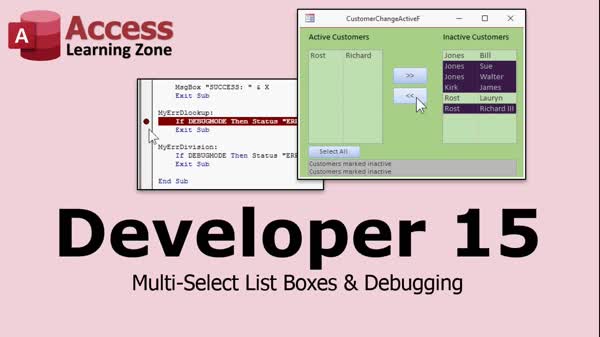
Access Developer 15Multi-Select Lists, Debugging, Error HandlingWelcome to Access Developer 15. In this course you will learn how to use multi-select list boxes and improve your debugging skills in Microsoft Access. We will review working with list boxes, demonstrate moving active and inactive customers between two lists, passing controls as parameters, and using key list box properties and methods. We'll also cover practical debugging techniques in VBA, including error handling, using the Immediate window, setting watches and breakpoints, and offer recommendations for building on your Access development knowledge. Lessons
Database FilesBug Report
More to Learn...
Resources
Lesson SummaryWelcome! Multi-Select Lists & Debugging VBA - Welcome to Microsoft Access Developer Level 15. In this course we will focus on multi-select list boxes and debugging. We will review what has been covered about list boxes in previous classes, talk about moving active and inactive customers between two list boxes, passing controls as parameter values, using multi-select options, and key properties and methods like ListCount, ItemData, Selected, For Each loops, and DBExecute. We will also discuss debugging in Microsoft Access, including error handling, using the Immediate window, setting watches and breakpoints, and recommendations for prerequisites and where to ask questions.
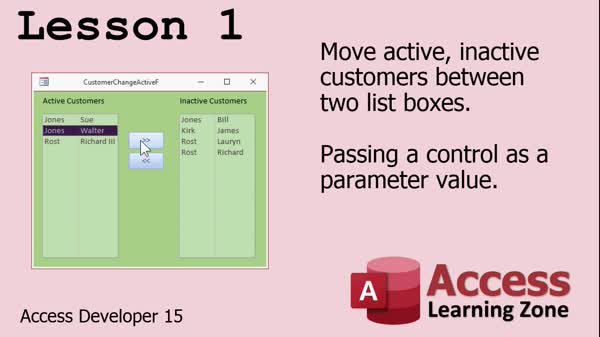
Lesson 1: Move Items Between List Boxes - In Lesson 1, we will walk through how to move values between two list boxes in Microsoft Access using the is active field to separate active and inactive customers. We will review binding list boxes to a table, creating buttons to change a customer's status, and requerying the lists after changes. I will also show you how to pass a control as a parameter to a subroutine in VBA, making your code more flexible. This setup will prepare us for working with multi-select list boxes in the next lesson.
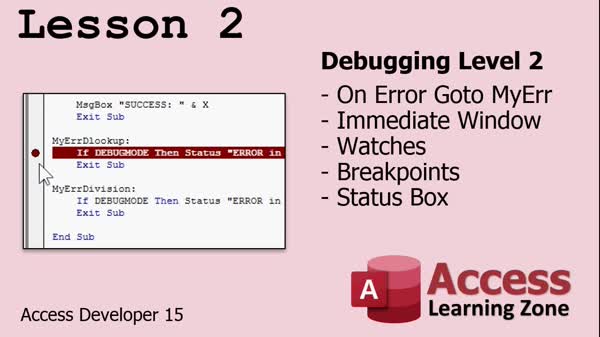
Lesson 2: Error Handling & Debug Tools - In Lesson 2, we will cover Debugging Level 2, focusing on practical error handling techniques in VBA. I will show you how to create your own error handling subroutines using On Error GoTo, use the Immediate Window, set breakpoints, work with watches, and add a custom status box to your forms for developer feedback. We will discuss the difference between basic debugging tools like On Error Resume Next and more advanced approaches, and I will demonstrate how to use these tools effectively to identify and handle errors in your code before moving on to more complex topics.
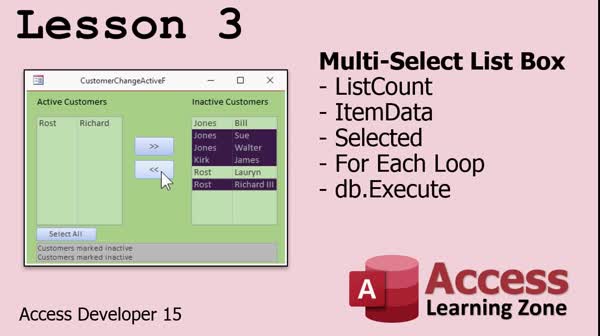
Lesson 3: Multi-Select, Loops & Execute - In Lesson 3, we will cover multi-select list boxes in Access, including how to change list box properties to allow multiple selections using the Simple and Extended options. We will explore important properties like ListCount, ItemData, and Selected, and demonstrate how to loop through list box items with both For-Next and For-Each loops. You will see how to work with selected items, update their status using a subroutine, and learn about DB Execute for running SQL statements efficiently. We will also discuss using the With statement and offer tips for creating Select All and Deselect All buttons.
Lesson 4: Debugging, Multi-Select Lists, Updates - In this course we learned about debugging and working with multi-select list boxes in Access, and discussed the next steps, including upcoming lessons on unbound list boxes and how they differ from bound ones. We also talked about available homework assignments, membership options for accessing additional TechHelp content, and ways to stay updated with new releases and support through the Access Forum and mailing list. Lastly, I shared information about site reliability and ways to connect if you have questions or want to keep up with announcements.
NavigationKeywordsmulti-select list box, debug VBA, move items between list boxes, pass controls as parameter, ListCount, ItemData, Selected property, For Each loop, DBExecute, error handling VBA, Immediate window, breakpoints, watches, status box, Select All button
More InformationTranscriptWelcome to Microsoft Access Developer Level 15 brought to you by AccessLearningZone.com. I am your instructor, Richard Rost. Developer 15 is going to focus primarily on multi-select list boxes and debugging. We have spent a good amount of time covering list boxes in past classes. In Beginner Level 8, we built static list boxes, which just have a single list of values in them. In Expert Level 4, we built relational list boxes where you can base the data in the box off of a table or query. In Advanced Level 5, we learned how to move values from one box to another using macros. In Developer 10, we learned how to use VBA and SQL to populate our list boxes. Then, in Developer 10, we also used list boxes in our test taker database. Today, we are going to expand on that and build a similar example to Advanced 5, but it will be more advanced. We are going to see how to move active and inactive customers between two different list boxes. This time, I will teach you how to pass a control as a parameter value. We are going to learn about multi-select list boxes, where you can select multiple options from the box and then do something with them. You can also use code to select options in the box. We will learn about ListCount, ItemData, Selected, and we will learn about For Each loops. I will also teach you about DBExecute. Lesson 2 is going to cover debugging. We have done some debugging before with On Error Resume Next, but many of you have been asking for more lessons on debugging. Here, I am going to teach you how to set up your own error handling, display error messages, use the Immediate Window, set up watches and breakpoints, and lots more. I am using Access 2019, the Office 365 edition. I should probably change that slide. They recently renamed Office 365 to Microsoft 365, their subscription option. It is the same thing, just a different name. I would recommend for prerequisites that you at least have those top five classes. The test taker Developer 10 is necessary. I do recommend you take all my classes in order, but if you are skipping around, you should know list boxes before you get to the multi-select stuff. These four classes on top here would be handy at least. Of course, I recommend the class before this, Access Developer 14. One of the major reasons I decided to go into multi-select list boxes is because we are going to use them a lot for developing our Easy Access POS, the point of sale system. Even if you are not building the POS with me, there are lessons in Developer 14 that everyone can benefit from. So I suggest you take Developer 14 before Developer 15. If you have questions pertaining to the material covered in today's class, you can post them on the page for this class. If you scroll down to the bottom of the page under the video, you will see all the other questions and comments that other users have posted. You should see a form something like this. It changes every time, but it basically looks like this. Type in a subject, then your comments, hit submit, and it will go right on the course page. I try to answer questions online as often as I can, and Alex and a bunch of other people do a great job helping me out. That is where I recommend you submit any questions you have. You can also hit the subscribe button and get notified anytime anyone else posts a question about this class too. That is great for updates or if I post any addendums or extra files, that kind of stuff. If you have a general question about Access or any other topic, you can go to the forums and post it there. I try to keep stuff in the course pages relevant to that class. That is what the forums are for. There is Word, Excel, Outlook, all that stuff. There is also my TechHelp page. If you need help right now with a project you are stuck on and you do not want to wait for a forum reply, you can send it to my TechHelp page. If you need consulting advice or any of that kind of stuff, here is my email address, but again, I prefer you use one of the previous methods. So, sit back, relax, and click on the link below to start lesson one. IntroIn lesson 15 of my Microsoft Access Developer series, we will focus on working with multi-select list boxes and debugging techniques. I will show you how to move active and inactive customers between two list boxes, pass controls as parameter values, use properties like ListCount, ItemData, and Selected, and utilize For Each loops and DBExecute. We will also cover key debugging tools, including setting up error handling, displaying messages, using the Immediate Window, and managing watches and breakpoints. Access 2019 (Microsoft 365 version) is used in this lesson, and some familiarity with previous list box lessons is recommended. QuizQ1. What is the primary focus of Developer Level 15 in this course? A. Building relational databases B. Multi-select list boxes and debugging C. Creating static queries D. Exporting data to Excel Q2. In which previous level were static list boxes first introduced in the course? A. Expert Level 4 B. Advanced Level 5 C. Beginner Level 8 D. Developer 10 Q3. What distinguishes a multiselect list box from a standard list box? A. It can display images B. It allows multiple selections at once C. It sorts data automatically D. It supports only single selection Q4. What is a recommended prerequisite BEFORE taking Developer Level 15? A. Any Microsoft Office class B. Access Developer 10 (Test Taker) C. Word Expert Level 4 D. Excel Beginner Level 1 Q5. Which lesson in Developer Level 15 will focus on debugging? A. Lesson 1 B. Lesson 2 C. Lesson 3 D. Lesson 4 Q6. Which of these topics is covered regarding debugging in this class? A. How to export forms B. How to use the Immediate Window and breakpoints C. How to add charts to reports D. How to design databases without VBA Q7. For multi-select list boxes, which properties or methods will you learn about? A. ListCount, ItemData, Selected, For Each loops B. ChartType, DataRange, PivotField, AutoSum C. FontSize, BorderColor, Caption, AutoCorrect D. FindFirst, GoToRecord, SetWarnings, Commit Q8. What feature is recommended for submitting questions specific to this class? A. Email the instructor only B. Use the class page comment form beneath the video C. Call tech support D. Use the Access 2019 built-in help Q9. If you have a general Access question not related to the course content, what should you do? A. Leave a comment on any course page B. Post it in the forums C. Send a fax to AccessLearningZone.com D. Submit a ticket to Microsoft Q10. What is DBExecute as referenced in the video? A. A debugging tool for Access B. A method used for database execution tasks in Access VBA C. A wizard for creating forms D. A table property in Access Answers: 1-B; 2-C; 3-B; 4-B; 5-B; 6-B; 7-A; 8-B; 9-B; 10-B DISCLAIMER: Quiz questions are AI generated. If you find any that are wrong, don't make sense, or aren't related to the video topic at hand, then please post a comment and let me know. Thanks. SummaryToday's video from Access Learning Zone is Developer Level 15, and I am your instructor, Richard Rost. In this class, we will be focusing on two main topics: multi-select list boxes and debugging in Microsoft Access. We have already spent quite a bit of time working with list boxes in earlier classes. In Beginner Level 8, we created static list boxes that contain a single, unchanging list of values. Moving on to Expert Level 4, we advanced to relational list boxes, where the values come from a table or query. In Advanced Level 5, we looked at how to transfer items from one list box to another using macros. When we reached Developer 10, we explored populating list boxes using VBA and SQL, and even used list boxes in our test taker database. Building on that, in today's lesson, we are going to tackle an even more advanced example. Specifically, we will look at how to move active and inactive customers between two different list boxes. Along the way, I will show you how to pass a control as a parameter value, and we will dive deeper into the multi-select capabilities of list boxes. This will allow you to choose multiple items from a list and process them together. We will look at how you can programmatically select items as well. You will learn about important properties and methods such as ListCount, ItemData, and Selected. We will also review how to use For Each loops in this context and discuss the DBExecute function. The second lesson shifts gears to cover debugging. We have touched on basic error handling in prior classes, like using On Error Resume Next, but now we will go further. You will learn how to create custom error handling routines, display error messages, work with the Immediate Window, set watches and breakpoints, and more to troubleshoot your VBA code effectively. I am using Microsoft Access 2019, specifically the Office 365 subscription version. Microsoft has recently rebranded Office 365 to Microsoft 365, but functionally, they remain the same product. For prerequisites, it is important that you have completed at least the first five classes, especially Developer 10, where we dealt with the test taker database and list boxes. Ideally, you should take all the classes in order. Knowing how list boxes work in general is essential before moving on to multi-select list boxes. The four classes listed at the top of my recommended prerequisites will give you a good foundation. Naturally, I also suggest finishing Access Developer 14 first. One significant reason for delving into multi-select list boxes now is our ongoing work to develop the Easy Access POS system. These controls will be instrumental in its design. Even if you are not building the POS with me, the lessons in Developer 14 offer valuable insights for any developer, so it is a good idea to work through Developer 14 before starting this class. If you have questions about anything covered in today's class, you can post them on the corresponding class page. At the bottom of the class page, there is a section for user questions and comments. You will see a form where you can type your subject and comments, submit them, and your question will appear on the page for discussion. I respond to questions online as frequently as possible, and there are others like Alex who help out as well. This is the best place for questions related directly to the course content. You have the option to subscribe to the class page to receive notifications whenever someone posts a new question or comment. This way you can stay updated, and you will be alerted if there are any addendums or new files added to the class. If you have a general question that is not specific to this class, feel free to use the forums. The forums cover a variety of topics including Word, Excel, Outlook, and more. For urgent assistance on a particular project, you can visit my TechHelp page. If you need consulting or more personalized advice, my email address is available, though I prefer you use the course or forum methods first. Now you are ready to get started. All you have to do is follow the link below to begin lesson one. You can find a complete video tutorial with step-by-step instructions on everything discussed here on my website at the link below. Live long and prosper, my friends. Topic ListThis is an introduction to a Microsoft Access Developer course video, outlining what students will learn and how to interact with the instructor. Primary Topicsmulti-select list boxes, moving items between list boxes, control parameters, list box properties, VBA debugging, error handling Secondary Topicsprerequisites for course, point of sale system context, submitting course questions |
||||||||||||||||||||||||||||||||||||||||||
|
| |||
| Keywords: multi-select list box, debug VBA, move items between list boxes, pass controls as parameter, ListCount, ItemData, Selected property, For Each loop, DBExecute, error handling VBA, Immediate window, breakpoints, watches, status box, Select All button PermaLink How To Use Multi-Select List Boxes and Advanced Debugging Techniques in Microsoft Access Developer 15 |