|
||||||
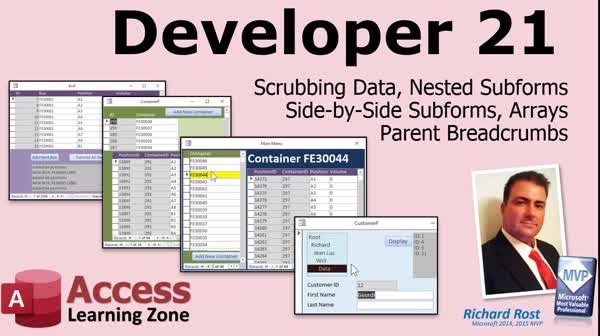
Access Developer 21Data Scrubbing, Nested Forms, Arrays, BreadcrumbsWelcome to Access Developer 21. In this course you will learn how to scrub and clean data for use in relational tables, work with nested and side by side continuous forms, and use arrays to manage hierarchical data within Microsoft Access. We will cover methods for restructuring data using recordsets, copying information into new tables, retrieving record IDs, handling composite keys, and dynamically loading arrays. You will see how these techniques apply to employee and product records and how they work in Access 365 and earlier versions. Lessons
Database FilesResources
Lesson SummaryWelcome! Scrub Data, Nested & Split Forms - Welcome to Microsoft Access Developer Level 21. In this course we will learn how to scrub and clean up data for insertion into relational tables, work with nested continuous subforms and arrange them side by side, and use arrays to manage hierarchical data and create parent breadcrumbs. We will cover using recordsets to restructure data, copying information into new tables, getting IDs of new records, handling composite keys, and loading arrays dynamically. We will also discuss applying these techniques to employee and product records and working with Access 365 and earlier versions.
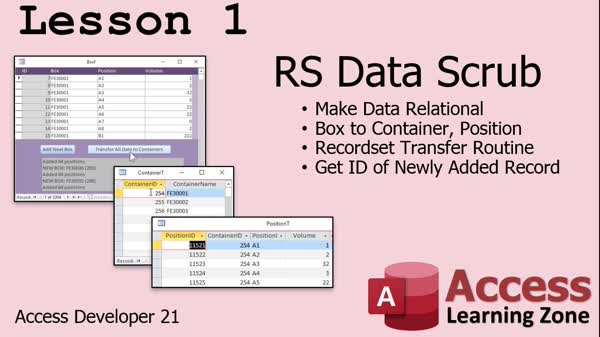
Lesson 1: Split Flat Table to Relational - In Lesson 1, we will use a recordset to scrub and reorganize data into a relational format by splitting a non-relational table of box and position information into two new tables: container and position. I will show you how to loop through records, identify new boxes, add them to the container table, and link corresponding positions to each container in the position table. We will also discuss how to retrieve the auto number ID of newly added records within a recordset and explore techniques for cleaning up data - comparing manual approaches, queries, and recordset solutions for efficient data scrubbing.
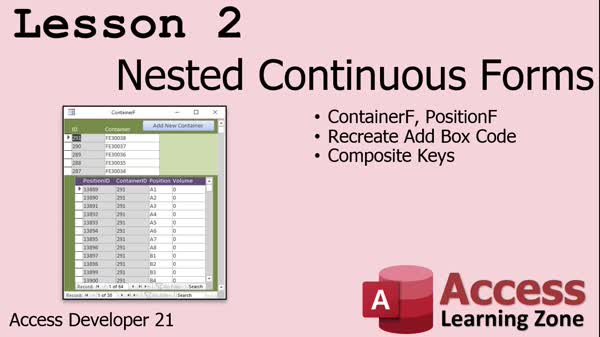
Lesson 2: Nested Forms with Composite Keys - In Lesson 2, we will explore nested continuous forms in Microsoft Access. I will show you how to create a continuous form for both a container and its positions, configure them as nested continuous forms, and work around Access's default restrictions. We will discuss composite keys to prevent duplicate container-position records and walk through updating the container and position tables to support this structure. You will see step-by-step how to set up the forms, adjust their layouts, handle the subform warnings, and implement code for adding new containers with their related positions using nested continuous forms.
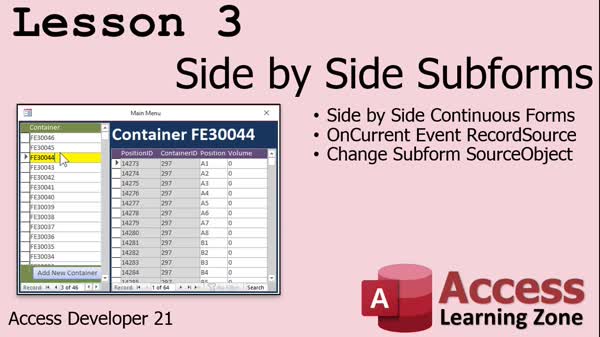
Lesson 3: Side by Side Linked Subforms - In Lesson 3, we will walk through how to set up side by side subforms in Microsoft Access by placing two continuous forms as subforms inside a third unbound form. I will show you how to use the On Current event of the parent container form to control the record source of the second form, discuss the quirk that occurs when loading subforms, and demonstrate how to use code to dynamically set or requery the subform. We will also add a label to clearly show which container is selected and address updating and filtering the related subform data.
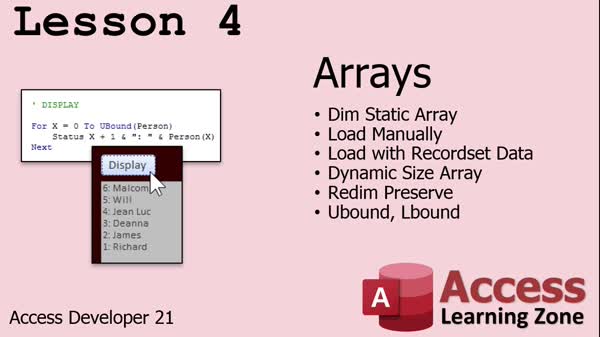
Lesson 4: Arrays, Temp Data, & Recordsets - In Lesson 4, we are going to learn about arrays in Access VBA. We will walk through how to declare a static array, manually load it with data, and fill an array by looping through a recordset. I will show you how to create a dynamic array using redim and redim preserve commands when you do not know the size needed in advance. We will also discuss the Ubound and Lbound functions to determine array size, and look at practical uses for arrays in Access, such as temporarily storing data or building features like tree views.
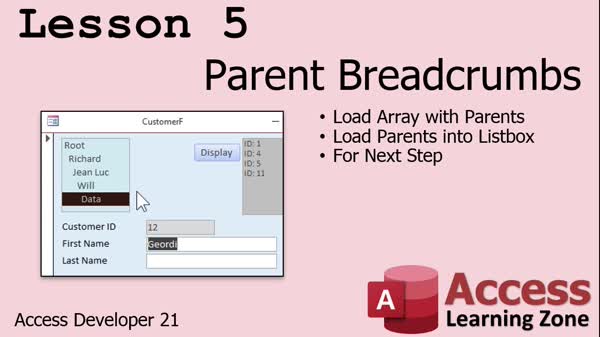
Lesson 5: Parent Breadcrumbs & List Boxes - In Lesson 5, we will build on our knowledge of arrays to create parent breadcrumbs in a hierarchical database, using the example of employees and their supervisors. We will walk through setting up parent-child relationships, loading parent IDs into an array, and then displaying the hierarchy as a breadcrumb trail using list boxes. This lesson demonstrates how to trace and visualize the chain of parents from a selected record up to the root, as well as how to update and format the breadcrumb display. We will also discuss the use of For/Next steps and how these concepts can help manage hierarchies in databases.
Lesson 6: Review, Q&A, Feedback & More - In this course we learned about Access 21, with a focus on keeping up with weekly lessons and updates on upcoming courses like Access Developer 22. We discussed how to best use the forums for questions, the availability of consulting services for database help, and the increased frequency of TechHelp videos. Survey feedback was requested to help improve future classes.
NavigationKeywordsdata scrubbing, recordset, split flat table, relational tables, nested continuous forms, composite keys, subforms, side by side subforms, unbound form, arrays, dynamic array, redim preserve, parent breadcrumbs, hierarchical data, list box, employee hierar
More InformationTranscriptWelcome to Microsoft Access Developer Level 21 brought to you by AccessLearningZone.com. I am your instructor, Richard Rost. In today's class, we're going to learn how to scrub data given to us in whatever format. Sometimes you get a spreadsheet of information and you want to be able to clean up that data a little bit and then insert it into other tables. Maybe check if records exist. Lots of different things. We're going to learn about nested subforms where you get a continuous form inside of another continuous form. Then I'm going to show you how to do the same thing side by side. So you have a continuous form on the left, a continuous form on the right, and when you click on the parent on the left, for example, all the child records show up on the right. Then we're going to learn about arrays, which we'll use to do parent breadcrumbs. You get a hierarchy of employees and you want to say this is this person's supervisor, and so on and so on up the tree or after the root or the top of the president, CEO, or whatever. We'll use an array to load up the customer or employee records; you can do this with product records too, with product subforms. It's basically thousands of folders. We'll do all that today in Developer 21. Let's take a look and review exactly what's covered in each lesson. In lesson one, we're going to use a recordset to scrub some data. Back in Access Developer 20, we created that box form where we have a bunch of boxes, and each box has multiple positions and then some data. Well, that table wasn't necessarily relational. The box record repeated every record. So in this lesson, we're going to use a recordset to make this relational. We're going to copy box information into two new tables, container and position. So I'll have to use a recordset to loop through it, determine when we have a new box, add to the box table, then loop through all the other records, add to the position table, and so on. One important technique in this lesson is I'm going to show you how to get the ID, the autonumber of a newly added record inside of adding it to a recordset. Very important. In lesson two, we're going to learn about nested continuous forms. We're going to build a form, a continuous form for the container, and for the position. Then we're going to make them both continuous forms. Then we're going to put the position form inside the container form as a subform. You're not supposed to be able to do that. Access actually throws up a warning message, but I'm going to show you how to get around it. Then we're going to recreate the add box code from Developer 20. This time we're going to add a container. We have to use two different tables again. Then I'm going to teach you about composite keys. That makes sure that we don't have two records that have both the same container and position. It's a key field based on multiple fields. Lesson three was inspired by lesson two. I think it looks a whole lot better to have these side by side than to have the continuous forms one over the other, where the one inside the child form is in the form footer of the parent form. We can do them side by side, but we have to use two continuous forms, each as a subform inside a third unbound form. I know it sounds a little complicated, but I'll show you how to do it. We're going to set up side by side continuous forms. The on-current event of the one, the container form, that parent, basically will control the record source of the second form. Then I'll show you how to change the subform's source object. Then we'll put a nice little cool label up top there. All that in lesson three. In lesson four, we're going to learn about arrays. It's going to be a crash course in arrays. We're going to learn how to dim a static array, load an array manually with some data, load it with recordset data by looping through a recordset and then loading that up into the array, and creating a dynamic size array. So if you don't know how many records go into it ahead of time, I'll show you how to do that with the redim and redim preserve commands. Then we'll learn about the Ubound and Lbound functions to tell how big your array is. In lesson five, we're going to take what we learned about arrays in lesson four and put them to use to put together parent breadcrumbs. Let's say we've got, in our employee database, or ignore customers for a minute, let's say it's an employee database and every employee has a supervisor throughout the entire organization. I want to be able to see a breadcrumbs trail of this particular employee's supervisors all the way back up to the beginning or all the way to the top of the root. You can see here, Jordy, for example, is below Data, Data is below Will, Will is below John Luke, who's below me, and I'm over the root, off the root. So that's what a breadcrumbs trail is. You can use this for product categories, you can use it for all kinds of different things. I'm going to show you how to load an array with the parents. You've got to start with Jordy and then go back through the parents until you get to the root. Then, now we can go forward with that list, which we're going to pull out of the array and use to fill our list box with the actual parents. We'll learn about for-next loops in this lesson as well. I will be using Access 365, part of the Microsoft 365 program. This should work for 2019, 2016, all the way back to maybe 2007. All this stuff is just fine for every version of Access since 2007, and probably even before that. Of course, I strongly recommend all my previous classes, but you should have at least taken Developer 16 and know about recordsets. If you have any problems, questions, thoughts or concerns, feel free to post them in the Access forum on my website. Now, sit back, relax, get your thinking caps on and let's enjoy Access Developer Level 21. IntroIn this lesson, you will learn advanced techniques in Microsoft Access including how to scrub and clean up imported data using recordsets, create and manage nested continuous subforms, set up side by side continuous subforms controlled by parent records, and work with arrays for tasks like building hierarchical breadcrumbs to trace supervision or category relationships. Developer Level 21 also covers using composite keys to prevent duplicate records and gives a crash course on working with dynamic and static arrays in VBA. This is Microsoft Access Developer Level 21. QuizQ1. What is the primary focus of Access Developer Level 21? A. Creating advanced reports in Access B. Data scrubbing, nested subforms, and using arrays for breadcrumbs C. Networking features in Access D. Web integration for Access databases Q2. What is one of the key concepts taught in lesson one? A. Creating macros for automation B. Using a recordset to scrub data and split information into relational tables C. Designing user interfaces for web forms D. Exporting data to Excel Q3. Why is it important to retrieve the autonumber ID of a newly added record? A. To verify database integrity B. To link that new record as a parent or foreign key in related tables C. To generate a user interface D. To export the record to another database Q4. What is a nested continuous form in Access? A. A report inside a form B. A continuous form within another continuous form C. A macro within a form D. Multiple forms opening one after the other Q5. How does Access normally react to putting a continuous form inside another continuous form as a subform? A. It allows it by default B. It throws a warning message C. It converts it into a datasheet D. It automatically changes the layout Q6. What allows two records to be unique based on the combination of multiple fields in Access? A. Primary key B. Foreign key C. Composite key D. Unique index on one field Q7. In lesson three, what layout technique is taught for displaying two related continuous forms? A. Stacking them vertically B. Embedding two forms as subforms inside a third unbound form, displayed side by side C. Linking one form to a query D. Using datasheet view only Q8. What is the on-current event of the parent container form used for in the side-by-side layout? A. To filter records in the subform on the right B. To sort records alphabetically C. To refresh the entire database D. To display error messages Q9. What array-related topic is covered in lesson four? A. How to link arrays to tables B. How to declare and use static and dynamic arrays, and load them with data C. How to create 3D charts using arrays D. How to print array data directly Q10. Why might you use the redim and redim preserve commands in VBA arrays? A. To export arrays to Excel B. To change and preserve the size of dynamic arrays during runtime C. To encrypt array data D. To link arrays to SQL queries Q11. What are breadcrumbs in the context of the lesson about arrays? A. Temporary record markers B. A path that shows a hierarchy of parent records, such as supervisors C. Notes left on records D. Summary tables for navigation Q12. What VBA loop is mentioned for loading the breadcrumb trail from an array? A. Do While loop B. For-Next loop C. For-Each loop D. Do Until loop Q13. Which software versions support the techniques shown in the video? A. Only Access 365 B. Only Access 2013 and later C. Access 2007 and all newer versions D. Only Access 2016 Q14. What prior knowledge does the instructor strongly recommend for this course? A. Access Basic Reports B. Access Developer 16 and knowledge of recordsets C. SQL Server Integration D. Internet Forms Answers: 1-B; 2-B; 3-B; 4-B; 5-B; 6-C; 7-B; 8-A; 9-B; 10-B; 11-B; 12-B; 13-C; 14-B DISCLAIMER: Quiz questions are AI generated. If you find any that are wrong, don't make sense, or aren't related to the video topic at hand, then please post a comment and let me know. Thanks. SummaryToday's video from Access Learning Zone is Microsoft Access Developer Level 21. I am your instructor, Richard Rost. In this class, I am going to show you how to handle and clean up data that arrives in all sorts of formats. Often, you might receive a spreadsheet or a similar document with information that you want to tidy up before importing it into your Access tables. Along the way, you may also want to check if certain records already exist or perform other necessary steps to ensure your data is in the best possible shape. We will also cover the topic of nested subforms, which enables you to embed a continuous form inside another continuous form. I will demonstrate not only how to nest these forms vertically but also how to arrange them side by side. In the side-by-side setup, you can select a parent record on the left, and the related child records will display on the right. Additionally, I will introduce arrays and explain how we can use them to represent parent breadcrumbs in a hierarchy. For example, in an employee database, you can see the chain of supervisors leading all the way to the top. This hierarchical structure can also be applied to products or other similar cases where there are many layers or categories. Let me break down what you will find in each lesson. In lesson one, we start by cleaning up some data using a recordset. In Access Developer 20, we created a form with boxes and each box had several positions and associated data. The table structure there was not strictly relational; the same box record was repeated multiple times. So, in this lesson, we use a recordset to convert that data into a better relational format by moving the information into two new tables: one for the containers (boxes) and another for the positions. We loop through the data, identifying when we encounter a new box to add to the container table, and add related position records accordingly. I will also show you how to retrieve the ID, or autonumber, of a newly added record directly as you add it using a recordset. Lesson two focuses on nested continuous forms. Here, we create continuous forms for both the container and the position, and then nest the position form inside the container form as a subform. Ordinarily, Access gives you a warning, as this type of nesting is not typically supported. I will show you how to work around this limitation. We also rebuild the "add box" code from Developer 20, adjusted for the new tables. I will introduce the idea of composite keys so that you can enforce uniqueness based on multiple fields, such as making sure no two records have the same container and position. Lesson three builds on the earlier work by arranging the continuous forms side by side instead of one above the other. I find this layout far more intuitive. To achieve this, we place each of the two continuous forms as subforms inside a third, unbound form. It may sound a bit complex, but I will guide you through the steps. The selection in the parent form (containers) will control which child records are displayed in the second form. We will also go over how to modify a subform's source object, and I will show you how to add an informative label at the top. In lesson four, we turn to arrays. This is a concise overview of how arrays work in VBA. I will explain how to declare a static array, manually load data into it, fill it using data from a recordset, and create a dynamic array whose size can change depending on your needs. You will learn to use the redim and redim preserve commands for resizing, as well as how to check array size with the Ubound and Lbound functions. Lesson five puts these array concepts into practice by building parent breadcrumbs. When tracking employee supervisors throughout an organization, breadcrumbs let you visualize the reporting structure, tracing all the way from a given employee back to the organization's root. As an example, one employee reports to their supervisor, who reports up another level, and so on, all the way to the top. This technique is also great for product categories and similar data structures. I will show you how to properly load all parent records into an array, starting from one individual and following their supervisory chain. From there, we can display the full breadcrumb trail in a list box. This lesson also covers the basics of for-next loops in this context. Throughout this course, I am working with Access 365, which is part of Microsoft 365. However, all the methods I present here should be compatible with Access 2019, 2016, and as far back as Access 2007 and earlier. Everything we learn should work for these versions. Ideally, you should have completed the previous Developer courses, especially Developer 16, and have a good grasp of recordsets before taking this class. If you get stuck or have questions at any point, feel free to visit my website and post in the Access forum. So let's get started. Get comfortable and prepare to learn with Access Developer Level 21. You can find a complete video tutorial with step-by-step instructions on everything discussed here on my website at the link below. Live long and prosper, my friends. Topic ListScrubbing and cleaning imported data with recordsets Converting flat data into relational tables Copying data to new tables using recordsets Retrieving autonumber IDs after adding records Creating nested continuous subforms Embedding a continuous form inside another continuous form Bypassing Access subform restrictions Handling composite keys in tables Setting up side by side continuous forms Using multiple subforms in an unbound parent form Linking subforms using On Current event Dynamically changing subform source objects Labeling side by side subforms Declaring and using static arrays in VBA Loading arrays manually and with recordset data Creating and resizing dynamic arrays with redim Using Ubound and Lbound functions with arrays Building parent breadcrumbs using arrays Generating supervisor trail for hierarchical data Populating list boxes with parent breadcrumb arrays Implementing for-next loops in VBA Primary Topicsdata scrubbing, recordsets, nested continuous forms, side-by-side continuous forms, arrays, parent breadcrumbs, composite keys Secondary Topicsform events, dynamic arrays, list boxes, hierarchical data |
||||||||||||||||||||||||||||||||||||||||||
|
| |||
| Keywords: data scrubbing, recordset, split flat table, relational tables, nested continuous forms, composite keys, subforms, side by side subforms, unbound form, arrays, dynamic array, redim preserve, parent breadcrumbs, hierarchical data, list box, employee hierar PermaLink How To Scrub Data, Create Nested and Side by Side Continuous Forms, and Use Arrays in Microsoft Access |