|
||||||

|
|
||||||
|
Prevent CloseBy Richard Rost
 5 years ago
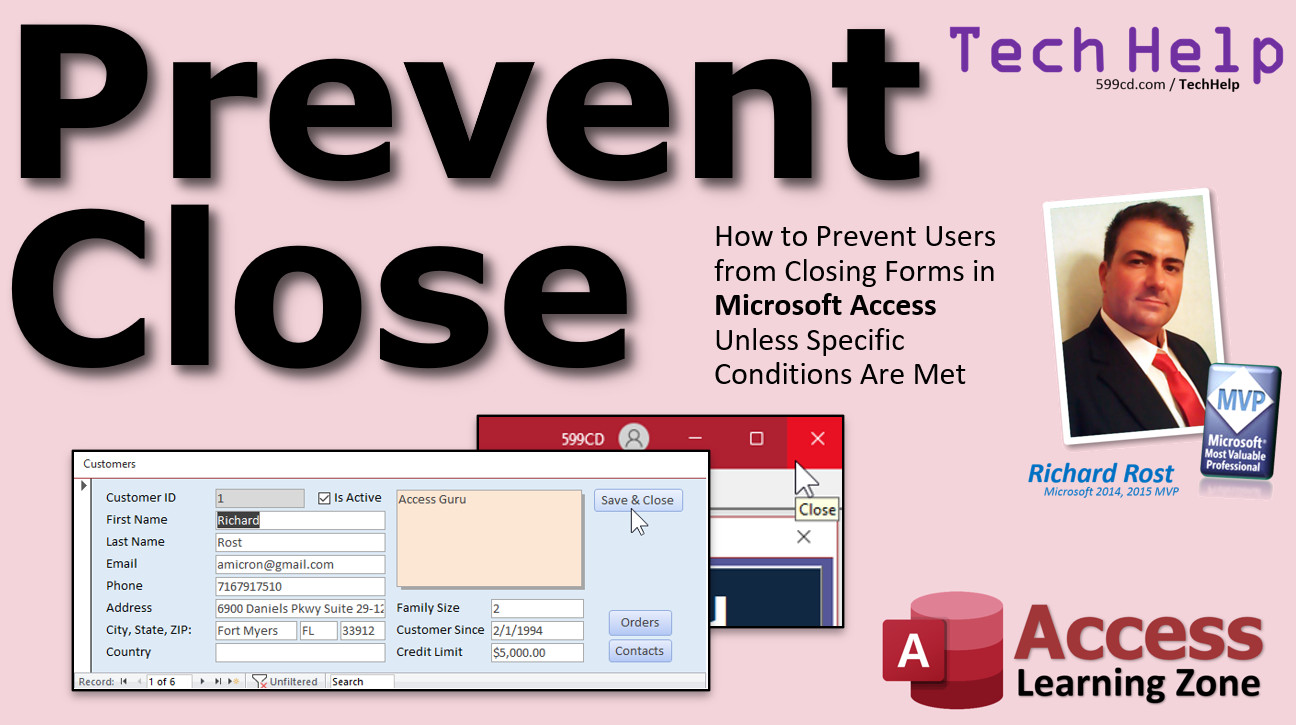
Prevent Closing Forms Unless Conditions Are Met In this video, I'll show you how to prevent your users from closing forms in your Microsoft Access database unless specific conditions are met. Saul from Angel Fire, New Mexico (a Platinum Member) asks: I have a questionnaire that I require my employees to fill out whenever they add a new customer to the database. I don't want them to be able to close the customer form unless they've filled out the questionnaire form. Is there any way to prevent this? MembersMembers will learn how to prevent users from closing forms with even a shortcut key, and will also learn how to prevent users from closing the Access application window without specific conditions being met. We'll learn about the On Unload event and how to cancel it.
Silver Members and up get access to view Extended Cut videos, when available. Gold Members can download the files from class plus get access to the Code Vault. If you're not a member, Join Today!
Links
Keywordsmicrosoft access, ms access, ms access tutorial, #msaccess, #microsoftaccess, #help, #howto, #tutorial, #learn, #lesson, #training, #database, disable X close button microsoft access application, prevent close form, prevent close application, How to Prevent a User Closing A MS Access Form, prevent access from closing, disable the windows close x, close button, control box, max min buttons, disable ctrl-f4, disable alt-f4, on unload event, prevent form close, stop form close
More InformationTranscriptWelcome to another TechHelp video brought to you by AccessLearningZone.com. I am your instructor Richard Rost. In today's video, I will show you how to prevent your users from closing forms in your Microsoft Access Database unless specific conditions are met. Today's question comes from Saul in Angel Fire, New Mexico, one of my Platinum members. Saul says, "I have a question error that I require my employees to fill out whenever they add a new customer to the database. I do not want them to be able to close the customer form unless they have filled out the question error form. Is there any way to prevent this?" So essentially what Saul has, and he showed me pictures of his database, is a customer form. He also has another question error form. Let's just substitute that with my contact form. The employee has to fill out some question error questions about this employee before being allowed to save the customer and move on. Saul wants to prevent the user from closing this customer form if there are no question error forms for this particular customer. Let's use my customers and contacts as an example. I am going to say I am not going to allow the user to close the customer's form if they have not put a contact in. It does not matter what the tables are. As I always say, Access Databases are like playing with Legos. You are just putting together the pieces in different ways. We have talked about a lot of different ways to force users to enter certain data in other videos. For example, you can use the Required property to force the user to put a value in a field. You can find that in Table Design. If you want to force them to put in an email address, there is the Required property right there. As I talk about at great length in a lot of my classes, including Access Beginner 1 and Beginner 4, I personally do not like the Required property. I would rather have users leave a field blank than put some bad data in there. For example, email address. If they have to put an email address in and they do not have one, they will put junk in there. [email protected], for example. What I always say is no data is better than bad data because at least if the email field is blank, you can generate a query and say, "Show me all the blank email addresses," and you can go back to those customers and try to get their email addresses. If they are garbage, they are very hard to find. So I typically do not use the Required property. We have also talked about validation rules. The validation rules are also right here. You can use that for something like family size or credit limit. Let us say you want to make sure the credit limit cannot be over $5,000. That is a hard rule for your company. You can come down here to Validation Rule and say this has to be less than or equal to $5,000. I have other videos on that. You can also use table-level validation rules. That is if you want to check against the entire record. I have a whole video on that one too, where you can say, "Okay, this number cannot be greater than that number." For example, use a table-level validation rule: total tips are more than 20 percent of the total for the past week. That is an even more complicated validation rule. If you want to check against data in a different table altogether, you cannot use any of those methods. You are going to actually have to use a little bit of VBA and something like DLookup to look up the value in a different table. That is why I put on the prerequisites here: DLookup and Intro to VBA. Do not be scared of VBA. I have a 20-minute Intro to VBA video for you, absolutely free. Go watch it. Even if you are not planning on becoming a programmer, you can really make your databases shine with just a tiny bit of VBA, and I will walk you through it. You should know Required, validation rules. Go watch this one too, it is pretty cool. You should definitely know Intro to VBA and DLookup - a little tiny bit where you need like two or three lines of code to do this. Here we go. Go watch these videos and then come back here. I am going to say I do not want the user to be able to shut this form if they have not put a contact in. If I go to someone like Jim Kirk, does he have any contacts? Yes, he has contacts. Who else? Deanna Troy - yes, she has one. Someone does not have one. Jean-Luc does not have a contact. I would not want the user to be able to close this form if the customer does not have any contacts. I would assume you are controlling from the customer list. For example, if you open up a customer from here, it only opens up to that customer, and you cannot move from record to record. You can turn off the record selectors if you do not want the user to be able to scroll between records. I will assume you have that in your database too. Now, the easiest thing you could do is turn off the close button. Go into properties for the form. Go into Format and find Close Button and set that to No. While you are in here, I usually turn off the control box and the maximize buttons too. In this way, when you come in here now, they have changed. Your user does not have any way to close this form. So you have to give them a button that you can use to close the form. Back to Design View. In that button, that is where you will put your code to check the condition you want to check. Go to Form Design. Grab a button, drop it right here. I am going to cancel the wizard and this will be my "Save and Close" button. I put "Save and Close" because a lot of newbie users do not realize that if they just close the form, Access saves the data for them. They think they have to have a separate Save button, like they are used to in Microsoft Word, where you have to save your document. Right-click, go to Build Event. We are in the editor. I am going to close that. We are in the editor here. I did not name my button, but that is okay. I know Alex is going to get mad at me, but right here is where you put your close command. You want to check your condition first. We will use our DLookup function to check and see if the user has any contacts. In the contact table, we have a ContactID and a CustomerID. This should represent the current customer. We are going to look up any ContactID for this customer. How do we do that? Let's go back to our code. Dim ID as Long. ID equals DLookup. What are we looking up? We are going to look up the ContactID from the contact table where the CustomerID equals the current CustomerID. We are going to go out to the contact table. We are going to try to find any record where the CustomerID equals the CustomerID on the current form. We are going to bring back the ContactID. If this is null, it will return an error message, so we are going to wrap that in NZ. I have another video on NZ; go watch that too. Comment zero. I will put a link down below for that. I should probably put these things on the prerequisite screen first, I always forget to. But NZ is null-to-zero. If it returns a null, it will not give you an error message. It will just put a zero there. So we are going to say right here: if ID equals zero, then it could not find a contact, so there are no contacts for this customer. What are we going to do? We are going to MessageBox: "No contacts found for this customer. Please add one," and then we are going to Exit Sub. We are not going to give them the opportunity to close the form. Now, if it does not get to this point, that means it found an ID, and now it is okay to close the form. So DoCmd.Close. What are we closing? acForm. Which form are we closing? Give it the name of the current object. Put the name of the current form. I like to put acSaveYes. Your end user, if they are using an ACCDE file that you are going to compile and give to them, they will not be able to make design changes. I put acSaveYes in there for me when I am designing it, because I have closed forms before and said acSaveNo and then I am like, oh man, I lost all my changes. So that's the proper way to close the form. Now, if I come back here, if I open up and save design changes, if I open up me, I can "Save and Close Me" because it finds a contact for me. Deanna has a contact. What about Jean-Luc? "Save and Close" - oh, no contacts found for this customer. Please add one. So I cannot close this at all until I put a contact in. Let's put a contact in. All right, "Defeated the Borg." Now when I close this, I can now save and close Jean-Luc. See that? What is it doing? It is looking up to see if there are any contacts in the contact table for Jean-Luc, which it finds one now - "Defeated the Borg" down there for customer four. So it changes. If ID is zero, it does not find any contacts with this customer. It says you cannot do it. I have a MessageBox video too, I will put that on the list. That is not a prerequisite. The MessageBox just pops up that message for you. If it does not get to that point, it goes down here. You could put an Else there, but you do not need to. Now, this will prevent the user from closing the form with the mouse. There is no Close button here. Unfortunately, if they know their keyboard shortcuts, there is one more thing they could do: control F4 to close the form with a keyboard shortcut. They can also close Access altogether and get around this rule. How do you fix that? Well, it is a lot more complicated. It involves some event programming, and I will cover that in the Extended Cut for the members. If you want to learn more, in the Extended Cut for members, I will show you how to prevent the user from closing a form using control F4. I will also show you how to prevent the database from being shut down with the close button up here or by hitting Alt F4. We will learn how to program the Unload event, which runs whenever a form is closed. I will show you how to cancel that event. The user has to use your close button to close down a form or the database, and you can control what happens. You can do any other checks there, check other fields, other records, whatever other permissions and properties you want to set, you can do in that button. That is all covered in the Extended Cut for members. Silver members and up get access to all the Extended Cut videos, and Gold members get access to download all of these databases. How do you become a member? Click on the Join button below the video. After you click the Join button, you will see a list of all the different membership levels that are available, each with its own special perks. Silver members and up will get access to all of my Extended Cut TechHelp videos, one free beginner class each month, and more. Gold members get access to download all of the sample databases that I build in my TechHelp videos, plus my Code Vault where I keep tons of different functions that I use. You will also get a higher priority if you decide to submit any TechHelp questions to me, and you will get one free Expert class each month after you have finished the beginner series. Platinum members get all the previous perks, plus even higher priority for TechHelp questions, access to all of my full beginner courses for every subject, and one free Developer class each month after you have finished the Expert classes. These are the full-length courses found on my website, not just for Access. I also teach Word, Excel, Visual Basic, and lots more. You can now become a Diamond Sponsor and have your name or company name listed on a sponsors page that will be shown in each video as long as you are a sponsor. You will get a shout-out in the video and a link to your website or product in the text below the video and on my website. But do not worry, these free TechHelp videos are going to keep coming. As long as you keep watching them, I will keep making more, and they will always be free. IntroIn this video, I will show you how to prevent users from closing a form in your Microsoft Access database unless certain conditions are met, such as making sure a related record exists in another table. Using simple VBA code and the DLookup function, I'll demonstrate how to require users to enter related data before allowing the form to be closed, and explain why properties like Required and validation rules may not be sufficient for this scenario. This solution is great for situations where business rules extend beyond what table field properties can enforce directly. QuizQ1. What is the main goal of the technique shown in the video? A. To prevent users from opening a new form unless a condition is met B. To prevent users from closing a form unless a specific condition is met C. To automatically save all data when a form is closed D. To restrict database access to admin users only Q2. Why does the instructor avoid using the Required property for certain fields like email address? A. It can make forms load slower B. It requires advanced VBA skills C. Users may enter junk data to satisfy the requirement D. It cannot be used with validation rules Q3. If you want to ensure a field value does not exceed a certain amount, what Access feature does the instructor mention? A. DLookup B. Required property C. Validation Rule D. Table relationships Q4. What should you use if you want to check a condition based on data in a different table before allowing form closure? A. Table-level validation rules B. Required property C. VBA code with DLookup D. Macro actions only Q5. What is the purpose of wrapping DLookup in the NZ function in the example provided? A. To prevent forms from opening B. To convert null results to zero and avoid errors C. To speed up database queries D. To create a new record automatically Q6. What happens if the check in the "Save and Close" button finds that the customer has no contacts? A. The form closes normally B. A message is displayed and the form stays open C. An automatic contact is created D. The database shuts down Q7. What feature does the instructor suggest disabling in the form properties to prevent users from closing the form directly? A. Visible property B. Tab Stop property C. Close Button and Control Box D. Filter and Sort options Q8. What keyboard shortcut did the instructor mention that can still allow knowledgeable users to close the form? A. Ctrl+C B. Alt+F8 C. Ctrl+F4 D. Shift+Enter Q9. What VBA command is used to close the form in the instructor's example? A. Form.Close B. DoCmd.Shutdown C. DoCmd.Close acForm, <formName>, acSaveYes D. Application.Quit Q10. To fully secure the form from being closed unexpectedly, what does the instructor suggest is necessary (and is covered in the Extended Cut)? A. Hiding the entire Access application window B. Controlling the Unload event with code C. Forcing users to log in with a password D. Creating a backup before closing each form Q11. What is the benefit of leaving fields blank instead of filling them with bad data according to the instructor? A. Blank fields are easier to find and correct later B. Bad data is harmless C. Blank fields slow down the database D. Users prefer to leave fields blank Q12. What is one reason to use a custom "Save and Close" button instead of the default form close option? A. To allow different users to see different fields B. To perform checks and validations before form closure C. To make the form look more attractive D. To make forms open faster Answers: 1-B; 2-C; 3-C; 4-C; 5-B; 6-B; 7-C; 8-C; 9-C; 10-B; 11-A; 12-B DISCLAIMER: Quiz questions are AI generated. If you find any that are wrong, don't make sense, or aren't related to the video topic at hand, then please post a comment and let me know. Thanks. SummaryToday's video from Access Learning Zone covers how to prevent users from closing forms in a Microsoft Access database unless certain requirements are met. This is a useful technique when you want to make sure users complete a task, like filling out a related form, before they are allowed to exit the main form. The question today is about a scenario where employees must complete a separate "question error" form whenever they add a new customer to the database. Saul wants to make sure nobody can close the customer form without addressing the required questions. I am going to use my own contacts and customers tables as an example, but the concept works with any related tables. There are many ways to require users to enter certain kinds of data in Access. One of the simplest is using the Required property on a table field; this forces the user to enter a value before the data can be saved. For example, you might make the email address field required. However, I generally advise against this approach because users might just enter fake or garbage data to get past the requirement. It is easier to run a query to find blanks than to filter out bad entries later. Validation rules are another option. You can use them to enforce conditions like "credit limit must be 5000 or less." Table-level validation rules allow you to check the entire record, like confirming one value does not exceed another. However, all of these methods only work for checking data within the current table. If you need to check that some related data exists in a different table, standard table or field-level validation rules will not help. This requires a little bit of VBA code, as well as the DLookup function to check if the related data is present. If you are not familiar with these concepts, I have separate videos covering both VBA and DLookup, and I encourage you to watch them first. In the scenario today, I want to ensure the user cannot close the customer form if there are no contacts for that customer. To begin with, you can disable the form's default close button by setting its Close Button property to No in the property sheet. You will also want to add your own "Save and Close" button on the form for users to exit. This is beneficial for less experienced users who may not realize that closing a form in Access automatically saves their changes. The custom close button is where you put the code to check the required condition. In the button's event procedure, you use DLookup to see if there is at least one contact tied to the current customer. If there is not, you can use the NZ function to intercept the null and make your code more reliable. If there are no contacts, a message will pop up prompting the user to add one, and the close operation is stopped. Otherwise, the form closes as intended. With this method, users are blocked from closing the form using the onscreen button unless the criteria are met. However, determined users could still use keyboard shortcuts, like Control+F4, to close the form, or even close Access entirely. Handling those situations requires additional coding, specifically by trapping the form's Unload event and canceling the close action if the requirement has not been met. In the Extended Cut for members, I cover how to block form closure using the keyboard or by closing Access, how to cancel the Unload event, and how to force users to always use your custom close button. This gives you even more control over how and when users can exit forms and ensures all necessary information is collected. If you are interested in more advanced instruction, membership comes with several benefits. Silver members and higher get access to all Extended Cut videos and a free beginner class each month. Gold members can download all the databases shown in my TechHelp videos, access my Code Vault, get higher question priority, and receive a free Expert class each month. Platinum members enjoy all previous perks, even higher priority for questions, access to all beginner-level classes across various topics, and a free Developer class each month. Remember, my free TechHelp videos will always be available for everyone as long as you keep watching and supporting the channel. You can find a complete video tutorial with step-by-step instructions on everything discussed here on my website at the link below. Live long and prosper, my friends. Topic ListPreventing users from closing a form unless specific conditions are met Disabling the Close button for an Access form Disabling the control box and maximize buttons on a form Creating a custom "Save and Close" button Writing VBA code to control when forms can be closed Using DLookup to check related records in another table Using NZ to handle Nulls in DLookup results Displaying a MessageBox to inform users of missing required data Controlling form closure logic based on related data presence Implementing conditional form closing using VBA Primary TopicsMicrosoft Access, form control, data validation, VBA, DLookup, Required property, preventing form closure Secondary Topicsform event handling, keyboard shortcuts, NZ function, MessageBox, user interface design, data integrity |
||||
|
| |||
| Keywords: TechHelp Access disable X close button microsoft access application, prevent close form, prevent close application, How to Prevent a User Closing A MS Access Form, prevent access from closing, disable the windows close x, close button, control box, max mi PermaLink Prevent Close in Microsoft Access |