Week of Year
By Richard Rost

 4 years ago
Display the Week of the Year in Microsoft Access
In this Microsoft Access tutorial, I'm going to show you how to display the week number of the year (1-53) in your queries, forms, reports, and VBA code.
Recommended Courses
Links
Usage
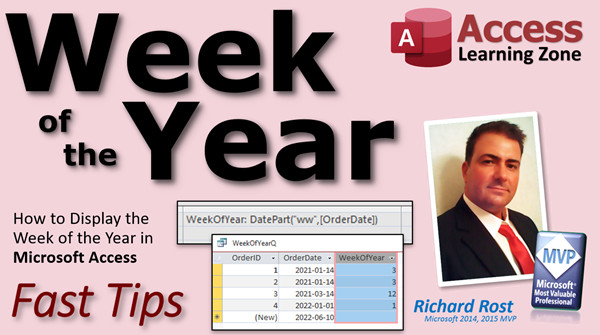
- WeekOfYear: DatePart("ww",[OrderDate])
- WeekOfYearFourDays: DatePart("ww",[OrderDate],1,2)
- WeekOfYearFullWeeks: DatePart("ww",[OrderDate],1,3)
 Keywords Keywords
access 2016, access 2019, access 2021, access 365, microsoft access, ms access, ms access tutorial, #msaccess, #microsoftaccess, #help, #howto, #tutorial, #learn, #lesson, #training, #database, #fasttips, vba weeknum, Convert date into Week number, Changing the starting week of the year, How to get week number from date, What is the number of this week, week 1, week 52, week 53
 Subscribe to Week of Year
Get notifications when this page is updated
More InformationTranscript Welcome to another Fast Tips video brought to you by AccessLearningZone.com. I am your instructor, Richard Rost. In today's video, I am going to teach you how to display the week of the year in Microsoft Access.
A lot of times, especially in accounting-type reports, you have to display the week number of the year. Is it week 2? Is it week 52? Is it week 53? That happens every five or six years. You get a year with 53 weeks in it. I think 2017 was one and 2023 will be one. So it happens. It is not always just 52.
But anyway, how do we display that number in Microsoft Access?
Let's take a table like OrderT. We've got an order date here. I want to know what week of the year that order fell in.
Let's make a query. Create. Query Design. Now, you can put this in a query. You can put this in a form. You can put this in a report. You could put this in your VBA code. It works pretty much everywhere. Let's put it in a query for accessibility.
Bring in the OrderT table. That is my order table. I'm going to bring in my order ID and the order date.
Now I'm going to make a calculated query field to display the week number. If you do not know what a calculated query field is, go watch this video. I will show you all about it.
Down here, I am going to put my calculated query field. We are going to call this WeekOfYear. WeekOfYear, no spaces, of course, colon. I am going to zoom in so you can see it better. Shift-F2 zooms us in.
What are we going to do to put the week number of the year? We are going to use a function called DatePart. DatePart lets you pull any piece of a date out. You can pull out the day. You can pull out the year. You can pull out the month. You can pull out the seconds. Remember, a date value is also date and time. But you can also pull out the week number of the year. You can also pull out the quarter and all kinds of stuff.
I have a whole separate video just on DatePart. If you want to learn all those different aspects of it, like the year or the quarter or the month, all that stuff, go watch this. It is free. It is on my YouTube channel. You will find the link down below.
But in today's video, we are going to focus just on the week of the year part of it.
DatePart, then open parenthesis. Inside of quotes: "ww". That tells the DatePart function what part of the date you want. "ww" is the week of the year. "w" by itself is the day of the week, so be careful.
Where did I find this information? On Microsoft's website, of course. There is the DatePart function. Scroll down. The "interval" is the part we are asking about right now. Here are all the different interval parts. "yyyy" is for the year, because "y" is the day of the year (1 through 365, or 366 really, just like down here). "w" is the weekday, 1 through 7. "ww" is the week number. Just like "n" is minute because "m" is month. You have to follow these codes exactly. So that has to be "ww".
Remember how annoying it used to be in commercials when the web was first taking off and you'd hear, "Go to my website at www.omg.state." That used to annoy me. But now everyone just knows, "Go to 599CD.com."
What's next? Next is the field for which you want to find the week of the year, so: OrderDate.
I do not use spaces in my field names, like a good little boy. If you put spaces in your field names, you have problems all over the place.
Hit OK.
Now let's run that. There you go. There is the week of the year that that date falls on.
For example, here is January 1st, 2022. Yes, I use the ISO date standard. That is because I have students in every country in the world pretty much. It is not confusing which one is which. Right, this is year-month-day. Got a whole separate video on that if you want to learn more about it. Got to prevent international incidents.
Now, here is the interesting part. Some people, depending on their accounting, might change what they consider to be the first week of the year. Some businesses consider the first week of the year to be the first full week of the year. For example, if you look at January 2022, January 1st falls right there, and then the first full week of the year is that. So this technically would be in the last week of 2021.
How do you change that setting? There are a couple of different settings. If you look at DatePart, there are a bunch of different options here. We know interval. We know date. Then there are two optional parts.
First day of the week - that doesn't apply to this function. That has to do with if you are dealing with the weekday, the day of the week, Monday through Sunday. I have a whole separate video on day of the week if you want to go watch that one. In fact, I just released it a couple of days ago.
There is Weekday. In the Weekday function and also in DatePart, you can change what the first day of the week is. You can make it Sunday, which is the default, Monday, Saturday, whatever. That is what this parameter is for.
What we want is this guy, but you cannot leave that blank. Unlike VBA, if you are using a query, you cannot leave this guy blank. So you have to use the default at least, which is Sunday or 1. Remember that.
For the first week of the year argument, there are a couple of different choices. You want to use either 1, 2, or 3. Do not worry about this one.
"1" means January 1st, which means the first week in which January 1st occurs. That is the default.
Then there is "first four days," which is 2, which is start with the first week that has at least four days in it. I rarely see that one, but I see this one a lot: start with the first full week of the year. Usually, with payroll and similar things, they use this one a lot.
So, if I want to come in here now, Design View, but want to change this guy, remember, you have to go comma 1 here. We cannot use those VB constants like vbFriday, vbMonday unless we are actually in VB. You cannot put those in a query. You will get an "Enter Parameter Value," which you do not want. Put a comma 1 pretty much always here. Then comma 3, for example, is "use the first full week."
Hit OK. Now run it. Now you can see that this date actually falls in week 52 of the previous year. I know it is crazy, but that is how they do it sometimes in accounting, payroll, and with things like explosive parts and chemical structures.
But I am going to go back to just the default regular one. I almost never use that unless it is a custom build for someone.
How do we throw this into a form? Let's just say this is Query1. That is OK. I am going to borrow this right here. I am going to copy that.
We are going to put it in a form field within the customer form. Go to Orders.
I want to know what week of the year this order falls on. Design View. We will slide this over a little bit like that. I will grab another text box, drop it right next to it, get rid of that label, shrink it up a little bit.
Oh, I accidentally grabbed the notes field. We do not want to do that. Click and be very careful. There we go.
Double-click on it. Right here: WeekOfYear.
My control source will be equal to that DatePart function that I borrowed a minute ago.
Close that. Save it. Close it. Open it back up. Boom. Week number three.
It makes sense because the first would be the only one in that week, so the second through - where is that calendar? - the second through the eighth is week two. The 14th would be the Friday of week three, the second Friday.
I like to make these gray because people need to know they cannot change that. Any field people cannot edit, I like to make gray, like I do with the OrderID up here.
Now for those of you that know a little VBA, say you wanted to display that. I will just throw it in a button here. Take this button. Copy and paste it, put a little button right there next to it. Get rid of that label. I am going to put a little question mark in there, just to show you what you can do a little bit differently with this.
Right-click, Build Event. If you have never done any VBA before, this one has a macro in it. Some of these buttons, when I was making them for the beginner students and the very early ones, I put macros in. I try to avoid macros if I can. I am going to go to Event and get rid of this On Click embedded macro. Delete. Do not like that.
Then I will change the name of this button to WeekOfYearButton or whatever you want to call it.
As I was saying before, what I am going to do is right-click, go to Build Event. That brings up my VBA code builder. If you have never done any VBA before, it is not scary. Go watch my free intro to VBA class. It is 20 minutes long and will teach you all the basics. It is real simple.
If you have been watching my videos for any length of time, you will know that with just a couple little lines of code here and there, you can do some really cool stuff.
Anyway, let's say here I just want a message box:
This order falls in week...
Then I can use my DatePart:
DatePart("ww", [OrderDate])
Now, see, I am getting a little helper thing popping up underneath there: FirstDayOfWeek, vbSunday, etc. I can actually use vbSunday, because this is VB. You cannot use these constants - they are called vbSunday, etc. - in queries and forms. You have to use the numbers, which I personally hate, but comma, and then use FirstJan1, which is the default.
I will tell you what the default is right over here. There is the default. Because these are in brackets, those are optional. That is the default that will be used if you do not specify it. You do not need all that stuff. Those are the default values.
So, this will message box that. I just wanted to show you the VB syntax.
Save it, close this, close this, open it back up again. Click the button. "Order falls in week 3," which is totally unnecessary because we got that already, but I just want to show you the VB.
Now, if you want to learn a lot more about date functions in Microsoft Access, I have my Access Expert Level 27 and 28 classes. That is parts 1 and 2 of my Date/Time Function Review. I cover everything there is to know about working with dates and times in Microsoft Access. I do all kinds of different stuff.
There is Level 27, and where is 28? It is over here. There it is.
Level 28 DateTime function is part two: DateAdd, DateDiff, DatePart, DateSerial, all kinds of stuff. How to display ordinals: first, second, third, etc.
I also have the Access DateTime Seminar, which covers everything there is to know about working with dates in Microsoft Access. All kinds of cool stuff in here, all kinds of functions we write.
Workday function, my NetworkDay function. It is all kinds of cool stuff where you can specify, like, how many work days are there between this date and that date. We can put a list of holidays in there. All kinds of cool stuff.
This is something that Excel has that Access does not have. Nobody likes Access, and we are in Microsoft in a very small group of people. Everyone goes to Excel.
So, check those out.
There is your Week of the Year function. DatePart. I hope you learned something today.
Be sure to like and share this video. If you have any questions, post them down below. We will see you next time.
Thank you. Intro In this video, I will show you how to display the week of the year for a given date in Microsoft Access using the DatePart function. We will cover how to add a calculated field to a query, use different interval codes to extract week numbers, adjust settings for defining the first week of the year, and display the week number in both queries and forms. I will also demonstrate how to show the week number using VBA code in a form button for those interested in automating this task. Quiz Q1. What function is used in Microsoft Access to display the week number of the year from a date?
A. DateSerial
B. DateDiff
C. DatePart
D. DateAdd
Q2. When using the DatePart function to get the week of the year, what interval code should you specify?
A. "w"
B. "yyy"
C. "ww"
D. "mm"
Q3. What value does "w" specify as an interval in the DatePart function?
A. Week of the year
B. Month of the year
C. Day of the week
D. Year
Q4. What happens every five or six years regarding the week numbers in a year?
A. There are 54 weeks in the year
B. There are 53 weeks in the year
C. There are only 51 weeks in the year
D. There are no week numbers that year
Q5. In the DatePart function, which argument can you use to adjust how the first week of the year is determined?
A. First day of the year
B. First full week setting
C. First week of year argument (firstweekofyear)
D. Month adjustment
Q6. Which numeric option sets the first week of the year as the week containing January 1st in DatePart?
A. 0
B. 2
C. 1
D. 3
Q7. If you want the first week of the year to be the first full week, what value should you use for the firstweekofyear argument?
A. 3
B. 2
C. 1
D. 0
Q8. When using DatePart in a query (not VBA), how should you specify the first day of the week?
A. You can leave it blank
B. Use the vbSunday constant
C. Always provide a numeric value like 1 for Sunday
D. Use any text value
Q9. If you try to use VBA constants (like vbSunday) in a query, what is likely to happen?
A. The query will work normally
B. You will get an "Enter Parameter Value" prompt
C. It will default to Monday
D. It will ignore your input
Q10. In VBA code, how can you specify the first day of the week in the DatePart function?
A. By omitting it
B. By using the appropriate VBA constant like vbSunday
C. By entering a text value like "Sunday"
D. It is not possible to specify
Q11. Why does the instructor recommend using no spaces in field names in Access?
A. Spaces make queries faster
B. Spaces prevent errors and problems in queries and code
C. Spaces are required for best practice
D. Spaces help with sorting
Q12. If you want to create a calculated field for the week of the year in an Access form, what property should you set in the text box?
A. Format
B. Control Source
C. Row Source
D. Caption
Q13. What color does the instructor like to make fields that should not be edited by users?
A. Red
B. Blue
C. Gray
D. Green
Q14. Which of the following is NOT mentioned as a way to use the DatePart function in this lesson?
A. In a query
B. In a form
C. In a macro
D. In VBA code
Q15. According to the video, which of the following classes or seminars is suggested for learning everything about Access date and time functions?
A. Access Expert Level 10
B. Access DateTime Seminar
C. Access Forms Masterclass
D. Access Index Seminar
Answers: 1-C; 2-C; 3-C; 4-B; 5-C; 6-C; 7-A; 8-C; 9-B; 10-B; 11-B; 12-B; 13-C; 14-C; 15-B
DISCLAIMER: Quiz questions are AI generated. If you find any that are wrong, don't make sense, or aren't related to the video topic at hand, then please post a comment and let me know. Thanks. Summary Today's video from Access Learning Zone focuses on how to display the week of the year in Microsoft Access. This is a common requirement in reports, especially those used for accounting, where it is often necessary to identify the week number for a given date. Occasionally, years can have 53 weeks instead of the usual 52, so it is important to be aware of this when handling date data.
To demonstrate this, I use an example table called OrderT, which contains order dates. The goal is to determine which week of the year each order falls into.
The best way to accomplish this in Access is to use a query. While you can also incorporate this feature into forms, reports, or even VBA code, working with a query offers a straightforward way to see the results. In the query design, I bring in the necessary fields from the OrderT table, namely OrderID and OrderDate.
To create a calculated field that displays the week number, I use the DatePart function. For those unfamiliar with calculated query fields, I recommend checking out my separate tutorial covering this topic in detail.
The DatePart function allows you to extract various pieces of information from a date, such as the day, month, year, seconds, week number, quarter, and so forth. If you are interested in learning about all of DatePart's features, I have a full video dedicated to it, which you can find on my YouTube channel.
For the task at hand, we focus specifically on extracting the week of the year. Inside the DatePart function, the argument "ww" (in quotation marks) tells Access to return the week number. It is important not to confuse this with just "w", which returns the weekday instead. Microsoft provides detailed documentation on the different interval codes for DatePart. For instance, "yyyy" returns the year, "w" is for the weekday, and "n" is for the minute. Be sure to use the correct codes when working with this function.
After specifying "ww" in DatePart, the next argument is the date field you want to analyze, in this case, OrderDate. Personally, I avoid using spaces in field names, as this can lead to various issues down the line.
Running the query displays the week number for each order date. For example, January 1, 2022, which I display using the ISO date standard (year-month-day), will return a particular week number. I recommend using the ISO standard for dates to avoid confusion, especially if you work with clients or students internationally.
It is worth noting that businesses may define the first week of the year differently. Some organizations consider the first full week as the start of the year, while others use the week that includes January 1. The DatePart function includes parameters that allow you to adjust these settings.
The DatePart function includes interval and date arguments, but also offers optional parameters for setting the first day of the week and the first week of the year. For instance, the second optional parameter lets you specify the first week of the year: using "1" means the first week that contains January 1, "2" means the first week with at least four days, and "3" is often used for payroll, as it sets the first full week of the year as week 1.
When working with queries (as opposed to VBA), you cannot simply leave these additional arguments blank if you need to specify one farther along in the parameter list. In queries, use numeric values (like 1 or 3) rather than VBA constant names such as vbSunday. In VBA, you can use the constants, but in queries you are limited to numbers.
If you want your query to treat the first full week of the year as week one, set the parameter to 3. Otherwise, the default setting typically suffices. Running the query after this adjustment will shift certain dates, so for example, January 1 might be assigned to week 52 of the previous year. This is often useful for payroll or other specialized accounting needs.
You can easily add this calculated field to a form. Simply copy the DatePart expression and use it as the control source of a text box in your form. This will allow you to see the week number directly when viewing orders. I like to set calculated fields like this to a gray color, so users recognize these fields are read-only and cannot be edited.
If you want to implement this in VBA, for example triggered from a button, you can call the DatePart function in your code and display the result in a message box. Note that in VBA, you can use constants such as vbSunday, which are not recognized in query design. The code will show a message indicating in which week an order falls based on the OrderDate.
For additional information about date functions in Microsoft Access, I recommend reviewing my Access Expert Level 27 and 28 classes. These cover a wide range of date and time functions, including DateAdd, DateDiff, DateSerial, as well as many tips for formatting and analyzing dates. My Access DateTime Seminar is another great resource if you want to become really proficient with dates in Access, featuring custom-built functions and even holiday calculations. Some of these functions, such as NetworkDay, offer functionality similar to what you might find in Excel but are custom made for Access.
Using the DatePart function, you can easily display the week of the year in your Access databases. I hope you found this lesson helpful.
You can find a complete video tutorial with step-by-step instructions on everything discussed here on my website at the link below. Live long and prosper, my friends. Topic List Displaying week of the year in Access queries
Using the DatePart function to get week numbers
DatePart interval codes for weeks ("ww")
Creating calculated query fields for week numbers
Adjusting week numbering with DatePart arguments
Setting the first week of the year in DatePart
Using numbers versus constants in Access queries
Adding week number display to Access forms
Making uneditable fields visually distinct in forms
Displaying week number using VBA and DatePart
Difference between DatePart in queries and VBA
Creating message boxes in VBA to show week numbers Primary Topics Microsoft Access, DatePart function, week of year calculation, calculated query fields, form controls, VBA implementation Secondary Topics date standards, accounting/reporting considerations, DatePart parameters, date formats |




