Secondary Emails
By Richard Rost

 4 years ago
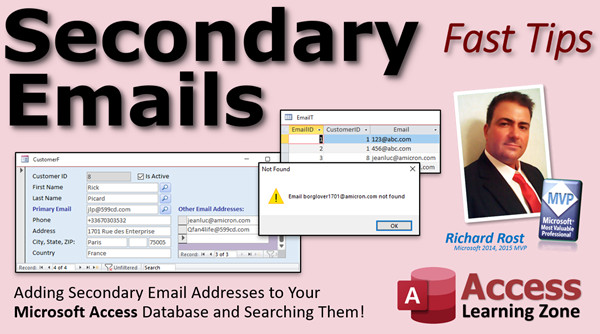
Secondary Email Address Table with Search Button
So here's the story: I've got a database I built over 20 years ago (yes, it's hard to believe I've been doing this for 20 years) and it's very complex and working great. However, I need to be able to track multiple email addresses and phone numbers in it. I get emails or Paypal payments from unknown email addresses that belong to my customers, but I don't recognize them.
It would be a major redesign to change the whole database, so I'm going to add a secondary email address table and then update my search buttons to look in there if the primary email isn't found.
Gold Members
I don't normally include database downloads for my Fast Tips videos, but Gold Members can download this finished database. Another reason to join today!
Recommended Course
Links
 Keywords Keywords
access 2016, access 2019, access 2021, access 365, microsoft access, ms access, ms access tutorial, #msaccess, #microsoftaccess, #help, #howto, #tutorial, #learn, #lesson, #training, #database, #fasttips, multiple email addresses, search button, search for email, email not found, How to Add Multiple Email addresses for customers, searching multiple emails
More InformationTranscript Welcome to another Fast Tips video brought to you by accesslearningzone.com. I am your instructor, Richard Rost.
In today's video, I am going to show you how to add secondary email addresses to your Access database and search for them.
Here is the problem. This is a problem I personally have in my database and I have also gotten this email from a bunch of people over the last couple of weeks. As you can imagine, I have got a huge database that runs my business and I started this business 20 years ago. It's hard to believe it's been almost 20. In fact, 20 years this September, I registered my website.
I know a lot more now about Access than I did 20 years ago. Even back then, I was still a professional Access developer, but I still only built my database for one email address. At the time, 20 years ago, most people didn't have multiple email addresses and it wasn't a big deal to change it. If they had a secondary one, maybe I'd drop it in the notes field or whatever.
Today, it happens a lot more that I get customers with multiple email addresses. Sometimes I will receive a PayPal payment and it will be from one email address. I will search for the person and I cannot find them. People have to email that address and then hopefully they get back to me and say they set up their account on my website under one email address, their PayPal is a different address, then they've got a work email and a home email and a lot of stuff.
The proper way to set something like this up is to create a secondary table where you can have as many email addresses as you want. I have a whole separate video called multiple phone numbers where I basically show you the same thing. You might have home phone, work phone, cell phone. Someone might have five phone numbers. Someone might have eight email addresses and you want to have them all in your database.
The problem is I do not want to redesign my entire database. It works great. There are millions of moving pieces, dozens of forms, lots and lots of queries. What I have right now is perfect. It works just fine. I do not want to break it and take two weeks to have to redesign everything.
So what I am going to do is I am going to leave my primary email address just where it is in the customer table and use that for the major, everyday things in my database. But I am going to add that secondary email table. So if someone does have two, three, four, five email addresses, I can drop them in there. The challenge then is simply to update my search buttons if I want to search for someone by their email address.
Let's say I got a PayPal payment in from Jean-Luc at amicron.com, but his primary email address is enterprise at 599CD.com. I want it to still find his record by searching in the secondary table. Obviously, if you have things like email blasts that go out like newsletters and such, you update that. But generally I find that people only want to receive that stuff at their primary email address. They do not want to get five copies of my monthly newsletter going to all of their email addresses. That's probably just fine sending it to their primary email address.
Let's see how to put this into action in our database.
Now, before we get started, some prerequisites. This video is going to be based on several others that you should watch first. Go watch my multiple phone numbers video. This one will show you how to set up the multiple phone number subform. We are going to do the same thing today with the email addresses. This video does not go into searching for this. If you want to search for your customer by phone number, we do not cover that in this video. That's what we are going to do today.
Also go watch my search button video. This is where I put the little search button next to a field so you can click on it and say you want to search for people by first name or by last name, or as we are going to do today, by email address. These are free videos by the way. They are on my website. They are on my YouTube channel. Go watch these first, then come on back.
The search button video tells you to go watch Intro to VBA. You need a little bit of VBA for today. Just a couple of lines of code. Do not be scared. It is not hard once you get used to it.
Go watch my If Then video because we have to be able to say if email address is not found, then do this, otherwise do that. So, If Then clause.
We have to be able to know what DLookup is so we can dlookup their information from the table. In customer table or customer form, we have to be able to lookup information from a different table, the email table. So go watch this video.
Finally, go watch the NZ video. NZ is what happens if you do not have a value returned. If it is null, you can replace it with a zero or anything else you want.
Here is your list. You will find links to all these in the description text down below the video. YouTube does a pretty good job of hiding them if you're watching on YouTube. You will find a "more" link. Click on it. You will find links to all these.
Click this list, go to the school bookstore, and go spend $8 million on your books - just kidding. These are all free. Every single one, go watch this stuff first and come on back.
I just gave myself chills there going back to my college days when I would go to the bookstore. This was 1990 when I started college. Back then, books were 80 bucks for a computer science book. I cannot imagine what they are today. I think one of my daughter's classes was 300 something.
Now, one of the benefits of being a Gold Member on my site is that you can download the databases that I build in the TechHelp videos. I am going to go to the single field search button page on my website, which I gave you a link to earlier. It's one of the videos I want you to watch. If you are a Gold Member, you can download the template. There it is right there. I am going to click on that little download.
If you are a Silver Member or you are not a member, you can just watch this video, build the database on your own, and then come on back.
There is the database that I grabbed from that page. Here it is. You can see this is an older version of my TechHelp free template, about two years old, but it has all the basics in it.
There is the customer form. We have our little search buttons that we built in that video. You click on this here, type in Picard, and it brings you right to Picard. How does it accomplish that? Well, simple filter in the background.
Let me turn that off. Right click, build event. There is our code. Let me shrink this down just a bit. It is a little bit big.
Here it is right here. Last name search, for example, will give you an input box. It says, "Enter the last name." It prompts the user for a last name. It makes sure that it is not blank. If it is blank, it exits the sub. Then it turns a filter on with the Me.Filter property. It says, LastName like '*' & s & '*'. What does that mean? Well, it is like you could type in "PIC" and it will find Picard. That's a wildcard search. If you do not know that, you should have gone and watched the search button one because the wildcard search is a prerequisite for that one.
People always say, why do you give us all these things? I have to jump around and watch all these different lessons. Well, that is how the TechHelp and the Fast Tips are. I will tell you what the prerequisites are. If you want a course where everything is laid out A, B, C, then D, go take my full course. Start at Beginner 1 and work your way up. That's what the well-designed course is for. These are Fast Tips videos, so I jump around a little bit.
We are going to make an email search button, just like these. I want the email search to be an exact search. I do not want to have a LIKE in there. I want to have the exact email address or nothing at all. If you want to make it LIKE, go ahead and make it LIKE, but then I find that if I type in "gmail.com," sure, it will filter and show you everybody at gmail.com, but you might get 500 people.
We are just going to do an exact search for the email address. Either it is in here or it is not.
Usually, this happens when someone sends me an email and I cannot find their account because it is a different email address. Again, exact search. Or I get a PayPal payment - exact search. Almost never do I have to search for a part of an email address. Sometimes if it is a company domain name, like amicron.com, then that might help me find the person too. If that happens rarely, you can just do a manual filter on here, or you can make another search button that does the wildcard search. Put two of them on there if you want. For today's class, we will do an exact search. These other buttons show you how to do the wildcard search.
Copy and paste that button. Slide it up just a bit. Open it up, change properties. What do we call these ones? SearchLastNameBTN.
We will call this one SearchEmailBTN (Search Email Button). Right click, build event.
Just like the other ones. In fact, I am going to copy the code from SearchFirstName. Copy and paste this code. Remove the blank spaces.
We are going to go, "Please enter an exact email address." Change to email. I am not going to default to having something in there, so get rid of the first name part.
Check to see if it is something. Then here we are going to say, Email = "" & s & "" (those double, double quotes). I talk about that in more detail in my concatenation video, which I think is a prerequisite for the other videos. You should have watched this one too by now. Those double, double quotes can be confusing.
Test it out. Save that. Come back out here. Close. So, if I were just searching in the primary email here... Oh, that's messed up, let's change that. Here and that. Beta is JLP. Go back out here. Click in here and type in [email protected]. That brings me to it. Oh, it is 599cd.com. Let's try that again. [email protected]. Perfect. There we go.
If it does not find it, it just puts us on a blank record. Maybe in a minute we will do a little message that says it is not found.
Now we have a situation where Jean-Luc has multiple email addresses. We have to be able to put them all in the system. We need to make a second table. Table design.
EmailID - that will be our autonumber. People always ask me, can I use just the email address as a primary key? No, you cannot. Yes, technically you can use almost any kind of field as a primary key. You can use a text field as a primary key. I do not like doing that. They are called natural keys, they are found in nature. I just like using an autonumber for every primary key. It is easier, faster, and more efficient. Access manages an autonumber. I do not care if they've got another number like a social security number or whatever.
Someone is beaming in. Just stick with autonumbers. I have a whole separate video on why you should just do it. I cannot help but tell you what the other video is. There it is. I'll put a link down below.
Next, we need our foreign key. That is CustomerID. That is a Number type, Long Integer. That is how we know who this email address belongs to. Then, of course, we need the email itself. That will be a short text field.
Whether or not you want to index this, that is up to you. I would at least index it, duplicates OK. When you index a field, Access creates a separate index table. It is hidden. You do not see it. But it will save that table sorted by the email address, which makes it much, much faster for it to find that email address when you search for it. If you do not index it, then Access literally will start at record one and just go down all the records until it finds that one or does not. It has to run through the whole table. If it is indexed, it is much, much faster. Access builds a little hash in the background and it can quickly find it if it is sorted.
I would not necessarily index this no duplicates because that only handles this table. It will not take into consideration your primary customer table. So they could have the email address in the customer table and in this table and your index-no-duplicates is meaningless. You could index-no-duplicates the primary email addresses; I have that in my database. That's totally up to you. You could use a separate event to try to search, when you add a secondary email address, you could search the primary and back and forth using dlookup. If you want to see how to do that, I could do that in a separate video.
Managing duplicates between two tables can be a little tricky, but it is not impossible.
So this one is good. This will be my EmailT, my email table primary key, so EmailID. This table technically has two indexes, this one and this one.
Close that.
Now we have to put it in our customer form as a subform. You could do it as a subform or as a pop-up form, whatever you want. I am going to put it in as a subform just because I like the way it looks.
Take the continuous form here. Before, in the new version of the template, I put an underscore in there. We will just rename this guy. Call it EmailF.
Open it up in design view. Get rid of these labels. Shrink that up. Get rid of that guy. Slide this to the left. Make you a little bit bigger. Make you a little bit smaller.
I think this was not set as continuous form. Set that to continuous forms. I made the continuous form template and I did not save it as a continuous form. That is a single form.
Go to the properties for the form. Open up the record source and set this to EmailT. That is where it is getting its data from. Then change this guy so its control source is the field we are getting our data from - Email - and then copy and paste that in the name box right there.
All right, we're good. Save it. Close it. Open it up. Take a peek. Looks good.
Now go to the customer form and drop that in here. For purposes of class, I am going to get rid of all this stuff. We do not need it. Goodbye.
Take EmailF and click and drag and drop it there. Slide it down right below the email field. For once I am going to keep this label that comes with it. Usually, I delete that guy. We are going to call this Secondary Email Addresses like that. Let's call this one Primary Email. Select both of those together holding down the Shift key, go to Format Bold, and make it blue. There we go.
You can resize this as big or as little as you want. I am going to make it the size of the other one and you have some room up here to do it.
Save it. Close it. Open it up.
So I am [email protected], I am also [email protected], I am also [email protected], I am also [email protected]. I have a lot of them.
Let's do it on another one. Where is Jean-Luc? There is Jean-Luc. He is also [email protected]. He is also [email protected] and a bunch of other ones.
Many years ago I decided in classes only to use my domains in my classes because I was using other ones like xyz.com and my students would type that in and send emails to those addresses and I would get complaints: "Can you please stop doing that in your videos?" That was fun.
By the way, for the Trekkies out there, the season finale of Picard Season 2 made me cry when he said goodbye to Q. I have been very disappointed with Picard the series overall. I do not think the writing has been that good, but that last episode brought a tear to my eye and I promised myself I was not going to cry.
Here we go.
Now what we are going to do is we are going to come in here and search for something. Let's say I am searching for [email protected]. If it is not found, when we apply the filter, what is going to happen is our CustomerID is null right now. We can use that. If we do that search, if we apply that filter and CustomerID is now null, then try searching in the secondary table.
Search the primary table first, then start looking through the secondary table.
Let's go back to our code. Here is our SearchEmail. Down here, say: If IsNull(CustomerID) then just for now, MsgBox "Email not found." Just for now. End If. If you do not know what IsNull is, go watch that video. I have a whole separate video on IsNull. Basically, it means it did not find a value or I do not have a value yet, which is different from intentionally blank - IsNull versus empty string, a whole separate video which we are not going into now.
Save that. I just realized I got a goof here. I said Exit Sub instead of End If. You all have to yell at me when I make mistakes. Someone raise their hand. That is one of the reasons I miss doing live classes, because people in the back row will be like, "Wait, wait, wait." Now I have to wait a couple days before I get five million hate emails.
Save it. Come back over here. Try searching for something, anything, doesn't matter. "Email not found." Because it applied the filter and CustomerID is null.
I do not want to just tell them it is not found, I want to look in the other table. So let's use DLookup. You already watched the DLookup video. Let's look up the CustomerID from the email table where the email address equals what was typed in.
ID as long as another variable.
ID = DLookup("CustomerID", "EmailT", "Email='" & s & "'")
If it is not found, I do not want an error message, I want a zero. So:
ID = Nz(DLookup("CustomerID", "EmailT", "Email='" & s & "'"), 0)
If it does not find an email address, bring me back a zero. Otherwise, bring me back the CustomerID that belongs to that.
Now I can say:
If ID = 0 Then
MsgBox s & " not found.", vbExclamation, "Not Found"
Me.FilterOn = False
Else
Me.Filter = "CustomerID=" & ID
End If
Lookup the ID where the CustomerID, get the CustomerID from the email table where the email matches s. If it is zero, we did not find anything, tell them that, exit out and turn the filter off. Otherwise, the filter is still on from up here by the way, so you do not have to issue that command again, but set the filter equal to CustomerID.
Clean out the extra blank spaces. I think that's all we need.
Save it. Come back out. Close and reopen.
Let's look for [email protected]. He should be in the primary table. Boom. There he is. Great.
Now let's look for me, [email protected]. Boom. It found me in the secondary table. See that? It searched the primary table, did not find me, searched the secondary table.
Let's do another search. Search for just some garbage. "Email not found."
If you want to put logic in here to check if it's a valid email address, you can do that too right after they enter it. Make sure there's an @. Make sure there's a dot. Make sure there's whatever.
So far all these pieces are working. Let's click on it and try one more. Let's look for [email protected]. There you are.
Now if you have other things you need to integrate this into, you have all these extra email addresses. I mostly use it just for search. I really do not do anything with those secondary email addresses aside from allowing them to make it easier for me to find a customer that's contacting me or sends a payment from a different email address. Once I get it, then I add it to the secondary email table and I'm all set to go.
So there you go. This tip for today - these Fast Tips are getting longer. That was not very fast. That was 20 minutes. That is how the TechHelp video started. The TechHelp video started as quickly answering a question. Then those expanded into a 15 to 30 minute free video followed by a half hour extended cut video. So I guess the Fast Tips I'll have to call them Medium Tips.
I'm going to learn something and we will see you next time. Have a good one.
How do you become a member? Click on the Join button below the video. After you click the Join button, you will see a list of all the different membership levels that are available, each with its own special perks.
Silver members and up will get access to all of my extended cut TechHelp videos, one free beginner class each month, and more.
Gold members get access to download all of the sample databases that I build in my TechHelp videos, plus my Code Vault where I keep tons of different functions that I use. You will also get a higher priority if you decide to submit any TechHelp questions to me. You will get one free expert class each month after you have finished the beginner series.
Platinum members get all the previous perks, plus even higher priority for TechHelp questions, access to all of my full beginner courses for every subject, and one free developer class each month after you have finished the expert classes. These are the full-length courses found on my website, not just for Access, too. I also teach Word, Excel, Visual Basic, and lots more.
You can now become a Diamond sponsor and have your name or company name listed on a Sponsors page that will be shown in each video as long as you are a sponsor. You will get a shout-out in the video and a link to your website or product in the text below the video and on my website.
But do not worry, these free TechHelp videos are going to keep coming. As long as you keep watching them, I'll keep making more, and they will always be free. Intro In this video, I will show you how to add secondary email addresses to your Microsoft Access database and update your search functionality to find customers by any of their email addresses. We will talk about creating a related email table, setting up a subform for multiple email entries, and modifying the search button code to check both primary and secondary email addresses for matching records. I will also demonstrate using DLookup and Nz functions to search across tables, and discuss table indexing to improve performance. Quiz Q1. What is the main problem discussed in the video?
A. Difficulty changing customer names in the database
B. Not having enough storage space for images
C. Searching for customers who have multiple email addresses
D. Inability to send newsletters to customers
Q2. What is the recommended way to allow customers to have multiple email addresses in an Access database?
A. Add extra email fields to the customer table
B. Store extra emails in a notes field
C. Create a separate secondary email table
D. Limit customers to only one email address
Q3. Why did the instructor not redesign the entire database to handle multiple emails?
A. The database was new and had no data
B. Redesigning would risk breaking many parts of the existing system
C. He did not know how to redesign a database
D. Customers requested only one email address
Q4. How does the instructor plan to use the primary email address in the database?
A. Only for sending newsletters
B. For major, everyday tasks and communication
C. For backup purposes only
D. For displaying on the customer website
Q5. What is a prerequisite skill for following along with this video?
A. Web development experience
B. VBA basics, such as If Then statements and DLookup
C. Knowledge of SQL Server management
D. Using Excel for data storage
Q6. What is the purpose of indexing the email field in the secondary email table?
A. To ensure uniqueness of each email address in both tables
B. To make searching for an email address faster
C. To link directly to the customer table
D. To store additional email metadata
Q7. What search technique does the instructor use for finding email addresses?
A. Wildcard LIKE searches only
B. Partial match searches for all emails
C. Exact match searches for the email address
D. Soundex-based phonetic searches
Q8. Why does the instructor not use a text field as a primary key for the email table?
A. The text field cannot be indexed in Access
B. Natural keys are less efficient and harder to manage than autonumbers
C. The text field would automatically cause duplicate errors
D. Access does not allow text primary keys
Q9. How does the search process work when looking for a customer by email?
A. It only searches the primary customer table
B. It searches both tables simultaneously with a JOIN
C. It first checks the primary email, then looks up the secondary email table if not found
D. It ignores secondary emails and proceeds to manual search
Q10. What function is used to retrieve the CustomerID from the secondary email table in VBA?
A. SearchFunc
B. DLookup
C. FindRecord
D. Aggregate
Q11. What does the NZ function do in the email lookup code?
A. Finds null email records and deletes them
B. Converts a NULL value retrieved from DLookup to zero
C. Changes email addresses to uppercase
D. Creates new indexes when missing
Q12. When would you want to use a wildcard search (LIKE) instead of an exact email search?
A. Always, since it is more efficient
B. When looking for a partial match like a company domain
C. Only if searching for phone numbers
D. When preventing duplicate emails
Q13. How is the customer form updated to accommodate multiple email addresses?
A. By adding multiple text boxes for extra emails
B. By using a subform linked to the secondary email table
C. By replacing the existing email field with a memo field
D. By adding a dropdown selector for emails
Q14. What advantage do Gold Members get on accesslearningzone.com?
A. Access to monthly newsletters
B. Ability to download sample databases built in TechHelp videos
C. Special tech support phone number
D. Discount on Access software
Q15. If an email address is not found in either table, what happens?
A. The database crashes
B. The user receives a message saying "Email not found"
C. The system creates a new customer record automatically
D. The system searches phone numbers instead
Q16. Why should you avoid indexing the secondary email field with "No Duplicates"?
A. It makes searches slower
B. It cannot check for duplicates across both the primary and secondary tables
C. It prevents new emails from being entered
D. Access does not support this option
Q17. What type of form is suggested for displaying secondary email addresses?
A. Single form only
B. Continuous form as a subform
C. Pivot form
D. Tabular report
Q18. What programming logic is shown to handle finding customer records by secondary email?
A. Update query with delete logic
B. If IsNull(CustomerID) then DLookup in secondary table
C. Macro execution for both tables
D. SQL JOIN with parameterized query
Answers: 1-C; 2-C; 3-B; 4-B; 5-B; 6-B; 7-C; 8-B; 9-C; 10-B; 11-B; 12-B; 13-B; 14-B; 15-B; 16-B; 17-B; 18-B
DISCLAIMER: Quiz questions are AI generated. If you find any that are wrong, don't make sense, or aren't related to the video topic at hand, then please post a comment and let me know. Thanks. Summary Today's video from Access Learning Zone focuses on how to add secondary email addresses to your Microsoft Access database and how to search for them effectively.
This is a challenge I have encountered in my own database, and I know many others have run into it as well based on the number of questions I've received recently. When I first built my business database two decades ago, it was common for a person to have just one email address, so that's all I allowed for in my customer table. If someone happened to have a second address back then, I might just make a note of it in a comments field. The times have certainly changed—people now often have multiple email addresses. I regularly get payments from an email address that does not match the primary one in my records, which makes record-keeping and communication a lot more complicated.
The proper way to tackle this is by adding a secondary table for email addresses. That way, each customer can have as many email addresses as needed. I've done something similar with phone numbers in my multiple phone numbers video. A customer might have several phone numbers or, in this case, multiple emails, and you want to store them all in your database.
However, overhauling a well-established, finely tuned database is not something I want to do. My current setup works perfectly, and with so many interconnected parts, I do not want to risk breaking things by redesigning around a new structure. So, my solution is to keep the primary email address where it is in the customer table and use this for day-to-day activities like sending newsletters. At the same time, I will add a secondary emails table to store any additional addresses for each customer. The main challenge after this is updating the search functionality, so the database can find customers by any of their email addresses.
It's common for me to search for a customer using an email address from a payment or contact, only to find that the primary address in my database does not match. Searching only the main table won't find the customer. This is where having a secondary email table becomes crucial.
Before getting started, there are a few prerequisite videos that can help you follow along more easily: the multiple phone numbers video (which demonstrates how to set up a subform for related phone numbers), the search button video (which covers searching for records based on criteria), and some basic VBA tutorials including If Then, DLookup, and the NZ function. These are all free lessons, available on my website and YouTube channel. I highly recommend watching them first so that today's content will make sense.
You do not have to be a Gold Member to follow this lesson, but Gold Members can download the sample databases I use in these videos. If you are not a member, just watch, build the forms and tables on your own, and continue from there.
Beginning with the search functionality, my customer form already has search buttons, as covered in the search button video. These allow you to enter a name or value and filter the form accordingly. For searching by email, I want an exact match rather than a wildcard search. If you want to allow partial matches, that's possible, but for my usage, exact searches make more sense—especially when verifying address for transactions or contacts where people are using distinct emails.
To set this up, simply copy one of the existing search buttons (for last name or first name) and adjust it to prompt for an exact email address instead. Make sure the filter in your code uses an exact comparison, not a LIKE statement with wildcards.
Next, to allow for multiple email addresses per customer, it's time to build a new table. In table design view, create an EmailID as an autonumber primary key, add a CustomerID field as a foreign key (number, long integer type), and include a field for the Email itself (short text). Indexing the email field (with duplicates allowed) will improve search speed. I do not recommend using the email itself as the primary key, even though technically you can—autonumbers are better for efficiency and reliability.
Once this table is created, insert a subform into the customer form to display and manage these secondary email addresses. You can choose between a subform or a pop-up form, but a subform is straightforward and keeps related info together. Configure the subform as a continuous form, tie its record source to the EmailT table, and set the control source for its email textbox appropriately.
Now, with secondary emails available on your customer form, you can add as many addresses as needed to each customer. For most users, this setup is sufficient for searching and reference. Typically, I do not send newsletters or bulk emails to these extra email addresses—the primary address remains the main contact point.
The next step is to adapt the search logic. Start by searching the primary customer table. If you don't find a match, check the secondary email table. You can do this by looking for a null CustomerID after an unsuccessful filter, and then using DLookup to see if the email appears in the EmailT table. If found, filter the form by the associated CustomerID. If not, display a message that no match was found.
You can further enhance this by adding email validation to check for a proper format before running the search. You could also develop additional logic for managing duplicates across the main and secondary tables, though that adds complexity.
With this new setup, searching for both primary and secondary email addresses becomes seamless. Customers using different emails for PayPal, work, or personal reasons will still be easy to locate in your system. While I personally only use the secondary table for searching, you could extend its usage as needed for your own workflow.
That covers the solution for adding and searching secondary email addresses in Access. If you'd like step-by-step guidance with all of these lessons and examples in action, you can find the complete video tutorial on my website at the link below.
Live long and prosper, my friends. Topic List Adding secondary email addresses to an Access database
Creating a secondary email table linked by CustomerID
Designing the email address table with autonumber primary key
Indexing the email field for faster searches
Adding the email address subform to the customer form
Configuring the subform as a continuous form for email addresses
Customizing form layout and labels for primary and secondary emails
Populating secondary email addresses for customers
Building an exact match email search button
Using VBA to implement primary email search logic
Implementing fallback search in the secondary email table
Utilizing DLookup and Nz functions for email lookup
Applying filters to display the matching customer record
Displaying a message if no email match is found
Testing search functionality for primary and secondary emails Primary Topics Access database design, secondary email address table, search button customization, DLookup, filtering forms, subform integration, VBA event handling, indexing tables
Secondary Topics managing duplicates, email address validation, user interface adjustments
|






