New Hire Emails
By Richard Rost

 4 years ago
Automatically Assign Email Addresses in Access
In this Microsoft Access tutorial, I'm going to show you how to automatically assign email addresses to new hires. We'll use some string manipulation functions and an update query.
Jaydon from San Jose, California (a Platinum Member) asks: We just hired about twenty new employees. I need to assign them all email addresses. We've been using first-initial dot last name at our company domain. Is there a way to do that automatically instead of typing them all in?
Members
Members will learn how to deal with duplicate values. Instead of using an update query, we'll perform a loop with a recordset, process the string replacements, and deal with duplicate values, all in VBA code.
Silver Members and up get access to view Extended Cut videos, when available. Gold Members can download the files from class plus get access to the Code Vault. If you're not a member, Join Today!
Recommended Course
Pre-Requisites
Links
 Keywords Keywords
access 2016, access 2019, access 2021, access 365, microsoft access, ms access, ms access tutorial, #msaccess, #microsoftaccess, #help, #howto, #tutorial, #learn, #lesson, #training, #database, how to automatically assign new email address in microsoft access, Automatically Create an Email, MS Access auto populating email field
More InformationTranscript Welcome to another TechHelp video brought to you by AccessLearningZone.com. I am your instructor Richard Rost and in today's video, I am going to show you how to automatically assign email addresses to new hires in Microsoft Access.
Today's question comes from Jaden in San Jose, California, one of my Platinum members. Jaden says, "We just hired about 20 new employees. I need to assign them all email addresses. We've been using first initial dot last name at our company domain. Is there a way to do that automatically instead of typing them all in?"
Well, of course, Jaden, I can help you assign them in your Access database. As far as actually setting up the email addresses on your email server, that is up to you, but I can make you a list that you can give to your email guy and have him set up these employees. So let's do that in Access.
Before we get started, I have a few prerequisites for you. First, you need to know how to use query criteria. If you do not know how to build a query, go watch my Access Beginner 1 class, but we are going to use some query criteria. You are going to have to know how to do string concatenation, which I will show you, but it helps to know this stuff beforehand.
You are going to need to know what indexing is so we can set our email address to "Index (No Duplicates)" so we cannot have two people in the table with the same email address. You should know what null values are and how to use the IsNull function. We are going to use calculated query fields and some string functions, especially the Left function. I am going to show you how to change case so we are going to change our email address to lower case, so go watch this one. We are going to build an update query to actually set that new email address in the customer table, so that is important.
You are going to need the Replace function to get rid of some pesky characters, for example, spaces in people's last names. Those cannot go in your email addresses.
These are all free videos. You will find them on my website and on my YouTube channel. There is a link on my website right there or you will find it down below, where you can click on it in the More section underneath the video.
Let's get going.
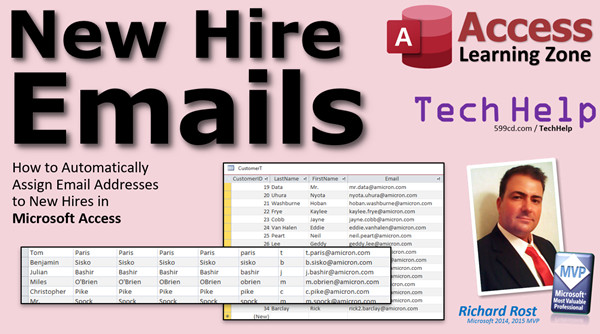
Here I am in my TechHelp free template. This is a free database. You can download a copy of it off my website if you want to. Let's take a look at my customer table. I have a bunch of new hires that I just added to the system. Here they are down here. There is a whole bunch of new people. You can see them all right there. All I have got on them right now is first name, last name, and I want to generate an email address if they do not have one already. The rule is going to be: the first letter of their first name, followed by a period, followed by their entire last name, at whatever domain name. We will use amicron.com because in past classes I used to do stuff like @abc.com or whatever, a goofy domain name, and I would get complaints from people because I was having my customers and my students send fake emails to those addresses. It was not very nice, so I just use my own domain names now on.
The first thing we are going to do is make sure that the email address field in our table is indexed. Not only does that mean that searches and sorts on the email field will be faster, but I want to make it so that no two people in the database have the same email address. So we are going to come down to Indexed and set this to Yes (No Duplicates). Let's save that. If you have duplicate values in there right now, it will yell at you, which I do not. If you want to require that field and make sure that they have to have an email address, you can set Required to Yes, although I rarely use that. I do not really use that field because I find that if people have to type something in and they do not know what, they will just type in garbage to get around it. It is better to have no data than bad data, because at least you can do a query to pull up null stuff.
Let's make a query now to build our custom email address with the rules that we have assigned. Go to Create - Query Design. We are going to bring in our customer table. That is all we need. Bring in the first name, last name, and the email address. I do not want to change anybody that has got an email address already so we are going to set the criteria here to Is Null. That means I am only going to get people that do not have an email address. If I run this now, you will see there you go, that should all be blank.
Back to Design View. I can see some people in this list that have last names that are going to be a problem. For example, I have got Miles O'Brien. Technically the single quote is allowed in email addresses, but I do not like using that, so I am going to get rid of that. I can see Reese Davies down here with a dash in it. Again, technically allowed, but I do not want to use it. I want just the characters. Finally, this one is a big problem: Van Halen. Space in there. Cannot have space in an email address for sure.
The first thing we are going to do is fix the last name field so it is just letters. I actually do have a Filter Characters function that I am going to show in the Extended Cut for the members, but I am going to try and do this without any VBA. I like to have a non-programming solution available if possible for the beginners. So we are just going to use a couple of Replace functions to replace the characters that are causing problems and make a new field out of it.
Go to Design View. The first thing we are going to do is replace that space. I am going to zoom in so you can see better (Shift+F2). I am going to create a new field called LN1, a new calculated query field. Last name one: we are going to Replace([LastName], " ", ""). That says take the last name field, and any time you find a space, replace it with nothing. Hit OK and then run it. Now if I slide down here to Van Halen, you can see right there, there is no space there anymore.
Now we'll do the same thing with the other characters causing problems, for example, the hyphen and the single quote. This time, we have to replace LN1. Come over here, zoom in, LN2 is going to be Replace([LN1], "'", ""). Hit OK. Make sure it puts the brackets around LN1, because if it puts quotes around LN1, that is not right. That says replace the string "LN1." We do not want that. We want the field LN1.
One more replacement. LN3 is going to be Replace([LN2], "-", ""). So there are three replace operations, and finally LN3 is going to be what I want. Looks good. Scroll down. Reese Davies has been fixed. Where is O'Brien? O'Brien has been fixed. Perfect.
Now, let us just lowercase this whole thing and our last name is set. How do we lowercase something? That is easy. Shift+F2. We are going to say LN4, the final one, is going to be LCase([LN3]). LCase converts to lowercase. If I run it, there is my final last name. Looks good. If there are any other crazy characters in here you want to get rid of, you know how to do it. Just keep going.
Let us deal with the first name. For the first name, all I want is the leftmost character. Go to Design View, scroll over a bit, Shift+F2. FN1 is going to be LCase(Left([FirstName], 1)). So take the left one character of the first name, then LCase that. Hit OK and run that. There you go, there is your first initial.
Now we have everything we need to build a new email address field, which we will make another field for right here. Shift+F2, we are going to call it NewEmail:. What is this going to be? It is going to be [FN1] & "." & [LN4] & "@amicron.com" or whatever your domain name is. Hit OK, run it, and there is your final email address. Let us resize this here. You can see it right there. Look at that - looks good. Beautiful.
Let us save this as "My New Email Q." This is just a select query now. We are just building this. Next, we are going to make an update query to update this field based on this field. Can you do it all in one query? Yes, you could, but I like doing it in a separate query, especially if you are a beginner.
Go to Create - Query Design. What we are going to bring into this query is the query we just made, "New Email Q." Now this is still updateable and you can tell because if you open up New Email Q, if you slide down to the bottom, you see that new row appears, that means you can still make changes in here.
Now we are going to turn this into an update query. Go to Query Design, change the query type to Update. What do I want to update? I want to update the email field. Criteria is Null. You still have to make that Is Null, just in case. Just in case you make a change to the other one, because the only data coming through from the other query should be only the null records, but you never know. You might come in here later, make a change. I want to make sure even in the update query to use that Is Null so you do not overwrite any old email addresses. Just trust me.
What are we updating it to? We are updating it to [NewEmail]. Now the little IntelliSense is coming up there and it is going to try to make it [NewEmailQ], because it sees that is the name of that, but you do not want that. Just hit Escape, then hit Tab. Look at what it did - see what it did? It put the quotes around there. No, that is bad. If you do this, all of your email addresses will say "NewEmail" there. Make sure you put the brackets around that so you do not get messed up. Because it sees a similar field to what the name of the query is, it does that and then puts quotes in there.
This is what you want. I will zoom in a bit so all the kids in the back row can see that.
Let's run the query. We get an error message. What does it say? It says zero fields due to type conversion. One record due to key violations. What does key violations mean? Well, since our email address is now a key and it is indexed with no duplicates, that means one record must have been a duplicate, so it is not going to update. I actually have a whole video on this error message as well. Usually, it is with append queries but you get it with update queries too. I will put a link to this down below as well.
Let's say Yes, let the query run, and then we will investigate the table and see what the problem is. I am going to save this query. We will call this "My New Email Update Query" so I can save this for the future. Next month if I get 50 new hires, I can run the same query again.
Let's close this now and let's take a look at my CustomerT and try to see what the problem is. If I sort based on the email address, it should be easier to find. Here is an empty one right here. That is the one that could not update - Regina Barclay. Let's sort by last name, first name. Select both of these, right click and sort. There's the problem: we have Regina Barclay and Regina Barclay. It is our Barclay. So that is why it could not create the duplicate email address.
In the extended cut for the members, I will go through how to deal with that. You can use the first two characters, which in this particular case is going to be a problem. All the way out to the whole "Regina" is inside "Reginald." We will deal with that in the extended cut automatically. For now, maybe go with middle initial or R2 or whatever. I am going to copy that and paste it up here, and this person could be REBarclay, which is a unique email address, but at least it is not "RBarclay." So you have to figure out what to do in that case.
There you go. There is your new email address. Now everyone in the system has a new email address. Now this you can copy and paste. You can email it over. I just send all three of these things over to your IT guy, your email guy, and say here is the new email address that needs to be set up. Go do it. I am not doing it.
If you want to learn more about this stuff, in the extended cut for members, we are going to do it a whole different way. We are not going to use an update query. We are not going to build a new email address using query calculated fields. No, it is all done in Visual Basic. We are going to use a recordset loop to loop through all the customers that do not have an email address. We are going to write a function called AssignNewEmail that will build the email address. We are going to use the whole first name and then check with a DLookup. If that name exists and if it does not, then we can use it. If it does, we will add a 2 on the end of it, or 3, or whatever we have to add. Then loop again and check it again. That is all covered in the extended cut for the members.
Silver members and up get access to all of my extended cut videos. There are a lot. I think we are approaching 300 now. Gold members can download these databases and get the Code Vault, and all kinds of cool stuff.
So what are you waiting for? Join right now.
How do you become a member? Click on the Join button below the video. When you click the Join button, you will see a list of all the different membership levels that are available, each with its own special perks. Silver members and up get access to all of my extended cut TechHelp videos, one free beginner class each month, and more. Gold members get access to download all of the sample databases that I build in my TechHelp videos, plus my Code Vault where I keep tons of different functions that I use. You will also get a higher priority if you decide to submit any TechHelp questions to me. You will get one free expert class each month after you finish the beginner series.
Platinum members get all the previous perks, plus even higher priority for TechHelp questions, access to all of my full beginner courses for every subject, and one free developer class each month after you finish the expert classes. These are the full-length courses found on my website, not just for Access. I also teach Word, Excel, Visual Basic, and lots more.
You can now become a Diamond sponsor and have your name or company name listed on a sponsors page that will be shown in each video as long as you are a sponsor. You will get a shoutout in the video and a link to your website or product in the text below the video and on my website.
But do not worry, these free TechHelp videos are going to keep coming. As long as you keep watching them, I will keep making more, and they will always be free. Intro In this video, I will show you how to automatically generate email addresses for new hires in Microsoft Access using a specific format that includes the first initial, a period, and the last name, all in lowercase, with your company domain. We will use query criteria, string concatenation, the Replace function to remove unwanted characters, and other string functions to create clean, unique emails. I will also cover how to update the customer table only for records where the email address is blank and set indexing to prevent duplicates. Quiz Q1. What is the main goal of the video tutorial?
A. To teach how to set up email server accounts directly from Access
B. To demonstrate assigning email addresses automatically to new hires in Microsoft Access
C. To show how to send mass emails to customers using Access
D. To create custom email templates for marketing purposes
Q2. What email format does Jaden want to use for new hires?
A. First name dot last initial at company domain
B. Last name dot first initial at company domain
C. First initial dot last name at company domain
D. Last name only at company domain
Q3. Why is it important to set the email address field in Access as "Indexed (No Duplicates)"?
A. To allow duplicate email addresses for different users
B. To ensure searches and sorts are slower for privacy
C. To prevent two people from having the same email address
D. To allow spaces in email addresses
Q4. When creating the query for new email addresses, which records should be included?
A. All customers regardless of their current email address
B. Only customers with a non-null email address
C. Only customers whose email address is null
D. Only customers hired within the last month
Q5. What Access function is used to remove unwanted characters from last names (like spaces and hyphens)?
A. LEFT
B. REPLACE
C. LEN
D. SPLIT
Q6. What is the purpose of the LCase function when generating email addresses?
A. To capitalize all letters in the email address
B. To convert all letters to lowercase
C. To remove digits from the string
D. To find the length of the text
Q7. How is the first initial of the first name extracted for the email address?
A. Using Right([FirstName], 1)
B. Using Mid([FirstName], 2, 1)
C. Using Left([FirstName], 1)
D. Using Len([FirstName])
Q8. Which function is used to ensure the query only updates records without an existing email address?
A. IsNumeric
B. IsNull
C. IsDate
D. IsError
Q9. When combining fields to create the email address, what components are used?
A. First name and company domain only
B. First initial, period, modified last name, @company domain
C. Last name, hyphen, first initial, @company domain
D. Full name, @gmail.com
Q10. If the update query does not update a record due to a "key violation," what is the most likely cause?
A. The table contains special characters
B. The new email address is a duplicate of an existing one
C. The query was not saved
D. The field is not set to indexed
Q11. What method does the video recommend for handling duplicate name situations when assigning email addresses?
A. Skip those users entirely
B. Change the domain name
C. Add something like a middle initial or number to make the email unique
D. Send an error message to IT
Q12. In the extended member-only section, what alternate method is suggested for assigning email addresses?
A. Using a mail merge
B. Using Visual Basic with a recordset loop and a custom function
C. Sending requests to an external email provider
D. Manually editing each record
Answers: 1-B; 2-C; 3-C; 4-C; 5-B; 6-B; 7-C; 8-B; 9-B; 10-B; 11-C; 12-B
DISCLAIMER: Quiz questions are AI generated. If you find any that are wrong, don't make sense, or aren't related to the video topic at hand, then please post a comment and let me know. Thanks. Summary Today's video from Access Learning Zone focuses on how to automatically generate email addresses for new hires in Microsoft Access. The scenario comes from a viewer who recently added about 20 new employees and needs to assign email addresses using the company's standard: first initial, period, last name, followed by the company domain. Instead of doing this manually, I will show you how to automate this task within Access.
It is important to clarify that I am not covering the process of setting up the email accounts on your mail server, but rather how to create a list of email addresses in Access that you can then pass along to your IT team for setup.
Before diving into the solution, there are a few foundational concepts you should be comfortable with. You will need to understand query criteria in Access, particularly how to build a query. If you need help with this, my Access Beginner 1 class covers it in detail. Familiarity with string concatenation is necessary as well, although I will demonstrate it here. You should also know about indexing – specifically, setting a field to "Index (No Duplicates)" to prevent duplicate email addresses in your table. Understanding null values and the IsNull function is important, as is working with calculated query fields and string functions like Left. Another key concept is converting text to lowercase using the LCase function, and using update queries to populate the email address field. Additionally, the Replace function will help to clean up names by removing forbidden characters such as spaces, hyphens, and apostrophes.
All of these foundational lessons are available as free videos on my website and YouTube channel.
To begin, open your customer table containing the new hires. You want to ensure the email address field in your table is indexed with no duplicates allowed. This way, the database will prevent two entries from sharing the same email address. If you want to enforce that everyone must have an email address, you can make that field required, though I tend to avoid this, as people often enter bogus addresses just to satisfy the requirement.
Now, to generate the emails according to your company format, start by creating a select query based on your customer table. Bring in the first name, last name, and email fields. Set the query to filter for records where the email field is null, ensuring you're only working with people who do not already have an email address.
Next, identify problematic last names that contain spaces, hyphens, or apostrophes. These can cause issues in email addresses, even though technically some special characters are allowed. For consistency and to avoid potential complications, it is best to remove them.
To do this, use several calculated fields in your query, each one cleaning up a specific character. Start by using the Replace function to remove spaces from the last name. Then, add further calculated fields to remove apostrophes and hyphens, using the previous result each time. Finally, use the LCase function to convert the cleaned last name to lowercase.
For the first name, extract only the first letter and convert it to lowercase as well. You now have all the components needed to assemble the new email address: first initial, period, cleaned last name, and your domain name (such as @amicron.com).
Combine these elements into a new calculated field in your query to display the complete email address for each person.
Once your select query is working, save it. The next step is to create an update query. Use your new select query as the data source for the update query. You'll want to update the email address field for all records where the email is still null. Be careful in the update expression: make sure to use the correct field references, as Access sometimes tries to insert the wrong field or add unnecessary quotes, which could cause errors.
When you run the update query, if the email field is properly indexed with no duplicates allowed, Access may stop you from overwriting or creating duplicate addresses and give you a "key violation" error. This simply means one of the generated addresses already exists in your table. For example, if you have two similar names, such as Regina Barclay and Reginald Barclay, their emails would conflict. In such cases, you may need to modify the email for one of them, perhaps by using a middle initial or a number to ensure uniqueness.
If you want to go beyond these basics, in the Extended Cut for members, I cover a more advanced approach using Visual Basic. Instead of update queries and calculated fields, this method uses a recordset loop to assign email addresses. I demonstrate how to write a function that dynamically checks for duplicates with DLookup and appends a number if needed, looping until a unique address is found. This technique can also handle more complicated naming conflicts automatically.
Members at the Silver level and above get access to all of my extended cut videos, as well as additional classes and resources. Gold members can download the sample databases and get access to my Code Vault. Platinum members receive all previous benefits plus access to all full beginner and developer classes not just for Access, but for other topics as well.
Rest assured, I will continue making free TechHelp videos for everyone. You can always find a complete video tutorial with step-by-step instructions on everything discussed here on my website at the link below.
Live long and prosper, my friends. Topic List Setting the Email Address Field to Indexed (No Duplicates)
Building a Query to Identify New Hires Without Email
Using the IsNull Function to Filter Query Results
Replacing Spaces in Last Names with the Replace Function
Removing Apostrophes from Last Names Using Replace
Eliminating Hyphens from Last Names Using Replace
Converting Last Names to Lowercase with the LCase Function
Extracting First Initial from First Name Using Left and LCase
Concatenating Email Address Components into a Single Field
Saving and Reusing the Email Address Generation Query
Creating an Update Query to Assign New Email Addresses
Configuring Update Query Criteria to Avoid Overwriting Existing Emails
Handling Update Query Errors Due to Duplicate Email Addresses
Identifying Duplicate Records Blocking Email Assignment Primary Topics email address generation, string manipulation, update query, Microsoft Access, query design, handling duplicates, data cleaning, field indexing Secondary Topics database best practices, error handling, table design, data entry validation |







