First Day of Month
By Richard Rost

 4 years ago
Find the First Day of the Month in Microsoft Access
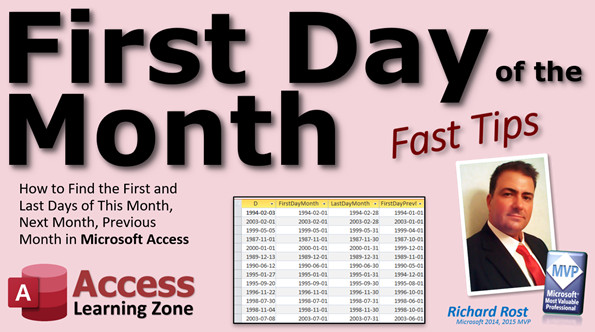
In this Microsoft Access tutorial, I will show you how to calculate the first day of the month for any given date. We'll also learn how to calculate the last day of that month, the first and last days of the previous month, and the following month.
Pre-Requisites
Recommended Courses
Usage
- D = Date() or any date you choose
- FirstDayMonth: DateSerial(Year(D), Month(D), 1)
- LastDayMonth: DateSerial(Year(D), Month(D) + 1, 0)
- FirstDayPrevMonth: DateSerial(Year(D), Month(D) - 1, 1)
- LastDayPrevMonth: DateSerial(Year(D), Month(D), 0)
- FirstDayNextMonth: DateSerial(Year(D), Month(D) + 1, 1)
- LastDayNextMonth: DateSerial(Year(D), Month(D) + 2, 0)
Keywords
access 2016, access 2019, access 2021, access 365, microsoft access, ms access, ms access tutorial, #msaccess, #microsoftaccess, #help, #howto, #tutorial, #learn, #lesson, #training, #database, #fasttips, first day of the month, last day of the month, first day of previous month, last day of previous month, first day of next month, last day of next month, first day of month, last day of month
More InformationTranscript Welcome to another Fast Tips video brought to you by AccessLearningZone.com. I am your instructor, Richard Rost. In today's video, I am going to show you how to figure out the first day of the month for any given date. We are going to use the DateSerial function. With the same kind of technique, we are also going to figure out the last day of the month, the first day of the previous month, the last day of the previous month, the first day of next month, and the last day of next month.
Before we get started, make sure you watch my calculated fields video if you have never made a calculated query before, because that is how we are going to do the date calculations in a query. Next, go watch my Year, Month, Day video. That is three separate functions - Year, Month, and Day - that let you take a date value apart into its components: the year, the month, and the day. We have to take the date apart with these three functions and then put them back together with DateSerial.
Then go watch my DateSerial video. I am going to be showing you DateSerial in this video, but go watch the DateSerial video so you have some basic understanding of how DateSerial works first, because I am not going to go over all that stuff again. So go watch this, then come on back.
Also, quick mention - I am using the ISO date format because I have students all over the world. The ISO date format is year-month-day, just like that, and it is unambiguous so everybody has the same date. So I recommend using that. Go check out this video if you want to learn more about that.
Here I am in my TechHelp free template. This free database, you can download it on my website if you want a copy of it, but you do not really need it. You can use any table that you want. Here I have a customer table and I have a CustomerSince field in here for how long they have been a customer. What we are going to do is figure out, for any date, we will take that date and figure out what is the first day of that month.
Well, that is the first day of the month. Let us say we take this date. What is the first day of that month? What is the last day of that month? Then the last dates of the previous month and the next month.
Let us go over to a query. You can do these calculations in a form, or you can do them in a query, or in VBA if you want to. I do not recommend putting calculated values in tables. That is bad.
I will go to Create, Query Design, bring in the CustomerT or whatever table has your date field in it. Let us find that CustomerSince, bring it over here. Now, I do not want to have to call this thing CustomerSince all the time. To keep my queries nice and short, I am going to call CustomerSince just D, as in date. That is it. That is all you do. Put a D colon in front of that. The D colon is called aliasing. I am saying take CustomerSince and just call it D. It makes all the rest of my calculations so much easier.
So the first thing I want to calculate is the first day of the month that that date falls on. FirstDayMonth is going to be DateSerial. We want the year of that date, so use the Year function of D. I want the month of that date, and then I want the first day of that month, so there is a 1. There you go. That is all it is.
Let us save this query. We will call it MyMonthQ or whatever you want to call it. Run that. We have the first day of all of those months. So 1998 July 30th, there is July 1st. November 4th, there is November 1st, and so on down the line.
Let us go back to Design View. The next one is to calculate the last day of the current month. Now, every month has a different number of days. Some have 30, some have 31, some have 28 or 29. We cannot just always say, like for the first of the month, just give me a 1. The last day of the month floats around.
What we are going to do is say, give me the first day of next month and go back a day. There are two ways we can do this. LastDayCurrentMonth is going to be DateSerial. It is going to be Year of D, just like we did before. We are going to say Month of D plus one.
An interesting thing about the way that DateSerial works is that if you add a month and 12 becomes 13, it rotates around to 1 and the year goes up. That is very nice, that DateSerial function handles that for you. You are not going to get the 13th month. It will add one to the year for you automatically.
You can say, give me the first of next month and then subtract a day because this whole thing is a date value. So you could say, give me the first of next month and then subtract a day. Let me show you that working here. See? There is the last day. It goes forward to December 1st and then back a day, just like here. Forward to January 1st of 99 and then back a day.
Or, the other way you can do it, instead of putting the minus one out here, you could put a zero there. I have seen this in a lot of books. But it works the same way. It does the same thing.
Moving on, let us do the first day of the previous month. FirstDayPreviousMonth is going to be DateSerial, and all of these are going to start off with the year of whatever date that is. Then it is going to be the month of whatever date that is minus one, comma one. Take the current month, back it up one. Again, if that backs you into the previous year, it will back up the year for you and give you the first date of that month. Run it, and there you go. So for May 5th, 99, you get April 1st as the first day of the previous month.
For the last day of the previous month, again, there are two ways you could do it. You could calculate the first day of this month and then subtract a day if you want to, or you could do that little zero trick I showed you before.
LastDayPreviousMonth is going to be DateSerial, Year of D, Month of D, and then a zero. It says give me the current year, the current month, back it up one day, so it is the last day of the previous month. That zero in that day position is like saying minus one. Or you could use minus one - either one works fine.
Double check, make sure it works. Last day of the previous month - good.
The next two are a little more straightforward because we are just adding. What we are going to do is say the first day of next month is DateSerial, Year of D, and then Month of D plus one, comma one. Take the current year, the current month, add one to it, wrap around to January if you have to, and give me the first day of that month. Pretty straightforward.
So for example, December 22nd of 16 wraps around to January 1st of 17.
One more - we are going to do the last day of next month. LastDayNextMonth: DateSerial, Year of D, Month of D plus two, comma zero. Now we are going to go ahead two months and go back one day. Go ahead two months, back a day. That will give you the last day of the following month.
So for this one here, if your date is November 1st, it is going to give you December 31st.
There you have all your contestants, ladies and gentlemen. You have the first day of this month, last day of this month, first and last days of the previous month, first and last days of the next month. I am sticking with all these monthly calculations, so I have had enough. But if you really want to learn all this date stuff, I cover it in Access Expert Level 27 and in Level 28. All kinds of different date functions: DateAdd, DateDiff, DatePart, DateSerial, first day of a quarter, first and last day of the year, first day of your mom's whatever. There is all kinds of stuff I cover.
There is also this monster DateTime seminar I have that covers all this different stuff. You name it, I cover it. It checks if it is a date, if it is a work day, if it is a scheduled holiday, all kinds of stuff. Reminders, pop-ups, you name it, it is in here. All right.
That, ladies and gentlemen, is your fast tip for today. I hope you learned something. I will see you next time.
How do you become a member? Click on the Join button below the video. After you click the Join button, you will see a list of all the different membership levels that are available, each with its own special perks.
Silver members and up will get access to all of my extended cut TechHelp videos, one free beginner class each month, and more. Silver members get access to download all of the sample databases that I build in my TechHelp videos, plus my code vault where I keep tons of different functions that I use. You will also get a higher priority if you decide to submit any TechHelp questions to me, and you will get one free expert class each month after you finish the beginner series.
Platinum members get all the previous perks, plus even higher priority for TechHelp questions, access to all of my full beginner courses for every subject, and one free developer class each month after you finish the expert classes. These are the full-length courses found on my website, not just for Access, too. I also teach Word, Excel, Visual Basic, and lots more.
You can now become a Diamond sponsor and have your name or company name listed on a sponsors page that will be shown in each video as long as you are a sponsor. You will get a shout out in the video and a link to your website or product in the text below the video and on my website.
But do not worry, these free TechHelp videos are going to keep coming. As long as you keep watching them, I will keep making more, and they will always be free. Intro In this video, I will show you how to determine the first day of the month for any given date using the DateSerial function in Microsoft Access. We'll also cover how to calculate the last day of the current month, as well as the first and last days of the previous and next months. You'll learn how to use calculated queries, alias fields, and work with the Year, Month, and Day functions to break apart and reassemble date values for these calculations. This tutorial is part of my Fast Tips series. Quiz Q1. Which function is primarily used in this video to calculate specific dates like the first or last day of a month in Access?
A. DateSerial
B. DateValue
C. Now
D. TimeSerial
Q2. Why does the instructor recommend watching the Year, Month, Day video before this tutorial?
A. To learn how to separate a date into its individual components for calculation
B. To understand how time zones affect date calculations
C. To know how to enter dates in tables
D. To compare different spreadsheet software
Q3. What is 'aliasing' in the context of Access queries, as explained in this video?
A. Renaming a field in a query for easier reference
B. Encrypting database fields for security
C. Merging two tables based on a common field
D. Sorting records in descending order
Q4. What is the correct DateSerial formula to find the first day of the month for a field named D?
A. DateSerial(Year(D), Month(D), 1)
B. DateSerial(Year(D), 1, Day(D))
C. DateSerial(Month(D), Year(D), 1)
D. DateSerial(Day(D), Month(D), Year(D))
Q5. When calculating the last day of the current month, what trick with DateSerial does the instructor show?
A. Use the first of next month and subtract one day
B. Always use the 30th day of the month
C. Multiply the month by two
D. Add 15 days to the current date
Q6. If you pass 'Month(D) + 1' as the month parameter in DateSerial, what does it do if the current month is December?
A. Rolls over to January of the next year automatically
B. Returns an error
C. Remains in December
D. Multiplies by the current year
Q7. What does passing a zero for the 'day' parameter in DateSerial return?
A. The last day of the previous month
B. The first day of the current month
C. Day zero, which is invalid
D. The first day of the next year
Q8. Which of the following is NOT recommended by the instructor when handling calculated values?
A. Storing calculated values in tables
B. Calculating values in queries
C. Calculating values in forms
D. Using VBA for calculations
Q9. How can you calculate the first day of the previous month for field D?
A. DateSerial(Year(D), Month(D) - 1, 1)
B. DateSerial(Year(D), Month(D), 1)
C. DateSerial(Year(D), Month(D), 0)
D. DateSerial(Year(D), Month(D) + 1, 1)
Q10. What approach is used to get the last day of the next month for a date field D?
A. DateSerial(Year(D), Month(D) + 2, 0)
B. DateSerial(Year(D), Month(D) + 1, 0)
C. DateSerial(Year(D), Month(D), 31)
D. DateSerial(Year(D), Month(D) + 2, 1)
Q11. Why does the instructor recommend using the ISO date format?
A. It is unambiguous and suitable for students globally
B. It is required by Microsoft Access
C. It is shorter to type
D. It automatically converts time zones
Q12. Which membership level allows you to download all sample databases and access the code vault?
A. Silver
B. Platinum
C. Bronze
D. Starter
Q13. What is the best place according to the instructor to perform date calculations such as monthly queries?
A. Query
B. Table
C. Printed report
D. Image file
Answers: 1-A; 2-A; 3-A; 4-A; 5-A; 6-A; 7-A; 8-A; 9-A; 10-A; 11-A; 12-A; 13-A
DISCLAIMER: Quiz questions are AI generated. If you find any that are wrong, don't make sense, or aren't related to the video topic at hand, then please post a comment and let me know. Thanks. Summary Today's video from Access Learning Zone covers how to determine the first day of the month for any given date using Microsoft Access. I am your instructor, Richard Rost. In this lesson, we work with the DateSerial function to handle date calculations within a query. These techniques also allow us to calculate the last day of any month, the first and last days of the previous month, and the first and last days of the next month.
Before moving forward, make sure you are familiar with creating calculated fields in queries. If you have never done this before, I recommend watching my video on calculated queries. Also, take some time to watch my tutorial on the Year, Month, and Day functions, because you will need to break a date apart into its individual components. These functions let you isolate the year, month, and day from any date value. After that, be sure you understand how DateSerial works, since we will use this function to put the parts back together into a valid date. If you have not seen my DateSerial video, go over that first for a full explanation, then return here.
Throughout this lesson, I use the ISO date format (year-month-day) to avoid confusion, especially because students come from all over the world. If you are interested in learning more about ISO dates, I have a separate video explaining why they are helpful.
In this example, I am working in my TechHelp free template database, but you do not have to use this specific database or download anything. Any table with a date field will do. For this demonstration, I use a Customer table that features a CustomerSince field to represent the date each customer started. The goal is to figure out the first day of the month for any given date, like the date in the CustomerSince field.
We start by creating a new query. Although you can use these calculations in forms or VBA as well, I do not recommend storing calculated values directly in tables. Bring your table into the query, and add the date field to the grid. To keep the calculations easy to read, give the date field an alias, such as "D," instead of using the full field name each time. To do this, type "D:" before the field name in the query design grid. This alias makes it easier to reference the field in all subsequent calculations.
To find the first day of the month for a given date, use DateSerial with the year and month extracted from "D," and simply put 1 for the day. This calculates, for every record, the first of the month based on the date value in "D." When you run the query, you will see, for example, that July 30th, 1998, gives you July 1st, 1998.
Next, we calculate the last day of the current month. Since months can have different numbers of days, it is not as simple as just plugging in 28, 30, or 31. Instead, you can use DateSerial to jump to the first day of the next month and subtract one day. There are a couple of ways to do this. You can ask for the first day of the next month and then take one day away, or you can ask DateSerial for the zero-th day of the next month, which gives you the last day of the current month because Access counts backwards. The DateSerial function automatically handles year changes. If you increase the month past 12, the year will increment.
To calculate the first day of the previous month, use DateSerial with the year and month from "D," but subtract one from the month. Again, if this moves you into the previous year, DateSerial will adjust accordingly. This gives you, for example, April 1st if the original date was in May.
For the last day of the previous month, use DateSerial with the day set to zero for the current month. Alternatively, you can compute the first day of the current month and subtract one day. Both will return the last day of the previous month.
The first day of the next month uses DateSerial with the current year, month plus one, and day set to 1. This always gives the start of the next month, rolling into a new year if necessary, so December will properly wrap around to January of the next year.
As for the last day of the next month, take the current year, add two to the current month, and set the day to zero. This moves ahead two months and then steps back one day, providing the last day of the following month.
To sum up, you can now generate calculations for the first and last days of the current, previous, and next months using DateSerial and simple expressions in your query. This is a handy set of tools for working with date values in Access. If you want to explore more complex date calculations, I cover these in additional detail in my Access Expert Level 27 and 28 lessons. Topics there include DateAdd, DateDiff, DatePart, calculating the first day of a quarter, the full range of yearly calculations, and more. For those who want in-depth coverage, my comprehensive DateTime seminar digs into everything from checking for valid dates to handling holidays, reminders, and scheduled events.
That wraps up our fast tip for today. I hope this has helped you learn something new in Access.
A complete video tutorial with step-by-step instructions for everything discussed here is available on my website at the link below. Live long and prosper, my friends. Topic List Aliasing fields in Access queries
Calculating the first day of the month with DateSerial
Calculating the last day of the month using DateSerial
Using DateSerial to handle month and year rollover
Calculating the first day of the previous month
Calculating the last day of the previous month with DateSerial
Calculating the first day of next month
Calculating the last day of next month using DateSerial
Subtracting days and using zero in DateSerial for dates
Creating calculated fields in Access queries for monthly dates Primary Topics DateSerial, calculated queries, date calculations, Microsoft Access, first day of month, last day of month, previous month, next month Secondary Topics ISO date format, query aliasing, best practices for calculations, VBA mention |





