And Or Not
By Richard Rost

 4 years ago
And, Or, Not Query Logic in Microsoft Access
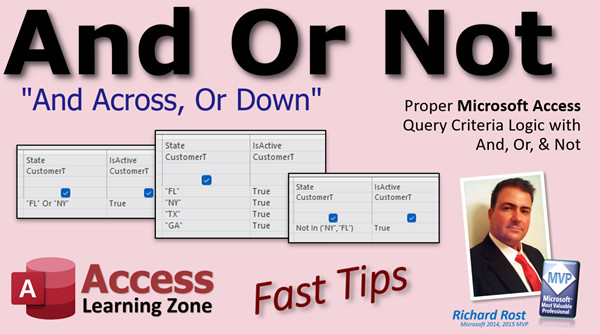
In this Microsoft Access tutorial, I will teach you about the "AND Across, OR Down" rule for your query criteria. We'll also learn about the IN function and the Not keyword.
Pre-Requisites
Recommended Course
Keywords
access 2016, access 2019, access 2021, access 365, microsoft access, ms access, ms access tutorial, #msaccess, #microsoftaccess, #help, #howto, #tutorial, #learn, #lesson, #training, #database, #fasttips, and, or, not, in, criteria, query, logic, logical, and across, or down, and across or down
 Subscribe to And Or Not
Get notifications when this page is updated
More InformationTranscript Welcome to another Fast Tips video brought to you by AccessLearningZone.com. I am your instructor, Richard Rost.
In today's video, we are going to talk about proper Microsoft Access Query Criteria Logic with And, Or, and Not. We are going to learn about And across, Or down.
One skill that is vital for any Access developer is knowing how to use And, Or, and Not in your queries to get the right set of data.
Let's create a query here: Create Query Design. We do not need the property sheet. Let's bring in the Customer table and let's say I want to see all of the customers who are from Florida. Easy enough. Bring in the State. I am down here in the Criteria row and inside quotes put in FL. Now run the query and there is the customers from Florida. No problem.
Now, let's say I want to see the customers that are from Florida or New York. Notice over here you have the little Or. This row is Or. The rule is Or down and And across. So, if I want to see Florida or New York, I just simply put New York below it. Now I will see everybody from Florida or New York.
Back to Design View. You have to think of it a little differently than you say it in English. In English you might say, "I want to see everyone from Florida and everyone from New York." But that is technically an Or condition for the computer. Show me all the states that are Florida or New York.
Now let's get rid of New York so we just go back to Florida.
Let's say we also have a field in here called IsActive. Bring that in. If you run that now, you will see everybody. This person is not active. These three people are. What if you want to see people who are from Florida and are active? That is an And condition that goes across. So now you can either put Yes or you can put True. Whichever you prefer. Now when you run it, there you go. Everyone from Florida and they have to also be active.
What if you want to flip that? What if you want to see everybody from Florida or everyone who is active? Well, just take this True and move it down one row. Remember, And across, Or down. Now it says show me anybody from Florida or anybody who is active regardless of what state they are from. If I run it now, there you go. You have Florida people and you have everybody who is active.
What if you want to see everybody from Florida who is active or anybody from New York regardless of their active status? That looks like this: And across, Or down. Got to be from Florida and active, or just from New York. If I run it now, there you go. There is a New Yorker who is not active, and another New Yorker who is active, but that does not matter because for that row, that criteria is not part of it.
If you want to see everybody from Florida who is active and everybody from New York who is also active, just put the True there. Now they have to be from New York and active as well.
If you have a whole bunch of these, let's say you have Texas and you have Georgia, and you do not want to keep having to make different rows and keep copying all these different criteria, you might have criteria across four or five different fields. There is a shorthand where you could write this. Let me get rid of this stuff. Delete, delete, delete.
You could come in here and I will zoom in so you can see this better. Shift-F2 to zoom in. This could be Florida or New York or Texas or as many items as you want in here. Florida or New York or Texas, that is all part of one condition and it has to be true. If I run it now, there you go. I do not think we have any Texans in here that are active.
There is an even shorter way you could write this too. You could use the In function, which is a little bit easier than that. You could say In, and then New York, PA, Florida, Texas. It is just another shorthand In function. That is from SQL. Run that. There you go.
Of course, there is also the Not condition you can use as well. If you do not want them to be in that group, you could say Not In those states. Now if you run it, it is everybody who is not in those states who are active. Same.
There is a lot you can do with this stuff. But the key thing to remember is And across, Or down.
If you want to learn more, I cover this stuff in a lot more detail in my Access Beginner Level 5 class. You will find this on my website. I will put a link down below. You can click on it and it will take you right there. It covers all kinds of extra stuff. We spend a lot of time on multiple And and Or conditions and inequalities, and Between, and all kinds of crazy stuff - date conditions.
We do some stuff with wildcards, parameter queries - you name it. Again, that is Access Beginner Level 5. Intro In this video, we will talk about how to use And, Or, and Not criteria in Microsoft Access query design. I will show you how to set up common query conditions, explain the difference between "And across" and "Or down," and demonstrate how to use shorthand methods like the In function and Not operator to filter your data. We'll use examples such as state and active status to illustrate how to combine multiple criteria for more flexible searches. Quiz Q1. In Access Query Design, which row represents the "Or" condition?
A. The Criteria row
B. The Or row
C. The Field row
D. The Table row
Q2. What is the rule for using And, Or conditions in Access query criteria?
A. Or across, And down
B. And across, Or down
C. And down, Or across
D. Or right, And left
Q3. If you want to see customers from Florida only, how should the criteria be set?
A. "NY" in the Criteria row for State
B. "FL" in the Criteria row for State
C. "FL" in the Or row for State
D. Leave the criteria blank
Q4. How would you display customers who are from Florida or New York?
A. Put "FL; NY" in one Criteria cell
B. Put "FL" in the Criteria row and "NY" in the Or row for State
C. Put "FL" and "NY" in the same row
D. Use "Not FL" and "Not NY" as criteria
Q5. What does "And across" mean in the context of Access query criteria?
A. Multiple criteria on the same row must all be true
B. Multiple criteria in the same column must all be true
C. Only the first criteria on the row must be true
D. Every field must be empty
Q6. How would you view customers who are both from Florida and active?
A. "FL" and "No" in the same row
B. "FL" and "True" in the same row
C. "FL" in Criteria row, "True" in Or row
D. "FL" in Or row, "True" in Criteria row
Q7. If you want customers from Florida or any customer who is active, how should you arrange the criteria?
A. Put "FL" and "True" in the same row
B. Put "FL" in Criteria row, "True" in Or row
C. Put "FL" in Or row, "True" in Criteria row
D. Only "FL" in Criteria row
Q8. What does putting "True" in the same Or row as "New York" accomplish?
A. Shows customers from Florida only
B. Shows all active customers only
C. Shows customers from New York, regardless of active status
D. Shows only inactive customers from New York
Q9. What is the benefit of using the "In" function in Access query criteria?
A. It allows you to search for one value only
B. It is used for sorting
C. You can specify multiple values in a single condition
D. It makes the query run slower
Q10. How would you exclude a list of states from your results using criteria?
A. Use "In" with the desired states
B. Use "Not In" with the states to exclude
C. Use "Or" with the states to exclude
D. Leave the criteria row blank
Q11. For an "And" condition in multiple fields, how should you place criteria?
A. Place them in the same row across different fields
B. Place them in successive rows for the same field
C. Use "Or" between the values
D. Leave the second field blank
Answers: 1-B; 2-B; 3-B; 4-B; 5-A; 6-B; 7-B; 8-C; 9-C; 10-B; 11-A
DISCLAIMER: Quiz questions are AI generated. If you find any that are wrong, don't make sense, or aren't related to the video topic at hand, then please post a comment and let me know. Thanks. Summary Today's video from Access Learning Zone focuses on understanding proper query criteria logic in Microsoft Access, specifically how to work with the logical operators And, Or, and Not. Mastering the placement and use of these operators is crucial for any Access developer who wants to pull the correct set of data from a database.
To start with a basic example, if I want to see all customers from Florida, I create a new query, add the Customer table, and include the State field. In the Criteria row for State, I simply enter FL. Running the query then displays only customers from Florida.
Expanding this, suppose I want to include customers from Florida or New York. This is where understanding Or down becomes important. In the query design grid, entering FL in one row for the State field and then NY right below it sets an Or condition. The query now returns everyone from either Florida or New York.
It is important to think about how the database handles logic, which can be different from everyday conversation. Saying "I want everyone from Florida and everyone from New York" in plain English actually means "show me everyone from Florida or New York" as far as Access is concerned.
If I want to refine the search further, maybe I want to see only active customers from Florida. I would then add the IsActive field from the Customer table. In the same row as FL, I enter either Yes or True for IsActive. This creates an And condition, so now only customers who are both in Florida and active are returned.
What if I want to find anybody from Florida or anyone who is active, regardless of which state they are from? In this case, I place FL on the first row in the State field and True (or Yes) in the IsActive field in the second row. This creates an Or condition since they are on different rows, and the query will display customers either from Florida or customers who are active, no matter their state.
Now, for a more complex query, consider searching for everyone from Florida who is active or anyone from New York, no matter their activity status. To set this up, in one row I enter FL and True (for IsActive), and in another row just NY for State, leaving IsActive blank. The result is a list of active Florida customers, plus all New York customers.
If the need is to see only customers from Florida or New York who are also active, I add True to the IsActive field for both rows. This ensures both conditions (state and activity) are required.
When dealing with multiple states such as Texas and Georgia in addition to Florida and New York, it can get tedious to create individual rows. A shorthand method lets me list several states together in the Criteria row using Or statements, for example: FL Or NY Or TX Or GA. This simplifies the design and makes it easier to expand.
Taking it a step further, I can use the In function for even cleaner code. Entering In ("FL","NY","TX","GA") allows me to include all these states in a single condition, pulling customers from any of those locations.
The Not operator is also available. If I want to exclude customers from these states, I use Not In followed by the list of states. This returns customers whose state is not among those listed, assuming the other criteria, such as being active, are also met.
The essential concept to keep in mind throughout is And across, Or down. This means placing criteria for And conditions on the same row, while Or conditions are set on separate rows. This rule helps ensure you are filtering data as you intend.
For those interested in diving deeper, I cover these logical operations, including more advanced topics such as multiple And/Or groupings, inequalities, Between, wildcards, parameter queries, and more, in my Access Beginner Level 5 course. You can find a complete video tutorial with step-by-step instructions for everything discussed here on my website at the link below.
Live long and prosper, my friends. Topic List Setting basic query criteria for a single field
Using Or logic with stacked criteria rows
Understanding And across and Or down in Query Design
Combining multiple field criteria with And logic
Switching criteria between And and Or in queries
Creating mixed And/Or queries for combined conditions
Copying criteria for multiple Or conditions with different fields
Using shorthand Or conditions in a single criteria cell
Applying the In function for multiple match criteria
Using the Not keyword with the In function for exclusions
Key concept: And across, Or down in query logic Primary Topics Access query criteria, logical operators, And condition, Or condition, Not condition, In() function, query design view, criteria shorthand Secondary Topics SQL in Access, multiple field criteria, data filtering |




