Select in Subform
By Richard Rost

 3 years ago
How to Select a Specific Record in a Subform
In this Microsoft Access tutorial, I'm going to show you how to open a form and select a specific item in its subform. For example, if you have a list of orders, you can select one specific order and then open up the customer's form which may have a subform on it with all of his orders. That specific order will then be selected.
Cara from Tulsa, Oklahoma (Platinum Member) asks: I have a continuous form showing a master list of all of my orders sorted by date. Is there a way I could double-click on an order, have it open the customer's form, and then on that customer form select that specific order from the order subform on that form?
Members
Members will learn how to hide the ID on the subform without generating errors. It's a little thing, but it makes your form look a lot more professional if you don't want to see those IDs everywhere.
Silver Members and up get access to view Extended Cut videos, when available. Gold Members can download the files from class plus get access to the Code Vault. If you're not a member, Join Today!
Pre-Requisites
Recommended Courses
Keywords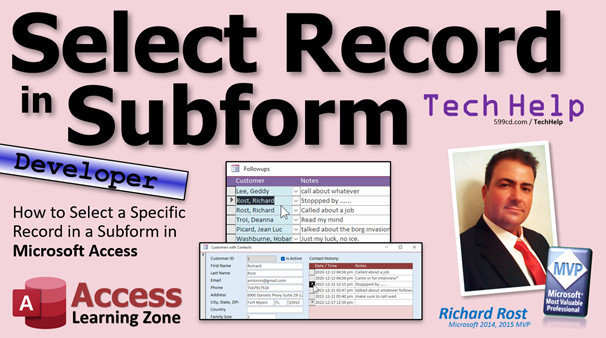
access 2016, access 2019, access 2021, access 365, microsoft access, ms access, ms access tutorial, #msaccess, #microsoftaccess, #help, #howto, #tutorial, #learn, #lesson, #training, #database, select record in subform, goto a specific record in a subform, docmd.echo, DoCmd.GoToRecord in a subform, Go to record in Subform, findrecord, find record in subform, How do i move to a record in a subform, Goto record in subform
More InformationTranscript Welcome to another TechHelp video brought to you by AccessLearningZone.com. I am your instructor, Richard Rost.
In today's video, I'm going to show you how to select a specific record in a subform. When you open the parent form, you can then select which one of those subform records is selected using your VBA code.
This is a developer level TechHelp video. That means you're going to need to know a little VBA before we get started. If you've never done any VBA programming before, that's fine. We only need a couple lines - I think like four lines of code - but you have to know where to put them. Go watch my Intro to VBA lesson first. You get the ins and outs; it's about 20 minutes long. It teaches you everything you need to know. Then come on back.
Today's question comes from Cara in Tulsa, Oklahoma, one of my Platinum members. Cara says, "I have a continuous form showing a master list of all of my orders sorted by date. Is there a way I could double click on an order, have it open up the customer's form, and then on that customer form select that specific order from the order subform on that form?"
It took me a few minutes to get what Cara is saying, but I understand she's got a customer form with a subform on it listing the customer's orders, much like I have customers and contacts. In our TechHelp database, we have the regular customer form, but when I was teaching subforms, we've got the customers with contacts. So you have all the customer's contacts here instead of making that a separate form. She's done the same thing, but instead of contacts, she has orders so she can see all the customer's orders. It's a good idea. I've done that in a couple of databases too.
What she's saying is she's got a master list of contacts. Let's say it looks something like this. She wants to pick a contact or pick an order, double click on it, open up that customer form, and select that specific record in the subform. That's what we're going to do in this video.
I've got another database that I built that we can use for this. It's my follow ups database. Go watch this video if you haven't yet. I've got a master list of follow ups, and follow ups are basically contacts. We can click on a follow up and open up the customer contact form and show that record selected. Go watch this if you haven't yet.
Here's my follow up database. I think this is after follow ups lesson six, but you don't need to go that far. We've got a master list of follow ups here. These are all of the follow ups that I have and all of the customers here. I can double click on it now to open up just that specific customer form.
As you learned, if you watch the follow ups video, every follow up is basically a contact that's marked for follow up. When someone comes in, I can type in what we talked about, mark it as a follow up, and then it will show up on my master follow ups list.
We're going to pick a particular follow up, double click on it. Instead of opening this form, we're going to open up this form, the customers with contacts, and it will then select the specific contact that you're on, that you clicked on in this form.
It's the same thing as if you were doing customers and orders, vendors and products. You pick a product from a master list. It opens up the vendor form and selects that product in the subform. Wherever you've got a form-subform relationship, if you've got a master list showing all of the subform items somewhere else, you can then open up the parent form and select that record in the subform. It makes it easier to find it instead of having to dig through here. You don't want to filter this because then you can't see everything else. That's not helpful.
I'm going to open it up and then we're going to select that record where to find it.
One little fix we need to make here: I did notice that in this customer contact form, this got too small because I made this a little bit bigger in the follow up database. We just need to make this subform a tiny bit bigger. That's all. I'll come in here and maybe out to about there. I resized it in the follow ups videos and I didn't fix that. Let's take a look.
That looks a little bit more appropriate. Let's get my own too right about there. What does it look like now? Perfect.
So, what's the mindset here? Double click on something and open up another form. We do it right here. I'm going to open up a different form, and this time we're going to open up the customer contact form. Then we're going to move - we're going to change our focus. We're going to do DoCmd.GoToControl on the subform. Then we're going to go to control whatever field we're searching on. That's going to be the ID. We have to put the ID on this subform. The way around it is a trick. I'll show you in the extended cut, but you have to have it on here.
Then we're going to do a FindRecord and find that specific record.
The first step is to modify the contact form, which is the subform. We have to have the contact ID on here. We're just going to put it up front. We're going to slide all of this stuff - let's make this a little bit smaller now since we don't have a lot of room in here - we're going to slide all this stuff to the right. We're going to put that contact, let's just copy one of these guys, copy and paste, slide it over here to the left. I like to have my IDs on the left. Double click. We're going to get rid of the format that's in there. We'll set this to contact ID. Change the name to contact ID. I like to make my ID gray because we can't change them. You can take it out of the tab stop if you want to. Go to Other, I think it's not a tab stop. OK, already good. It doesn't even have to be in the tab order in the right spot, but I like to do that anyway. Tab order. Auto. OK.
If you want to, you can just say this. Actually, what I sometimes do, I cheat. I just do this. I go ID, and I just put some spaces there. If it's headers that you don't change often, that's OK. That's a little trick. If you edit this a lot and move these things around, I like to have individual labels. But for forms I hardly ever work with, just put a bunch of spaces.
Save changes. Open it back up again.
Now we've got our IDs in here. You need that for this trick.
This is the control here that has the double click event on it that opens up the customer form. Let's switch what form we're opening up. So, design view. Open up this guy's properties. Go to Events. Go to the On Double Click event. I cover all this in those follow up videos. This is a double click event.
Hit the ... for the builder. You have DoCmd.OpenForm CustomerF. Now what we're going to do is we're not going to open CustomerF. Instead, it is CustomerContactF now. CustomerContactF.
Still open up that same customer's record where it's the customer combo. Good.
Next step is we have to shift our focus. We have to move the focus - move the cursor - into the ContactF subform. If you look at this guy in design view, this is a control. This guy here is one control called ContactF. We have to go there.
That's going to be DoCmd.GoToControl "ContactF".
Now we're sitting in ContactF. You should be sitting in the first field in the tab order. Specifically, our contact ID isn't in the tab order. Now we're going to go to control ContactID. So, same thing: DoCmd.GoToControl "ContactID".
Now we're sitting in the contact ID. Now we can issue a FindRecord command. We want to find a specific record. What record? The contact ID has to be equal to the contact ID that we're on in the current form, which is our FollowUpF. In our FollowUpF right here, it's this guy. Where's contact ID?
The contact ID, it's kind of weird the way Access does this. Contact ID doesn't have to be on this form as long as it's in the record set under the form. This guy is based on the follow up Q, and follow up Q has a contact ID in it. If it makes you feel better, sure, you can put the contact ID on this form too. But sometimes you have to have it, sometimes you don't. When in doubt, just add the field. If you're not sure if it's going to work or not, add it. You want to see if it's going to work without it or move it. In this case, you don't actually have to have it on the calling form. The recipient form does.
Now that we're sitting on the contact ID, we can say DoCmd.FindRecord ContactID. So find the record where the current field matches whatever the value of the contact ID is in the calling form, which for me happens to be the FollowUpF.
Save it, close it, close it, close it.
Let's open up our follow ups. I'll pick this one here where he talks about the Borg invasion. Double click. Boom. Well, there's only one on that one. It worked. Let's add another one. Let's do my "Stop the Buy" one. Ready? Double click and go. See, it opened up Customers and Contacts on my customer record and selected the record that I clicked on. Record 15 there.
Let's do one more, make sure it's working. Let's do "Get It." Double click right there. Call about whatever. That's how you do it.
The trick is you have to GoToControl the subform, then GoToControl the control you're searching on, then do your search.
I made the mistake of using this kind of GoToControl logic and automated stuff. Do not use GoToControl, FindRecord, or similar things in anything that's going to run automated while you're not there. I used to use timer events to run stuff to add records. Don't do that. Only use GoToControl, GoToRecord, and things like this where you're going to click a button and watch it happen. If other events take place that grab the cursor's focus, another timer event, or a popup in the background, it's going to mess up the whole thing. Only put this stuff in buttons that you're going to click on and do something.
If you don't want to see that ID there, you have to have it on the form and you can't make it invisible fully because you have to be able to click on it and go to it and search to it. How do you do that without having to see that ID there? We'll talk about that in the extended cut.
In the extended cut, we're going to draw a big red X over the - no, I'm just kidding. We're not going to draw an X. But I will teach you how to hide it so the user doesn't see that ID column. We'll get rid of it. I still need it, but I'll show you how to hide it. It's a little trick, but I'll save it for the members.
There you go. There's your TechHelp video for today. I hope you learned something. I hope this helps somebody. I get asked this all the time. I think I covered this one on my Developer lesson somewhere, but this is a popular enough question that it was time for a video. Hope you learned something.
We'll see you next time. Intro In this video, I will show you how to use VBA to select a specific record in a subform when opening a parent form in Microsoft Access. We will walk through modifying your subform to include the necessary ID field, setting up the double-click event to open the related form, and using commands like DoCmd.GoToControl and DoCmd.FindRecord to automatically highlight the desired record. This video is aimed at developers familiar with basic VBA concepts. Quiz Q1. What is the main goal of the technique shown in this video?
A. Filtering all records in a subform
B. Selecting a specific record in a subform when opening the parent form via VBA
C. Sorting all records alphabetically on a form
D. Automatically adding a new record to a subform
Q2. Which event is commonly used to trigger opening the parent form and selecting a specific subform record?
A. On Load event
B. On Click event
C. On Double Click event
D. After Update event
Q3. What is the primary VBA method used to set the focus to a subform control?
A. DoCmd.OpenForm
B. DoCmd.GoToControl
C. Me.GoToRecord
D. DoCmd.Close
Q4. After setting focus to the subform, what is the next step in the procedure?
A. Move to the main form
B. Use the FindRecord command to find the specific record
C. Automatically close the form
D. Requery the subform
Q5. Why should the ID field (such as ContactID) be present on the subform?
A. It is required for formatting
B. It is needed to make the subform editable
C. It is necessary for the FindRecord search to work
D. It acts as a foreign key for the main form
Q6. If you want to search for a record using a specific ID value, what must match in the FindRecord statement?
A. The subform's record source
B. The field name in the subform and the calling form's record value
C. The form's name only
D. The subform control source with a static value
Q7. What issue might occur if you use GoToControl or FindRecord logic in automated processes (like timer events)?
A. The database will crash
B. The cursor's focus may get interrupted, causing problems
C. The record will become read-only
D. The subform will close automatically
Q8. What is a possible workaround to prevent users from seeing the ID field in the subform if you still need it for this process?
A. Remove it from the subform completely
B. Make the ID field read-only
C. Use a trick to hide the ID field, as explained in an extended lesson
D. Rename the ID field to something else
Q9. When customizing a form to include the ID field, which design recommendation does Richard make?
A. Place the ID field at the far right and make it bold
B. Use blue color for the ID field
C. Place the ID field on the left and shade it gray
D. Make the ID field the largest field on the form
Q10. What is one advantage of opening the parent form and selecting a specific subform record, instead of filtering the subform?
A. It prevents edits to the record
B. It allows the user to see all related records, not just one
C. It reduces the form's loading time
D. It hides unrelated subforms
Answers: 1-B; 2-C; 3-B; 4-B; 5-C; 6-B; 7-B; 8-C; 9-C; 10-B
DISCLAIMER: Quiz questions are AI generated. If you find any that are wrong, don't make sense, or aren't related to the video topic at hand, then please post a comment and let me know. Thanks. Summary Today's video from Access Learning Zone focuses on how to select a specific record within a subform using VBA in Microsoft Access. When you open a parent form, it's possible to highlight or bring focus to a particular record on the subform programmatically. This can really simplify life if you're managing lots of related data.
This lesson is intended for users who already have a basic understanding of VBA. If you've never worked with VBA before, that's ok. The actual coding in this example is fairly minimal, but it's important to know where and how to insert your code. I recommend going through my Intro to VBA lesson first, which covers all the basics you'll need. Once you're comfortable with that foundation, you'll be ready to follow along here.
The question for today comes from Cara, who has a database with a continuous form showing all her orders sorted by date. She wanted to know if she could double-click on an order in this master list, have the customer form open, and then see that specific order highlighted in the subform. This setup is similar to something I use with customers and contacts, but in Cara's database, the subform contains orders.
To help illustrate the process, I use an example from my follow ups database, where follow up records function similarly to contacts. By double-clicking a follow up on the master list, it should not just open the corresponding customer form, but also select that specific follow up in the subform on that form. This mirrors situations you might encounter with other setups, such as vendors and products or customers and their orders.
Suppose you have a master list showing all the subform items elsewhere in your database. You may want to open the parent form and have the relevant record selected in the subform, rather than filtering or losing sight of the other related records. The method in this lesson lets you do just that.
To start, there's a quick adjustment to make if your subform is sized incorrectly from prior edits. It's important that your subform is clearly visible and that you have room for the information you want to display.
The core of the solution involves several steps:
1. Make sure the unique ID (like ContactID or OrderID) is visible on the subform. Move items around in the form layout as needed so the ID is easily accessible, usually at the left. I usually make these fields gray to indicate they're not editable and set their tab stop properties so users don't inadvertently select them.
2. Set up an event on the master list form so that when you double-click a record, the related parent form opens. In design view, you can add code to this control's Double Click event. Update the code so the form that opens is your main form with the subform you want to target (for example, CustomerContactF instead of CustomerF).
3. After the parent form opens, use VBA to shift focus to the subform control using DoCmd.GoToControl. Once inside the subform, focus again specifically on the ID field.
4. Use the FindRecord command in VBA to search for and select the record matching the ID from your original master list.
It's important to note that the ID field doesn't have to be physically visible on the calling (master) form as long as it's included in the record source. On the receiving form and subform, the ID definitely needs to be present for this to work properly.
Once this code is in place, double-clicking a record from the master list should open the parent form, move the focus to the correct subform, and then select the desired record in the subform. You can use this technique for any scenario where you want to quickly find a related record without filtering away the rest of the data.
A word of caution: This GoToControl and FindRecord approach is suited to interactive use where a user is present to click a button or double-click a row. Do not use this method in automated processes or timer events, as shifting focus can be affected by other background interactions or events in the database.
If you don't want your users to see the ID column but still need it present for this function to work, I cover how to hide it from view in today's Extended Cut. There is a neat trick to conceal the ID left for members, while still allowing the code to access it as needed.
That's the main technique I wanted to share in today's TechHelp lesson. I get asked about this a lot, and it's something that's come up frequently enough that I wanted to provide a dedicated video. I hope this helps you manage your related records more efficiently in your Access applications.
You can find a complete video tutorial with step-by-step instructions on everything discussed here on my website at the link below. Live long and prosper, my friends. Topic List Selecting a specific record in a subform using VBA
Double-clicking a main form record to open a related form
Navigating form-subform relationships for record selection
Adding the ID field to a subform for VBA operations
Setting up the On Double Click event to open the main form
Using DoCmd.GoToControl to move focus to a subform
Using DoCmd.GoToControl to focus on a specific control in the subform
Using DoCmd.FindRecord to locate and select a subform record
Understanding when the ID field must be present on forms
Resizing subforms to accommodate additional controls
Tips for managing tab order and control formatting in subforms
Practical warnings about using GoToControl and FindRecord in automation
Demonstrating the full workflow in an example Access database Primary Topics Access subforms, VBA programming, DoCmd.GoToControl, DoCmd.FindRecord, Parent-child form navigation, UI automation
Secondary Topics Access form design, Tab order, Field visibility, User interaction best practices
|







