Zodiac Signs
By Richard Rost

 3 years ago
Display Zodiac Signs & Symbols in your Database
In this Microsoft Access tutorial I will show you how to display Zodiac signs and symbols based on someone's date of birth in your database without any VBA programming. We'll do it with some date functions and a DLookup.
Members
Silver Members and up get access to view Extended Cut videos, when available. Gold Members can download the files from class plus get access to the Code Vault. If you're not a member, Join Today!
Pre-Requisites
Links
Recommended Courses
Zodiac Symbols
- ♈Aries
- ♉Taurus
- ♊Gemini
- ♋Cancer
- ♌Leo
- ♍Virgo
- ♎Libra
- ♏Scorpio
- ♐Sagittarius
- ♑Capricorn
- ♒Aquarius
- ♓Pisces
- ⛎Ophiuchus
- Windows Emoji Keyboard: Win-;
Ophiuchus
Keywords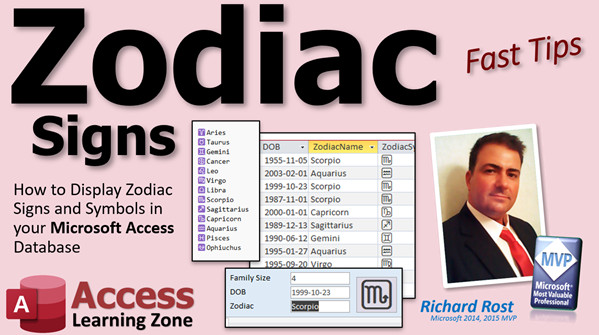
access 2016, access 2019, access 2021, access 365, microsoft access, ms access, ms access tutorial, #msaccess, #microsoftaccess, #help, #howto, #tutorial, #learn, #lesson, #training, #database, Zodiac sign from Date of Birth, Program to display Astrological sign, Determining a Zodiac Sign from a Birthdate, Finding astrological signs based on birthdates
 Subscribe to Zodiac Signs
Get notifications when this page is updated
More InformationTranscript Welcome to another Fast Tips video brought to you by AccessLearningZone.com. I am your instructor, Richard Rost.
In today's video, I'm going to show you how to display Zodiac Signs and Symbols in your Microsoft Access Database. I had this one on my list to do some time in the future. Someone emailed me a couple days ago asking how to do this. And just today, someone else posted it in the forum, so what are the odds? I decided to throw this together real quick.
We are going to do this without any programming. We have a VBA-less solution, so this is not a developer one. I want to show you how to do this with a couple little functions and a DLookup. We're going to make a little lookup table for the different Zodiac Signs and the dates that they fall in.
Before we get started, a couple of prerequisites for you. First, I use the ISO Date Format, which is Year-Month-Day. If you're not familiar with that, you can go watch this video. But the trick I'm going to show you is going to work pretty much with any date format you have, so it doesn't really matter. But this is what I use so you're not confused.
You're going to need to know how to make calculated fields in a query in Microsoft Access. You need to know how to use the Year, Month, and Day functions to take a date value and break it down into its components, Y, M, & D. Then, once we have those components, we're going to have to build a new date value to look up in our table. For that, we'll use the DateSerial function.
Finally, we're going to use the granddaddy of all lookup functions, DLookup. If you've never used DLookup before, go watch this video first. We need to DLookup with two components, so it's going to be a bit of a tricky DLookup. But I think we can handle it. If you aren't familiar with any of the topics I just showed you, go watch those videos first, then come on back. These are all free videos—you'll find them on my website and on my YouTube channel. I'll put links down below that you can click on.
The first thing that I did was I built a ZodiacT table, which is my lookup table. Let's take a look at it. Real simple. ZodiacID is an autonumber. ZodiacName—don't just put the word name, that's a reserved word—ZodiacName is short text. That's the name, like Leo, Virgo, whatever. The StartDate, the EndDate, and then the Symbol.
How do you get that? You use the Windows emoji keyboard, which is the Windows key. Hold that down and then hit the semicolon. This pops up. I've talked about this in previous videos. Put right here what you're searching for. I want Aries—oh, there it is, like that. They even give you a little ram, if you want that. Scorpio—let's do Scorpio, right there. Look at it. It goes in your Notepad. Then you can just copy these into your database. The symbols don't look exactly like they do in color, but you get the symbol.
If you want to use your own fancy images, you can put an image file name here and then use the trick I show in my images video to display that instead. But I think this works just fine. And here's my images video.
Now you might be saying, Rick, what is this guy right there, Ophiuchus? I've always been a backyard astronomer. If you're into astronomy, not astrology, then Ophiuchus is the 13th constellation that actually crosses the ecliptic, like the rest of these guys. These are all classical astrology, evenly divided up into 12 zones. But in astronomy, if you're actually dealing with constellations and science and stuff like that, Ophiuchus is the 13th zodiac sign. I could go on for hours and hours about this one, but we won't include that one in our database. We'll use the classic zodiac.
So how do we get this to display next to our customers? Next, we're going to build a zodiac query. In Design View, bring in our customer table—CustomerT.* to bring all those fields in.
Next, I'm going to alias the CustomerSince field. We're going to cheat. I've already got a date field in here called CustomerSince. We're going to pretend that's their date of birth. So I'm going to make a field here—I'll zoom in so you can see it. We'll make a field called DOB, and that's going to be the CustomerSince. So we're cheating—CustomerSince is now henceforth DOB.
Now, next up. My zodiac table is all based on the year 1900, so we're going to convert that date of birth to the same month and day in the year 1900. Month(DOB) will give you the month (1 through 12). Day(DOB) will give you their birthday (the 23rd in my case). Then we're going to use DateSerial to build a date out of that. This will give you, in my case, October 23rd, 1900. That is what we're going to call Z. DateSerial returns an actual valid date.
Now that I've got Z, I have an actual date that I can look up in this table because all of them are going to be in the year 1900. So I can look up October 23rd, 1900, and that should fall in Scorpio.
What does that look like? Here's ZodiacName. I'll zoom in. It's a fairly complicated DLookup, but I'll walk you through it. It's not that hard. Most DLookups have one value—we say, "look up the first name from the customer table where the customer ID equals 4." Well, this one has an inequality. It's got two values. So we're using DLookup. What are we looking up? The ZodiacName. Where are we getting it? The zodiac table. Then here's the tricky part—the StartDate, which is a field in that table, has to be less than or equal to Z, and Z has to be less than or equal to the EndDate.
For the criteria, the StartDate is less than or equal to 10/23/1900 and the date is less than or equal to EndDate. But in Access, remember, we have to put the # signs around date values. This whole thing has to be inside a string, so you have to put the quotes around it like this. Since this is not hard coded, we have to put the value Z in there. So you have to close the quotes, add Z, open the quotes back up again, and do the same thing here—quotes, Z, quotes. That's where I get this jumbled mess from.
Sometimes it's easier if you write this out using Notepad with the actual date hard coded in there and then substitute the variables like I just did. I can just write this off the top of my head because I've been doing this for 30 years, but this is not easy stuff.
So there's my final one. That'll do the lookup. Over here is the same exact thing for the Symbol, we're just looking up the ZodiacSymbol instead of the name.
When I do that, if I run that query, there's all my people. Here's the DOB, which is the CustomerSince value. Z becomes the same date in the year 1900, and I can look this date up now in this table because these are all based in the year 1900. The DLookup for the name, the DLookup for the Zodiac symbol, and that's it.
Make sure you're working with date values that don't have times in them. You don't want to have a date of birth with a 5 PM in there, otherwise it'll throw things off. Date only. If you do have dates that have times in them, use the DateValue function. I'll put a link to that as well.
Now, let's get this into the form. What I'm going to do is—save changes, sure. In my customer form, I'll look up what I did there. We're going to change the Record Source of the form now to that zodiac query because it'll add those extra fields. You could put the DLookups directly in these text boxes if you want to—that's another option. Since this query already has those fields, there's no sense in doing that. As long as your query isn't too complicated, this would work fine. Don't bring in tons of stuff into the query and expect to be able to edit this guy—it doesn't work that way. Simple lookups are fine.
There's the ZodiacName field. There's the ZodiacSymbol. I just changed the color and the font, made it a little bit bigger earlier—I made it 36 point and made it purple. That gives you a nice result.
Are there other ways to do this? Yes, you could. I did a quick Google search. There are VBA functions and code and all kinds of things you could use. But as you can see, this is certainly possible to do without any programming. That's sometimes the harder part of my job. My brain immediately went to, "oh, just write a function that returns a value based on the dates." Then I thought, "wait a minute, can we do it without any programming?" That's sometimes tougher for me to figure out the non-programming way. I've been coding since I was eight years old, so my brain immediately goes to VB. But I think this solution is just fine and elegant enough, and it works well.
I'm curious to see what you have to say. What do you think? Do you like my solution, or would you prefer a VB solution where you have code that looks up dates in your VB code? Let me know; post something in the comments below. That is your Fast Tip for today. I hope you learned something, and I'll see you next time. Intro In this video, I will show you how to display zodiac signs and symbols in your Microsoft Access database without using any VBA programming. We'll create a lookup table for zodiac signs and their date ranges, use calculated fields in queries, and apply functions like Year, Month, Day, and DateSerial to work with date values. I'll walk you through a DLookup solution to match birth dates to zodiac signs and show you how to display both the sign name and symbol next to your customers in forms and queries. Quiz Q1. What is the primary goal of the video tutorial?
A. To create a VBA function for finding Zodiac signs in Access
B. To display Zodiac signs and symbols in a Microsoft Access database without programming
C. To create a form with advanced VBA automation
D. To import customer data from Excel into Access
Q2. Which function is used to break down a date into its components in Access?
A. SplitDate
B. Year, Month, and Day
C. ParseDate
D. DateBreak
Q3. Why does the instructor use DateSerial in the tutorial?
A. To convert text to a date
B. To extract the year only
C. To construct a date using a standard year, month, and day
D. To remove time from a date value
Q4. What is DLookup mainly used for in this solution?
A. Automatically updating a field value
B. Searching for a value in another table based on matching criteria
C. Validating data entry on forms
D. Opening forms from a macro
Q5. In the ZodiacT lookup table, which field should not be named simply "Name"?
A. StartDate
B. ZodiacID
C. ZodiacName
D. Symbol
Q6. What is the significance of using the year 1900 in the Zodiac lookup process?
A. It represents when zodiac signs were first defined
B. To match all dates to the same year so only month and day matter for comparison
C. It simplifies sorting by year
D. It is a reserved keyword in Access
Q7. Which keyboard shortcut opens the Windows emoji keyboard for adding symbols?
A. Ctrl + E
B. Windows key + semicolon
C. Alt + Shift
D. Ctrl + Space
Q8. If the date field contains time information, which function should be used to ensure only date values are compared?
A. DateAdd
B. TimeValue
C. DateValue
D. RemoveTime
Q9. What adjustment is made to the form in Access to display the Zodiac fields?
A. Add a subform for ZodiacT
B. Change the form's Record Source to the zodiac query
C. Insert a macro to display Zodiac signs
D. Use Conditional Formatting for date fields
Q10. Why is it important not to bring in too many fields into the query when editing data in the form?
A. It slows down Access performance
B. Access may not allow editing if the query becomes too complex
C. It affects the color formatting of the form
D. It deletes unrelated records
Q11. What type of solution does the instructor emphasize in the tutorial?
A. A macro-driven solution
B. A no-programming, VBA-less solution
C. An external add-in solution
D. A pure VBA approach
Q12. What field in the customer table is repurposed as the date of birth for finding Zodiac signs?
A. CustomerID
B. CustomerName
C. CustomerSince
D. CustomerType
Answers: 1-B; 2-B; 3-C; 4-B; 5-C; 6-B; 7-B; 8-C; 9-B; 10-B; 11-B; 12-C
DISCLAIMER: Quiz questions are AI generated. If you find any that are wrong, don't make sense, or aren't related to the video topic at hand, then please post a comment and let me know. Thanks. Summary Today's video from Access Learning Zone focuses on displaying Zodiac Signs and their corresponding symbols in your Microsoft Access database. This is a topic I had planned to cover eventually, but after multiple requests by email and in the forum recently, I decided it was time to create a quick lesson on it.
For this solution, I wanted to keep things simple and avoid any VBA programming entirely, so this method is accessible to those who are not developers. We'll accomplish everything using some basic functions and DLookup in Access, with the help of a lookup table that includes all of the Zodiac signs along with the dates that define their ranges.
There are a couple of things you should be comfortable with to get the most out of this technique. First, I always use the ISO Date Format (Year-Month-Day), but the principle here works no matter the date format you've chosen. If you are not familiar with this format, there are videos available on my site to help you get started, but it is not a requirement. You should also know how to build calculated fields in an Access query, and you need to understand how to extract the year, month, and day from a date using the Year, Month, and Day functions. We'll use those to convert a date value (which, for this example, will represent a person's birthday or another meaningful date) into useful components. With those, we'll use the DateSerial function to construct a new date.
The main function we'll rely on here is DLookup, which is excellent for retrieving values from a related table based on specific criteria. If DLookup is new to you, I recommend learning the basics first, then revisiting this tip. All of the introductory videos you would need can be found on my website and YouTube channel.
To begin, the first step is to build a lookup table for the Zodiac signs. I called mine ZodiacT. In this table, I stored an autonumber as the primary key (ZodiacID), the name of the sign (ZodiacName), the start and end dates for each sign (using dates from the year 1900 for consistency), and a symbol for each sign. To get the Zodiac symbols, I utilized the Windows emoji keyboard; pressing the Windows key and semicolon together brings it up, where you can search for whatever symbol you need (like "Aries" or "Scorpio"), then paste them into your database. If you prefer to use image files instead of emoji or symbols, you can do so by providing the filename and using techniques I have detailed in other videos.
Some of you may be wondering about the thirteenth constellation, Ophiuchus, which astronomers recognize but which is not part of the classical twelve-sign Zodiac. Since the focus here is on the traditional signs familiar in astrology (not astronomy), I did not include Ophiuchus in this solution.
The next step was to build a query that matches each customer (or person) in your main table to their Zodiac sign. In Design View, I pulled in all the fields from my customer table. For the purposes of this demonstration, I used CustomerSince as a stand-in for Date of Birth and created an aliased field called DOB. The ZodiacT lookup table uses dates from 1900, so to match your user's birthday up with this, you'll want to create a new date with the same month and day as their DOB, but set in the year 1900. Month(DOB) and Day(DOB) give you what you need, and using DateSerial brings this all together into a single date value for lookup.
Now, with this newly constructed date (let's call it Z), you are able to look up the person's Zodiac sign in the table by searching for which range their birth date falls into. The DLookup function comes into play here. Unlike most DLookup uses, where you're looking for an exact match, here you need to use an inequality to see which sign's date range contains your target date. Specifically, you find the record where the StartDate is less than or equal to your computed date, and the EndDate is greater than or equal to that same date. Building this as a string expression in Access takes a bit of care to properly format the criteria, especially when referencing variables or calculated fields.
If you find it confusing to get the string construction and delimiters right, it often helps to write out the expression in Notepad first with hardcoded values, then swap those out for your variables. DLookup can be tricky with non-exact matches, but with a bit of attention, it works reliably in this context.
The same approach applies for retrieving either the sign's name or its symbol, simply by adjusting what field you are returning with DLookup.
After running the query, you'll see a calculated column representing Date of Birth, your constructed reference date in the year 1900, the matched Zodiac sign name, and the corresponding symbol. If you notice issues with time components affecting your date values, use the DateValue function to strip out the time and work with the date only.
To display this information on a form, just change your form's Record Source to the new zodiac query. This brings in the extra calculated fields for ready use. You could, alternatively, put the DLookup expressions directly in unbound text boxes if you want, but if your query is simple, it is more efficient to include the fields directly. You can then format these fields on your form, changing the font size or color as you like to make the output stand out.
There are certainly other ways to achieve this, including VBA solutions, but I wanted to show how robust a solution you can make within Access without programming. My instinct as a long-time programmer is to reach for code, but working out a no-code option is sometimes the more rewarding challenge. I am interested in your feedback on this approach and whether you would prefer a VBA solution, so let me know in the comments.
If you want a complete video tutorial with step-by-step instructions on everything discussed here, you can find it on my website at the link below. Live long and prosper, my friends. Topic List Creating a Zodiac lookup table in Access
Using the Windows emoji keyboard for symbols
Building a query to join customer data with zodiac info
Aliasing a field to simulate date of birth
Extracting month and day from a date field
Using DateSerial to generate a standardized lookup date
Constructing a DLookup with inequality conditions
Formatting date criteria inside DLookup expressions
Displaying Zodiac name and symbol using calculated fields
Changing a form's Record Source to use the new query
Displaying zodiac fields on a form with formatting adjustments
Ensuring date-only values for accurate lookups
Using DateValue to remove time from date fields Primary Topics Microsoft Access, lookup tables, DLookup function, calculated fields, queries, date handling, displaying symbols, non-VBA solutions
Secondary Topics ISO date format, design view, query aliasing, emoji keyboard, image alternatives, reserved words
|




