Change From Previous
By Richard Rost

 3 years ago
Conditional Format Change From Previous Record
In this Microsoft Access tutorial I will show you how to setup conditional formatting so that if the value of a record changes from the previous record then the color will change.
Pre-Requisites
Members
Here's my database for you to pick apart...
Links
Recommended Courses
Keywords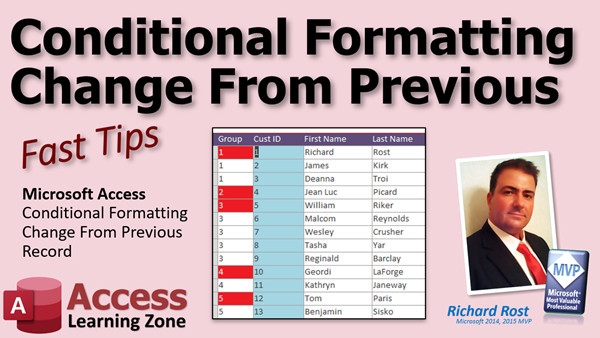
access 2016, access 2019, access 2021, access 365, microsoft access, ms access, ms access tutorial, #msaccess, #microsoftaccess, #help, #howto, #tutorial, #learn, #lesson, #training, #database, Conditional Formatting Change From Previous Record, How do you apply conditional formatting based on previous record, Conditional Format Based on Previous Record, Conditional Formatting Comparing fields on different records
More InformationTranscript Welcome to another Fast Tips video brought to you by AccessLearningZone.com. I am your instructor Richard Rost.
In today's video, I'm going to show you how to use conditional formatting to highlight any change from the previous record. For example, here we can see all of our customers are in groups 1, 2, 3, 4, and so on. If you sort them and you want to see when the group changes, for example, these are all group 1, there's one from group 2, group 3, and then group 4 is another change. We'll do that without any programming.
Some prerequisites: first, of course, you're going to have to know how to use conditional formatting. Go watch this. You'll need to know how to make calculated fields and queries. You'll need to know how to use the DLookup function, very important. And finally, the DMax function, which is DLookup's cousin. So if you don't know how to use any of those things, go watch them on my website. On my YouTube channel, they're all free, and then come on back.
This question came in this morning from Eric in my Access from my website. He basically says he's got a field called sales order, which is a number assigned to orders, I'm assuming. He says you might have sales order 1 appear several times on the list, but interspersed might be sales order 2 and 5. Is there a way to highlight the differences?
I do my best to interpret when people post questions, because I have to try to understand what you're talking about. So what I took this to mean is you want to basically say, let's group these all together and see where it changes from one group to another.
I've seen this question many times in many different forms. So let me show you how to do this.
Here's my TechHelp template. I flipped it around. Instead of using sales orders, I'm going to use customers and put them into groups. Same situation.
In my customer table, I simply added a group number field, and I arbitrarily assign group numbers to each of these people. You'll have to sort them somehow.
I sorted them by group number, and then by customer ID. Keep in mind, the customer ID might not necessarily be the order in which the records were added. You could also use a date field for that if that's more important, if you want them in the order in which they were actually added to the table. But I used customer ID because it's a number I've got handy.
This is simply bringing in customer t.*, bringing in group number, bringing in customer ID, or whatever other field you want to have the secondary sort based on.
Also, in this query is where you'll put any criteria such as if you only want this between two dates. If you want to say the order date has to be between two values, you could put that in here as well. If you don't know how to use Access query criteria, go watch this video. You'll find links to all the stuff down below, by the way.
Once this is ready, you've got them sorted by group, so all the group numbers are next to each other. That's important. The secondary sort is then customer ID. Now we save that. That's customer group q. Then we'll use that to build customer group 2 q.
Customer group 2 q is going to check to see what the previous group number item was. In other words, we've got them sorted by group number and customer ID. So group number one for customer one, look to see what the previous record was. There is no previous record, so it's going to return zero.
The next record, we're in group one, group number one, customer two. What's your previous customer ID? So look to the previous record, find the customer ID, and then bring back what group that person was in, group one.
Next record, customer three; what's the previous customer ID? To find that, we're going to say what is the largest customer ID less than me. So if I come down here and I am on this record, for the customer ID field, I'm going to say what is the largest customer ID less than me, that's a nine. Then I say what group was customer nine in, that's a three. So we use a DMax and then a DLookup, and here's what it looks like. I'll zoom in so you can see it.
It's just all the fields from customer group q. Then to find the previous customer ID, we say, I should have told you to watch the Nz video as well. We'll talk about that in a second.
We're going to say DMax, the customer ID, from that customer group q, where the customer ID is less than my value. Nz just says if that's null, give it a zero. So that'll bring back the previous customer ID or whatever field you're sorting on. So if you're sorting on date, this will be your date field, previous customer ID based on the date, not the ID.
Once you have that value, then you can look up that guy's group number. Previous group number is the lookup group number from customer t, where the customer ID equals that previous customer's ID.
So if you pick any record like this one, notice these are sorted by group number, then customer ID or whatever your sort field is. So if you pick any record like this one, that's customer ID 7, what is the largest customer ID that is smaller than 7? Well, that's 6. Then what is 6's group number? It looks up and it should return a 3 and put that right there.
Once you have this query all set, we're going to take this customer group 2 query and make this the data source for my customer list form. Design view. Properties here. Change the record source to customer group 2 q. Now I can bring in the previous group and the group number.
This is the previous group. This is the group number, and now it's simply a matter of using conditional formatting to compare this to this. We don't even have to use an expression. We can just use basic conditional formatting.
Look on that. Go to Format, conditional formatting, and it's going to be field value is not equal to previous group number in brackets, of course. Conditional formatting is one of those places where you have to use brackets for a field, even if you don't have spaces in your field name. Choose whatever format you want down here.
As long as those two things are different, you'll see this changes every time you have a new one. So you can see this is all the group 3s, all the group 4s, all the group 5s.
Within minutes of answering Eric, he came back with some other stuff. He wants basically every group to have its own unique color. You could certainly do that. I gave instructions down here. You could use a recordset to loop through those values and assign them, say, one to ten and then set up a conditional formatting for numbers one through ten, where one is green, two is blue, three is red, and so on. As long as you don't have more than ten of them, then that'll work just fine.
I cover recordsets in this video, which I also cover in detail in Access Developer 16. If you really want to learn recordsets, Access Developer 16 is where it's at. Using a recordset, you can essentially generate this list and then assign them. Look at the group number, and then once it changes increment your X value inside your recordset loop. It's a little more advanced.
In Access Developer 40, I actually teach you how to use conditional formatting in VBA. We set all these different color schemes up in VBA. There's actually a TechHelp video on event countdown. I'll put a link to this down below as well. This gives you some of it, but in Developer 40, I go into a lot more detail.
There you go, Eric. I hope that at least gets you started, gets you pointed in the right direction.
As I mentioned in the forum, I'm in the middle of moving right now, so I don't have a lot of time. I just had enough time this morning to sneak this video out to you while I'm drinking my coffee. Because I'm an old man, I just turned 50. If I'm going to be moving boxes, Danny's got to have his coffee in the morning and stretch his back out a little bit. For the rest of the day, it's going to be loading up the van.
That's your fast tip for today. I hope you learned something. If you guys want to see more with this, post a comment down below. If you want to see me tweak this, change it, make some modifications, whatever, as soon as I have time, I'll try to fit it in.
Bye bye. Intro In this video, I will show you how to use conditional formatting in Microsoft Access to highlight records that have a change from the previous group, making it easy to spot transitions in your data without any programming. We will talk about setting up your tables and queries, using DLookup and DMax functions to find previous records, and applying conditional formatting rules to your forms for clear visual cues. If you want to quickly see when a value changes as you move through your records, this tutorial will walk you through the process step by step. Quiz Q1. What is the main purpose of using conditional formatting in this video?
A. To visually highlight changes in group numbers from one record to the next
B. To change the structure of the database tables
C. To automate the process of adding new customers
D. To backup and restore Access databases
Q2. Which key function is used to find the largest customer ID less than the current one?
A. DLookup
B. DMax
C. DSUM
D. DCount
Q3. Why is it important to sort the data by group number and then by customer ID before applying the conditional formatting?
A. To make sure customer names appear in alphabetical order
B. To ensure all group numbers and their corresponding records are adjacent, making comparison possible
C. To reduce the database size
D. To prevent duplicate records
Q4. What does the Nz function do in the query?
A. It sorts the records by date
B. It assigns a value of zero if the result is null
C. It deletes empty records
D. It recalculates all field values
Q5. How is the previous group number determined for each record?
A. By subtracting one from the current group number
B. By looking up the group number of the record with the largest customer ID less than the current one
C. By creating a series of random numbers
D. By using a macro
Q6. When setting up conditional formatting, which comparison is made to decide when to highlight a change?
A. If the group number is greater than 5
B. If the previous group number is not equal to the current group number
C. If the customer ID is odd
D. If the order date is after today
Q7. What is suggested if you need to assign unique colors to more than ten different group numbers?
A. Use built-in conditional formatting for unlimited groups
B. You cannot assign more than ten; use a simpler method
C. Use a recordset in VBA to assign colors programmatically
D. Manually change colors as needed
Q8. Which prerequisite skills should viewers possess before attempting the method shown in this video?
A. Only basic knowledge of Access tables
B. Familiarity with conditional formatting, calculated fields, queries, DLookup, and DMax
C. Advanced SQL and ODBC setup
D. Working with macros only
Q9. What type of query is created as the data source for the form with conditional formatting?
A. Macro query
B. Customer group 2 query that includes previous group calculations
C. Crosstab query
D. Update query
Q10. When using conditional formatting in Access, what is important to remember about referencing field names?
A. All field references must be in parentheses
B. Field names must be surrounded by brackets, even with no spaces
C. Fields should only use uppercase letters
D. Field names must be separated by commas in expressions
Answers: 1-A; 2-B; 3-B; 4-B; 5-B; 6-B; 7-C; 8-B; 9-B; 10-B
DISCLAIMER: Quiz questions are AI generated. If you find any that are wrong, don't make sense, or aren't related to the video topic at hand, then please post a comment and let me know. Thanks. Summary Today's video from Access Learning Zone focuses on using conditional formatting in Microsoft Access to highlight changes between records, such as when a group number changes within a sorted list.
To start, I explain that this is a common question: when you have a data set sorted by groups, it can be useful to easily see where the group assignment changes from one record to the next. For instance, in our customer list, each customer belongs to a numbered group. By sorting the records by group and then by a secondary field, such as customer ID or date, we can organize them so all similar group numbers are together, making it clear when the group changes occur.
To follow along with this lesson, you should already be familiar with conditional formatting, creating calculated fields in queries, the DLookup function, and the DMax function. If you are not comfortable with any of these concepts, I recommend reviewing my free tutorials on those topics first.
The question that inspired this video came from someone looking for a way to highlight when a sales order number changes as you go down a list, even when previous and next sales orders are not always grouped together. The solution applies more broadly, for example, by detecting changes in customer group assignments.
In my demonstration, I use a simple customer table with an added group number field. After assigning group numbers, I sort the data first by group and then by customer ID. Keep in mind, customer ID does not always reflect the sequence in which records were added. If you need the entry order, you could use a date-added field instead.
At the query level, I include all needed fields and apply any filtering criteria, such as a specific date range if necessary. The important thing is to ensure the records are sorted properly, with all similar group numbers appearing together and then using a secondary sort as needed.
After building this query (named "customer group q"), I move on to the next step: creating a query to determine the previous group number for each record. For each customer, the query looks at the previous record's customer ID and retrieves the corresponding group number. This involves using DMax to find the largest customer ID that is smaller than the current one, and then using DLookup to fetch the group number for that previous ID. If there is no prior record (such as for the first record in the sorted list), we use Nz to return a zero or another default value.
With this query in place, I set it as the data source for the customer list form. By bringing both the current and previous group number fields into the form, applying conditional formatting becomes straightforward. You simply compare the current group field to the previous group field using the conditional formatting tool. Any time the values are different, Access will format the field according to your chosen style, letting you visually flag the change in group number.
For those who might want to take the formatting further, Eric asked if each group could have its own unique color. This can be achieved by specifying additional conditional formatting rules for each group, for up to ten different group numbers before hitting the rule limit. If more groups or automated color assignment are needed, you can use a VBA recordset to loop through the data and assign formatting dynamically. I have detailed tutorials on working with recordsets in my Access Developer 16 course, and for those who want to manage conditional formatting directly in VBA, this is covered in detail in Access Developer 40.
In summary, by using a combination of sorting, queries with DMax and DLookup, and conditional formatting, you can easily highlight any changes in group number or similar fields from one record to the next—no programming required for the basic version.
If you want to see the entire process with step-by-step instructions and demonstrations, visit my website for the complete video tutorial at the link below.
Live long and prosper, my friends. Topic List Adding a group number field to a customer table
Sorting records by group number and secondary sort field
Building a query to display grouped and sorted customers
Finding the previous record using DMax in a query
Using Nz to handle null values when finding previous records
Using DLookup to retrieve a field from the previous record
Creating a calculated field for the previous group number
Setting a form's record source to use the new query
Displaying both current group and previous group in a form
Applying conditional formatting to highlight group changes
Configuring conditional formatting with a "not equal to" comparison Primary Topics
conditional formatting, Access queries, DMax function, DLookup function, grouping records, calculated fields, sorting records
Secondary Topics
Nz function, recordsets, conditional formatting via VBA, multiple conditional formats, form data sources
|






