Quickly Run SQL
By Richard Rost

 3 years ago
Quickly Execute SQL Commands Without a Query
In this Microsoft Access tutorial I'm going to teach you how to quickly run an SQL statement without having to open the QBE (Query-by-Example) grid designer and build a query.
Jacob from Tacoma, Washington (a Platinum Member) writes: Is there any way to quickly run a query without using the QBE (Query-by-Example) grid designer?
Members
Members will learn how to run SELECT statements to view data. We will create a temporary query on the fly using VBA and something called a QueryDef.
Silver Members and up get access to view Extended Cut videos, when available. Gold Members can download the files from class plus get access to the Code Vault. If you're not a member, Join Today!
Pre-Requisites
Links
Recommended Courses
Keywords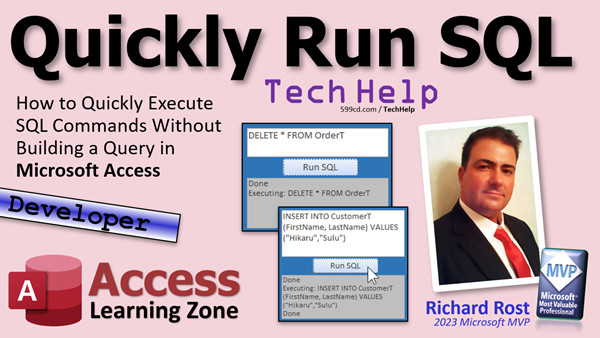
access 2016, access 2019, access 2021, access 365, microsoft access, ms access, ms access tutorial, #msaccess, #microsoftaccess, #help, #howto, #tutorial, #learn, #lesson, #training, #database, Docmd.runsql, currentdb.execute, run query, create query, openquery, deleteobject, querydef, createquerydef
More InformationTranscript Welcome to another TechHelp video brought to you by AccessLearningZone.com. I am your instructor, Richard Rost. In today's video, I'm going to show you how to quickly execute SQL commands without having to build a whole query. This is a developer level video.
What does that mean? It's going to require a little bit of VBA and a lot of SQL. Got no SQL to do this one. This question comes from Jacob in Tacoma, Washington, one of my platinum members. I think two or three other people have asked me this recently. In fact, someone just asked me in the forums on my website this morning: is there any way to quickly run a query without using the QBE, the query by example grid designer? This thing. This is the QBE grid.
I love the QBE grid, especially for beginners. This is a fantastic way to teach people how to build queries from scratch. But if you're a pro or semi-pro, if you've been using SQL forever and you've been using SQL, you just want to issue an SQL statement. You just want to run a little quick delete query or an insert query to add a record, something like that. You just want to be able to just do it. You don't want to have to stop and build a whole query.
Let me show you how to do this right now. But first, some prerequisites. If you don't know any VBA and you want to learn, go watch this video. It's about 20 minutes long. It'll teach you everything you need to know to get started programming in VBA. Once you learn a little tiny bit of VBA, your database gets so much more powerful. Go watch this first.
If you want to learn SQL, if you've never written in the SQL language before, go watch this guy to get started with. I'll teach you the basics of SQL.
All right, so here I am in my TechHelp Free template. This is a free database. You can download it on my website if you want a copy. I got all my basics, my customer form, my order form, my contact form, all these different tables here.
Let's say I want to just quickly delete all of the records in my contact table. Now, yeah, I only got what, 14 in here. I can just come in here and do this and delete them. But let's pretend it's a little more complicated than that. If you want to do it by building a query, like a delete query, you got to go to create, you got to query design, you got to build the query.
Okay, so all I want to do is execute a quick SQL statement. If you're familiar with SQL Server and you've used the management studio, you just type it in and execute it. There you go. How do we do that in Access?
Well, I like to just put a text box on a menu form somewhere and then make a button that says, run that SQL and it's pretty much that simple. If you're worried about security, you could put it on a manager menu and make a password button to get to that form, which I strongly recommend because you don't want just anybody running SQL statements willy-nilly in your database. That's a bad idea. I teach you how to create a manager menu with a password form in my input box video. You want to learn how to do that.
Let's pretend we're on our manager menu. I'm going to go into design view here. I'm just going to grab a text box. I'm going to steal this one. All right, let's make this big so we can put our SQL statement in here. Open up its property. Instead of current date, I'll call this one mySQL. No, it's not the MySQL program, it's mySQL. And we'll get rid of the control source and the format. It's just a plain text box.
And then we'll just repurpose this button here. We'll just make it say run SQL. And of course, we'll continue to use my status box, which is something that I show you how to use in my blank template video. It's basically just a text box and I made a function called status. All status does is it takes what you send to it and puts it in the status box. That's it. Pretty simple straightforward stuff.
Now the code to go in the button is going to be pretty straightforward. Go to right-click, build event. That's going to bring you into the button's code, which right now says hello world. We're just going to get rid of that.
Now normally I'm a fan of currentdb.execute. I like to use this in my VBA code where I want to run queries and I don't want my users to see error messages, like if you're doing behind the scenes work. However, in this particular case, since this is a tool for me, I do want to see error messages. If I go to delete something and it can't delete for any reason, I want to see that Access-generated error message. I've got a separate video coming up that I've been planning for a while on the differences between run SQL and execute. Look for that soon.
But in this particular case, I want to use DoCmd.RunSQL. All right, so we'll put a little status up for status executing and then whatever your query is right in mySQL. And then we're going to DoCmd.RunSQL mySQL. That's it. And then status done. DoCmd.RunSQL handles the heavy lifting.
All right, save it. Come back over to your database. We're going to close this form and reopen it. And let's just type in here DELETE * FROM ContactT and then run SQL. All right, says done. Let's check our work and see. Oh, there we go. He's gone.
Want to do a simple insert? INSERT INTO CustomerT. Let's do first name, last name, values. Hit Hikaru, Sulu. And that's a quick way to insert a record. Do it. Let's check our customer table. And there he is down on the bottom here. I'm actually surprised I didn't have him here before. Yeah, it only puts in the fields you select, but you get the point.
Now here's why I like to see those error messages. If I say DELETE * FROM OrderT and I hit run SQL, I get the error message. I can't delete the 16 records that are in there due to key violations. Why? Because I have referential integrity on. There are order details in the detail table. So with that relationship made, I can't just delete those records. But if I were to change this to currentdb.execute mySQL, and I hit run, I just see nothing happen. Why? Because currentdb.execute, in a nutshell, bypasses Access's checking for error logic. It just executes the SQL statement and reads the tables. If errors are generated, you generally don't see them. And if I check my order table, those records are still there. I'm here scratching my head. Why isn't this working?
So this is one of those cases where I do want to use RunSQL so that Access can show me error messages.
Now what about a select statement? What if you just want to see some records? SELECT * FROM CustomerT. Run SQL. The RunSQL action requires an argument consisting of an SQL statement. I thought that was an SQL statement.
Well, unfortunately, this only works with action queries: delete, append, insert, make table, those kinds of things. For a select statement, it's going to involve a little more programming, and I will cover that in the extended cut for the members. I'm going to show you how to run select statements. We're going to create a temporary query using something called the QueryDef, which is really cool. So check that out.
Before I let you go, if you want to learn more about SQL in Microsoft Access, I've got a whole series of seminars on just SQL. Part one goes over select statements, selecting and viewing data, where conditions, order by clauses. Part two is all action queries, modifying data. We also talk about some things that you can't do with the query by example grid, like union queries. And part three is manipulating the structure of your tables. You can actually build tables, modify fields, that kind of stuff. That's my SQL seminars. Here's a link. I'll put a link down below you can click on.
And if you want to learn how to do select statements in this little box that I built in this class, well, that's in the extended cut for the members. Silver members and up get access to all of my extended cut videos. Gold members can download these databases and have access to my code vault.
So what are you waiting for? Join today.
That, folks, will be your TechHelp video for today. I hope you learned something. Live long and prosper, my friends, and I'll see you next time.
Even if you don't want to become a member, feel free to donate to my tip jar. Your patronage is greatly appreciated and will help keep these free videos coming. I got puppies to feed.
How do you become a member? Click on the Join button below the video. After you click the Join button, you'll see a list of all the different membership levels that are available, each with its own special perks.
Silver members and up will get access to all of my extended cut TechHelp videos, one free beginner class each month, and more.
Gold members get access to all of my extended cut videos, and gold members get access to download all of the sample databases that I build in my TechHelp videos, plus my code vault, where I keep tons of different functions that I use. You'll also get a higher priority if you decide to submit any TechHelp questions to me, and you'll get one free expert class each month after you've finished the beginner series.
Platinum members get all the previous perks, plus even higher priority for TechHelp questions, access to all of my full beginner courses for every subject, and one free developer class each month after you've finished the expert classes. These are the full-length courses found on my website, not just for Access, too. I also teach Word, Excel, Visual Basic, and lots more.
You can now become a diamond sponsor and have your name or company name listed on a sponsors page that will be shown in each video as long as you're a sponsor. You'll get a shout out in the video and a link to your website or product in the text below the video and on my website.
But don't worry, these free TechHelp videos are going to keep coming. As long as you keep watching them, I'll keep making more, and they'll always be free.
Now, if you have not yet tried my free Access Level 1 course, check it out now. It covers all the basics of Microsoft Access. It's over four hours long, and I just updated it for 2021. You can find it on my website or on my YouTube channel. I'll include a link below that you can click on. And also, if you like level 1, level 2 is just $1. Yep, that's all, $1, and it's free for all members of my YouTube channel at any level, even supporters.
Want to have your question answered in a video just like this one? Visit my TechHelp page on my website, and you can send me your question there. While you're on my site, feel free to stop by the Access Forum. Lots of good conversations happening there. Be sure to follow my blog, find me on Twitter, and of course YouTube.
Once again, my name is Richard Rost. Thank you for watching this TechHelp video brought to you by AccessLearningZone.com. I hope you enjoyed this video and that you learned something today. I'll see you again soon. Bye. Intro In this video, I will show you how to quickly run SQL commands in Microsoft Access without building full queries using the QBE grid. We'll talk about creating a simple developer tool with a text box and button to execute SQL action queries like DELETE and INSERT statements directly from your forms. I will explain why DoCmd.RunSQL is preferred in this situation to display error messages, and discuss some security considerations for restricting access to this tool. This is a developer-level topic and assumes you have some basic knowledge of VBA and SQL. Quiz Q1. What is the main technique shown in the video for quickly executing SQL commands in Access without using the QBE grid?
A. Typing SQL directly into a command prompt
B. Creating a text box and button on a form to enter and run SQL
C. Using macros with input boxes
D. Writing SQL commands in Excel and importing them
Q2. Which of the following prerequisites does the instructor recommend before attempting the techniques in the video?
A. Basic knowledge of C#
B. Familiarity with VBA and SQL
C. Advanced knowledge of macros
D. Experience with Visual Studio
Q3. What is the primary purpose of using DoCmd.RunSQL in this context?
A. To run select queries and return records
B. To execute action queries and display error messages
C. To automate export of tables to Excel
D. To bypass referential integrity
Q4. Why does the instructor prefer DoCmd.RunSQL over currentdb.execute in this specific tool?
A. DoCmd.RunSQL executes queries faster
B. DoCmd.RunSQL suppresses all error messages
C. DoCmd.RunSQL displays error messages, which helps debug issues
D. DoCmd.RunSQL can execute both VBA and SQL code
Q5. Which type(s) of SQL queries can you execute with the method demonstrated in the video?
A. Only select queries
B. Only action queries like delete, insert, and update
C. Both select and action queries
D. Only queries without WHERE clauses
Q6. What happens if you try to run a SELECT statement using the demonstrated RunSQL method?
A. The statement executes and shows the data in a datasheet
B. Access gives an error because RunSQL only works with action queries
C. The program exports the data to a CSV file
D. The records are deleted from the table
Q7. The instructor suggests adding which security feature to the menu where the SQL execution text box is placed?
A. User-level permissions
B. Password protection for the manager menu
C. Encrypted database fields
D. Windows authentication
Q8. If you want to simply see records (run a SELECT statement) quickly using a similar interface, what is required?
A. Nothing extra, just use RunSQL
B. Additional programming with QueryDef or similar techniques
C. Only setting macros
D. Exporting the results to Excel
Q9. When using RunSQL to delete all records from a table with referential integrity in place, what will happen?
A. The records are always deleted, regardless of relationships
B. Access shows an error if related data exists
C. Referential integrity is automatically disabled
D. The records will be replaced with blanks
Q10. Why might currentdb.execute not be preferred in the tool demonstrated?
A. It always shows detailed error messages
B. It does not show error messages for failed queries
C. It can only run select queries
D. It deletes tables without confirmation
Q11. Which membership level grants access to the extended cut videos mentioned in the video?
A. Bronze members and up
B. Silver members and up
C. Free members only
D. Only diamond sponsors
Q12. What extra benefits do Gold members receive compared to Silver members?
A. Higher priority for questions and access to downloadable sample databases
B. Unlimited one-on-one coaching
C. Free lifetime access to all courses
D. Password recovery services
Q13. What is the instructor's recommendation for people who are complete beginners to Microsoft Access?
A. Start with the free Access Level 1 course
B. Jump directly into developer videos
C. Begin by building macros only
D. Download paid sample databases first
Q14. In the demonstration, why does the instructor use a status function?
A. To show the SQL syntax used
B. To display feedback in a status box about the operation
C. To record login times of users
D. To format SQL queries
Q15. What is the risk of putting an SQL execution tool on a form accessible to all users without restriction?
A. It makes the database run slower
B. Unauthorized users could execute damaging SQL statements
C. It only affects the user interface
D. Queries will not be saved
Answers: 1-B; 2-B; 3-B; 4-C; 5-B; 6-B; 7-B; 8-B; 9-B; 10-B; 11-B; 12-A; 13-A; 14-B; 15-B
DISCLAIMER: Quiz questions are AI generated. If you find any that are wrong, don't make sense, or aren't related to the video topic at hand, then please post a comment and let me know. Thanks. Summary Today's TechHelp tutorial from AccessLearningZone.com is focused on how to execute SQL commands directly in Microsoft Access without the need to set up an entire query using the query by example grid. This is a more advanced, developer-oriented lesson, so you should be familiar with some VBA and have a solid understanding of SQL.
People often ask if it is possible to run quick queries in Access without having to use the query designer. The query designer, or the QBE grid, is a fantastic tool for teaching beginners how to construct queries. However, if you are comfortable with SQL, you might find it cumbersome to always have to use the designer when you simply want to run a quick command such as a delete or insert.
To get started with this technique, it really helps if you know a bit of VBA. If you're not already familiar, I recommend watching an introduction to VBA to cover the basics. This will allow you to make your database much more dynamic and powerful. If SQL is still new to you, a basic primer on SQL will be helpful before proceeding.
For this demonstration, I am using my free TechHelp template database. This template includes basic forms and tables like a customer form, order form, and contact form. Suppose you want to delete all the records from a contact table. While you could manually select and remove them, it is far more efficient to use a SQL DELETE statement, especially as your database grows in complexity.
Many developers who have worked with SQL Server are used to simply typing in a statement and executing it directly. In Access, we can mimic that by placing a text box on a form—usually a menu designed for managers or higher-level users—and creating a button that runs whatever SQL is entered into that box. Because executing SQL statements can lead to significant changes, such as deleting or inserting many records, it's best to restrict this type of feature to secured forms, like a manager menu protected by a password. I have a tutorial on setting up a secure manager menu for those interested.
Setting up this feature in Access is relatively straightforward. You can add a text box to your manager menu form and name it something like "mySQL" to hold the SQL statement. Remove any control source or formatting so it's just a plain input field. Add a button labeled something like "Run SQL" to process the command. I also recommend using a status box to display messages to the user. The status function I use simply takes input and displays it in a status text box.
The button's VBA event will take the entered SQL statement from the text box and execute it. While I usually prefer the currentdb.execute method for background queries (because it suppresses error messages), in this scenario, I actually want Access to show those error messages on the screen. This feedback helps identify problems, such as failed deletes due to referential integrity. Therefore, DoCmd.RunSQL is the command to use here, as it runs the SQL and lets Access notify you of any errors in the process.
Once this setup is complete, you can enter SQL commands—such as a DELETE statement to remove records, or an INSERT statement to add a new customer—directly into your text box and click the button to execute them. The effects are immediate, and feedback appears in the status box or as an error message from Access.
It's important to note that DoCmd.RunSQL only works with action queries like DELETE, UPDATE, INSERT, and similar commands that modify data. If you try to run a SELECT statement, DoCmd.RunSQL will produce an error because SELECT statements return recordsets, which require a different approach. Handling SELECT statements in this context requires more programming, and for those interested, I cover that in detail in the Extended Cut for members. In that lesson, I show how to use QueryDef objects to create temporary queries and work with the results directly.
If you are aiming to expand your knowledge of SQL in Access, I have a series of seminars. Part one covers SELECT statements, conditions, and sorting. Part two is focused on action queries and covers more advanced examples. Part three addresses changing the structure of your tables with SQL. Each seminar covers topics not possible in the QBE grid, like union queries and direct table modifications.
If you want to see how to run SELECT queries in this special SQL box, that is included in the Extended Cut for members. Silver members and above get access to all Extended Cut videos, and gold members can download all of the sample databases and access my code vault filled with useful functions.
For those interested in becoming a member, membership options are available at various levels, each providing different perks such as access to extended videos, sample databases, priority for TechHelp questions, and free beginner or expert classes depending on your level. Membership also helps support the continued creation of free Access tutorials.
If you are new to Access, I recommend checking out my free Access Level 1 course. It covers all the basics, is over four hours long, and is updated regularly.
If you have a question you would like to see answered in a future video, visit my TechHelp page to submit your query. You can also join the forum on my website for discussions, check out my blog, or find me on social media and YouTube.
You can find a complete video tutorial with step-by-step instructions on everything discussed here on my website at the link below. Live long and prosper, my friends. Topic List Using a text box on a form to input SQL statements
Adding a button to execute SQL from a text box
Assigning the text box value to a variable for SQL
Using DoCmd.RunSQL in VBA to run SQL commands
Displaying command status messages with a status box
Executing delete queries directly from a form
Executing insert queries directly from a form
Viewing Access error messages with DoCmd.RunSQL
Impact of referential integrity on delete queries
Difference between DoCmd.RunSQL and CurrentDb.Execute
Handling CurrentDb.Execute not showing errors
Limitations of DoCmd.RunSQL with select statements
Restricting form access for SQL execution security Primary Topics Access VBA, executing SQL, DoCmd.RunSQL, action queries, user interface, database management Secondary Topics security considerations, currentdb.execute vs RunSQL, Access errors, member content, QueryDef for SELECT, referential integrity, database forms |







