Trim Function
By Richard Rost

 3 years ago
Use The Trim Function To Remove Leading Spaces
In this Microsoft Access tutorial I'm going to teach you how to use the trim function to remove leading and trailing spaces from a text field or string.
Emma from Gainesville, Florida (a Gold member) asks: I get data submitted all the time that I import from text files and Excel sheets and every now and then people somehow add an extra space in front of their name or their address and it throws everything off with my sorting. Is there any way I can go through all of the records and remove leading spaces from those fields?
Prerequisites
Links
Recommended Courses
Keywords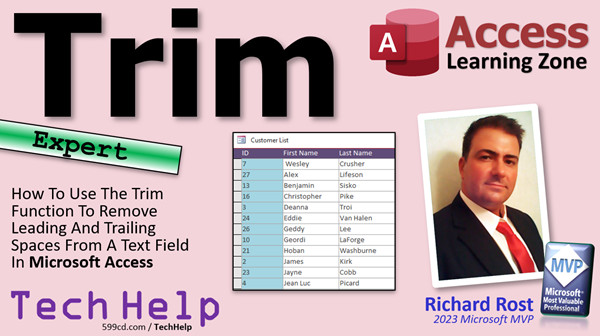
access 2016, access 2019, access 2021, access 365, microsoft access, ms access, ms access tutorial, #msaccess, #microsoftaccess, #help, #howto, #tutorial, #learn, #lesson, #training, #database, Trim, trim function, ltrim, rtrim, remove leading spaces, remove trailing spaces, remove spaces
 Subscribe to Trim Function
Get notifications when this page is updated
More InformationTranscript In today's video, I'm going to show you how to use the trim function to remove leading and trailing spaces from a text field in your Microsoft Access database. You've seen it before. You get some data, maybe you've imported some data from a customer, you got an Excel spreadsheet, whatever, and someone has a space in front of their name and it messes everything up. We are going to deal with that in today's video.
Today's question comes from Emma in Gamesville, Florida, one of my Gold members. Emma says, I get data submitted all the time that I import from text files and Excel sheets. Every now and then people somehow add an extra space in front of their name or their address or whatever, and it throws everything off with my sorting. Yes, just like Wesley there, see when you sort that field that happens. Is there any way I can go through all those records and remove leading spaces from those fields?
Yes, you can. You can use something called the trim function that will trim any leading and trailing spaces off the field.
Now, Access is pretty good about removing trailing spaces, but not always. When you enter them by yourself and you're doing data entry in the form or the table yourself, it will remove those trailing spaces, but there's nothing to stop it from removing those leading spaces. So I'm going to show you a little trick.
This is an expert level video. I consider expert to be between beginner and developer, so it's like the middle ground. This is not basic stuff, but you don't need any programming for this, although I am going to show you a little bonus tip at the end for those of you who like programming.
We are going to use an update query for this. I'm assuming if you just see one or two of them, you can just click on them and change them yourself. But let's say you imported thousands of records and you got a whole bunch of these that you have to fix at one shot. We can use an update query to run through many different records and make changes to them all at once.
If you don't know how to use an update query, go watch this video first and then come on back.
Here I am in my TechHelp free template. This is a free database. You can download a copy from my website if you want to. We've got our customer list in here and I already put a space in front of Wesley for the title slide. Let me put a couple more in here. One in front of Diana and then maybe Jean Luke and maybe Catherine. There's 29 in here and a whole bunch of them have spaces in there.
When you go to sort this now, all your spaces are up top and that's just not good. We don't want that. So we're going to use an update query to remove all of those spaces.
How do we do that? We're going to go to Create and then Query Design. We're going to bring in our customer table. We can close that then. We're going to change the type of the query to an update query.
Now, you're going to have to do each field that you want to. We'll bring in first name. If you've got last name, address, if you know there are spaces in those, that's fine. Do those too.
Down here in the update to box, we're going to change that to trim (TRIM). Then in parentheses, first name, like that. Now, be very, very careful. Notice what just happened. I'm going to zoom in so you can see it. You see what happened there? Access is trying to be helpful and it put first name inside of quotes. That's not what you want. People email me about this one all the time. You don't want first name in quotes because that's saying change it to TRIM, the actual word first name. No, we want the field first name in there.
I'm going to hit Shift+F2 to zoom in so I can type in here. Put brackets around first name. I always tell you in my Access Beginner 1 class, usually if you don't have spaces in your field names like that, usually you don't need to put those brackets around that field name when you use them in places. Sometimes you do, like in conditional formatting. Sometimes in functions, you always have to remember to use those brackets. So be on the lookout for that.
That's what we want: TRIM [first name]. That says take the first name field, chop off any spaces at the beginning or end of it, and then set the first name field equal to that.
We can run it. Now, I have my warnings turned off. You might see some warnings pop up like you're about to change five records or whatever. Say yes.
Save this if you want to. Update trim customer query, whatever you want to call it. Because in the future, if you import more records that have this problem, you can just run that update query again. You don't have to keep rebuilding this. That's the nice thing about queries. You don't have to keep reinventing the wheel. You build it, you save it, and if you want to, you can put a button on your menu to run it.
Let's take a look at our records. We close that, open up the customer list, and look at that. They're all fixed. Trim chops off the spaces at the beginning and at the end.
There are two related functions. There's LTrim and RTrim for left trim and right trim. You can use the trim from the left side or the right side. Honestly, I have never used those in my 30 years of working with Access. I don't think I've ever used LTrim or RTrim, but I'd be remiss if I didn't mention them.
Now, in your database, like I was mentioning before, when people type in stuff, like if I come in here and just make this Ben, but I put a space after the end of it, Access automatically gets rid of those trailing spaces. But it won't get rid of them in the front.
If you want to make sure that you get rid of those yourself, you can use a little thing called an After Update event. This is VBA programming. Don't be scared. This is a bonus. A little VBA action bonus time for you.
If you've never done any VBA programming before and you want to learn, go watch this video. I'll put a link down below. It's about 20 minutes long and will teach you everything you need to know to get started. We're going to use something very simple called an After Update event. After Update runs whenever you update a field.
Usually I turn data entry off in these list type forms, in these continuous forms. I don't usually let my users make changes here. I make them open up the customer's record and they make the change here. So I'm going to put the update event in this form.
Go to Design view, pick the field or fields that you want to use (you have to do one at a time). Pick the field, turn off this field list. Open up its properties, go to Events and find After Update. This will run after this field is updated. Hit the dot dot dot button. That will bring up my VBA editor.
In here, all I'm going to say is:
first name = trim(first name)
Just like that. Now in VBA, you don't have to worry about those brackets, only in queries. I know it's inconsistent and it's weird, but you get used to it.
Save it. Close it. Now if I go back into Ben Cisco and I type in space Ben and hit Tab, after I updated that field, it trimmed it for me automatically.
So if you want to fix that, if you have that happening during data entry inside your databases, if your users are doing that in Access, then you can fix that at this level too. You have to do it in each field, or you can do one After Update event for all of them. That's up to you.
That's how you use the trim function. If you like this video, here's a related one. I covered different string functions: Left, Right, Mid, Len, and String. Those are kind of related to trim. If you want to learn more about all these string functions, I cover it in part one of my comprehensive guide to Access functions. Starting with Access Expert Level 25, I cover all those different string functions. Here's trim. Lots of other stuff, including lessons on logical functions as well as five or six lessons that cover all the different functions that are available in Access.
That is going to be your TechHelp video for today. I hope you learned something.
Live long and prosper, my friends. I'll see you next time. Intro In this video, I will show you how to use the Trim function in Microsoft Access to remove unwanted leading and trailing spaces from text fields, like names or addresses, that can cause issues with sorting and data integrity. We'll walk through using an update query to fix multiple records at once and cover some related functions like LTrim and RTrim. I'll also share a quick VBA trick for automatically trimming text during data entry to keep your data clean going forward. Quiz Q1. What is the main purpose of the TRIM function in Microsoft Access?
A. To remove all spaces from within a text string
B. To remove leading and trailing spaces from a text field
C. To add spaces to the beginning and end of a text field
D. To remove only trailing spaces from a text field
Q2. Why can imported data often have issues with leading or trailing spaces in Microsoft Access?
A. Access always adds extra spaces during import
B. Other systems and users sometimes enter spaces accidently in data fields
C. Access sometimes deletes required spaces automatically
D. Spaces are required by Access and thus frequently exist in all imported data
Q3. Which type of query should you use if you want to remove leading and trailing spaces from many records at once?
A. Append query
B. Select query
C. Update query
D. Delete query
Q4. When creating an update query using the TRIM function, what is the correct way to reference a field named First Name in Access?
A. TRIM('First Name')
B. TRIM("First Name")
C. TRIM([First Name])
D. TRIM{First Name}
Q5. What common mistake does Access sometimes make when typing expressions in queries, as mentioned in the video?
A. It ignores spaces between field names
B. It puts field names inside quotation marks instead of brackets
C. It fails to recognize field names entirely
D. It automatically applies the TRIM function to all text fields
Q6. What happens if you save your update query for trimming spaces?
A. It deletes itself after running once
B. It can be easily rerun whenever you need to clean up new data
C. It becomes read-only and cannot be changed
D. It will automatically clean new data on import
Q7. What do the related functions LTRIM and RTRIM do in Access?
A. LTRIM removes trailing spaces, RTRIM removes leading spaces
B. LTRIM removes both leading and trailing spaces, RTRIM replaces spaces with dashes
C. LTRIM removes spaces only from the left, RTRIM only from the right of a text field
D. Both remove spaces from the middle of text fields
Q8. When entering data directly into Access, what does Access automatically remove?
A. Spaces in the middle of a text value
B. Leading spaces
C. Trailing spaces
D. All spaces from the field
Q9. Which event in VBA can you use to automatically trim spaces after a user updates a text field in a form?
A. On Load
B. After Update
C. On Close
D. Before Insert
Q10. In VBA, when writing code to trim a field, why do you not need brackets around field names?
A. VBA requires single quotes instead
B. VBA automatically adds brackets for you
C. In VBA, you reference the field directly as an object property
D. Brackets are used only in SQL, not in Access at all
Q11. What is a practical reason to use the TRIM function in database management?
A. To increase storage space usage in the table
B. To prevent sorting errors and maintain data consistency
C. To create more complicated queries
D. To insert spaces into text data
Q12. Which of the following is NOT a string function mentioned as related to TRIM in Access?
A. LEFT
B. MID
C. LEN
D. REMOVE
Answers: 1-B; 2-B; 3-C; 4-C; 5-B; 6-B; 7-C; 8-C; 9-B; 10-C; 11-B; 12-D
DISCLAIMER: Quiz questions are AI generated. If you find any that are wrong, don't make sense, or aren't related to the video topic at hand, then please post a comment and let me know. Thanks. Summary Today's TechHelp tutorial from Access Learning Zone will show you how to use the Trim function to remove leading and trailing spaces from text fields in your Microsoft Access database. This is a common issue if you regularly import data from sources like Excel spreadsheets or customer files, where you might find extra spaces in front of names, addresses, or other fields. These spaces often disrupt data sorting and can cause confusion when working with your records.
When you import or receive data from others, you might notice names or addresses with spaces at the beginning, which throws off sorting and searching. Access typically handles trailing spaces well, especially when you are typing data directly into a table or form. However, leading spaces are a different problem, and they can linger in your fields unless you address them yourself.
To solve this issue, there is a straightforward approach using the Trim function in an update query. This method is especially useful if you have a large number of records to correct. If you only see one or two records with this issue, it is easy to fix them manually. However, when you have hundreds or thousands of entries with extra spaces, running an update query can save you a significant amount of time.
To create this update query, you will start by opening Query Design and adding your customer table. Then, you will change the query type to an update query. For each field you want to clean up, you will enter an expression using the Trim function in the "Update To" row. Access may try to put field names in quotes, which is incorrect in this context. Instead, you need to surround field names with brackets. For example, to update a field called First Name, use Trim with the field name bracketed, like Trim([First Name]).
Remember, it is essential to use the correct field references here. Access sometimes handles brackets differently in various features, so keep an eye out for these details. After building your query, you can run it. Access may display a warning letting you know how many records you are about to update. Accept the changes, and your data will be cleaned up, with leading and trailing spaces removed from every record.
It is a good practice to save your update query. That way, if you import new data in the future with the same problem, you can simply run the query again instead of building it from scratch every time. You might even consider adding a button to your user interface to launch it.
There are also related functions, such as LTrim for removing spaces only from the left side of a field, and RTrim for only the right. In practice, Trim is often sufficient, but it is useful to know about these options.
One thing to keep in mind is Access automatically removes trailing spaces from the end of text if you are manually entering data, but will not handle leading spaces. If you want to automate the cleaning of leading spaces as people enter data into your forms, you can use a little bit of VBA programming. For those interested in programming, you can add code to the After Update event of your form fields. In that event, you simply set the field equal to its trimmed value, ensuring spaces are removed as soon as the data is entered or edited.
You do need to add this code to each field you want to affect, or you can structure your code to clean up multiple fields as needed. Though adding VBA is a bit more advanced, even beginners can pick it up quickly with a little practice. I have a beginner tutorial on VBA if you want to get started.
If you would like to explore more about string functions in Access, such as Left, Right, Mid, Len, and String, I cover those in detail in my comprehensive guides, beginning with Access Expert Level 25. There you will find lessons not only on these functions but also on logical functions and many others useful in Access.
You can find a complete video tutorial with step-by-step instructions on everything discussed here on my website at the link below.
Live long and prosper, my friends. Topic List Using the Trim function to remove spaces in Access fields
Identifying leading and trailing spaces in imported data
Creating and using an update query to clean up data
Applying the Trim function in an update query
Understanding the importance of using brackets in query fields
Saving and reusing update queries for future imports
Using LTrim and RTrim functions for left or right spaces
Explaining Access handling of trailing spaces during data entry
Using the After Update event in forms for automatic trimming
Applying Trim within VBA code in an After Update event Primary Topics TRIM function, update query, removing spaces, Microsoft Access, After Update event, data cleaning Secondary Topics VBA programming, LTrim, RTrim, form properties, query best practices |




