Easy Search Form
By Richard Rost

 2 years ago
Zero-Code Multi-Field Search in Microsoft Access
In this Microsoft Access tutorial, I'm going to teach you how to make a simple search form where you can search multiple fields. We'll use AND and OR conditions so you can search for either records that have all of the criteria or any of the criteria, and we'll do it with zero programming, so even beginners will be able to follow this one.
Grant from Decatur, Georgia (a Platinum Member) asks: I've watched several of your videos on building a search form. They're all very helpful, but most are a little bit over my head. I'm not a VBA programmer, and I really don't want to learn how to program. Is there an easy, simple way you can show us how to just do a search form that brings up a query with my results? I need to be able to search on first name, last name, and email address, and sometimes it can be one, two, or all three of those that I need to look for. I really want a search form like you show because my users are clueless and I don't want them to deal with queries and parameter prompts and such. Thanks!
Prerequisites
Links
Up Next
Recommended Courses
Keywords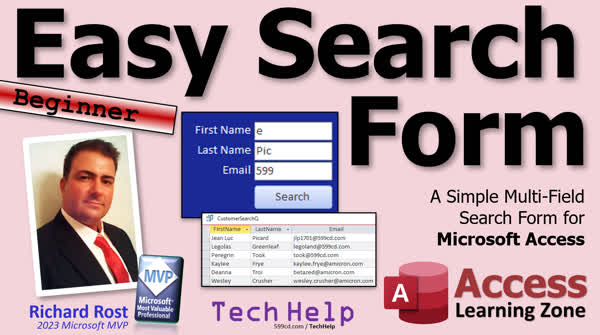
TechHelp Access, simple multi-field search form, search multiple fields, Microsoft Access, no VBA, query results, wildcard searches, LIKE keyword, customer form, contacts management, no programming search
More InformationTranscript In today's video, we're going to build an easy search form, a simple one, one that even beginners can follow along with. It will be a simple, multi-field search form. I'm going to let you pick whether you want to do an AND search or an OR search. In other words, you have to meet all the search criteria or any of the search criteria.
Today's question comes from Grant in Decatur, Georgia, one of my platinum members. Grant says, I've watched several of your videos on building a search form. They're all very helpful, but most are a little bit over my head. I'm not a VBA programmer, and I really don't want to learn how to program. Is there an easy, simple way you can show us how to just do a search form that brings up a query with my results? I need to be able to search on first name, last name, and email address, and sometimes it can be one, two, or all three of those that I need to look for. I really want a search form like you show because my users are clueless and I don't want them to deal with queries and parameter prompts and such. Thanks.
A lot of the search forms, and finding records buttons, require programming because it's easier to do a lot of this stuff with a little VBA. Don't fret. We can certainly do this without programming. So let me show you how to do it.
Although this is a beginner video, I do strongly recommend that you've watched my Access Beginner 1 class. You'd be surprised how many questions I get from people who, had they only watched my Beginner 1 class, it would have answered their questions. If you haven't watched this yet, go watch this. If you don't have time to watch the whole four-hour course, I do have this one available where I take that four-hour class and condense it down into 30 minutes. I give you all the important stuff fast. Go watch this if you're in a hurry, but the four-hour one is definitely better. It's got a lot more information in it.
You will also need to know how to get a value from an open form in order for us to use a form for the parameters for our query. So we can supply the information to the query that you're looking for. You have to be able to get the value off of an open form instead of getting that popup that says enter parameter value. Go watch this.
You should know how to do wildcard searches so you can look for any part of a string, like part of a first name or part of a last name. You'll need the LIKE keyword. Go watch this video on concatenation - that's putting two strings together with the ampersand sign. And go watch this one on the differences between AND, OR, and NOT. You'll learn my AND across, OR down rule. Go watch all of these first. These are all free. They're on my YouTube channel. They're on my website. Go watch them and then come on back.
Here I am in my TechHelp free template. This is a free database. You can download a copy of this off my website if you'd like to, and I have a whole series of videos on how I built this. It's got a real simple customer form. It's got a customer list form. You can list all your customers and pick one and click a button and open that one up, or with a little bit of programming, a little tiny bit of programming, you can double-click that and open it up. We got contacts every time you talk to that customer. We've got orders.
There's a whole series of free videos on my website that explains how this was built. If you want to learn how, I'll put links down below in the links section. In any case, we're going to search for customers based on their first name, last name, or email address.
We're going to turn the main menu into our search form. Go to design view. This is my status box. I use it for displaying messages. We're just going to shrink that down because we don't really need it for this class. We're going to get rid of this button, or we can just move it down.
Let's take this text box and let's just delete it. We'll start fresh. Go to form design, grab a text box, click right about there, and drop that here. This is an unbound text box because this form isn't bound to any tables or queries. So it doesn't get data from anywhere. Any data that you type in this box is just for right now. It's not going to be saved anywhere. And that's fine for a search form. We're not trying to save this data in a customer table or something. We just want to use it right now.
Let's give it a good name. Let's call this the first name search box. That's the name of the box. It does not have a control source. Normally, in a customer form, you'd put customer first name in here, for example, as your control source.
Here's the label. I'm going to slide this over just a little bit, like right about there. Make it a little bit bigger. And let's make it white so we can actually see it because we have a dark background. I try to avoid the theme colors. I like to use the standard colors because they never change. The theme colors can change if the user changes the theme, which I don't like. This will be just "First Name." That's the label.
Let's make two more fields. Copy, paste, paste. Control C to copy, Control V to paste. Change the labels here. This will be "Last Name," and this one will be "Email." Change the names of these boxes accordingly. This one will be last name search. This one will be email search. No spaces.
No spaces in our table names, our field names, or our form names. Labels are fine.
Save it. Control S. Close it and reopen it. Now I have a button up here on my Quick Launch toolbar. All it is doing is opening up this main menu. If you see me click on that, that's all that is. I have a whole separate video on that.
Now we want to be able to type stuff in here and open up a query that does the search for us and shows us the results. So let's create that query.
Create - Query Design. Let's close this. We don't need that yet. Bring in the customer table, which is where we're getting our data from. Then we can close the Add Tables pane.
The fields that you want to see in here are the fields that you bring over into the different columns here, whether or not you want to search on them. If you want to see them, you can bring them in. I'm going to bring in customer name, first name, last name, and email. If you want to see other stuff too, like country or phone, that's fine. Let's say you want to do this so you can look up their phone number, you can bring the phone number in, and you can see it in the results.
Save this as CustomerSearchQ. If I run it now, I get everybody. I don't want everybody. I want just people who match my criteria.
So let's start with one. Let's start with just first name. Let me make this a little bit smaller and look at this guy. Let's say I want to find everybody whose name is Richard. Normally, if you want just an exact match, you'd come down here and in the criteria, you'd say:
=Forms!MainMenuF!FirstNameSearch
There it is right there.
If I click on here and go Shift + F2 to zoom in, you can see the whole thing. Let me make the zoom box smaller. There we go. You can see what's in that little teeny tiny field down there without me actually having to zoom the video in. I use this thing a lot. It's not like Word and Excel, where you can just zoom in and out. That's a note for the Access development team - zooming in and out. Even in Form Viewer, it would be nice. Reports can do it, Forms can't, but even in design, that would be great. I know that's tough though. It's a big change.
Hit OK. If I run this now, I see me. I see Richard. That's the only criterion put in there.
What if I want to see just everybody with an R in their name, or everyone that starts with an R? If I run it now, I get nobody because of my criteria. I want to do a wildcard search. We have to open this up and use the LIKE keyword, like in the wildcard video. I'm going to say:
Like [Forms]![MainMenuF]![FirstNameSearch] & "*"
So it's going to put whatever you put in the box and a star (asterisk) on the end. That's concatenation.
Hit OK. Save it. Close this and then reopen it again. Look at that. Now I have everybody whose name starts with an R. That's what I put in for my criteria. If I close this, change this and put, let's say, a J in here and run it, there you go. There's all your J's.
What if you want that J to be anywhere in the field? Let's adjust this again. Instead of putting the asterisk at the end, we can put one at the beginning too: "*" & [Forms]![MainMenuF]![FirstNameSearch] & "*"
So the J can be anywhere in the first name search.
Save it. Close it. Reopen it. There you go. Everybody with a J anywhere in that name shows up in the search.
Let's make a button real quick to open up this search query because I keep wanting to hit this button here. Go into design view and we can make this button without any programming. Normally with a little VBA programming, it's one line of code. It's the command OpenQuery. We don't have to worry about that. We can choose the wizard.
Hit the Command Button Wizard right there. Drop it there. Go to Miscellaneous, Run Query, Next. Pick the CustomerSearchQ, Next. Then put some text in here. Let's go "Search." Give it a name, SearchButton, or BTN, and then finish.
There's my search button. Save that, close it, open it, put a K in here, search. There's everybody with a K in their first name.
Now, we got the basics down. We got the foundation done. Next up, we're going to learn how to do the same thing with the other two fields. And we'll learn how to do both an AND search and an OR search. That's coming up in tomorrow's video. Tune in tomorrow, same bat time, same bat channel, or sign up as a member and you can watch it right now because I'm about to record it in about five minutes.
But that is going to be your TechHelp video for today. Come on back tomorrow. I hope you learned something.
Live long and prosper, my friends. I'll see you tomorrow. Intro In this video, I will show you how to create an easy multi-field search form in Microsoft Access, perfect for beginners who want a simple way to search through customer records without using VBA programming. We will set up a form that lets you search by first name, last name, or email address using wildcard searches, and I'll demonstrate how to build a basic query to display matching results. You'll also learn how to add a button to your form to run the search, making it user-friendly for anyone, even those new to Access. Quiz Q1. What is the main purpose of the search form demonstrated in the video?
A. To allow users to search for customers using multiple fields without programming
B. To teach advanced VBA programming for search forms
C. To show how to create reports from search queries
D. To connect Access forms to Excel spreadsheets
Q2. Which three fields are included in the search form for users to search on?
A. Phone, address, order date
B. First name, last name, email address
C. Country, phone, notes
D. Customer ID, order ID, total amount
Q3. Why is an unbound text box used for search fields in the form?
A. It saves data directly to the customer table
B. It connects to multiple tables at once
C. It stores temporary search values without saving them to a table
D. It links to a report instead of a query
Q4. What does it mean when you use the LIKE keyword in your Access query criteria?
A. You want an exact match only
B. You want to perform a case-sensitive search
C. You want to match patterns or partial strings using wildcards
D. You want to filter only by numbers
Q5. Where does the value for the search field in the query come from?
A. The value hard-coded in the query design
B. The active record in the customer table
C. The value entered by the user in the open form
D. The default values set in the database properties
Q6. What is the correct syntax to get the value from the first name search box in the MainMenuF form for use in query criteria?
A. =[FirstNameSearch]
B. Forms!MainMenuF!FirstNameSearch
C. Forms.MainMenuF.FirstNameSearch
D. GetValue[MainMenuF][FirstNameSearch]
Q7. What does placing an asterisk (*) before and after the search term in a LIKE statement accomplish?
A. It restricts results to exact matches only
B. It searches for records that begin with the specified letter only
C. It allows Access to find the search term anywhere within the field
D. It sorts the data in ascending order
Q8. Why does the presenter recommend against using theme colors for labels and fields in the search form?
A. Theme colors are more difficult to see in design view
B. Theme colors can change if the user changes the application theme
C. Theme colors use more memory in Access
D. Theme colors are not compatible with queries
Q9. If you want to perform a search on records where any of the fields match the criteria (instead of all), what search logic should you use?
A. AND search
B. NOT search
C. OR search
D. EXCEPT search
Q10. How does the presenter suggest beginners should prepare before attempting to build the search form?
A. By learning advanced SQL syntax
B. By memorizing all table structures
C. By watching the Access Beginner 1 class or its condensed version
D. By installing additional Access plugins
Q11. What is the primary benefit of creating a search button to run the query from the form?
A. It allows users to modify the query structure
B. It enables users to run the search without programming or using the Navigation Pane
C. It saves search results automatically to a new table
D. It exports results directly to Excel
Q12. When should you use concatenation (ampersand & symbol) in your query criteria?
A. When combining multiple text fields into one column
B. When adding wildcards to a search string dynamically
C. When filtering numeric fields
D. When sorting records alphabetically
Q13. Why does the presenter avoid spaces in names for tables, fields, and forms?
A. It is required by Access syntax
B. Spaces make referencing objects and writing formulas more difficult
C. Spaces slow down the performance
D. Access does not allow spaces in any object names
Q14. If a user enters "J" in the first name search box, and the query criteria is LIKE "*" & [Forms]![MainMenuF]![FirstNameSearch] & "*", what result is expected?
A. Only names that exactly match "J" will be returned
B. Only names that start with "J" will be returned
C. All records will be returned regardless of the content
D. Any name containing the letter "J" anywhere will be returned
Answers: 1-A; 2-B; 3-C; 4-C; 5-C; 6-B; 7-C; 8-B; 9-C; 10-C; 11-B; 12-B; 13-B; 14-D
DISCLAIMER: Quiz questions are AI generated. If you find any that are wrong, don't make sense, or aren't related to the video topic at hand, then please post a comment and let me know. Thanks. Summary Today's TechHelp tutorial from Access Learning Zone will focus on building a simple multi-field search form in Microsoft Access that does not require any programming skills. This lesson is designed for beginners, so you will be able to follow along even if you have no VBA experience. The form will let you search across multiple fields and allow you to choose between an AND search, where records must match all the entered criteria, or an OR search, where records matching any of the criteria will be returned.
The inspiration for this lesson comes from a viewer who requested an easy way to create a search form that avoids confusing parameter prompts and is straightforward enough for end users who are not familiar with queries or the Access environment. The request specified the need to search by first name, last name, or email address, with the flexibility to use any combination of these fields.
Some search forms in Access often require VBA programming, as it streamlines many tasks. However, it is possible to create a functional and effective search form without writing any code. In this tutorial, I will show you exactly how you can achieve this.
Although this is a beginner-level lesson, I highly recommend that you watch my Access Beginner 1 class, as it covers foundational concepts that will make following this tutorial much easier. If you do not have the time to go through the full four-hour course, there is also a 30-minute condensed version that covers the most important points. Both versions are available on my website and YouTube channel.
You will also want to know how to retrieve values entered on an Access form so that they can be used as parameters in a query. This will allow you to pass user input from the form to the query, avoiding the usual pop-up that prompts for parameter values. A separate tutorial covers this topic, and I suggest reviewing it if you are unfamiliar with the process.
In addition, knowing how to perform wildcard searches is important to allow users to search for part of a name or email address rather than requiring an exact match. You will need to understand how the LIKE keyword works in Access queries. There are also free lessons on concatenating text in Access and the differences between AND, OR, and NOT operators, including tips like my rule for arranging AND criteria across a query and OR criteria down. All these lessons can be found for free on my website or YouTube channel, and I recommend reviewing them if you are new to these concepts.
For this demonstration, I am using my TechHelp free template database, which you can download from my website. There are several related tutorial videos explaining how this database was constructed. The database includes a simple customer form, a customer list form where you can view and select records, and features for logging contacts and orders for each customer.
The goal here is to use the main menu as our search form. To do this, open your form in design view. You may see a status box and other elements you do not need for a basic search, so you can shrink or remove them as desired, simply to keep things tidy for this exercise.
Next, add three unbound text boxes to your form. These are not linked to any data tables and are intended only for collecting search input from the user. It is not necessary to save the data entered in these fields since their only job is to provide search parameters. Give each text box a descriptive name so you know which field it represents—for example, FirstNameSearch, LastNameSearch, and EmailSearch. Make sure not to use any spaces in the names of your tables, fields, or control names, as this can cause issues later on. Labels, however, can have spaces.
After saving and reopening the form, you should see the three unbound search boxes ready for user input.
The next step is to build a query that uses the values users enter into the form. Create a new query in design view, add your customer table, and bring in the fields you wish to display and search on—such as first name, last name, email, and any other useful information you want in the results.
If you run this new query as is, it will return all records because no criteria have been set yet. For the first search field, start by adding the form control reference as the criterion for First Name. For an exact match, you would use a direct reference to the form's text box: it looks something like Forms!MainMenuF!FirstNameSearch. However, most users expect to be able to search using part of a string, so use a wildcard search instead with the LIKE keyword. For example, to find anyone whose name starts with the entered value, add an asterisk wildcard after the form reference. To allow the search term to appear anywhere in the field, place an asterisk before and after.
After saving and running the query, entering a letter or part of a name in the search box on your form and executing the query will return all the records that match.
Now, to execute this search directly from the form, you can add a command button. Using the Command Button Wizard, add a button to the form that is set to run your search query. Give it a clear caption and name like Search. This requires no programming and allows users to click the button and see their search results based on the input provided in the boxes.
At this point, you have the basic framework for a beginner-friendly search form that can search by any of the fields specified. In the next lesson, I will show you how to expand this query to include the last name and email address fields, and how to set it up so you can decide between AND and OR searches. This continuation will provide everything you need for a fully functional multi-field search form tailored to your preferences.
If you would like to watch a complete video tutorial with step-by-step instructions that walks you through all of these steps, you can find it on my website at the link below.
Live long and prosper, my friends. Topic List Building a simple multi-field search form in Access
Setting up unbound text boxes for search criteria
Naming and labeling search fields appropriately
Creating a query to retrieve search results
Using parameters from form controls in a query
Applying wildcard searches with the LIKE keyword
Concatenating user input with wildcard characters
Customizing queries for partial matches in fields
Adding additional search fields to the form
Creating a command button to run the search query
Using the Command Button Wizard to open a query Primary Topics Access search form, no VBA, multi-field search, parameter queries, wildcard search, form design, query criteria, concatenation, LIKE operator
Secondary Topics design best practices, user interface tips
|





